
1. Introduction
This manual provides detailed instructions for the setup, operation, maintenance, and troubleshooting of your HP M27fq QHD Monitor. Designed for comfort, wellness, and sustainability, this 27-inch monitor features Quad HD (2560 x 1440) resolution, IPS technology for wide viewing angles, and 99% sRGB color gamut for accurate visuals. It also incorporates AMD FreeSync technology for smooth performance and HP Eye Ease with Eyesafe certified technology to reduce eye strain without compromising color accuracy.
2. Setup
2.1. Package Contents
Before you begin, ensure all components are present:
- HP M27fq QHD Monitor
- A/C Power Cord
- HDMI Cable
- DisplayPort Cable
- 40W Adapter
- Document Kit (this manual and other guides)
2.2. Assembling the Monitor
Carefully remove the monitor and its components from the packaging. Attach the stand to the monitor following the instructions in the included document kit. The stand is designed for easy snap-on assembly.

The HP M27fq QHD Monitor with its assembled stand, ready for connection.
2.3. Connecting the Monitor
Connect the monitor to your computer or other devices using the provided cables. The monitor features two HDMI ports and one DisplayPort 1.2. Ensure the power cord is securely connected to both the monitor and a power outlet.
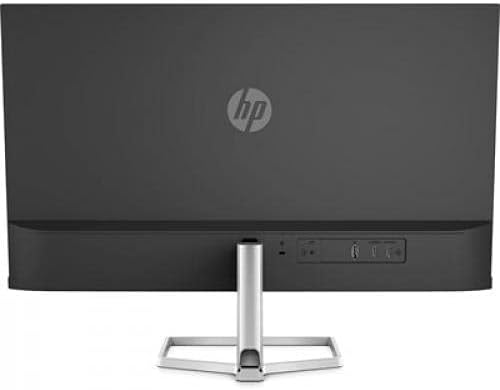
Rear view of the monitor, highlighting the input ports and cable management feature.
3. Operating the Monitor
3.1. Power On/Off
Locate the power button on the bottom edge of the monitor. Press it to turn the monitor on or off. The HP logo will appear upon startup.
3.2. Menu Navigation (OSD)
The On-Screen Display (OSD) menu allows you to adjust various monitor settings. The menu buttons are located on the bottom edge of the monitor. Use these buttons to navigate through options such as brightness, contrast, color settings, input selection, and more. The HP Display Center software also provides an intuitive interface for managing these settings directly from your computer.

The HP M27fq QHD Monitor showcasing its display and the location of the OSD buttons below the screen.
3.3. Key Features
- QHD Resolution & IPS Display: Experience sharp, detailed images with Quad HD (2560 x 1440) resolution and consistent colors from wide viewing angles thanks to IPS technology.
- AMD FreeSync Technology: Enjoy fluid, tear-free visuals during fast-paced content with a 75Hz refresh rate and AMD FreeSync integration.
- HP Eye Ease with Eyesafe Certified Technology: Reduce eye strain from blue light exposure without affecting color accuracy, ensuring comfortable viewing for extended periods.
- Tilt Adjustment: Adjust the screen's tilt to find your optimal viewing angle for maximum comfort, whether sitting or standing.
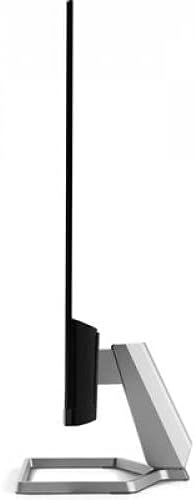
Side view illustrating the monitor's tilt functionality for ergonomic viewing.
- Cable Management: The innovative monitor neck stand includes a design for containing and managing cables, helping to keep your workspace organized and clutter-free.
- Borderless Design: The slim profile and 3-sided, borderless design allow for a seamless and aesthetically pleasing side-by-side dual monitor setup.
4. Maintenance
4.1. Cleaning the Monitor
To clean the monitor screen, gently wipe it with a soft, lint-free cloth. For stubborn marks, slightly dampen the cloth with water or a non-abrasive screen cleaner. Avoid using harsh chemicals or abrasive materials. For the monitor casing, use a soft, dry cloth.
4.2. Storage
When storing the monitor, ensure it is powered off and disconnected from all cables. Store it in a cool, dry place, preferably in its original packaging, to protect it from dust and physical damage.
5. Troubleshooting
If you encounter issues with your HP M27fq QHD Monitor, refer to the following common problems and their solutions:
- No Power:
Ensure the power cord is securely connected to both the monitor and a working power outlet. Check if the power adapter is functioning correctly. - No Signal:
Verify that the HDMI or DisplayPort cable is firmly connected to both the monitor and your computer. Ensure the correct input source is selected in the monitor's OSD menu. Try restarting your computer. - Image Quality Issues (Blurry, Distorted, Incorrect Colors):
Check the display resolution settings on your computer to ensure they match the monitor's native QHD (2560 x 1440) resolution. Adjust brightness, contrast, and color settings via the OSD menu or HP Display Center. - Monitor Not Tilting:
Ensure you are applying gentle, even pressure to adjust the tilt. Do not force the monitor beyond its designed range of motion.
For more complex issues, consult the comprehensive troubleshooting section in the full document kit or visit the HP support website.
6. Specifications
6.1. Technical Details
| Feature | Detail |
|---|---|
| Screen Size | 27 Inches |
| Max Screen Resolution | 2560 x 1440 Pixels (QHD) |
| Display Technology | IPS |
| Refresh Rate | 75Hz |
| Adaptive Sync Technology | AMD FreeSync |
| Color Gamut | 99% sRGB |
| Brightness | 300 nits |
| Aspect Ratio | 16:9 |
| Connectivity | 2 x HDMI, 1 x DisplayPort 1.2 |
| Eye Comfort Technology | HP Eye Ease with Eyesafe Certified |
| Dimensions (LxWxH) | 27.17 x 16.93 x 4.96 inches |
| Item Weight | 6.95 pounds |
| Color | Silver |
7. Warranty and Support
7.1. Warranty Information
The HP M27fq QHD Monitor is backed by a 1-year limited hardware warranty. Please retain your proof of purchase for warranty claims. For full details regarding warranty terms and conditions, refer to the warranty documentation included in your product's document kit.
7.2. Customer Support
For additional support, technical assistance, or service inquiries, please visit the official HP support website. You can find drivers, FAQs, and contact information for customer service there.