
1. Introduction
This manual provides detailed instructions for the setup, operation, maintenance, and troubleshooting of your Dell KM713 Wireless Chrome Keyboard. This keyboard is specifically designed for use with Chrome OS devices, featuring a unique key layout and functionality tailored to the Chrome operating system. Please read this manual thoroughly to ensure proper use and to maximize the lifespan of your device.
2. Product Overview
2.1 Key Features
- Wireless 2.4 GHz Connectivity: Provides a reliable and clutter-free connection to your Chrome OS device.
- Scissor-Chiclet Keys: Offers a comfortable, quiet, and responsive typing experience.
- Chrome OS Specific Function Keys: Includes dedicated keys for Chrome OS functions, such as the Launcher key for quick access to search and applications.
- Compact and Slim Design: Ideal for maintaining a tidy workspace.
- Absence of Caps Lock Key: Note that this keyboard does not feature a traditional Caps Lock key, aligning with Chrome OS design principles.
2.2 Package Contents
Ensure all the following items are present in your package:
- Dell KM713 Wireless Chrome Keyboard
- AAA Batteries (2)
- USB Receiver (Dongle)
- Fast Track Instructions
2.3 Product Images

Front view of the Dell KM713 Wireless Chrome Keyboard, showcasing its black keys and silver trim. This image highlights the full layout including the numeric keypad and Chrome OS specific function keys.

Side profile of the Dell KM713 Wireless Chrome Keyboard, highlighting its slim design and ergonomic tilt for comfortable typing.
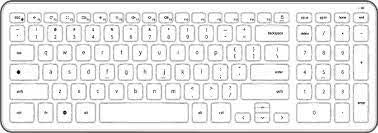
Top-down view of the Dell KM713 Wireless Chrome Keyboard key layout, showing the Chrome OS specific function keys and the absence of a traditional Caps Lock key. Note the lowercase letters on the keys.
3. Setup
3.1 Installing Batteries
- Locate the battery compartment on the underside of the keyboard.
- Open the battery compartment cover.
- Insert the two AAA batteries, ensuring correct polarity (+/-).
- Close the battery compartment cover securely.
3.2 Connecting the USB Receiver
- Locate the USB receiver (dongle) which is typically stored within the battery compartment or packaged separately.
- Plug the USB receiver into an available USB port on your Chrome OS device.
- The keyboard should automatically connect to your device within a few seconds. No additional drivers are typically required for Chrome OS.
4. Operating the Keyboard
4.1 Chrome OS Specific Keys
The Dell KM713 keyboard is optimized for Chrome OS, featuring a distinct layout compared to standard Windows or Mac keyboards:
- No Caps Lock Key: Instead of a Caps Lock key, there is a dedicated Search/Launcher key. To enable Caps Lock, press Alt + Search/Launcher.
- Function Row: The top row of keys includes Chrome OS specific functions such as Back, Forward, Refresh, Full Screen, Show Windows, Screen Brightness, Volume Control, and Power.
- Larger Alt and Ctrl Keys: Designed for ease of use with Chrome OS shortcuts.
- Lowercase Key Letters: All key labels are in lowercase letters.
4.2 Basic Typing and Navigation
Use the keyboard for standard text input and navigation. The integrated numeric keypad provides convenient data entry.
5. Maintenance
5.1 Cleaning the Keyboard
To maintain optimal performance and hygiene:
- Disconnect the keyboard from your device by removing the USB receiver.
- Use a soft, lint-free cloth lightly dampened with water or a mild, non-abrasive cleaning solution to wipe the surface of the keys and chassis.
- For debris between keys, use compressed air.
- Avoid spraying liquids directly onto the keyboard.
5.2 Battery Replacement
When the keyboard's performance degrades or it stops responding, it's likely time to replace the batteries. Follow the steps in Section 3.1 to replace the two AAA batteries.
5.3 Storage
When not in use for extended periods, store the keyboard in a cool, dry place. Consider removing the batteries if storing for several months to prevent leakage.
6. Troubleshooting
If you encounter issues with your Dell KM713 Wireless Chrome Keyboard, refer to the following common problems and solutions:
| Problem | Possible Cause | Solution |
|---|---|---|
| Keyboard not responding | Low or dead batteries; USB receiver not connected; Receiver interference. | Replace batteries; Ensure USB receiver is firmly plugged into a working USB port; Try a different USB port; Move keyboard closer to receiver. |
| Keys are sticky or unresponsive | Debris under keys; Liquid spill. | Clean the keyboard using compressed air or a soft cloth; If liquid spill, disconnect immediately and allow to dry completely before use. |
| No Caps Lock key | This is a design feature for Chrome OS keyboards. | To enable Caps Lock, press Alt + Search/Launcher. Press again to disable. |
| Keyboard disconnects frequently | Interference from other wireless devices; Distance from receiver. | Ensure no strong wireless signals are nearby; Reduce distance between keyboard and USB receiver. |
7. Specifications
| Feature | Detail |
|---|---|
| Model Number | KM713 |
| Connectivity Technology | RF, USB (2.4 GHz Wireless) |
| Key Switch Type | Scissor-Key |
| Color | Black |
| Compatible Devices | PC (Optimized for Chrome OS) |
| Batteries Required | 2 AAA batteries |
| Item Weight | 1.52 pounds (approx. 0.69 kg) |
| Package Dimensions | 16.65 x 5.47 x 1.14 inches (approx. 42.3 x 13.9 x 2.9 cm) |
| Manufacturer | Dell Computers |
8. Warranty and Support
Your Dell KM713 Wireless Chrome Keyboard is covered by Dell's standard warranty. For detailed warranty information, terms, and conditions, please refer to the warranty card included with your product or visit the official Dell support website.
For technical assistance, driver downloads, or further support, please visit the Dell Support website: www.dell.com/support. You may need your product's service tag or model number (KM713) for specific support resources.