
1. Introduction
Thank you for choosing the Outechsys 15-inch LCD Touch Screen Monitor, Model OT15TB. This monitor is designed to provide a responsive and clear visual experience with its full HD resolution and touch functionality. This manual provides essential information for setting up, operating, maintaining, and troubleshooting your new monitor.
Please read this manual thoroughly before using the product to ensure proper operation and to prevent damage.
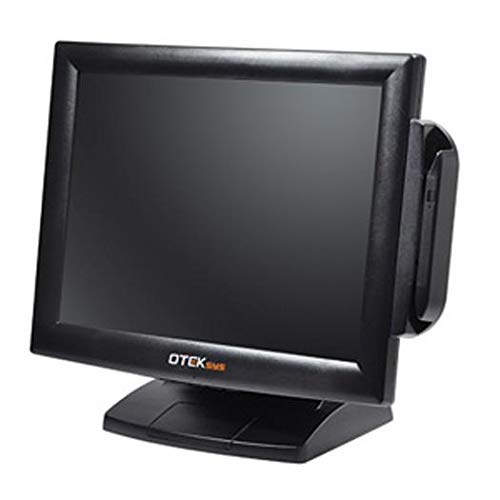
Image 1.1: Front view of the Outechsys 15-inch LCD Touch Screen Monitor.
2. Setup
Follow these steps to set up your Outechsys OT15TB monitor:
- Unpack the Monitor: Carefully remove the monitor and all accessories from the packaging. Ensure all components are present: monitor, power adapter, power cable, HDMI cable, USB touch cable (if included), and stand.
- Assemble the Stand: Attach the monitor stand to the back of the monitor. Refer to the diagram below for proper assembly. Ensure it is securely fastened.
- Connect Video Cable: Connect one end of the HDMI cable (or VGA cable) to the corresponding port on your computer and the other end to the HDMI (or VGA) input port on the monitor.
- Connect USB Touch Cable: For touch functionality, connect the USB cable from the monitor to an available USB port on your computer.
- Connect Power: Connect the power adapter to the monitor's power input port, then plug the power cable into a wall outlet.
- Power On: Press the power button on the monitor. Turn on your computer. The monitor should automatically detect the input signal.
Note: For wall mounting, ensure you use a VESA-compatible mount (not included) and follow the mount manufacturer's instructions. The monitor supports wall mounting.
3. Operating the Monitor
3.1 Basic Functions
- Power On/Off: Press the power button located on the monitor to turn it on or off.
- Input Selection: Use the monitor's OSD (On-Screen Display) menu buttons to select the desired input source (HDMI, VGA).
- Brightness/Contrast: Adjust these settings via the OSD menu for optimal viewing.
3.2 Touch Screen Operation
The Outechsys OT15TB features a responsive touch screen. Ensure the USB touch cable is connected to your computer for this functionality.
- Single Tap: Functions like a left-click of a mouse.
- Tap and Hold: Functions like a right-click of a mouse.
- Drag: Touch an item and slide your finger across the screen to move it.
- Pinch-to-Zoom: Use two fingers to zoom in or out on content (supported by compatible applications).
Note: Touch screen drivers may be required for some operating systems. If touch functionality is not working, check your computer's device manager and Outechsys support website for driver updates.
4. Maintenance
Proper maintenance ensures the longevity and performance of your monitor:
- Cleaning the Screen: Gently wipe the screen with a soft, lint-free cloth. For stubborn marks, lightly dampen the cloth with water or a non-abrasive, monitor-safe cleaning solution. Do not spray liquid directly onto the screen.
- Cleaning the Casing: Use a soft, dry cloth to wipe the monitor casing. Avoid harsh chemicals or abrasive materials.
- Ventilation: Ensure the monitor's ventilation openings are not blocked to prevent overheating.
- Power Off When Not in Use: Turn off the monitor when not in use for extended periods to save energy and prolong its lifespan.
- Avoid Extreme Conditions: Do not expose the monitor to extreme temperatures, humidity, or direct sunlight.
5. Troubleshooting
If you encounter issues with your monitor, refer to the following common problems and solutions:
| Problem | Possible Cause | Solution |
|---|---|---|
| No image on screen | No power; incorrect video input; loose video cable. | Check power connection; select correct input source via OSD; ensure video cable is securely connected. |
| Touch screen not responding | USB touch cable not connected; missing/outdated drivers. | Ensure USB touch cable is connected to both monitor and computer; install/update touch screen drivers. |
| Image is blurry or distorted | Incorrect resolution setting; faulty video cable. | Set display resolution to 1920x1080; try a different video cable. |
| Monitor flickers | Refresh rate mismatch; interference. | Adjust refresh rate in computer settings; ensure no strong electromagnetic interference sources nearby. |
If the problem persists after trying these solutions, please contact Outechsys customer support.
6. Specifications
| Feature | Detail |
|---|---|
| Brand | Outechsys |
| Model Number | OT15TB |
| Screen Size | 15 inches |
| Screen Type | LCD Touch Screen |
| Native Resolution | 1920 x 1080 (Full HD) |
| Maximum Display Resolution | 1920 x 1080 |
| Aspect Ratio | 16:9 |
| Refresh Rate | 144 Hz |
| Connectivity Technology | HDMI, VGA |
| Total HDMI Ports | 1 |
| Total Video Output Ports | 2 (Implies HDMI and VGA outputs, or perhaps a pass-through feature. Clarification needed if this is critical, but for a manual, listing inputs is more common.) |
| Special Features | Touch Screen |
| Mounting Type | Wall Mount |
| Color Screen | Yes |
7. Warranty and Support
Outechsys products are manufactured to high-quality standards. For information regarding warranty coverage, please refer to the warranty card included with your product or visit the official Outechsys website. Keep your purchase receipt as proof of purchase for warranty claims.
For technical support, driver downloads, or further assistance, please visit the Outechsys support page or contact their customer service directly. Contact details are typically available on the manufacturer's website or in the product packaging.
Online Support: www.outechsys.com/support (Example link, please replace with actual if available)