1. Product Overview
The Matias Programmable Ergo Pro Keyboard, model FK403Q-P, is an advanced ergonomic keyboard designed for comfort and efficiency. It features a split layout to promote a natural hand and wrist position, and programmable keys for customized functionality. This keyboard connects via USB and is compatible with Mac computers.

Figure 1: Top-down view of the Matias Programmable Ergo Pro Keyboard, showing both split halves connected by a cable. Each half includes a wrist rest.
2. Setup Instructions
- Unpack the Keyboard: Carefully remove the keyboard and its components from the packaging.
- Connect the Halves: The two halves of the keyboard are connected by a short cable. Ensure this cable is securely plugged into both halves.
- Connect to Computer: Locate the USB connector cable. Plug the USB connector into an available USB port on your Mac computer.
- Position the Keyboard: Place the two halves of the keyboard on your desk in a comfortable position that allows your wrists to remain straight. The split design is intended to reduce strain.
- Driver Installation: For most Mac systems, the keyboard will be recognized automatically. No additional drivers are typically required for basic functionality.
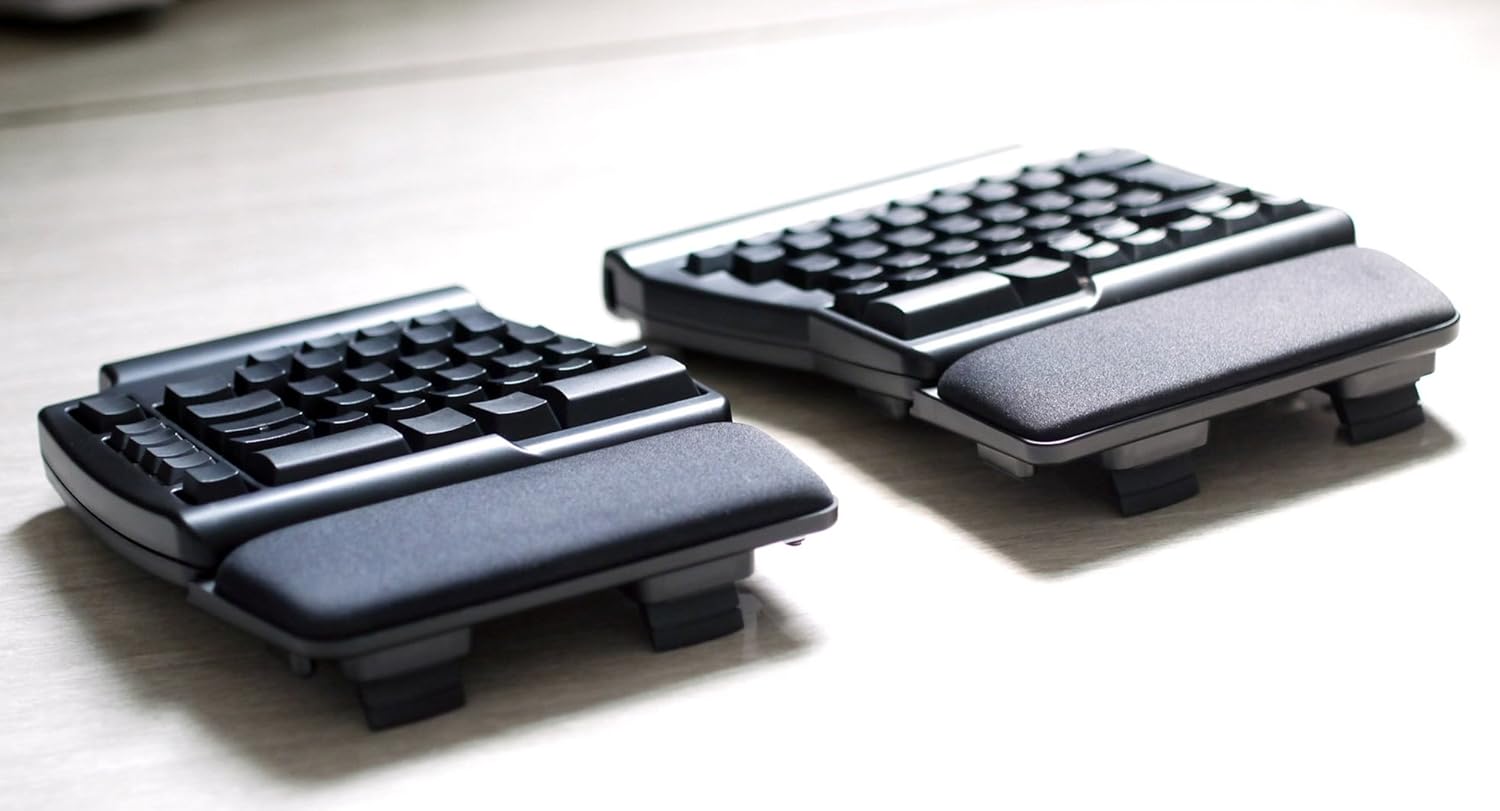
Figure 2: Angled view of the Matias Programmable Ergo Pro Keyboard, highlighting its ergonomic design and integrated wrist rests.
3. Operating the Keyboard
The Matias Ergo Pro Keyboard functions as a standard USB keyboard for Mac computers. Its primary features include:
- Ergonomic Split Design: The keyboard's split design allows for a more natural hand and wrist posture, reducing strain during extended use. Adjust the angle and distance between the halves to suit your comfort.
- Programmable Keys: This keyboard features programmable keys. Specific instructions for programming keys are typically provided via dedicated software or a utility available from the Matias website. Refer to the official Matias support resources for detailed programming guides.
- Standard Key Layout: The keyboard maintains a standard Mac key layout, ensuring familiarity and ease of use for Mac users.
4. Maintenance
Proper maintenance ensures the longevity and performance of your keyboard.
- Cleaning:
- Disconnect the keyboard from your computer before cleaning.
- Use a soft, lint-free cloth slightly dampened with water or a mild cleaning solution to wipe the surface of the keyboard.
- Avoid harsh chemicals, abrasive cleaners, or excessive moisture, as these can damage the plastic material and electronic components.
- For cleaning between keys, use compressed air to remove dust and debris.
- Storage: Store the keyboard in a clean, dry environment away from extreme temperatures and direct sunlight when not in use.
- Handling: Avoid dropping the keyboard or exposing it to strong impacts, which can damage internal components.
5. Troubleshooting
If you encounter issues with your Matias Programmable Ergo Pro Keyboard, try the following troubleshooting steps:
- Keyboard Not Responding:
- Ensure the USB cable is securely connected to both the keyboard and your computer.
- Try plugging the keyboard into a different USB port on your computer.
- If using a USB hub, try connecting the keyboard directly to the computer.
- Restart your computer.
- Specific Keys Not Working or Incorrect Input:
- Check for any physical obstructions or debris under the affected keys. Use compressed air to clear.
- Disconnect and reconnect the keyboard.
- If the issue persists, it might indicate a hardware problem.
- One Side of the Keyboard Not Working:
- Verify that the cable connecting the two keyboard halves is firmly seated at both ends.
- Disconnect and reconnect the entire keyboard from the computer.
- Programming Issues:
- Ensure you are using the correct programming software or utility provided by Matias.
- Refer to the programming guide on the Matias website for detailed instructions.
6. Specifications
| Model Number | FK403Q-P |
| Brand | Matias |
| Product Dimensions | 14.49 x 9.06 x 0.54 inches (overall) |
| Item Weight | 4.91 pounds |
| Connectivity Technology | USB |
| Compatible Devices | Mac computers |
| Special Feature | Programmable Keys |
| Color | Black |
| Material | Rigid Plastic or Engineered Resin |
| Recommended Uses | Office |
7. Warranty and Support
For warranty information, technical support, or further assistance with your Matias Programmable Ergo Pro Keyboard, please refer to the official Matias website or contact their customer support directly. Details regarding specific warranty periods and service procedures are typically available through the manufacturer's official channels.
Manufacturer: Matias