
1. Introduction
The iVOOMi 300M Wireless Router is a versatile 4-in-1 networking device designed to provide reliable and extended wireless coverage for your home or small office. This manual provides detailed instructions for setting up, operating, and managing your router's features, including advanced security and parental controls.
This router supports a data transfer rate of up to 600 Megabits Per Second and is equipped with two 5dBi high-gain antennas to enhance signal strength and coverage. It also incorporates MU-MIMO technology for efficient communication with multiple devices simultaneously and supports IPv6 for future-proof networking.
2. Product Features
- Enhanced Wireless Coverage: Two 5dBi high-gain antennas provide extended Wi-Fi range and improved signal reliability, suitable for small to medium-sized environments.
- MU-MIMO Technology: Improves the efficiency of data transmission to multiple devices simultaneously, reducing buffering and enhancing overall network performance.
- Guest Network Access: Create a separate, secure Wi-Fi network for guests, keeping your main network private and protected.
- Parental Control: Manage and restrict internet access for children or specific users by setting time limits or blocking specific websites (URL blocking).
- Advanced Security: Features robust security protocols to protect your network from unauthorized access and threats.
- IPv6 Support: Compatible with the latest Internet Protocol version, ensuring long-term network compatibility.
- Compact Design: The router features a compact design with a clean aesthetic, suitable for various home or office environments.
3. Package Contents
Please verify that your package contains the following items:
- iVOOMi 300M Wireless Router
- Power Adapter
- Ethernet Cable
- Quick Installation Guide (this manual)
4. Setup Guide
4.1 Hardware Connection
- Position the Router: Place the router in a central location to maximize Wi-Fi coverage. Avoid placing it near large metal objects or appliances that may cause interference.
- Connect the Internet Cable: Connect the Ethernet cable from your modem or internet service provider's (ISP) wall jack to the WAN port on the router.
- Connect Power: Plug the power adapter into the router's power port and then into a wall outlet.
- Power On: Press the power button (if available) on the router. Wait for the indicator lights to stabilize, typically indicating that the router is ready.
4.2 Initial Configuration
- Connect to the Router:
- Wired Connection: Connect an Ethernet cable from your computer to one of the LAN ports on the router.
- Wireless Connection: On your computer or mobile device, search for the default Wi-Fi network name (SSID) printed on the router's label. Connect to this network using the default password (if any).
- Access the Web Management Interface: Open a web browser (e.g., Chrome, Firefox) and enter the default IP address of the router (usually
192.168.0.1or192.168.1.1) into the address bar. Press Enter. - Log In: Enter the default username and password (typically
adminfor both, or as specified on the router's label). - Run Quick Setup: Follow the on-screen instructions of the Quick Setup Wizard to configure your internet connection type (e.g., PPPoE, Dynamic IP, Static IP) and set up your new Wi-Fi network name (SSID) and password.
- Change Default Credentials: For security, it is highly recommended to change the default login username and password for the router's management interface.

An overhead view of the iVOOMi 300M Wireless Router, a compact white device featuring two adjustable external antennas and indicator lights on its front panel.
5. Operating Instructions
5.1 Connecting Devices to Wi-Fi
To connect your devices (laptops, smartphones, tablets, smart TVs) to the router's Wi-Fi network:
- On your device, go to Wi-Fi settings.
- Select your Wi-Fi network name (SSID) from the list of available networks.
- Enter the Wi-Fi password you configured during setup.
- Your device should now be connected to the internet.

The iVOOMi 300M Wireless Router positioned in a modern living space, with a person comfortably using a laptop in the background, illustrating its integration into a home network.
5.2 Managing Wi-Fi Settings
You can modify your Wi-Fi network name (SSID), password, and security settings through the router's web management interface:
- Access the router's web management interface (refer to Section 4.2).
- Navigate to the 'Wireless' or 'Wi-Fi Settings' section.
- Here you can change your SSID, Wi-Fi password, and select encryption types (e.g., WPA2-PSK).
- Save your changes. Your devices will need to reconnect using the new credentials.
6. Advanced Functions
6.1 Guest Network
The Guest Network feature allows you to provide internet access to visitors without sharing your main network's password or resources. This enhances security and privacy.
- Log in to the router's web management interface.
- Locate the 'Guest Network' or 'Multi-SSID' settings.
- Enable the Guest Network, set a unique SSID and password for it.
- Configure access restrictions if desired (e.g., isolate guests from your local network).
- Save settings.
6.2 Parental Control
Parental Control allows you to manage and restrict internet access for specific devices or users on your network.
- Access the router's web management interface.
- Find the 'Parental Control' or 'Access Control' section.
- You can typically set up rules based on:
- Time-based Access: Schedule when specific devices can access the internet.
- URL Filtering: Block access to specific websites by creating a blacklist or allow access only to approved sites with a whitelist.
- Apply the rules to the desired devices.
- Save your configurations.

An adult and a child looking at a laptop screen together, symbolizing the parental control features of the router that allow for managing internet access and content for family members.
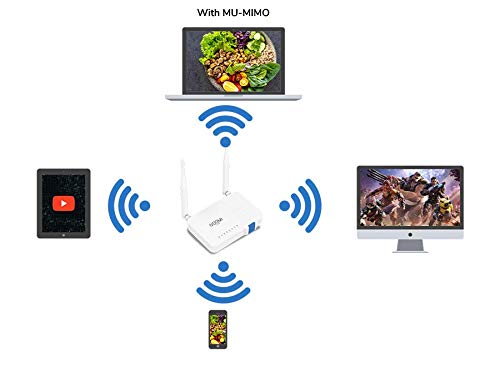
A diagram showing the iVOOMi router efficiently communicating with multiple devices (laptop, tablet, smartphone, desktop) simultaneously, demonstrating the benefits of MU-MIMO technology for improved network performance.
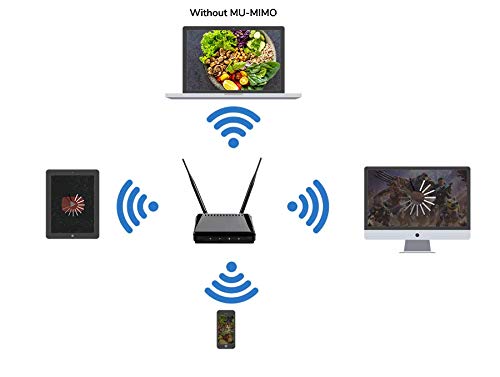
A comparative diagram showing a traditional router without MU-MIMO, where devices receive data sequentially, leading to potential delays when multiple devices are active.

Three individuals engaged with their respective devices – a laptop and two smartphones – in a shared space, highlighting the router's capability to support multiple users concurrently.
7. Specifications
| Brand | iVOOMi |
| Model Name | Ivoomi 300M |
| Data Transfer Rate | 600 Megabits Per Second |
| Number of Ports | 2 (LAN/WAN) |
| Connector Type | Wi-Fi |
| Special Feature | Remote Access |
| Frequency Band Class | Dual-Band |
| Compatible Devices | Laptop, Personal Computer, Smart Television, Smartphone, Tablet |
| Operating System | Windows (compatible) |
8. Troubleshooting
8.1 No Internet Access
- Check all cable connections: Ensure the Ethernet cable from your modem is securely plugged into the router's WAN port, and the router's power adapter is connected.
- Restart devices: Power off your modem, router, and computer/device. Wait 30 seconds, then power on the modem, wait for it to fully boot, then power on the router, and finally your computer/device.
- Verify ISP connection: Ensure your internet service provider (ISP) is not experiencing an outage.
- Check router settings: Log in to the router's web management interface and verify your internet connection settings (WAN settings) are correctly configured according to your ISP's requirements.
8.2 Weak Wi-Fi Signal or Dropouts
- Relocate the router: Move the router to a more central location in your home, away from obstructions like thick walls, metal objects, and other electronic devices (microwaves, cordless phones) that can cause interference.
- Adjust antennas: Ensure the router's external antennas are positioned vertically for optimal signal dispersion.
- Update firmware: Check the iVOOMi support website for any available firmware updates for your router model. Firmware updates can improve performance and stability.
- Reduce interference: Change the Wi-Fi channel in your router's wireless settings. Use a Wi-Fi analyzer app to find less congested channels.
8.3 Forgot Router Login Password
- Perform a factory reset: With the router powered on, press and hold the reset button (usually a small pinhole button) on the back of the router for about 10-15 seconds until the lights flash. This will restore the router to its factory default settings, including the default login credentials (often
admin/admin). Note that this will erase all your custom configurations, and you will need to set up the router again.
9. Maintenance
- Regular Reboots: Periodically restarting your router (once a month or as needed) can help clear its memory and improve performance.
- Keep Firmware Updated: Check the manufacturer's website for firmware updates. Keeping your router's firmware up-to-date ensures you have the latest security patches and performance improvements.
- Physical Cleaning: Keep the router free from dust. Use a soft, dry cloth to wipe the exterior. Ensure ventilation holes are not blocked.
- Secure Placement: Ensure the router is placed in a stable, well-ventilated area, away from direct sunlight, heat sources, and moisture.
10. Warranty and Support
For warranty information, technical support, or service inquiries, please refer to the warranty card included with your product or visit the official iVOOMi support website. You may also find additional resources and FAQs online.
Manufacturer: Ivoomi
Date First Available: 26 March 2021


