Introduction
Welcome to the user manual for your Tecgear Sentinel 1080P Full HD Webcam. This manual provides detailed instructions on setting up, operating, and maintaining your webcam, ensuring you get the best performance for all your video communication needs. The Sentinel webcam is designed for high-quality video streaming and recording, featuring autofocus, a built-in microphone, and a privacy cover for enhanced security.
What's in the Box
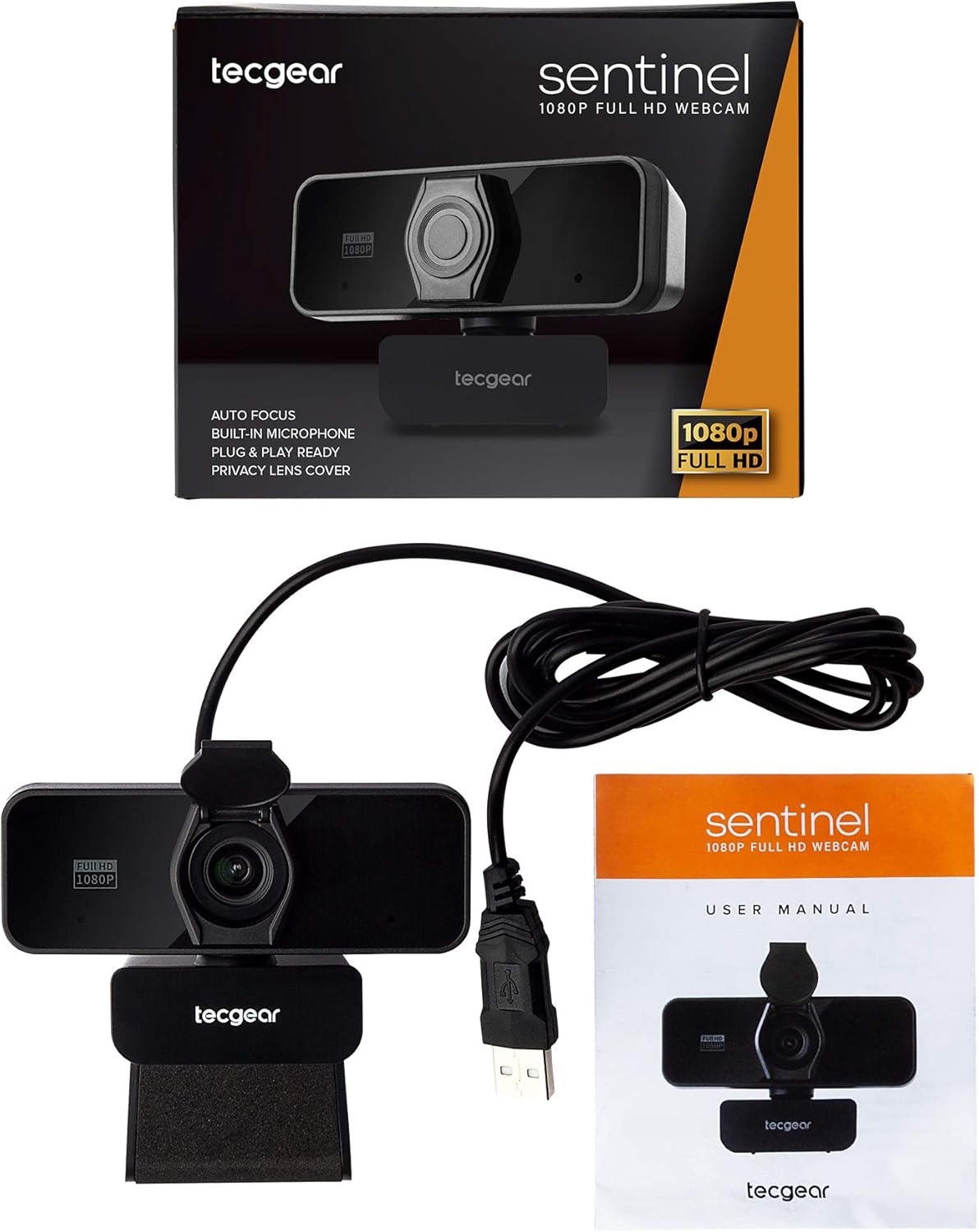
The Tecgear Sentinel Webcam package includes the following components:
- Tecgear Sentinel 1080P Full HD Webcam with integrated USB cable
- Privacy Cover (pre-installed or separate)
- User Manual (this document)
The image above shows the Tecgear Sentinel webcam, its integrated USB cable, the privacy cover, and the user manual, all as they appear when unboxed.
Setup Guide
1. Connecting the Webcam (Plug and Play)

The Tecgear Sentinel webcam is designed for simple plug-and-play operation. No additional drivers or software are required for most operating systems.
- Locate an available USB port on your computer (desktop, laptop, or MacBook).
- Insert the USB connector of the webcam firmly into the USB port.
- Your operating system will automatically detect and install the necessary drivers. This process may take a few moments.
- Once installed, the webcam will be ready for use with your preferred video conferencing or streaming application.
The image above illustrates the USB plug of the webcam, highlighting its simple plug-and-play connectivity.
2. Mounting the Webcam

The webcam features a versatile clip-on mounting mechanism suitable for various displays.
- On a Monitor/Laptop Screen: Open the clip base and place it securely on top of your monitor or laptop screen. Adjust the angle so the front part of the clip rests on the screen and the back part supports the webcam from behind.
- On a Flat Surface: Fold the clip base to form a stable stand and place the webcam on a flat surface such as a desk or shelf.
- Tripod Mounting: The webcam includes a standard screw thread on its base, allowing it to be mounted on a tripod (not included) for more flexible positioning.
The image above demonstrates the webcam securely clipped onto the top of a laptop screen, showcasing its universal clip design.


These images illustrate the adjustable angles of the webcam's stand and the standard screw mount on its base for tripod compatibility.
Operating Instructions
Using with Applications
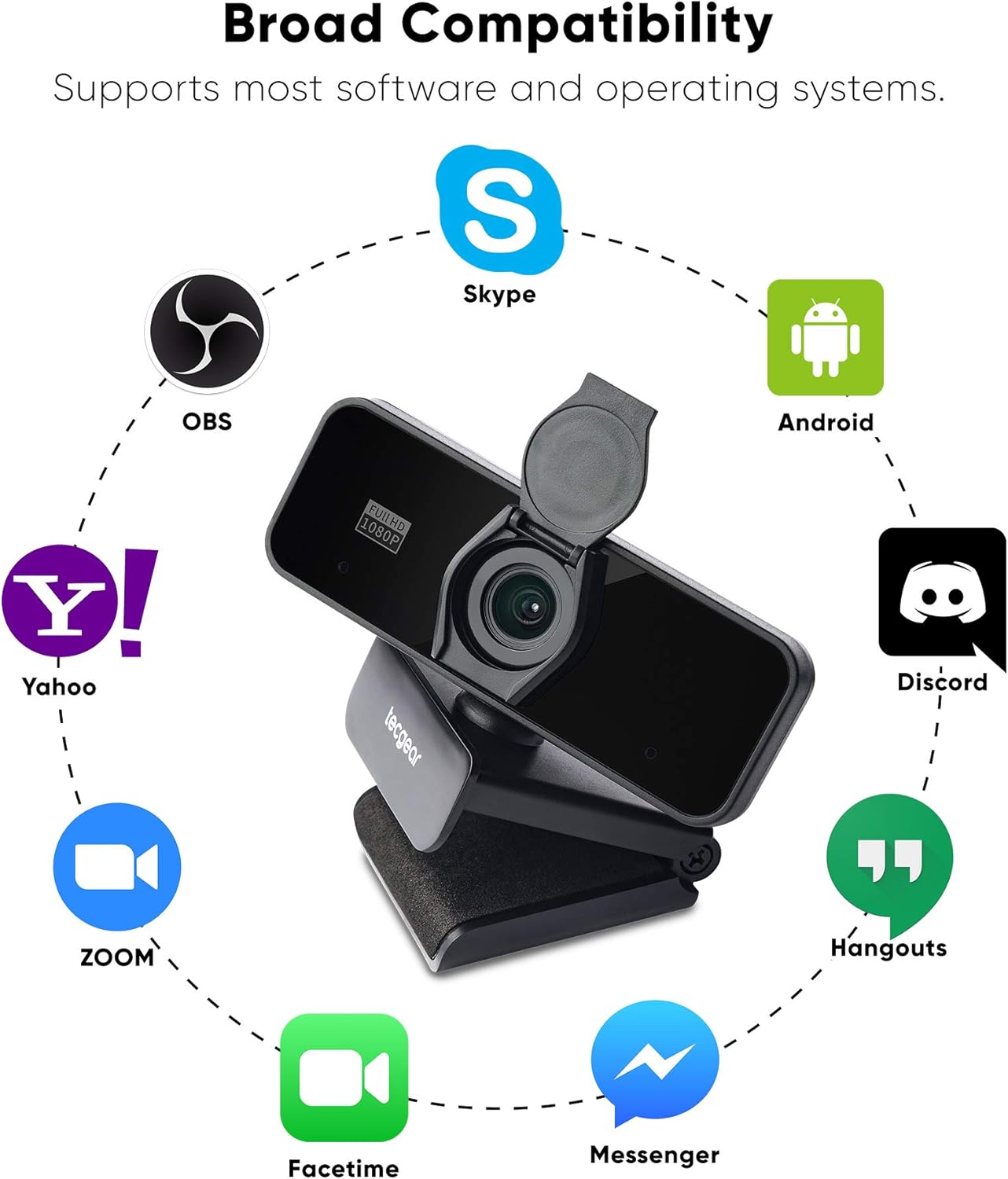
The Tecgear Sentinel webcam is broadly compatible with popular video conferencing, streaming, and communication platforms. After connecting the webcam, open your desired application and select the "Tecgear Sentinel Webcam" as your video and audio input device in the application's settings.
- Video Conferencing: Zoom, Skype, Google Meet, Microsoft Teams, FaceTime, Hangouts.
- Streaming: Open Broadcaster Software (OBS), Discord.
- Other: Yahoo! Messenger, and other applications that support USB webcams.
The image above illustrates the broad compatibility of the Tecgear Sentinel webcam with various operating systems and applications, including Skype, OBS, Yahoo, Zoom, Facetime, Messenger, Android, Discord, and Hangouts.
Adjusting Webcam Position

The webcam features a 360-degree rotatable design, allowing you to adjust the camera angle horizontally without moving the base. The mounting clip also allows for vertical tilt adjustments.
- Gently rotate the webcam head to achieve the desired horizontal viewing angle.
- Tilt the webcam up or down on its clip to adjust the vertical viewing angle.
The image above demonstrates the 360-degree rotation capability of the webcam, allowing for flexible positioning during video calls.
Privacy Cover Usage

The built-in privacy cover provides an extra layer of security and peace of mind. When the webcam is not in use, simply slide or flip the cover over the lens to prevent unauthorized viewing.
- To use the webcam, open the privacy cover by flipping it up or sliding it away from the lens.
- When finished, close the privacy cover to block the camera view.
The image above shows the webcam with its privacy cover in the open position, ready for use.
Key Features

1080P Full HD Video Quality
The Sentinel webcam delivers crisp and clear video at up to 1080p resolution at 30 frames per second (fps). Its wide focal length glass lens ensures high-definition visuals for all your video communication and content creation needs.
The image above visually compares the superior clarity of 1080P Full HD video produced by the webcam against 720P quality.

Auto Focus
Equipped with an intelligent autofocus system, the webcam automatically adjusts the focus to keep you sharp and clear, even if you move within the frame. This ensures professional-looking video without manual adjustments.
The image above shows a user engaged in a video call, demonstrating how the built-in HD autofocus keeps the subject sharp and clear automatically.

Built-in Noise Cancelling Microphone
The integrated stereo microphone features noise-reduction technology, effectively minimizing background and circuit noise. This ensures your voice is captured clearly and naturally, making it ideal for webinars, video conferencing, and live streaming.
The image above highlights the webcam's built-in noise-cancelling microphone, illustrating its ability to reduce unwanted sounds for clear audio.
Low Light Correction
The webcam includes automatic low light correction, optimizing video quality in dimly lit environments. This feature helps maintain brightness and clarity, ensuring you look your best regardless of lighting conditions.
Troubleshooting
If you encounter issues with your Tecgear Sentinel webcam, please refer to the following common solutions:
- Webcam Not Detected:
- Ensure the USB cable is securely plugged into a working USB port on your computer.
- Try plugging the webcam into a different USB port.
- Restart your computer.
- Check your operating system's device manager (Windows) or System Information (Mac) to see if the webcam is listed.
- No Video/Black Screen:
- Make sure the privacy cover is fully open.
- Verify that the correct webcam is selected in your video conferencing or streaming application's settings.
- Ensure no other application is currently using the webcam.
- Poor Image Quality (Grainy, Dark, Blurry):
- Ensure adequate lighting in your environment. While the webcam has low light correction, sufficient ambient light improves quality.
- Clean the webcam lens gently with a soft, lint-free cloth.
- Confirm that autofocus is functioning. If the image remains blurry, try moving closer or further away from the camera briefly to trigger autofocus.
- No Audio/Poor Audio Quality:
- Check that the Tecgear Sentinel microphone is selected as the audio input device in your application and operating system sound settings.
- Ensure the microphone is not muted in your application or system settings.
- Reduce background noise in your environment.
If these steps do not resolve your issue, please contact Tecgear customer support for further assistance.
Specifications

| Feature | Detail |
|---|---|
| Resolution | Full HD 1080P, Up to 30FPS |
| Focus Type | Auto Focus |
| Sensor | CMOS |
| Interface | USB 2.0 |
| Cable Length | 1.4m |
| Microphone | Built-in Mic (Noise Cancelling) |
| Field of View | 69° Wide-angle |
| Compatibility | Windows 2000, XP/7/8/9/10/Vista, MAC, Android |
| Item Weight | 5.9 ounces |
| Package Dimensions | 4.61 x 3.62 x 3.5 inches |
| Model Number | TGWC-STN |
The image above provides a visual summary of the Tecgear Sentinel webcam's key specifications.

This image provides a detailed view of the webcam's dimensions, showing its width, height, and depth for accurate placement and compatibility assessment.
Warranty and Support
For warranty information and customer support, please refer to the official Tecgear website or the contact information provided with your purchase. Typically, warranty details and support resources, including FAQs and driver downloads, can be found on the manufacturer's product support pages.
For the most up-to-date information, please visit the Tecgear Store on Amazon.