
DELTACO GAMING DM210
DELTACO GAMING DM210 Ultralight RGB Gaming Mouse User Manual
Model: DM210 (GAM-108)
1. Introduction
Thank you for choosing the DELTACO GAMING DM210 Ultralight RGB Gaming Mouse. This manual provides essential information for setting up, operating, and maintaining your new gaming mouse. The DM210 is designed for performance, featuring an ultralight construction, customizable RGB lighting, and programmable buttons to enhance your gaming experience.
2. Package Contents
- 1x DELTACO GAMING DM210 Ultralight RGB Gaming Mouse
- 1x User Manual
3. Product Overview
The DELTACO GAMING DM210 mouse features an ergonomic design with a honeycomb shell for reduced weight and improved airflow. It includes 7 buttons for versatile control and customizable RGB lighting.
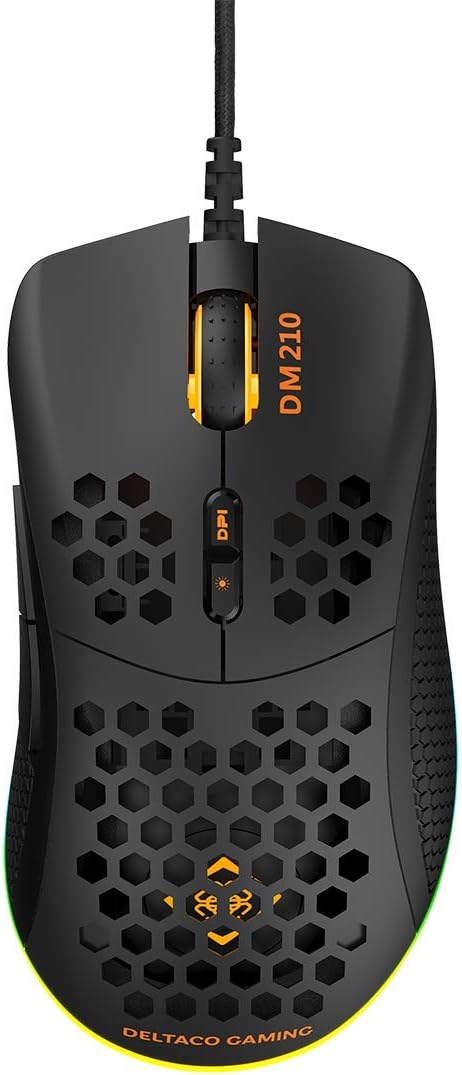
Image 3.1: Top view of the DM210 mouse. This image displays the left and right click buttons, the scroll wheel, and the two DPI adjustment buttons located below the scroll wheel. The ultralight honeycomb shell design is visible across the top surface of the mouse.
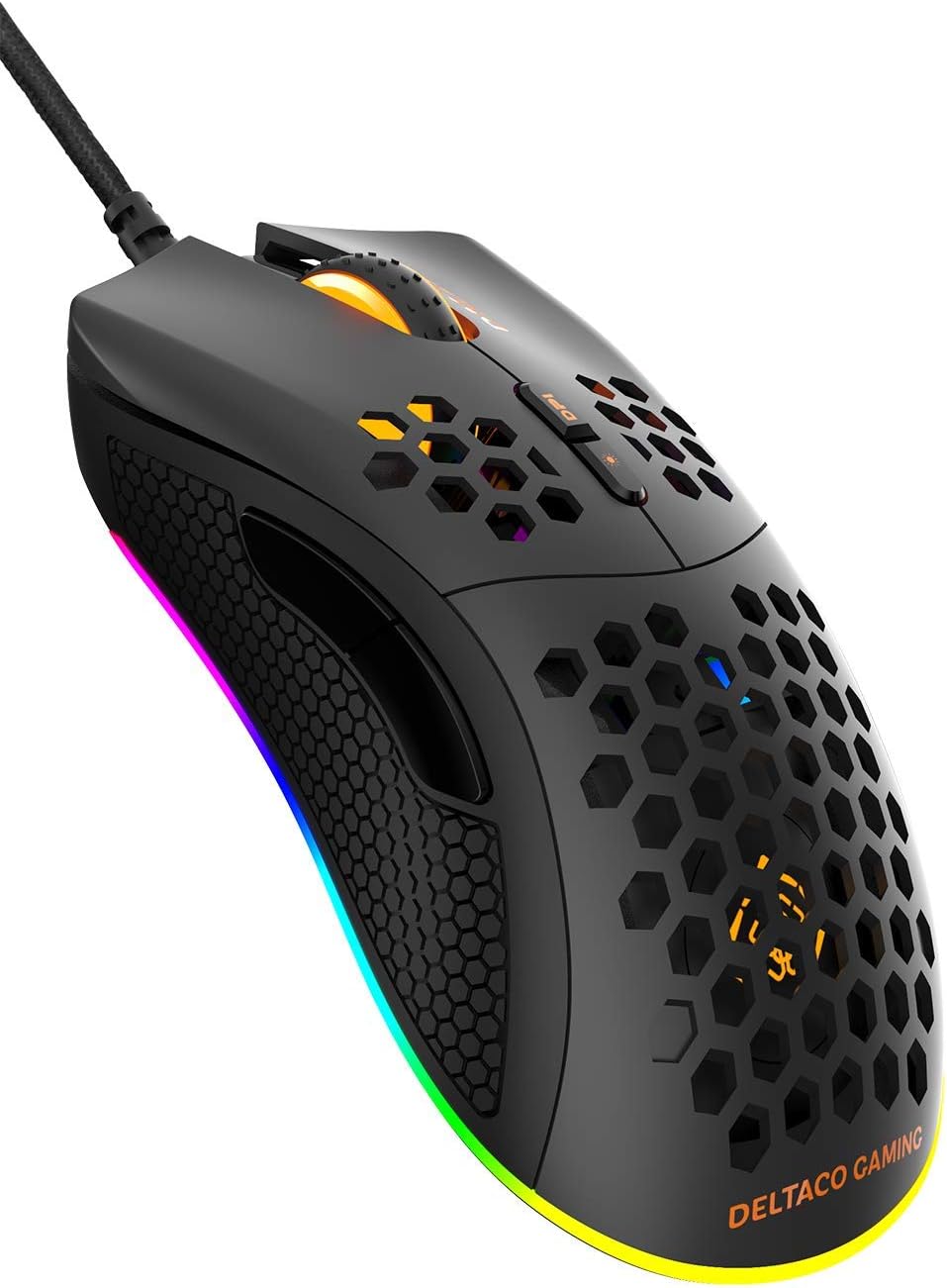
Image 3.2: Angled view of the DM210 mouse from the front-right. This image highlights the two side buttons (forward and back) located on the left side of the mouse, designed for easy thumb access. The RGB lighting strip along the base of the mouse is also visible.
Button Functions:
- Left Click Button: Standard primary click function.
- Right Click Button: Standard secondary click function.
- Scroll Wheel: For scrolling through documents and web pages. Also functions as a middle click button.
- DPI+ Button: Increases the DPI sensitivity.
- DPI- Button: Decreases the DPI sensitivity. (Note: The product description mentions a single DPI button and a separate LED button. For this model, the two buttons below the scroll wheel are typically for DPI adjustment.)
- Forward Button: Navigates forward in web browsers or applications.
- Back Button: Navigates backward in web browsers or applications.
4. Setup
- Connect the Mouse: Plug the USB connector of the DELTACO GAMING DM210 mouse into an available USB port on your computer.
- Driver Installation: Your operating system (Windows 7/8/10) will automatically detect and install the necessary drivers. This process may take a few moments.
- Software Installation (Optional): For advanced customization, including programmable buttons and RGB lighting effects, download the DELTACO GAMING software. Refer to the product packaging or the official DELTACO GAMING website for the software download link.
5. Operating Instructions
5.1. DPI Adjustment
The DM210 mouse features multiple DPI (Dots Per Inch) settings, allowing you to adjust cursor sensitivity on the fly. Use the DPI buttons (located below the scroll wheel) to cycle through the available DPI levels:
- 400 DPI
- 800 DPI
- 1200 DPI
- 1600 DPI
- 3200 DPI
- 6400 DPI
Each DPI level may be indicated by a specific LED color or pattern, depending on the current RGB settings.
5.2. RGB Lighting Control
The mouse features dynamic RGB lighting. While some basic lighting modes might be accessible via a dedicated button (if present, often combined with DPI control), full customization of the RGB loop and logo lighting is achieved through the DELTACO GAMING software. The software allows you to select from 16 million colors and various lighting effects.
5.3. Programmable Buttons and Software
The 7 buttons on the DM210 mouse are programmable using the DELTACO GAMING software. This software allows you to:
- Remap button functions to suit your preferences.
- Create macros for complex in-game actions.
- Adjust polling rate (up to 1000 Hz).
- Customize RGB lighting effects and colors.
Install the software from the official DELTACO GAMING website for access to these advanced features.
6. Maintenance
To ensure the longevity and optimal performance of your DELTACO GAMING DM210 mouse, follow these maintenance guidelines:
- Cleaning: Use a soft, slightly damp cloth to clean the surface of the mouse. Avoid using harsh chemicals, abrasive cleaners, or solvents, as these can damage the finish and internal components.
- Cable Care: Avoid sharp bends or excessive pulling on the USB cable. Store the cable neatly when not in use to prevent tangling and damage.
- Environment: Keep the mouse away from extreme temperatures, direct sunlight, and excessive moisture.
7. Troubleshooting
If you encounter issues with your DELTACO GAMING DM210 mouse, refer to the following common solutions:
- Mouse Not Responding:
- Ensure the USB cable is securely plugged into a working USB port on your computer.
- Try plugging the mouse into a different USB port.
- Restart your computer.
- Test the mouse on another computer to determine if the issue is with the mouse or your system.
- DPI Not Changing:
- Ensure you are pressing the correct DPI adjustment buttons.
- If using the software, check if DPI settings have been reconfigured or if a specific profile is active.
- RGB Lighting Not Working/Incorrect:
- Verify the mouse is properly connected.
- Check the DELTACO GAMING software for lighting settings and ensure they are configured as desired.
- Ensure the software is up to date.
- Buttons Not Functioning Correctly:
- If using the DELTACO GAMING software, check button assignments to ensure they haven't been accidentally remapped.
- Test the mouse on another computer to rule out software conflicts on your primary system.
8. Specifications
| Brand | DELTACO GAMING |
| Model | DM210 (GAM-108) |
| Connectivity | USB |
| DPI Settings | 400 / 800 / 1200 / 1600 / 3200 / 6400 |
| Polling Rate | 1000 Hz |
| Buttons | 7 (Programmable) |
| Weight | 70g |
| Lighting | RGB (16 million colors) |
| Compatibility | Windows 7 / 8 / 10 |
| Color | Black |
9. Warranty Information
The DELTACO GAMING DM210 Ultralight RGB Gaming Mouse comes with a 5-year warranty from the date of purchase. This warranty covers manufacturing defects and ensures the product meets its specified performance. Please retain your proof of purchase for warranty claims. For detailed warranty terms and conditions, refer to the official DELTACO GAMING website or contact customer support.
10. Support
For further assistance, software downloads, frequently asked questions (FAQs), and the latest product information, please visit the official DELTACO GAMING website. You can also contact DELTACO GAMING customer support for technical issues or warranty inquiries.
Related documentsDM210


Ask a question about this manual
Ask about setup, troubleshooting, compatibility, parts, safety, or missing instructions. Manuals+ will review the question and use this page’s manual context to help answer it.