
Introduction
This manual provides essential information for the installation, operation, and maintenance of your Sapphire Technology Radeon NITRO+ RX 5700 XT 8GB GDDR6 Graphics Card. Please read these instructions carefully before proceeding with installation or use to ensure optimal performance and longevity of your product.
This product is a professionally inspected and tested Amazon Renewed item. For details regarding its renewed status and guarantee, please refer to the 'Warranty and Support' section.
Package Contents
Verify that all components are present in your package:
- Sapphire Technology Radeon NITRO+ RX 5700 XT Graphics Card
- Documentation (this manual, quick start guide)
- Any included accessories (e.g., power adapters, if applicable)
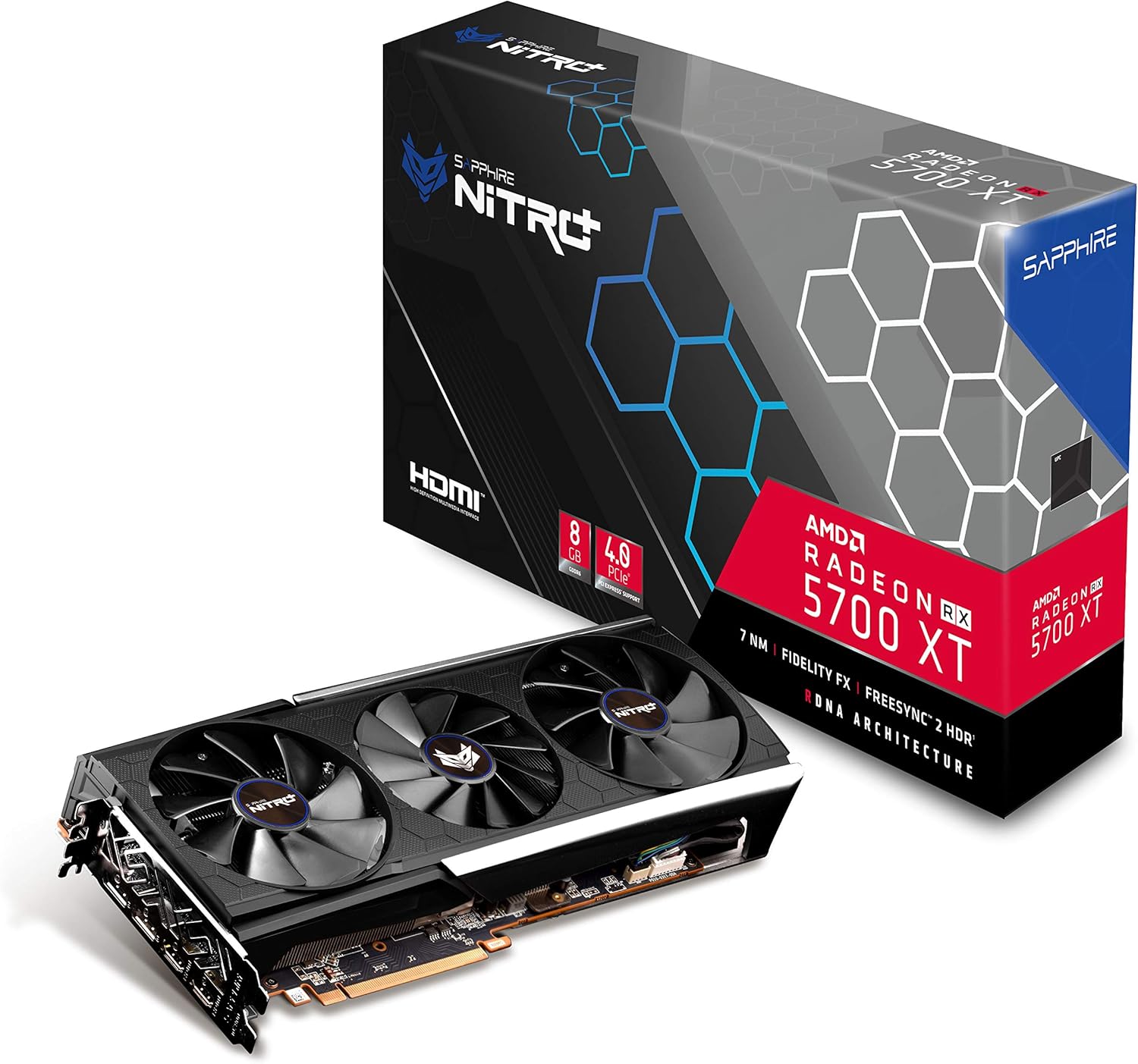
Image: The Sapphire Technology Radeon NITRO+ RX 5700 XT Graphics Card shown alongside its retail packaging.
Setup
1. Physical Installation
- Power Off and Disconnect: Before installation, ensure your computer is completely powered off and unplugged from the wall outlet.
- Open PC Case: Remove the side panel of your computer case to access the motherboard.
- Locate PCIe Slot: Identify an available PCI Express x16 slot on your motherboard. This is typically the longest slot.
- Remove Slot Covers: Remove the necessary expansion slot covers from the back of your PC case that correspond to the graphics card's size.
- Insert Graphics Card: Carefully align the graphics card with the PCIe slot and press down firmly until it is securely seated. You should hear a click from the retention clip.
- Secure Card: Fasten the graphics card to the PC case using the screws from the removed slot covers.
- Connect Power: Connect the appropriate PCIe power cables from your power supply unit (PSU) to the graphics card's power connectors. The Sapphire RX 5700 XT typically requires two 8-pin PCIe power connectors. Ensure all connections are firm.

Image: Front view of the Sapphire Technology Radeon NITRO+ RX 5700 XT Graphics Card, highlighting its triple-fan cooling system.

Image: Rear view of the Sapphire Technology Radeon NITRO+ RX 5700 XT Graphics Card, showing the protective backplate.
2. Driver Installation
- Reconnect and Power On: Close your PC case, reconnect all peripherals, and power on your computer.
- Initial Display: Your computer may boot with a basic display driver.
- Download Drivers: Visit the official AMD website (www.amd.com/support) or Sapphire Technology's support page. Navigate to the drivers section and download the latest drivers for the Radeon RX 5700 XT.
- Install Drivers: Run the downloaded driver installer and follow the on-screen instructions. A system restart may be required after installation.
Operating
Once installed and drivers are updated, your Sapphire Technology Radeon NITRO+ RX 5700 XT is ready for use. Connect your display(s) to the available DisplayPort or HDMI outputs on the card.

Image: The rear I/O panel of the graphics card, showing multiple DisplayPort and HDMI outputs.
This graphics card is designed to deliver high-performance visuals for gaming and demanding applications. It supports resolutions up to 4K and offers features like AMD FreeSync™ for tear-free gaming experiences.
For optimal performance in games and applications, ensure your operating system and game titles are up-to-date. Adjust in-game graphics settings to balance visual quality and frame rate according to your preference.
Maintenance
- Dust Removal: Periodically inspect the graphics card's fans and heatsink for dust accumulation. Use compressed air to gently clean dust from the fins and fan blades. Ensure the fans are not spinning during cleaning.
- Driver Updates: Regularly check the AMD or Sapphire Technology website for the latest graphics drivers. Keeping your drivers updated can improve performance, stability, and compatibility with new software and games.
- Temperature Monitoring: Utilize graphics card monitoring software to keep an eye on operating temperatures, especially during heavy loads. Ensure adequate airflow within your PC case.
Troubleshooting
- No Display Output:
- Ensure the monitor cable is securely connected to both the graphics card and the monitor.
- Verify that the graphics card is fully seated in the PCIe slot and all power connectors are attached.
- Try a different display output port on the card or a different cable/monitor if available.
- Graphics Artifacts or Instability:
- Ensure graphics drivers are up-to-date. Consider performing a clean installation of drivers.
- Check for overheating. Monitor GPU temperatures during use.
- Verify power supply unit (PSU) meets the recommended wattage for the graphics card.
- Poor Performance in Games:
- Ensure graphics drivers are updated.
- Check in-game settings; reduce demanding options like anti-aliasing or shadow quality if necessary.
- Confirm your system meets the minimum requirements for the game.
Specifications
| Feature | Detail |
|---|---|
| Graphics Coprocessor | AMD Radeon RX 5700 XT |
| Brand | Sapphire |
| Graphics RAM Size | 8 GB GDDR6 |
| Video Output Interface | DisplayPort, HDMI |
| Graphics Processor Manufacturer | AMD |
| Product Dimensions | 17 x 9.5 x 3.5 inches |
| Item Weight | 3.36 pounds |
| PCIe Version | 4.0 |
| UEFI Support | Yes |
Official Product Video
Video: A 43-second video showcasing the RX 5700 XT Graphics Card, rotating to display its various angles and ports. This video is provided by ARDIYES Direct.
Warranty and Support
As an Amazon Renewed product, this item is backed by the Amazon Renewed Guarantee. If you are not satisfied with your purchase, renewed products are eligible for replacement or refund within 90 days of receipt.
For additional support or to inquire about extended protection plans, please refer to the Amazon product page or contact Amazon customer service.
- 3-Year Protection Plan: Available for purchase.
- 4-Year Protection Plan: Available for purchase.
- Complete Protect: Monthly plan covering eligible past and future purchases.