Introduction
The ASUS TUF Gaming F17 FX706 is a high-performance gaming laptop designed for immersive gaming experiences and efficient multitasking. It features a durable MIL-STD-810H military standard construction, ensuring reliability in various conditions. This manual provides essential information for setting up, operating, maintaining, and troubleshooting your device.
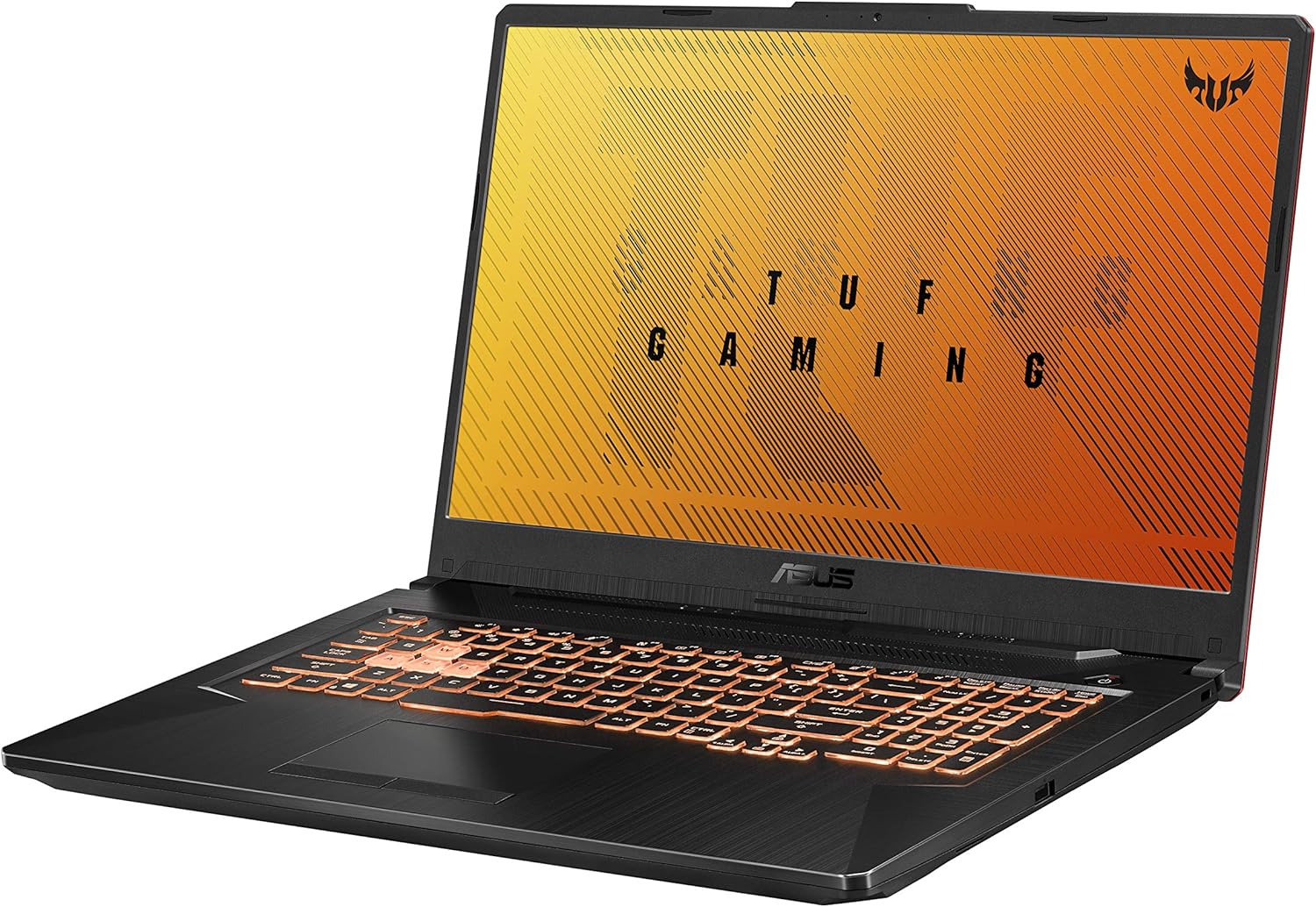
Figure 1: Angled view of the ASUS TUF Gaming F17 laptop, showcasing its design and keyboard.
Setup
1. Unboxing and Initial Power-On
Carefully remove the laptop and its accessories from the packaging. Connect the power adapter to the laptop's power input port and then to a power outlet. The laptop is designed to power on automatically when connected to power for the first time. Follow the on-screen instructions to complete the initial Windows setup.
2. Connecting Peripherals
Your ASUS TUF Gaming F17 laptop offers various ports for connecting external devices:
- USB Ports: Connect external storage, mouse, keyboard, or other USB devices.
- HDMI Port: Connect to an external monitor or TV for a larger display.
- RJ45 (LAN) Port: For wired network connection.
- 3.5mm Audio Jack: For headphones or external speakers.
- USB-C Port: For versatile connectivity, including data transfer and display output (DisplayPort 1.4).

Figure 2: Left side of the laptop with power, RJ45, HDMI, USB 3.2 Gen 1 Type-A, USB 3.2 Gen 2 Type-C, and 3.5mm audio jack.

Figure 3: Right side of the laptop with a USB 2.0 Gen 1 port and Kensington Lock slot.
Operating Your Laptop
The ASUS TUF Gaming F17 is equipped with powerful components for an optimal gaming and computing experience.
Display and Graphics
Experience smooth visuals on the 17.3-inch Full HD (1920x1080) IPS-Type display with a 144Hz refresh rate. The NVIDIA GeForce GTX 1650 Ti 4GB GDDR6 graphics card ensures high frame rates and detailed graphics for your games and applications.

Figure 4: Front view of the laptop with the display active, showing the narrow bezels.
Keyboard and Input
The laptop features an RGB backlit gaming keyboard, rated for 20-million keystroke durability, providing a responsive and customizable typing experience. The integrated touchpad supports multi-touch gestures for intuitive navigation.

Figure 5: Top-down view of the laptop's keyboard, highlighting the RGB backlighting and full numpad.
Audio System
Immerse yourself in rich, clear audio with DTS:X Ultra technology, delivering high-fidelity 7.1-channel virtual surround sound for headphones and stereo sound for speakers.

Figure 6: Visual representation of the DTS:X Ultra audio technology, showing sound projection from the laptop.
MyASUS Application
The MyASUS application provides a centralized hub for system updates, diagnostics, and customization options. It allows you to manage battery health, fan profiles, display settings, and more. You can also use it for easy file transfer between your PC and mobile devices.
Video 1: Official MyASUS Product Video. This video demonstrates the features and benefits of the MyASUS application, including system updates, diagnostics, and file transfer capabilities between devices.
Maintenance
Cooling System
The ASUS TUF Gaming F17 features a patented Anti-Dust Cooling (ADC) system with dual fans to maintain optimal performance and extend the lifespan of components. The self-cleaning design prevents dust buildup, ensuring efficient heat dissipation.

Figure 7: Illustration of the laptop's self-cleaning dual fan cooling system, highlighting airflow and heat management.
Upgradability
The laptop is designed for easy upgrades. You can expand the RAM and add additional SSD storage to enhance performance and capacity as needed. Refer to the official ASUS support resources for detailed instructions on component upgrades.

Figure 8: Internal diagram indicating the locations for upgradeable RAM modules and additional M.2 NVMe SSD and HDD slots.
General Care
- Keep the laptop clean by regularly wiping the screen and chassis with a soft, lint-free cloth.
- Ensure proper ventilation by not blocking the air vents.
- Avoid exposing the laptop to extreme temperatures or humidity.
Troubleshooting
If you encounter issues with your ASUS TUF Gaming F17 laptop, consider the following basic troubleshooting steps:
- No Power: Ensure the power adapter is securely connected to both the laptop and a working power outlet. Try a different outlet if necessary.
- Display Issues: If the screen is black, try pressing the function key to toggle the display output (e.g., Fn + F8). Ensure external monitors are properly connected.
- Performance Slowdown: Close unnecessary applications, check for background processes, and ensure the cooling vents are clear. Fans may increase speed during intensive tasks to maintain optimal temperature.
- Software Problems: Restart the laptop. If issues persist, check for Windows updates or use the MyASUS application for system diagnostics.
- Audio Issues: Check volume levels, ensure headphones/speakers are properly connected, and verify audio drivers are up to date.
For more detailed troubleshooting or complex issues, refer to the official ASUS support website or contact customer service.
Specifications
| Feature | Specification |
|---|---|
| Model | FX706LI-ES53 |
| Display | 17.3-inch FHD (1920x1080) IPS-Type, 144Hz |
| Processor | Intel Core i5-10300H (Quad-core, up to 4.5 GHz) |
| Graphics | NVIDIA GeForce GTX 1650 Ti 4GB GDDR6 |
| RAM | 8GB DDR4 2933MHz |
| Storage | 512GB PCIe NVMe M.2 SSD |
| Operating System | Windows 10 Home (Free upgrade to Windows 11 when available) |
| Wireless Connectivity | Wi-Fi 6 (802.11ax) |
| Ports | 3x USB 3.0, 1x USB 2.0, 1x HDMI, 1x RJ45, 1x 3.5mm Audio Jack |
| Weight | 5.73 pounds |
| Dimensions (LxWxH) | 15.71 x 10.59 x 1.02 inches |
Warranty and Support
For detailed warranty information, please refer to the documentation included with your product or visit the official ASUS support website. ASUS provides various support resources to assist you with your device.
Official User Manual (PDF)
A comprehensive user manual in PDF format is available for download. This document contains detailed instructions and information about your laptop's features and functions.
ASUS Customer Support
If you require further assistance, technical support, or service, please contact ASUS customer support through their official channels. The MyASUS application also offers a "Contact ASUS" and "One-click diagnosis" feature for convenient support.


