
1. Introduction
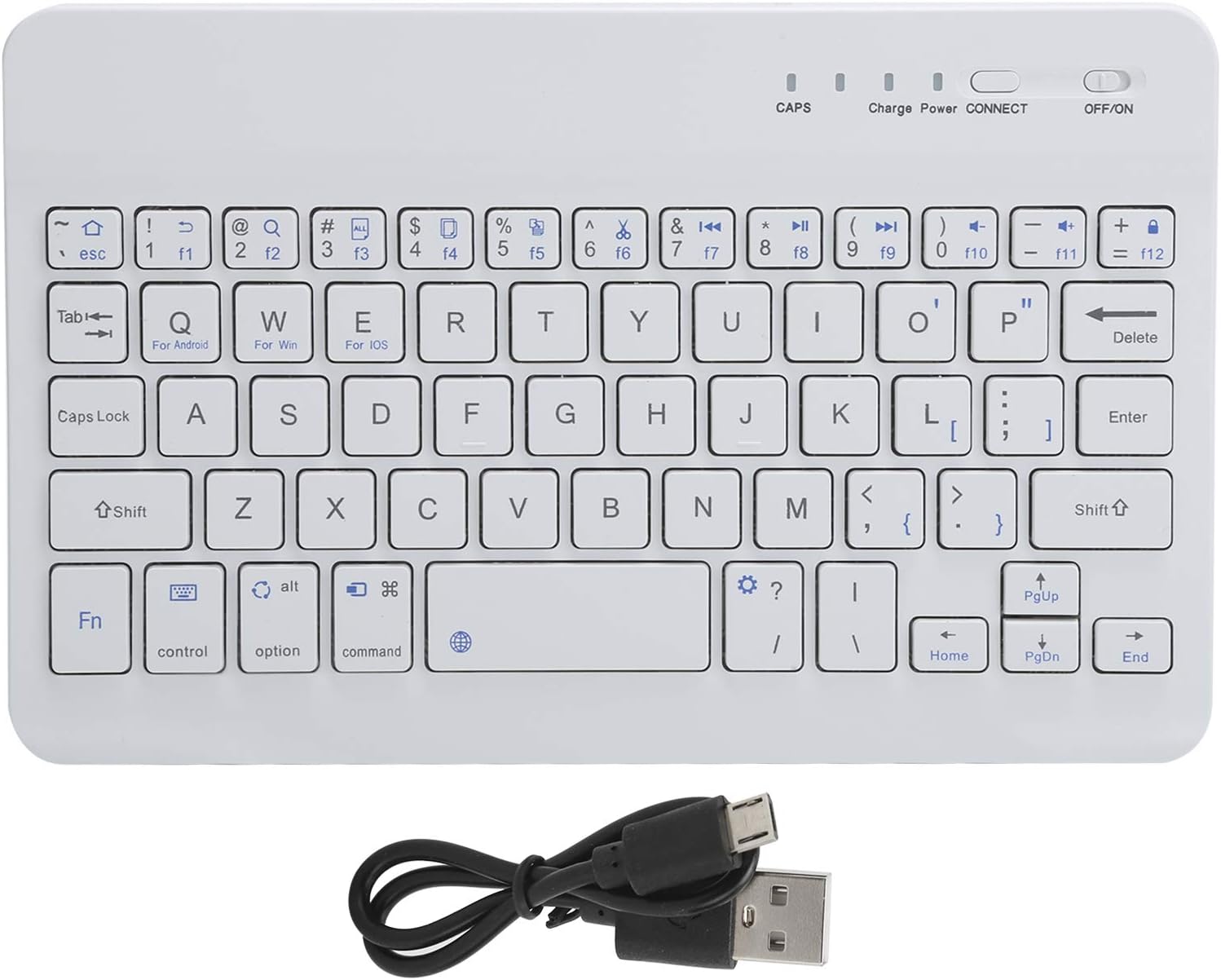
The VBESTLIFE Mini Bluetooth Keyboard is a compact and portable input device designed for convenience and efficiency. Featuring 59 keys and a Broadcom Bluetooth 3.0 chip, it offers stable and high-speed wireless connectivity for various devices. Its lightweight design makes it suitable for students, home, office, and school environments.

2. Package Contents
Please verify that all items listed below are included in your package:
- 1 x VBESTLIFE Mini Bluetooth Keyboard
- 1 x Micro USB Charging Cable
- 1 x English User Manual
3. Specifications
| Feature | Detail |
|---|---|
| Item Type | Mini Keyboard |
| Model | HB028 |
| Color | White |
| Main Material | ABS Plastic |
| Number of Buttons | 59 |
| Bluetooth Chip & Version | Broadcom Bluetooth 3.0 |
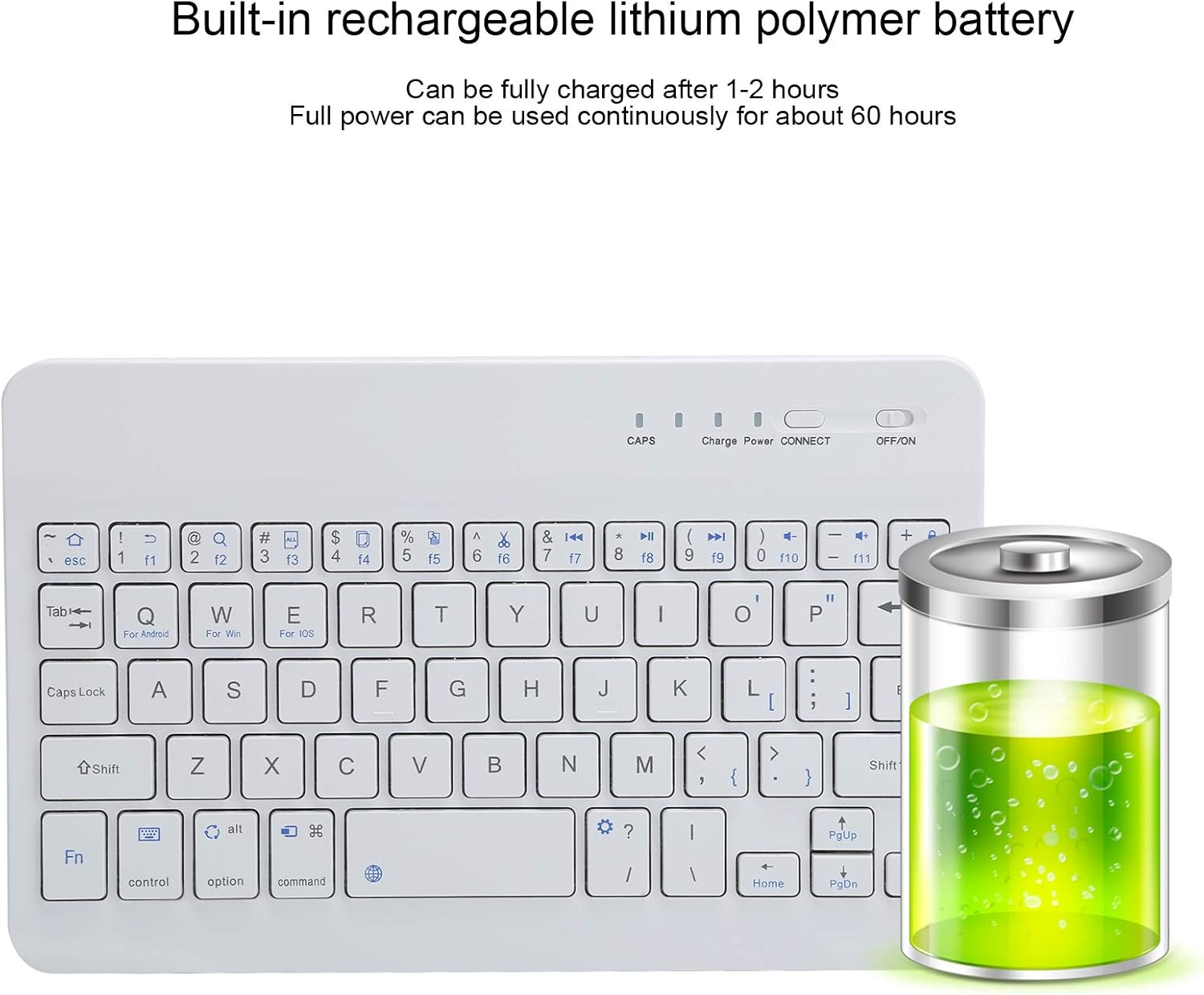
| Battery Capacity | 150 mAh (Polymer Lithium) |
| Charging Interface | Micro USB |
| Charging Time | 1 to 2 hours |
| Continuous Use Time | Approx. 60 hours (fully charged) |
| Standby Time | 30 days |
| Operating Voltage | 3.0 ~ 5.0 V |
| Button Lifespan | 100 million presses |
| Effective Use Distance | Approx. 10 meters (32.8 ft) |
| Compatible Devices | Laptop, Smartphone, Tablet (OS X Air5/Samsung and others) |

4. Setup
4.1 Charging the Keyboard
- Locate the Micro USB charging port on the side of the keyboard.
- Connect the provided Micro USB cable to the keyboard's charging port.
- Connect the other end of the USB cable to a standard USB power source (e.g., computer USB port, USB wall adapter).
- The 'Charge' indicator light on the keyboard will illuminate during charging.
- Charging typically takes 1 to 2 hours. The 'Charge' indicator will turn off or change color once fully charged.
4.2 Powering On/Off
- To power on the keyboard, slide the 'OFF/ON' switch located on the top right side of the keyboard to the 'ON' position. The 'Power' indicator light will briefly illuminate.
- To power off the keyboard, slide the 'OFF/ON' switch to the 'OFF' position.

4.3 Bluetooth Pairing
- Ensure the keyboard is fully charged and powered on.
- Press the CONNECT button on the keyboard. The 'CONNECT' indicator light will start blinking, indicating it is in pairing mode.
- On your device (tablet, smartphone, laptop), enable Bluetooth and search for available devices.
- Select 'Bluetooth Keyboard' or a similar name from the list of found devices.
- Your device may prompt you to enter a pairing code displayed on its screen. Type this code on the VBESTLIFE keyboard and press Enter.
- Once paired successfully, the 'CONNECT' indicator light on the keyboard will stop blinking and remain solid or turn off, depending on the keyboard's status indication.
5. Operating Instructions
5.1 Key Functions
The keyboard features 59 keys, including standard alphanumeric keys, function keys (F1-F12), and 13 shortcut keys for enhanced productivity. Specific keys are optimized for different operating systems:
- Fn + Q: For Android devices
- Fn + W: For Windows devices
- Fn + E: For iOS devices
To use the function keys (F1-F12) or other secondary functions printed on the keys, press and hold the Fn key simultaneously with the desired key.
5.2 Indicator Lights
- CAPS: Indicates when Caps Lock is active.
- Charge: Illuminates during charging.
- Power: Briefly illuminates when the keyboard is turned on.
- CONNECT: Blinks during pairing mode, indicates connection status.
6. Maintenance
To ensure the longevity and optimal performance of your VBESTLIFE Mini Bluetooth Keyboard, follow these maintenance guidelines:
- Cleaning: Use a soft, dry, lint-free cloth to clean the keyboard surface. For stubborn dirt, slightly dampen the cloth with water or a mild cleaning solution. Avoid excessive moisture.
- Storage: Store the keyboard in a cool, dry place away from direct sunlight and extreme temperatures.
- Battery Care: To preserve battery life, avoid fully discharging the keyboard frequently. Charge it regularly, especially if it will be stored for an extended period.
- Avoid Liquids: Do not expose the keyboard to liquids, as this can cause internal damage.
- Handle with Care: Avoid dropping the keyboard or subjecting it to strong impacts.
7. Troubleshooting
If you encounter issues with your VBESTLIFE Mini Bluetooth Keyboard, refer to the following common problems and solutions:
7.1 Keyboard Not Connecting/Pairing
- Check Power: Ensure the keyboard is turned on and has sufficient battery charge.
- Re-enter Pairing Mode: Press the CONNECT button on the keyboard to re-enter pairing mode.
- Device Bluetooth: Ensure Bluetooth is enabled on your device and it is discoverable.
- Forget Device: If previously paired, try 'forgetting' or 'unpairing' the keyboard from your device's Bluetooth settings and then attempt to pair again.
- Distance: Ensure the keyboard is within the effective range (approx. 10 meters) of your device.
- Interference: Move away from other wireless devices that might cause interference.
7.2 Keys Not Responding
- Battery Level: Check if the keyboard battery is low. Charge the keyboard if necessary.
- Reconnection: Turn the keyboard off and then on again. Reconnect it to your device.
- Operating System Mode: Ensure you have selected the correct operating system mode (Fn+Q for Android, Fn+W for Windows, Fn+E for iOS).
7.3 Charging Issues
- Cable Check: Ensure the Micro USB cable is securely connected to both the keyboard and the power source. Try a different Micro USB cable if available.
- Power Source: Try a different USB power source (e.g., a different USB port on your computer or a different wall adapter).
8. Warranty and Support
Information regarding specific warranty terms and customer support contact details for the VBESTLIFE Mini Bluetooth Keyboard is not provided in this manual. Please refer to the product packaging or the retailer's website for warranty information and support contacts.