
NetumScan B08YYPBDXF
NetumScan Bluetooth QR Barcode Scanner User Manual
Model: B08YYPBDXF
1. Product Overview
The NetumScan Bluetooth QR Barcode Scanner is a versatile 3-in-1 device designed for efficient barcode scanning. It supports 1D and 2D barcodes and offers multiple connectivity options, making it suitable for various environments such as retail, logistics, and office settings.

Image: The NetumScan barcode scanner shown with its accompanying stand, highlighting its ergonomic design and the red scanning beam.
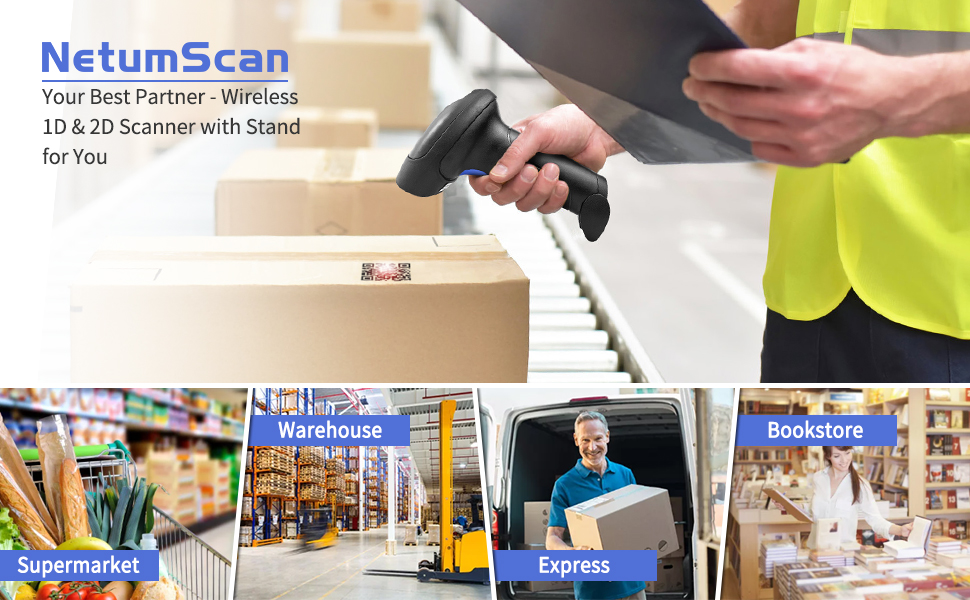
Image: The NetumScan scanner depicted in different operational environments, including a supermarket, warehouse, express delivery, and bookstore, demonstrating its broad applicability.
2. Setup and Connectivity
The NetumScan barcode scanner offers three primary connection methods for versatile use:
- Bluetooth Mode: Connects wirelessly to Bluetooth-enabled devices such as smartphones, tablets, and computers.
- 2.4G Wireless Mode: Utilizes a USB dongle for wireless connection to devices without built-in Bluetooth.
- USB 2.0 Wired Mode: Connects directly to a device via a USB cable, providing a stable wired connection and charging the scanner.

Image: Visual representation of the scanner's three connectivity options: Bluetooth pairing with a smartphone, USB wired connection to a laptop, and 2.4G wireless connection via a USB dongle inserted into a laptop.

Image: A banner illustrating the three connection methods: Bluetooth, 2.4GHz Wireless (with dongle), and USB 2.0 wired connection, emphasizing the scanner's flexibility.
2.1 System Compatibility
The scanner is compatible with a wide range of operating systems and devices:
- Operating Systems: Windows XP/7/8/10, Mac OS, Linux, iOS, Android.
- Compatible Devices: Laptops, Desktops, Tablets, Smartphones.

Image: The scanner shown alongside various devices (Mac OS/iOS, Android, Windows PC), indicating its high compatibility across different platforms.

Image: A graphic detailing the scanner's compatibility with Mac OS, Linux, Windows 7/8/10, iOS, and Android, and its use with computers, smartphones, and tablets.
3. Operating Instructions
3.1 Scanning Modes
The scanner supports three distinct scanning modes to accommodate different operational needs:
- Key Trigger Mode: Press the trigger button to initiate a scan.
- Continuous Scan Mode: The scanner continuously emits a scan beam, ideal for high-volume scanning without repeatedly pressing the trigger.
- Auto-induction Mode: The scanner automatically detects a barcode within its field of view and initiates a scan.

Image: An illustration showing the three scanning modes: Key Trigger (manual press), Continuous Scan (constant beam), and Auto-induction (automatic detection), with an example of a QR code being scanned.
3.2 Upload Modes
Data can be uploaded from the scanner using two methods:
- Instant Upload Mode: Scanned barcodes are immediately transmitted to the connected device.
- Storage Mode: Barcodes are stored in the scanner's internal memory and can be uploaded to the device later, useful when out of wireless range.

Image: A diagram illustrating the two upload modes: Instant Upload, where scanned data is immediately sent to a laptop, and Storage Mode, where data is saved internally before being uploaded later.
3.3 Barcode Decoding Capability
The scanner is equipped with an advanced CMOS sensor capable of reading various 1D and 2D barcodes, even if they are damaged or reflective.
- 1D Symbologies: Codabar, Code 11, Code93, MSI, Code 128, UCC/EAN-128, Code 39, EAN-8, EAN-13, UPC-A, ISBN, Industrial 25, Interleaved 25, Standard25, Matrix.
- 2D Symbologies: QR, DataMatrix, PDF417, Aztec, Hanxin, Micro PDF417.

Image: The scanner demonstrating its ability to decode various barcode types, including frayed, folded, profiled, color, one-dimensional, and two-dimensional codes.

Image: A smartphone displaying a 1D and a 2D barcode, with a red scanning light indicating the scanner's CMOS image scanning capability for both types.
3.4 Barcode Configuration (Prefix/Suffix)
The scanner allows for customization of scanned data by adding prefixes or suffixes. This feature is typically configured by scanning specific setup barcodes found in the product's accompanying booklet.

Image: The scanner being used to scan barcodes on packages, with an overlay showing examples of adding a prefix (ABC123456789) and a suffix (123456789ABC) to scanned data.

Image: A visual guide demonstrating how to add a prefix (ABC123456789) or a suffix (123456789ABC) to a barcode, indicating customization options for data output.
4. Maintenance
Proper maintenance ensures the longevity and optimal performance of your NetumScan barcode scanner.
- Cleaning: Use a soft, dry cloth to clean the scanner's exterior. For the scanning window, use a lens cleaning cloth and solution to avoid scratches. Do not use abrasive cleaners or solvents.
- Storage: Store the scanner in a cool, dry place away from direct sunlight and extreme temperatures.
- Battery Care: For models with rechargeable batteries, ensure regular charging to maintain battery health. Avoid fully discharging the battery frequently.
- Physical Protection: The scanner features a silicone protective cover designed to absorb shocks from falls up to 6.56 feet and offers IP54 protection against dust and moisture. While robust, avoid intentional drops or exposure to harsh conditions.
5. Troubleshooting
This section addresses common issues you might encounter with your NetumScan barcode scanner.
| Problem | Possible Cause | Solution |
|---|---|---|
| Scanner not connecting/unreliable connection. | Incorrect pairing, out of range, low battery, USB dongle issue. |
|
| Scanner not reading barcodes. | Barcode damaged/unreadable, incorrect scanning mode, scanner lens dirty, incompatible barcode type. |
|
| Scanner beeps unexpectedly or continuously. | Low battery, out of range, successful scan confirmation, error indication. |
|
| Scans multiple barcodes or wrong barcode. | Scanning area too wide, barcodes too close together. |
|
6. Specifications
| Feature | Detail |
|---|---|
| Model | B08YYPBDXF |
| Connectivity Technology | Bluetooth / 2.4G USB Wireless / USB 2.0 Wired |
| Compatible Devices | Laptop, Desktop, Tablet, Smartphone |
| Power Source | Battery Powered (1 Lithium Polymer battery included) |
| Item Weight | 1.28 pounds |
| Package Dimensions | 8.31 x 5.71 x 4.49 inches |
| Manufacturer | NetumScan |
| Supported 1D Symbologies | Codabar, Code 11, Code93, MSI, Code 128, UCC/EAN-128, Code 39, EAN-8, EAN-13, UPC-A, ISBN, Industrial 25, Interleaved 25, Standard25, Matrix |
| Supported 2D Symbologies | QR, DataMatrix, PDF417, Aztec, Hanxin, Micro PDF417 |
7. Warranty and Support
NetumScan products are designed for reliability and performance. For specific warranty details, please refer to the warranty card included with your product or visit the official NetumScan website.
For technical support, troubleshooting assistance, or inquiries regarding your product, please contact NetumScan customer service. Contact information can typically be found on the product packaging, the official website, or through your point of purchase.
Online Resources:
- NetumScan Official Store on Amazon: Visit Store
Ask a question about this manual
Ask about setup, troubleshooting, compatibility, parts, safety, or missing instructions. Manuals+ will review the question and use this page’s manual context to help answer it.