
YUYOU YT003992
YUYOU Pet Smart GPS Tracker User Manual
Model: YT003992
Introduction
This manual provides detailed instructions for the setup, operation, and maintenance of your YUYOU Pet Smart GPS Tracker. Please read this manual thoroughly before using the device to ensure proper functionality and to maximize its benefits.
The YUYOU Smart GPS Tracker is a compact, anti-lost device designed to help you locate valuable items such as keys, wallets, pets, and even children. Utilizing Bluetooth 4.0 technology, it connects to your smartphone, providing real-time location tracking and two-way alarm functions.
Package Contents
- YUYOU Pet Smart GPS Tracker (Blue)
- User Manual
Product Overview

Figure 1: YUYOU Pet Smart GPS Tracker (Blue)
This image displays the blue YUYOU Pet Smart GPS Tracker. It is shaped like a paw print, predominantly white with blue accents for the main button and four smaller 'toe' buttons. A metal keyring is attached at the top.

Figure 2: Available Color Options
This image shows eight YUYOU Pet Smart GPS Trackers, each with a white paw-print body and different colored buttons: blue, white, black, grey, red, pink, and green. This illustrates the range of color choices available for the device.
The YUYOU Smart GPS Tracker features a compact, paw-print design, making it easy to attach to various items. It includes a central button for activation and interaction with the paired smartphone application.
Setup
1. App Installation
To begin, download the free companion application. The product description mentions "Dycoo TrackerPA". Search for "Dycoo TrackerPA" in your smartphone's app store (Google Play Store for Android or Apple App Store for iOS).
- Open your smartphone's app store.
- Search for "Dycoo TrackerPA".
- Download and install the application.
- Ensure Bluetooth is enabled on your smartphone.
2. Device Pairing
Once the app is installed, you need to pair the YUYOU Smart GPS Tracker with your smartphone.
- Open the "Dycoo TrackerPA" application on your smartphone.
- Follow the on-screen instructions within the app to add a new device.
- Typically, this involves pressing and holding the main button on the YUYOU tracker until it enters pairing mode (e.g., a light flashes or a sound is emitted).
- Confirm the pairing within the app.

Figure 3: Mobile Phone Operation Interface
This image illustrates the mobile phone operation with the tracker. It shows a smartphone displaying the app interface, with a Bluetooth connection symbol. Below, icons represent key functions: Alarm, Tracking Positioning, Telecontrol Photo (remote selfie), and Long Standby, indicating the device's capabilities.
Operating Instructions
1. Locating Items (Two-Way Alarm)
- From App to Tracker: If you cannot find your item (e.g., keys with the tracker attached), open the "Dycoo TrackerPA" app and activate the alarm function. The tracker will emit a "beep" sound, helping you locate it within approximately 75 feet.
- From Tracker to Phone: If you cannot find your smartphone, press the main button on the YUYOU tracker. Your smartphone will ring, even if it's on silent mode, allowing you to locate it.
2. Anti-Lost Alarm
The device features an anti-lost alarm that notifies you when the tracker moves out of range from your paired smartphone.
- When the YUYOU tracker is approximately 75 feet (without obstruction) away from your phone, both your phone and the tracker will trigger an alarm.
- This feature helps prevent losing items or pets by alerting you immediately if they stray too far.
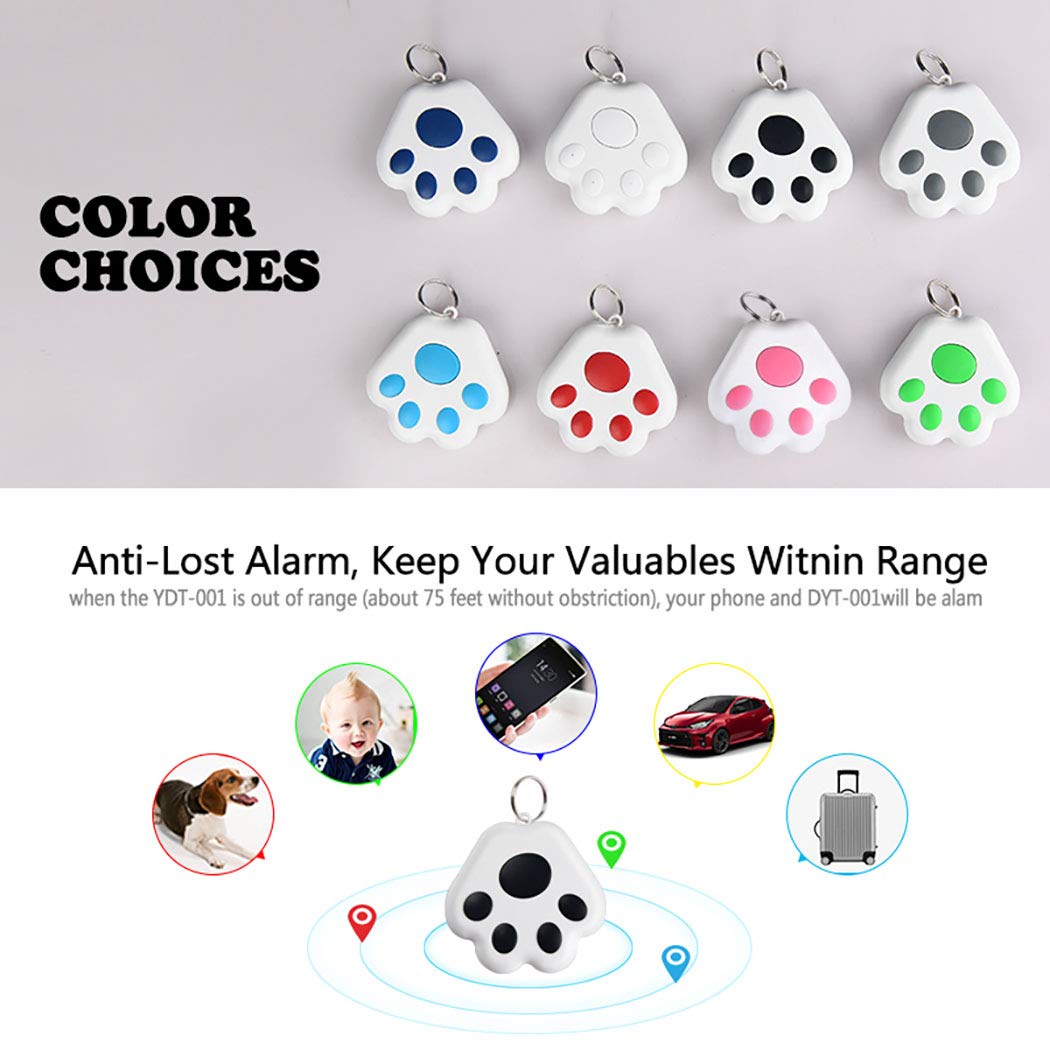
Figure 4: Anti-Lost Alarm Functionality
This image highlights the anti-lost alarm feature. It shows the YUYOU tracker at the center, with a circular range indicating its Bluetooth connection. Surrounding icons represent various items it can track: a dog, a baby, a car, and luggage, emphasizing its versatility in keeping valuables within range.
3. GPS Tracking (Last Seen Location)
While the device uses Bluetooth for real-time proximity, the app records the last known location where the tracker was connected to your phone.
- The "Dycoo TrackerPA" app provides a pin-drop on a map, showing the last location where the tracker was within Bluetooth range of your phone.
- This helps you narrow down the search area for lost items.

Figure 5: Last Seen Location Tracking
This image depicts a smartphone screen displaying a map with multiple location pins. These pins represent the last known locations of various YUYOU trackers, demonstrating the app's ability to track and display the whereabouts of multiple paired devices.
4. Remote Selfie Function
The YUYOU tracker can also function as a remote shutter for your smartphone camera.
- Open your smartphone's camera application.
- Position your phone for a selfie or group photo.
- Press the main button on the YUYOU tracker to remotely trigger the camera shutter.
Maintenance
- Cleaning: Wipe the device with a soft, dry cloth. Do not use harsh chemicals or abrasive cleaners.
- Battery: The product description mentions "Long Standby," implying a long-lasting battery. While specific battery replacement instructions are not provided, if the device uses a replaceable coin cell battery (e.g., CR2032), refer to the app or product packaging for instructions on how to open the casing and replace it. Ensure proper polarity when inserting a new battery.
- Water Resistance: The product is described as "Waterproof." While it offers protection against splashes, avoid submerging the device in water for extended periods.
Troubleshooting
| Problem | Possible Cause | Solution |
|---|---|---|
| Tracker not connecting to phone. | Bluetooth is off on phone; Tracker battery is low; Tracker is out of range; App not running. | Ensure Bluetooth is enabled. Check tracker battery. Bring tracker closer to phone. Open the "Dycoo TrackerPA" app. |
| Alarm not sounding. | Phone volume is low/silent; Tracker battery is dead; App settings. | Increase phone volume. Replace tracker battery if applicable. Check alarm settings within the "Dycoo TrackerPA" app. |
| Last seen location is inaccurate. | GPS signal interference; Tracker moved after disconnection. | The map shows the last known connection point. The tracker does not have real-time GPS. Use the alarm function when within Bluetooth range. |
Specifications
| Feature | Detail |
|---|---|
| Model Number | YT003992 |
| Brand | YUYOU |
| Connectivity | Bluetooth 4.0 |
| Supported Application | Dycoo TrackerPA (GPS functionality via app) |
| Range | Approx. 75 feet (unobstructed) |
| Dimensions (LxWxH) | 15 x 10 x 5 Centimeters |
| Color | Blue (as per product details, other colors may be available) |
| Water Resistance | Waterproof (splash resistant) |
Warranty and Support
For warranty information and customer support, please refer to the contact details provided on the product packaging or the official YUYOU website. Keep your purchase receipt as proof of purchase for any warranty claims.
For technical assistance or further inquiries, please contact YUYOU customer service.
Ask a question about this manual
Ask about setup, troubleshooting, compatibility, parts, safety, or missing instructions. Manuals+ will review the question and use this page’s manual context to help answer it.