
1. Introduction
This manual provides detailed instructions for the installation, operation, and maintenance of your ZBARK 9-inch Android 12 Car Radio. Please read this manual thoroughly before using the product to ensure proper function and safety. Keep this manual for future reference.
2. Product Overview
The ZBARK 9-inch Android 12 Car Radio is an advanced multimedia navigation system designed specifically for Jeep Renegade models from 2015 to 2018. It features a responsive 9-inch touchscreen, Android 12 operating system, Octa-Core CPU, built-in DSP, Wireless CarPlay, and Android Auto compatibility.

Image: ZBARK 9-inch Android 12 Car Radio seamlessly integrated into a Jeep Renegade dashboard.
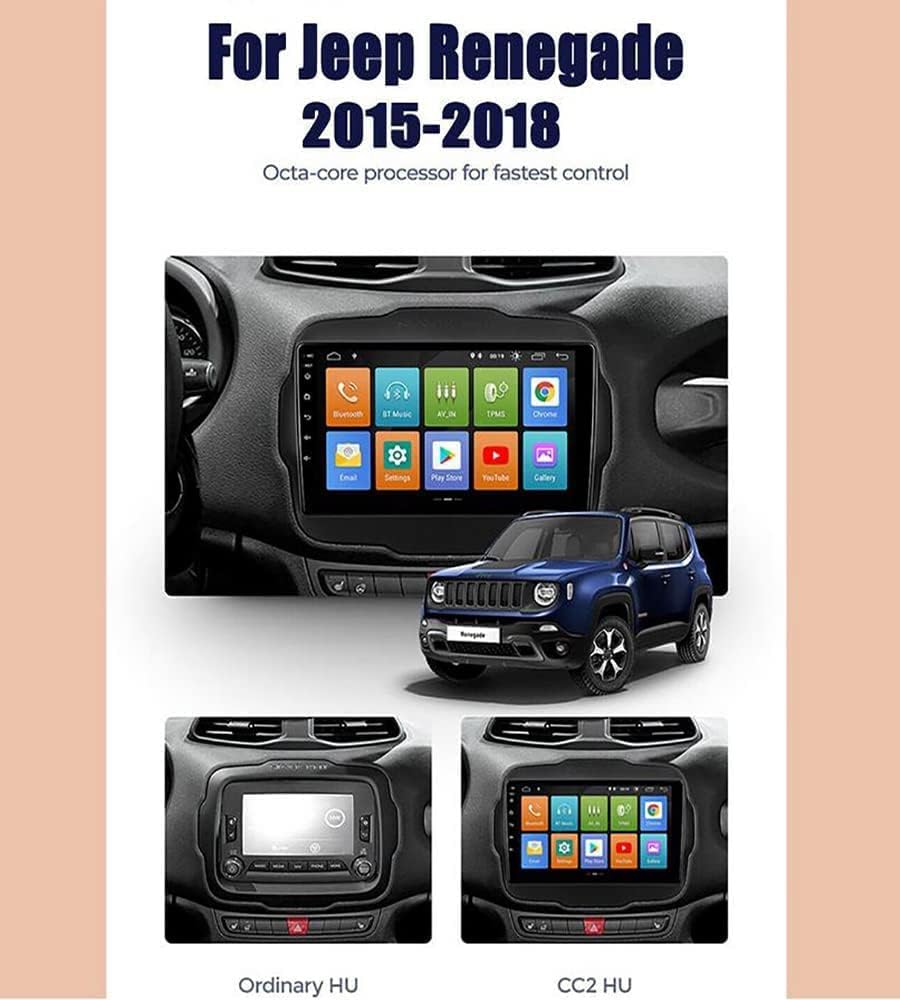
Image: Front view of the ZBARK 9-inch Android 12 Car Radio, showcasing its large display and physical buttons.
3. Key Features
- Operating System: Android 12 for a fast and smooth user experience.
- Processor: Octa-Core CPU with 4GB RAM and 32GB ROM for efficient performance.
- Display: 9-inch HD Capacitive Multi-Touch Display (1024x600 resolution).
- Connectivity: Built-in Wireless CarPlay, Android Auto, Bluetooth 5.0, Wi-Fi, and Mirror Link.
- Audio: Built-in DSP (Digital Sound Processor) for enhanced audio quality.
- Navigation: Integrated GPS with support for online and offline map applications.
- Radio: FM/AM tuner with RDS and DAB support.
- Compatibility: Designed for Jeep Renegade 2015-2018 models.
- Additional: Steering Wheel Control support, Split Screen functionality, HD Video playback.

Image: Overview of wireless connectivity options, including Apple CarPlay and Android Auto compatibility.

Image: Visual representation of the Android 12.0 operating system interface.
4. Package Contents
Verify that all items are present in the package before installation:
- ZBARK 9-inch Android 12 Car Radio Unit
- Power Harness
- GPS Antenna
- USB Cables
- RCA Cables
- External Microphone
- Backup Camera (optional, if included in package)
- User Manual

Image: A collection of cables, antennas, and other accessories included in the product package.
5. Setup and Installation
Installation of the ZBARK car radio requires technical knowledge and experience with car audio systems. It is highly recommended to have the unit installed by a qualified professional to avoid damage to the unit or your vehicle.
5.1 Vehicle Compatibility
This unit is designed for Jeep Renegade models manufactured between 2015 and 2018. Ensure your vehicle falls within this range for proper fitment and functionality.

Image: Visual comparison showing the ZBARK unit installed in a Jeep Renegade dashboard versus the original head unit.
5.2 Wiring Connections
- Power Harness: Connect the main power harness to the vehicle's wiring. Ensure correct connections for constant power (B+), accessory power (ACC), and ground (GND).
- CANbus Decoder: Connect the CANbus decoder if provided, as it manages communication between the radio and vehicle systems (e.g., steering wheel controls, door status).
- GPS Antenna: Mount the GPS antenna in a location with a clear view of the sky, typically on the dashboard or under the windshield.
- USB Cables: Route the USB cables to a convenient location for connecting USB drives or smartphones.
- RCA Cables: Connect RCA cables for external amplifiers, subwoofers, or auxiliary video inputs/outputs as needed.
- Backup Camera: If installing a backup camera, connect its video input to the designated RCA port and its power to the reverse light circuit.
- External Microphone: Connect the external microphone for improved call quality during hands-free operation.
Always refer to the specific wiring diagram provided with your unit for precise connections.
6. Operating Instructions
6.1 Power On/Off
- Power On: Turn the vehicle's ignition to the ACC or ON position. The unit will power on automatically.
- Power Off: Turn the vehicle's ignition to the OFF position. The unit will power off.
- Standby: Briefly press the power button (if available) to put the unit into standby mode. Press again to wake up.
6.2 Touchscreen Operation
The 9-inch capacitive touchscreen supports multi-touch gestures. Tap to select, swipe to scroll, and pinch to zoom (where applicable, e.g., maps).
6.3 User Interface (UI)
The Android 12 interface is designed for intuitive use. The home screen provides quick access to frequently used applications like Navigation, Radio, Music, Video, Bluetooth, and Settings. You can customize the layout and add widgets.

Image: Various screens demonstrating the intuitive and customizable user interface of the ZBARK car radio.
6.4 Customization
You can personalize various settings, including button illumination colors, display brightness, sound profiles, and system language. Access these options through the 'Settings' menu.

Image: Display showing options for customizing button illumination colors and other system settings.
7. Connectivity
7.1 Wireless CarPlay and Android Auto
Connect your iPhone or Android smartphone wirelessly for seamless integration of navigation, music, calls, and messaging directly on the car radio display.
- Ensure your phone's Wi-Fi and Bluetooth are enabled.
- On the car radio, open the CarPlay/Android Auto application.
- Follow the on-screen prompts to pair your device.
Image: The car radio display showing the Apple CarPlay and Android Auto interfaces, connected wirelessly to smartphones.
7.2 Bluetooth 5.0
Pair your smartphone via Bluetooth for hands-free calling and audio streaming.
- Go to the 'Bluetooth' application on the car radio.
- Enable Bluetooth on your phone and search for available devices.
- Select the car radio (e.g., "ZBARK_Car") from your phone's list and confirm pairing.
- Once connected, you can make/receive calls and play music through the car's speakers.

Image: Illustration of Bluetooth 5.0 connectivity, showing a smartphone paired with the car radio for calls and music.
7.3 Wi-Fi
Connect the car radio to a Wi-Fi hotspot (e.g., from your smartphone or a portable hotspot) to access online features, download apps, and update software.
- Go to 'Settings' > 'Network & Internet' > 'Wi-Fi'.
- Turn on Wi-Fi and select your desired network.
- Enter the password if prompted.
7.4 Mirror Link
Mirror your smartphone's screen directly onto the car radio display. This feature supports both Android and iOS devices.

Image: The car radio screen mirroring content from a smartphone, demonstrating the Mirror Link function.
8. Navigation
The unit comes with built-in GPS and supports various navigation applications available on the Google Play Store. You can use online maps (requires Wi-Fi) or download offline maps for use without an internet connection.
- Open your preferred navigation app (e.g., Google Maps, Waze).
- Enter your destination and follow the voice-guided directions.

Image: The car radio display showing a GPS navigation map with route guidance.
9. Multimedia
The ZBARK car radio supports playback of various audio and video formats from USB drives or streaming services.
9.1 Audio Playback
Use the 'Music' app to play audio files. The built-in DSP allows for sound customization through equalizer settings.
9.2 Video Playback
Use the 'Video' app to play video files. The 9-inch HD display provides a clear viewing experience.

Image: The car radio display showing high-definition video content being played.
10. Radio
The unit features an integrated FM/AM radio tuner with RDS (Radio Data System) support.
- Open the 'Radio' application.
- Use the scan function to find available stations.
- Save your favorite stations as presets for quick access.

Image: The car radio display showing the FM radio interface with station frequency and presets.
11. Maintenance
- Cleaning the Screen: Use a soft, lint-free cloth to gently wipe the touchscreen. Do not use abrasive cleaners or solvents.
- Software Updates: Periodically check for system software updates via Wi-Fi to ensure optimal performance and access to new features.
- General Care: Avoid exposing the unit to extreme temperatures, direct sunlight for prolonged periods, or excessive moisture.
12. Troubleshooting
| Problem | Possible Cause | Solution |
|---|---|---|
| Unit does not power on | Incorrect wiring, blown fuse, vehicle ignition off | Check power connections (B+, ACC, GND). Inspect vehicle fuses. Ensure ignition is on. |
| No sound | Volume too low, mute enabled, incorrect audio output settings, speaker wiring issue | Increase volume. Check if mute is active. Verify audio settings. Inspect speaker connections. |
| GPS signal lost/weak | GPS antenna obstructed or disconnected | Ensure GPS antenna has a clear view of the sky and is securely connected. |
| Bluetooth not connecting | Bluetooth off on phone/unit, pairing mode not active | Ensure Bluetooth is enabled on both devices. Put unit in pairing mode. Delete previous pairings and try again. |
| Touchscreen unresponsive | System freeze, temporary software glitch | Restart the unit (turn vehicle ignition off and on). If issue persists, perform a factory reset (refer to settings menu). |
13. Specifications
| Feature | Specification |
|---|---|
| Operating System | Android 12 |
| Screen Size | 9 Inches |
| Resolution | 1024 x 600 |
| RAM | 4GB |
| ROM | 32GB |
| Connectivity Technology | Bluetooth 5.0, RCA, Wi-Fi |
| Special Features | DAB, RDS, Built-in DSP, Wireless CarPlay |
| Map Type | North America (supports various navigation apps) |
| Audio Output Mode | Stereo |
| Vehicle Service Type | Car (Jeep Renegade 2015-2018) |
| Item Weight | 4.99 pounds |
| Package Dimensions | 12.95 x 11.9 x 4.76 inches |
14. Warranty and Support
ZBARK provides a 1-year warranty for this unit, covering manufacturing defects and malfunctions under normal use. For technical support, warranty claims, or further assistance, please contact ZBARK customer service through your purchase platform or the official ZBARK website.