
WENTER 11-Port Powered USB 3.0 Hub Instruction Manual
Model: 74H01
1. Introduction
Thank you for choosing the WENTER 11-Port Powered USB 3.0 Hub. This device is designed to expand your computer's USB capabilities, offering both high-speed data transfer and smart charging ports. Please read this manual carefully to ensure proper installation and operation.

Image 1.1: The WENTER 11-Port Powered USB 3.0 Hub, showcasing its compact design and multiple ports.
2. Package Contents
Please check the package for the following items:
- 1 x WENTER 11-Port Powered USB Hub
- 1 x 12V/3A AC Power Adapter
- 1 x USB Cable (100cm / 3.3ft)
- 1 x User Manual
3. Product Overview
The WENTER 11-Port Powered USB 3.0 Hub features:
- 7 USB 3.0 Data Ports: For high-speed data transfer up to 5Gbps, compatible with various USB devices like keyboards, mice, printers, and external hard drives.
- 4 Smart Charging Ports: Dedicated ports providing up to 2.4 amps per port for efficient charging of tablets, smartphones, and other USB-powered devices.
- Individual On/Off Switches: Each port has an independent switch with an LED indicator, allowing you to control power to individual devices without unplugging them.
- External Power Adapter: Ensures stable power delivery to all connected devices, preventing power-related issues.
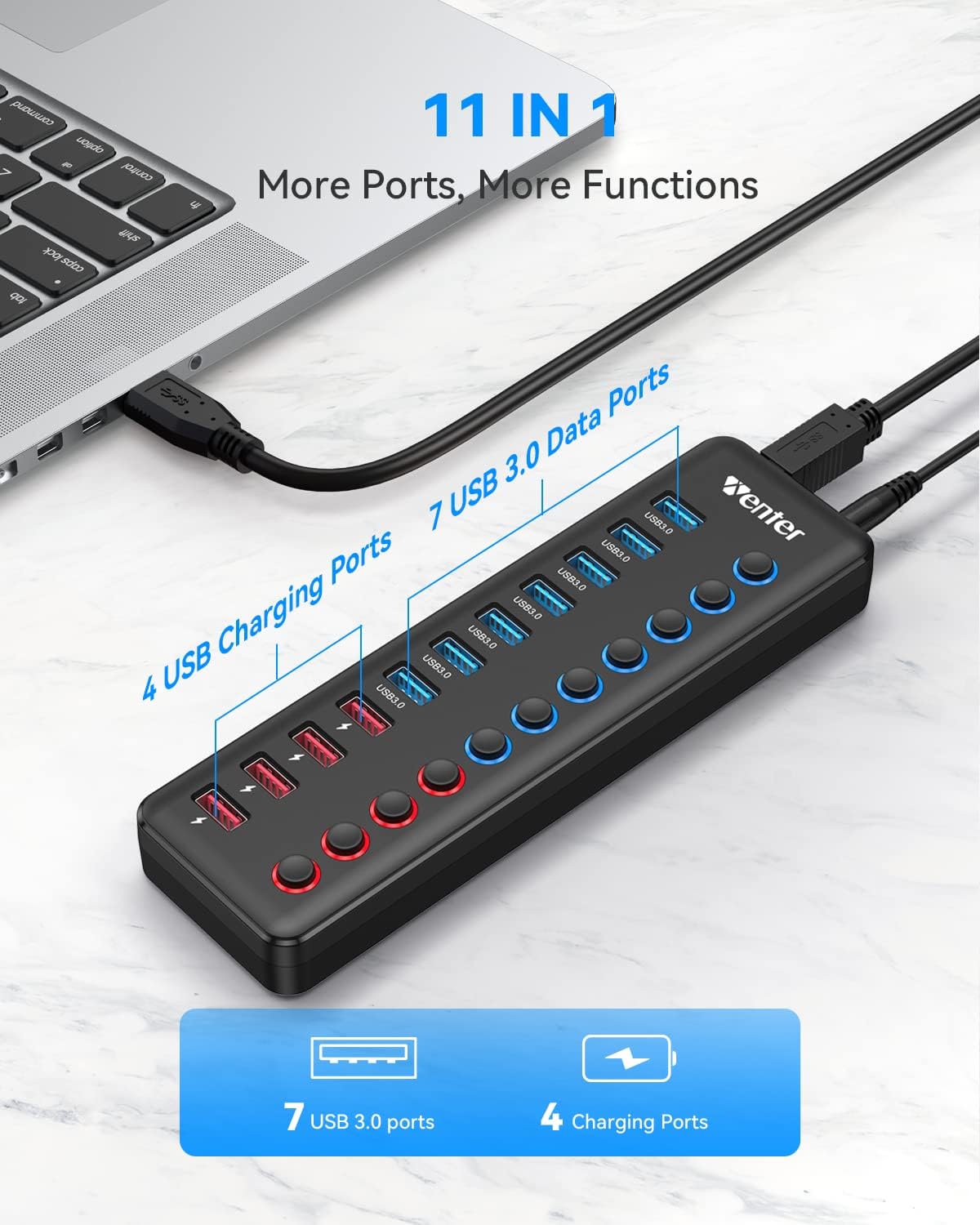
Image 3.1: The USB hub connected to a laptop, demonstrating its ability to expand connectivity for multiple peripherals.
4. Setup Instructions
- Connect the Power Adapter: Plug the included 12V/3A AC power adapter into the DC 12V port on the hub, then plug the adapter into a wall outlet. This ensures sufficient power for all ports.
- Connect to Your Computer: Use the provided USB cable to connect the USB 3.0 upstream port on the hub to an available USB port on your computer (Mac or PC).
- Connect Your Devices: Plug your USB devices into the appropriate ports on the hub.

Image 4.1: Illustration of connecting the DC 12V/3A power supply to the hub, highlighting built-in safety protections.
5. Operating Instructions
5.1 Using Data Transfer Ports (USB 3.0)
- The 7 blue USB 3.0 ports are designed for data transfer. Connect your USB 3.0 compatible devices (e.g., external hard drives, USB flash drives, keyboards, mice) to these ports.
- Data transfer speeds can reach up to 5Gbps, significantly faster than USB 2.0.
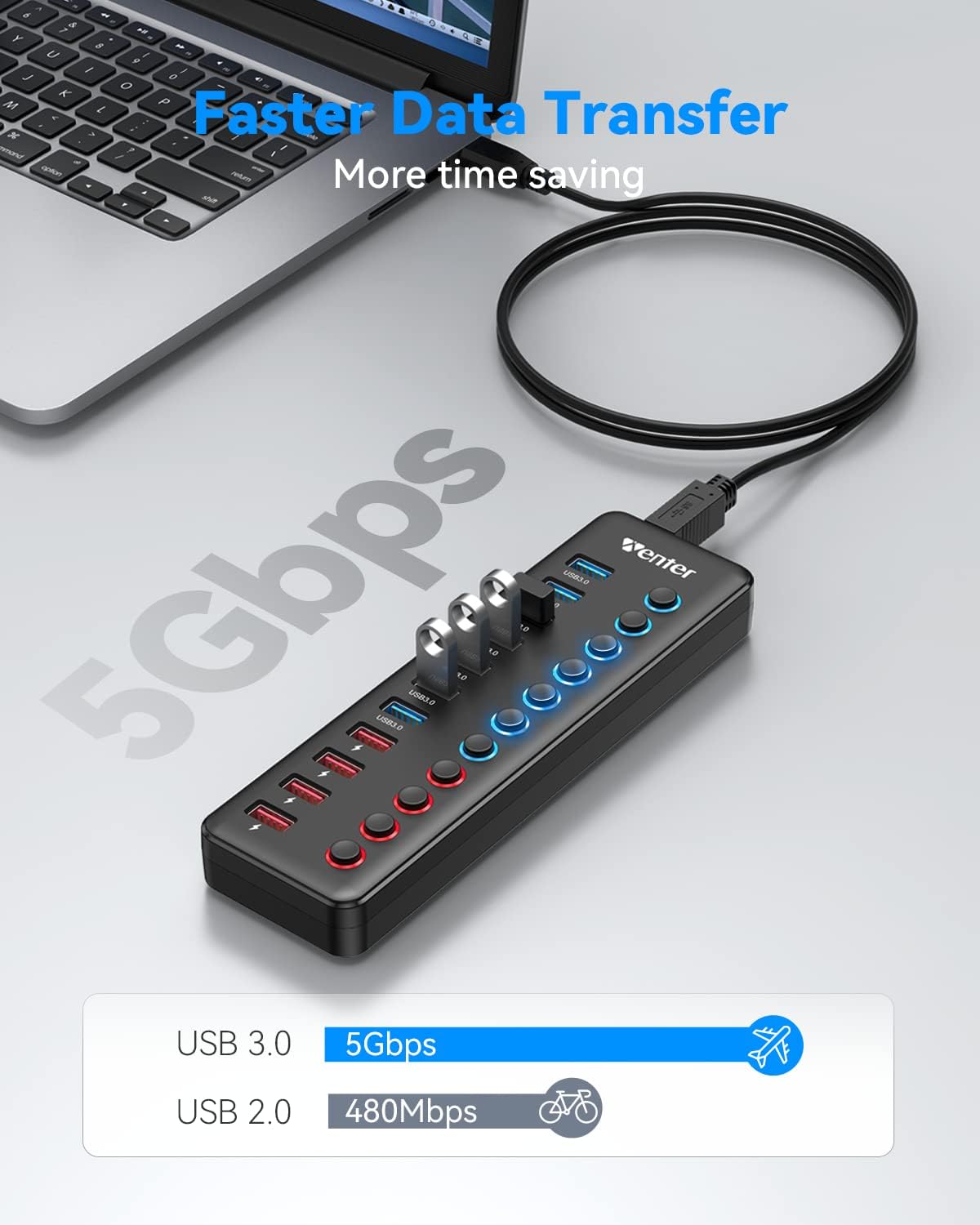
Image 5.1: Visual representation of the faster data transfer speeds offered by USB 3.0 ports on the hub.
5.2 Using Smart Charging Ports
- The 4 red ports are dedicated smart charging ports. These ports provide power for charging devices and do not transfer data.
- Each charging port can deliver up to 2.4 amps, allowing for faster charging of compatible devices like smartphones and tablets.

Image 5.2: A smartphone and tablet connected to the red smart charging ports of the hub, illustrating their charging capability.
5.3 Individual On/Off Switches
- Each USB port (both data and charging) has an individual on/off switch.
- Press the button next to a port to turn it on or off. The corresponding LED light will illuminate (blue for data ports, red for charging ports) when the port is active.
- This feature allows you to manage power to individual devices, conserving energy and preventing interference without physically unplugging devices.

Image 5.3: A user activating an individual switch on the hub, showing the illuminated LED for active ports.
5.4 Hot-Swapping
The hub supports hot-swapping, meaning you can connect or disconnect devices while the computer is running without needing to restart your system.
6. Compatibility
This USB hub is widely compatible with various operating systems and devices:
- Operating Systems: Windows XP / Vista / 7 / 8 / 10, Mac OS 10 and above, UNIX, Linux.
- Devices: Supports any USB 3.0, USB 2.0, USB 1.1, and USB 1.0 peripherals including desktops, laptops, keyboards, mice, printers, tablets, USB flash drives, external hard drives, and cameras.

Image 6.1: An overview of the diverse range of devices compatible with the WENTER USB hub.
7. Maintenance
- Keep the hub in a dry environment, away from moisture and extreme temperatures.
- Clean the device with a soft, dry cloth. Avoid using liquid cleaners or aerosols.
- Do not attempt to disassemble or repair the hub yourself. Refer to qualified service personnel.
- Ensure proper ventilation around the hub to prevent overheating.
8. Troubleshooting
- Device Not Recognized:
- Ensure the hub's power adapter is securely connected and plugged into a working outlet.
- Verify the individual port switch for the device is turned on (LED illuminated).
- Try connecting the device to a different port on the hub or directly to your computer to rule out device issues.
- Restart your computer.
- Slow Data Transfer:
- Ensure both the hub and your connected device support USB 3.0 for optimal speeds.
- Avoid connecting high-bandwidth devices simultaneously if experiencing slowdowns.
- Charging Issues:
- Ensure you are using one of the 4 dedicated red charging ports.
- Check if the device's charging cable is functional.
- High-Pitched Noise from Power Adapter:
- A slight high-pitched noise from the AC transformer plug can occur when no devices are connected or all switches are off. This is generally normal and should subside when devices are in use.
- Devices Randomly Disconnecting (Windows Specific):
- In Device Manager, for all USB devices & controllers, uncheck "Allow this computer to turn off this device to save power."
- Disable USB selective suspend in your power plan settings.
9. Specifications
| Feature | Description |
|---|---|
| Brand | WENTER |
| Model Number | 74H01 |
| Hardware Interface | USB |
| Total USB Ports | 11 (7 USB 3.0 Data, 4 Smart Charging) |
| Data Transfer Rate | 5 gigabits per second (USB 3.0) |
| Charging Output | Up to 2.4A per smart charging port |
| Power Adapter | 12V/3A AC Power Adapter |
| Compatible Devices | Desktops, Keyboards, Mouse, Printers, Tablets, USB Flash Drives, etc. |
| Compatible OS | Windows XP/Vista/7/8/10, Mac OS 10+, UNIX, Linux |
| Enclosure Material | Aluminum, Plastic |
| Item Dimensions (L x W x H) | 8.8"L x 3.7"W x 1.8"H |
| Item Weight | 14.25 ounces |
10. Warranty and Support
WENTER provides a 12-month warranty for this product. For any questions, concerns, or technical assistance, please contact our customer service. We offer 24-hour friendly customer service and email support.
For further assistance, please visit the WENTER Store on Amazon.
11. Official Product Video
Watch this video for a visual overview of the WENTER 11-Port USB Hub with 4 Smart Charging Ports.
Video 11.1: An official video from WenterDirect showcasing the features and functionality of the 7-Port USB Hub with 4 Smart Charging Ports.