
Introduction
This manual provides detailed instructions for the setup, operation, and maintenance of your Veetop USB Condenser Microphone. Designed for clear audio capture, this microphone is suitable for various applications including gaming, podcasting, streaming, recording, and online communication. Please read this manual thoroughly to ensure optimal performance and longevity of your device.
Package Contents
Please verify that all items listed below are included in your package:
- Veetop USB Condenser Microphone
- Tripod Stand
- USB Cable
- User Manual
- Warranty Card

Image: The Veetop USB Microphone, including the main unit, tripod stand, USB cable, and a foam windscreen.
Setup Instructions
1. Assembling the Microphone and Tripod
- Unfold the legs of the tripod stand to create a stable base.
- Screw the microphone onto the adjustable clamp of the tripod stand. Ensure it is securely fastened.
- Adjust the microphone angle using the adjustable clamp for optimal positioning. The microphone can rotate 180 degrees.
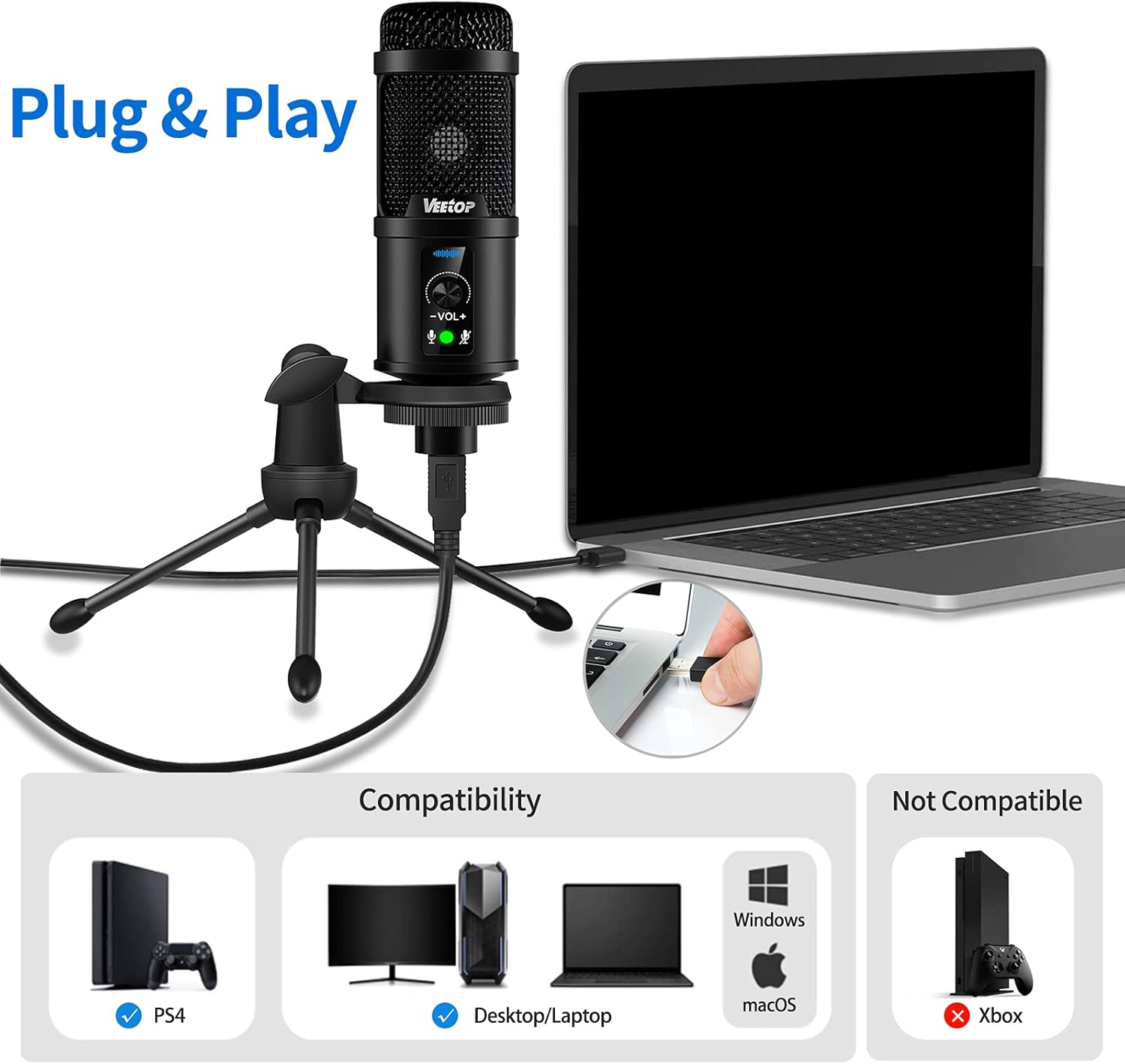
Image: The microphone mounted on its stable tripod stand, highlighting the adjustable clamp and non-slip rubber feet for secure placement.
2. Connecting to Your Device (Plug & Play)
- Connect the USB-B end of the provided cable to the port at the bottom of the microphone.
- Plug the USB-A end of the cable into an available USB port on your computer (Desktop/Laptop running Windows or macOS) or PlayStation 4 console.
- The microphone is plug-and-play and should be automatically recognized by your operating system.

Image: The microphone connected to a laptop, illustrating its plug-and-play functionality and compatibility with various devices.
3. Initial Software Configuration
After connecting, you may need to select the Veetop USB Microphone as your default input device in your system settings or application preferences.
- Windows: Go to Settings > System > Sound. Under 'Input', select 'Veetop USB Microphone' from the dropdown menu.
- macOS: Go to System Preferences > Sound > Input. Select 'Veetop USB Microphone' from the list.
- Applications: For specific applications (e.g., Zoom, Discord, OBS, recording software), check their audio settings and select 'Veetop USB Microphone' as the input device.
Operating Instructions
1. Gain Control (Volume Adjustment)
The microphone features a gain knob on its front panel to adjust the input volume. This allows you to control the sensitivity of the microphone.
- Rotate the knob clockwise to increase the microphone's gain (volume).
- Rotate the knob counter-clockwise to decrease the microphone's gain (volume).
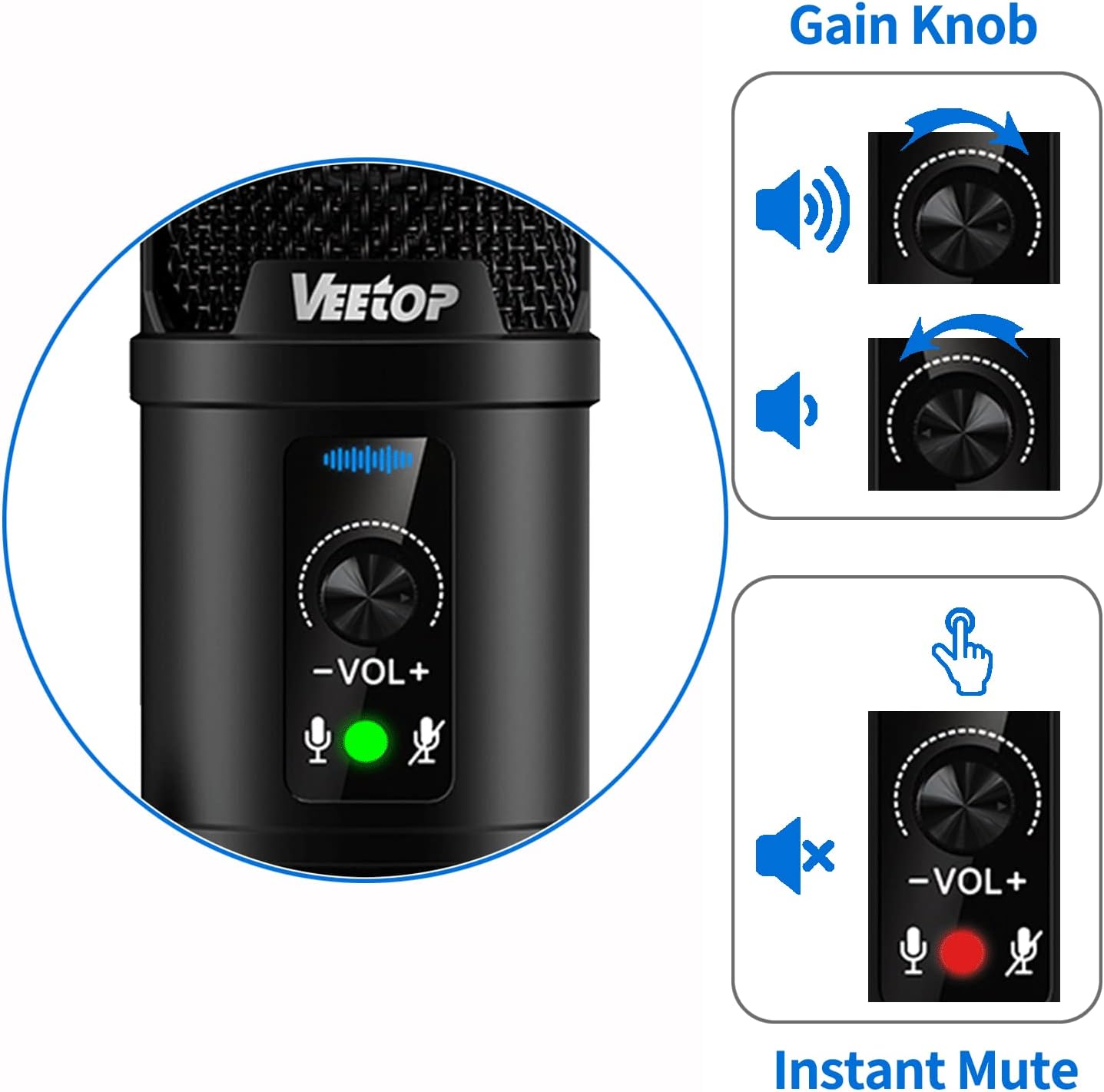
Image: A detailed view of the microphone's front panel, showing the gain control knob and the mute button with its indicator light.
2. Instant Mute Function
Press the gain knob to instantly mute or unmute the microphone. An LED indicator will show the microphone's status:
- Green Light: Microphone is active and picking up sound.
- Red Light: Microphone is muted.
3. Noise Cancellation Function
The microphone includes a noise cancellation feature to reduce ambient background noise.
- To activate noise cancellation, long press the gain knob for 3 seconds.
- The indicator light will turn blue when noise cancellation is active.
- Long press the gain knob again for 3 seconds to deactivate noise cancellation. The light will return to green (active) or red (muted).

Image: The microphone illustrating the activation of the noise cancellation function, indicated by a blue light after a long press of the gain knob.
4. Cardioid Pick-up Pattern
The Veetop USB Microphone utilizes a cardioid pick-up pattern. This means it primarily captures sound from the front of the microphone, effectively reducing background noise from the sides and rear.
- For best results, position the microphone directly in front of the sound source (e.g., your mouth).
- It is recommended to use this microphone within a distance of 15-30 cm (6-12 inches) from the sound source for optimal clarity.

Image: A polar pattern diagram demonstrating the cardioid pick-up characteristic, indicating the microphone's highest sensitivity is directly in front.
Maintenance
- Clean the microphone's exterior with a soft, dry cloth. Avoid using liquid cleaners or solvents.
- Do not expose the microphone to extreme temperatures, humidity, or direct sunlight.
- Store the microphone in a clean, dry place when not in use to prevent dust accumulation.
- Handle the microphone and its components with care to avoid physical damage.
Troubleshooting
| Issue | Possible Cause | Solution |
|---|---|---|
| No sound output from microphone. | Microphone not connected properly or not selected as input device. | Ensure USB cable is securely connected. Verify 'Veetop USB Microphone' is selected as the input device in your system's sound settings and application preferences. Check if the microphone is muted (red LED). |
| Sound is too low or too high. | Gain knob setting is incorrect or system volume is low. | Adjust the gain knob on the microphone. Check the input volume levels in your system's sound settings and application preferences. |
| Excessive background noise. | Noise cancellation is off, or microphone is too far from the sound source. | Activate the noise cancellation function (blue LED). Ensure the microphone is positioned 15-30 cm from the sound source. Minimize ambient noise in your environment. |
| Microphone not recognized by device. | USB port issue or driver conflict. | Try connecting to a different USB port. Restart your computer. Ensure your operating system is up to date. |
Specifications
| Feature | Detail |
|---|---|
| Brand | Veetop |
| Model | B08YK68849 |
| Microphone Type | Condenser |
| Connectivity | USB |
| Polar Pattern | Unidirectional (Cardioid) |
| Frequency Response | Up to 20 KHz |
| Audio Sensitivity | 30 Decibels |
| Signal-to-Noise Ratio | 120 dB |
| Material | Metal |
| Item Weight | 1.06 pounds |
| Special Feature | Integrated Stand, Gain Control, Mute Button, Noise Cancellation |

Image: Diagram showing the physical dimensions of the Veetop USB Microphone, tripod, and USB cable.
Compatibility
The Veetop USB Microphone is compatible with the following hardware platforms and operating systems:
- Hardware Platforms: Laptop, Personal Computer (PC), PlayStation 4 (PS4)
- Operating Systems: Windows, macOS
Note: This microphone is not compatible with Xbox consoles.
Warranty and Support
Your Veetop USB Microphone comes with a warranty as detailed on the included warranty card. For technical support, troubleshooting assistance beyond this manual, or warranty claims, please refer to the contact information provided on your warranty card or visit the official Veetop website.