
Introduction
This user manual provides comprehensive instructions for the EDUP HOME 3D LED Wall Clock, Model EH-LED1316. This digital alarm clock features 7 vibrant colors, adjustable brightness, and functions including time, date, and temperature display. It is designed for use in various indoor settings such as bedrooms, living rooms, and offices. Please read this manual thoroughly before operating the device and retain it for future reference.
Package Contents
- EDUP HOME 3D LED Wall Clock
- Remote Control
- USB Power Cable
- User Manual (this document)
- Mounting Accessories (adhesive hooks)
Setup
Power Connection
The EDUP HOME 3D LED Wall Clock is powered exclusively by the provided USB cable. Connect the USB cable to the clock and plug the other end into a compatible USB power adapter (not included) or a USB port. The built-in CR2032 button cell battery serves only as a backup to retain time and settings during power outages and does not power the display.
Mounting the Clock
The clock can be wall-mounted using the integrated keyholes on the back. Adhesive hooks are included for easy installation without drilling. Ensure the mounting surface is clean and dry before applying the hooks. For a cleaner aesthetic, the power cable can be discreetly routed or concealed.

Figure 1: EDUP HOME 3D LED Wall Clock and its remote control, ready for setup.
Initial Power On
Once connected to power, the clock display will illuminate. It may show a default time or the last set time if the backup battery is active. Proceed to the Operating section to set the correct time and customize settings.
Video 1: An overview of the EDUP HOME 3D LED Wall Clock, demonstrating its features and appearance.
Operating Instructions
The clock's functions are primarily controlled using the included remote control. Familiarize yourself with the buttons on the remote for easy operation.

Figure 2: Diagram illustrating the various functions of the clock, including time, date, temperature, brightness control, and alarm.
Setting Time and Date
- Press the SET button on the remote control.
- Use the arrow keys (< / >) to navigate between hours, minutes, year, month, and day.
- Use the number buttons or + / - buttons to adjust the values.
- Press ENTER to confirm each setting and move to the next, or press SET again to exit.
- To switch between 12-hour and 24-hour time modes, press the 12/24 HR button.
Adjusting Brightness
The clock offers 1 to 99 levels of brightness. You can adjust it manually or enable auto-dimming.
- Press the LIGHT button to cycle through preset brightness levels.
- Use the + / - buttons to fine-tune the brightness from 1 to 99.
- To activate auto-dimming, press the AUTO button. The clock will automatically adjust brightness based on ambient light.
Color Display Modes
The clock supports single color display with seven options or a smooth loop of six colors.
- To select a single color, press the corresponding number button (1-7) on the remote.
- To activate the 6-color loop display, press the LOOP button.

Figure 3: Visual representation of the 6-color loop display and the 7 individual adjustable color options.
Alarm and Snooze Functions
The clock allows for simple alarm settings, including an optional second alarm.
- Press the ALARM button.
- Use the arrow keys and number buttons to set the desired alarm time.
- Press ENTER to confirm.
- To activate the alarm, ensure the alarm icon is displayed on the clock.
- To snooze, press the SNOOZE button when the alarm sounds.
- To set a second alarm, repeat the process.
Other Display Modes
- Temperature Display: Press the TEMP button to switch between Celsius and Fahrenheit.
- Countdown/Count-up Timer: Use the COUNT DOWN or COUNT UP buttons to access and set these timer functions. Refer to the remote control markings for specific button usage.
Maintenance
Cleaning
To clean the clock, gently wipe the surface with a soft, dry cloth. Avoid using abrasive cleaners, solvents, or strong chemicals, as these may damage the display or casing.
Battery Replacement (Backup)
The CR2032 button cell battery is for backup purposes only, retaining settings during power loss. If the clock loses time or settings after a power disconnection, the backup battery may need replacement. Consult a qualified technician if you are unsure how to replace it.
Troubleshooting
| Problem | Possible Cause | Solution |
|---|---|---|
| Clock does not turn on. | No power supply or faulty USB cable/adapter. | Ensure the USB cable is securely connected and the power adapter is working. Try a different USB port or adapter. |
| Clock loses time/settings after power off. | Backup battery (CR2032) is depleted or not installed correctly. | The CR2032 battery only retains settings, it does not power the display. If settings are lost, replace the CR2032 battery. |
| Remote control is unresponsive. | Remote battery depleted or obstruction between remote and clock. | Replace the remote control battery. Ensure there is a clear line of sight between the remote and the clock's sensor. |
| Display is too bright or too dim. | Brightness settings need adjustment or auto-dimming is active. | Press the LIGHT button or use + / - to adjust brightness. Deactivate auto-dimming by pressing AUTO if manual control is desired. |
| Time display is incorrect. | Time not set correctly or internal clock issue. | Follow the "Setting Time and Date" instructions to reset the time. If the issue persists, contact customer support. |
Specifications
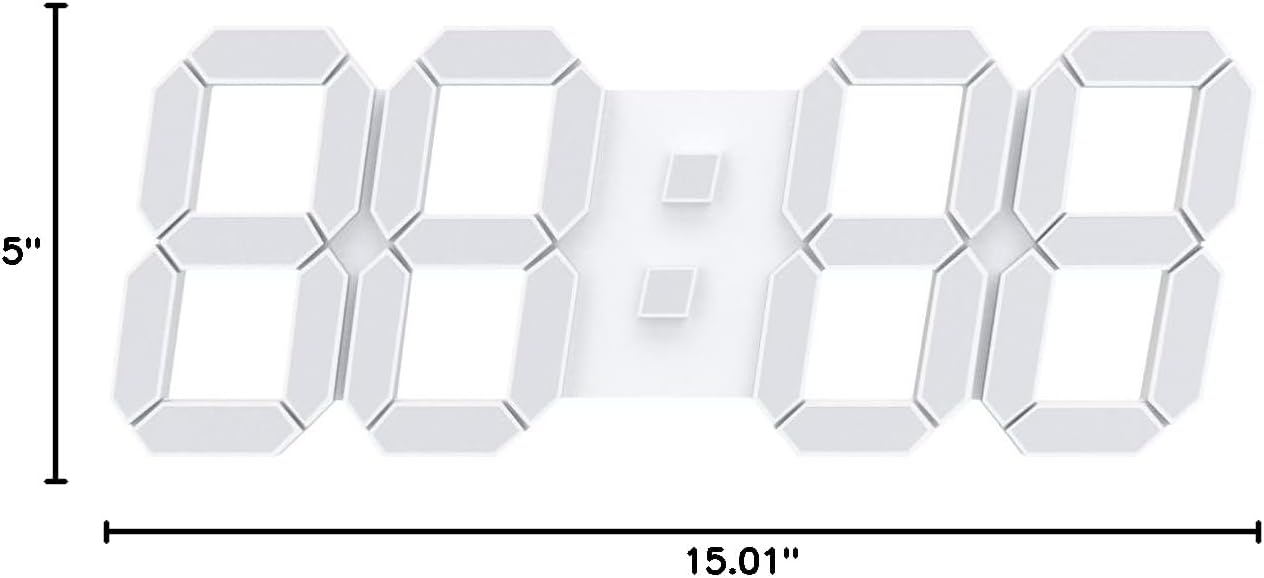
Figure 4: Diagram showing the approximate dimensions of the clock: 15.01 inches wide by 5 inches high.
| Feature | Detail |
|---|---|
| Brand | EDUP HOME |
| Model Number | EH-LED1316 |
| Display Type | Digital LED |
| Product Dimensions | 15.01"W x 5"H |
| Power Source | Corded Electric (USB cable) |
| Backup Battery | 1 x CR2032 Lithium Ion (included, for memory retention only) |
| Material | Plastic |
| Special Features | Adjustable Brightness (1-99 levels), 7 Colors, 6-Color Loop, 12/24 Hr Time, Date, Temperature, Countdown/Count-up, Alarm & Snooze |
| Mounting Type | Wall Mount |
| Item Weight | 1.32 Pounds |
Warranty and Support
For warranty information and customer support, please refer to the official EDUP HOME website or contact the seller directly through your purchase platform. A digital version of this user guide is available for download at: https://manuals.plus/m/f268069958962a5946413f14ae915698d09a1a7ec7b8324629d0ce26fb64f66d
Always keep your purchase receipt as proof of purchase for any warranty claims.

