
1. Introduction
The YIHUA 862BD+ is a versatile 2-in-1 station designed for professional soldering and hot air rework applications. This compact unit integrates a hot air rework station and a soldering station, allowing for independent or simultaneous operation. It is suitable for working with various components, including SOIC, CHIP, QFP, PLCC, BGA, and SMD.
Key features include:
- Hot air temperature range: 100°C to 480°C
- Soldering temperature range: 200°C to 480°C
- PID temperature stabilization for consistent results
- Digital temperature calibration and C°/F° display modes
- Automatic and manual hot air modes
- Soldering iron sleep mode to prolong component life
- Integrated hot air safety function

Figure 1: YIHUA 862BD+ Soldering and Hot Air Rework Station with included accessories.

Figure 2: Overview of the 2-in-1 functionality: Hot Air Rework Station and Soldering Station.
2. Safety Information
Always observe the following safety precautions to prevent injury or damage to the equipment:
- Electrical Safety: Ensure the unit is connected to a properly grounded 230V AC power outlet (Type F plug for EU). Do not operate with damaged cords or plugs.
- ESD Safety: The station is designed with ESD-safe features. Always use appropriate ESD precautions (e.g., wrist strap, ESD mat) when working with sensitive electronic components.
- High Temperatures: The hot air gun and soldering iron tips reach very high temperatures. Avoid direct contact with skin or flammable materials. Allow tools to cool before handling or storing.
- Fumes: Soldering and desoldering produce fumes. Work in a well-ventilated area or use a fume extractor.
- Hot Air Safety Function: The hot air safety function protects the user and the station in case of hot air failure. Ensure the hot air gun is placed in its holder when not in use; it will automatically cool down.
- Lead-Free Soldering: This station supports lead-free soldering. Follow proper procedures for handling lead-free solder.
3. Setup
Follow these steps to set up your YIHUA 862BD+ station:
- Unpacking: Carefully remove all components from the packaging. Verify that all items listed in the product description are present.
- Placement: Place the main unit on a stable, heat-resistant, and ESD-safe surface. Ensure adequate ventilation around the unit.
- Connect Hot Air Gun: Connect the hot air gun cable to the "SMD REWORK STATION" port on the main unit. Ensure a secure connection.
- Connect Soldering Iron: Connect the soldering iron cable to the "SOLDERING STATION" port on the main unit. Place the soldering iron in its designated holder.
- Power Connection: Connect the power cord to the back of the unit and then to a grounded 230V AC power outlet.
- Initial Check: Before powering on, ensure all connections are secure and no foreign objects are near the heating elements.

Figure 3: Modular design for connecting hot air gun and soldering iron.
4. Operating Instructions
4.1 Power On/Off
- To power on the hot air rework station, flip the "POWER" switch under "SMD REWORK STATION" to ON.
- To power on the soldering station, flip the "POWER" switch under "SOLDERING STATION" to ON.
- Both stations can be operated independently or simultaneously.
4.2 Temperature Adjustment
Use the up and down arrow buttons next to each digital display to adjust the desired temperature for the hot air gun and soldering iron. The PID program will stabilize the temperature to the set value.

Figure 4: Control panel with digital temperature displays and adjustment buttons.
4.3 Air Volume Adjustment (Hot Air Station)
Adjust the air volume for the hot air gun using the rotary knob labeled "AIR" on the main unit. Rotate clockwise to increase air volume and counter-clockwise to decrease it.

Figure 5: Air volume adjustment knob.
4.4 Hot Air Modes (Automatic/Manual)
The hot air rework station features both automatic and manual modes:
- Automatic Mode (AUTO): When the hot air gun is placed in its holder, it will automatically cool down to 100°C and turn off temporarily. It will resume operation when picked up again. This mode helps prolong the life of the heating element.
- Manual Mode (MAN): The hot air gun continues to operate at the set temperature and air volume even when placed in its holder. This is useful for continuous work where frequent pauses are not required.
Switch between AUTO and MAN modes using the toggle switch near the hot air gun connection.

Figure 6: Hot air gun in use and explanation of Auto/Manual modes.

Figure 7: Hot air gun in Automatic (AUTO) mode.

Figure 8: Hot air gun in Manual (MAN) mode.
4.5 Soldering Iron Sleep Mode
The soldering station features a sleep mode that activates after a set period of inactivity (0-99 minutes, adjustable). In sleep mode, the iron idles at 200°C to reduce unnecessary tip wear and oxidation. It quickly heats back to the set operating temperature when picked up.

Figure 9: Soldering iron in sleep mode.

Figure 10: Soldering station display indicating sleep mode (SLP).
4.6 Temperature Calibration and Display
- Digital Calibration: The station allows for digital temperature calibration. If there is a discrepancy between the displayed temperature and the actual tip temperature (measured with a thermometer), you can correct it by entering the real temperature value in the calibration interface.
- C°/F° Display: You can switch between Celsius and Fahrenheit temperature displays to suit your preference or regional requirements. Refer to the manual's specific section for changing this setting.
4.7 Recommended Soldering Temperatures
For optimal soldering results, consider the following guidelines:
- The set temperature for a soldering iron/station should be approximately 50°C / 90°F above the solder's melting point to create a better solder connection.
- An additional 100°C / 180°F higher temperature is recommended to provide a heat reserve for quick thermal recovery of the tip after the solder connection is made.
Example for Lead-Free Solder (Sn-Ag-Cu):
- Melting Point: 220°C
- Recommended Set Temperature: 220°C + 50°C + 100°C = 370°C

Figure 11: Recommended temperature calculation for soldering.
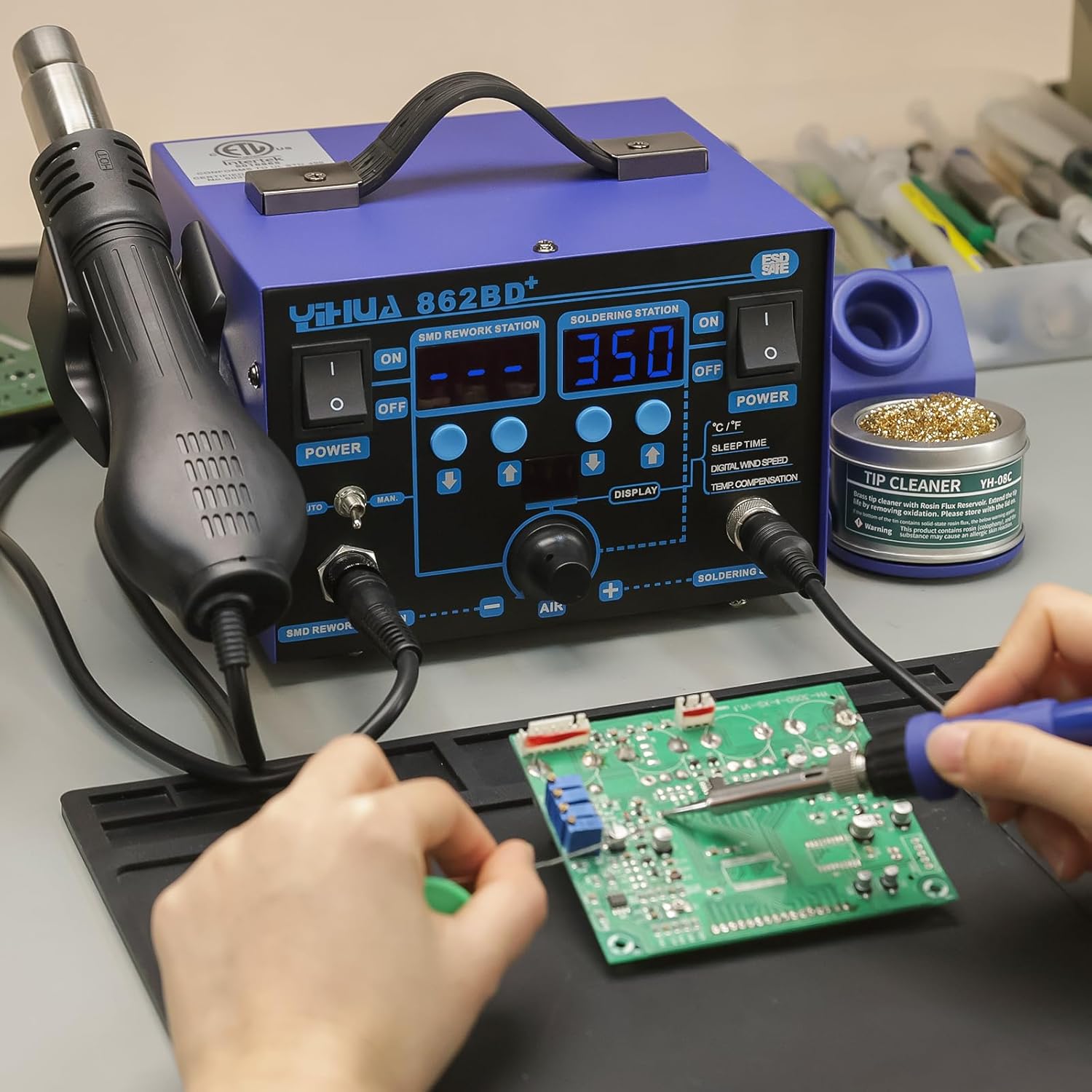
Figure 12: User operating the YIHUA 862BD+ station for soldering.
5. Maintenance
5.1 Soldering Tip Cleaning
Regularly clean the soldering iron tip to ensure optimal performance and extend its lifespan. Use the provided brass wool tip cleaner to remove excess solder and oxidation. Avoid abrasive materials that can damage the tip plating.
5.2 Hot Air Nozzle Maintenance
Ensure hot air nozzles are free from debris or blockages. Clean them gently if necessary, ensuring the airflow remains unobstructed.
5.3 Component Replacement
The YIHUA 862BD+ features a design that allows for easy replacement of the hot air gun and soldering iron. If a heating element or tool requires replacement, the entire iron/hot air gun can be swapped out without complex internal repairs, simplifying maintenance.
5.4 General Cleaning
Keep the main unit clean and free of dust. Use a soft, dry cloth for cleaning. Do not use liquid cleaners or solvents.
6. Troubleshooting
If you encounter issues with your YIHUA 862BD+ station, consider the following common troubleshooting steps:
- No Power: Check the power cord connection and ensure the power switches for both stations are in the ON position. Verify the wall outlet is functioning.
- Unstable Temperature: Ensure the tool is properly connected. If the issue persists, perform a digital temperature calibration as described in the operating instructions.
- Hot Air Gun Not Heating/No Airflow: Check the connection of the hot air gun. Ensure it is not in AUTO mode if you expect continuous operation while in the holder. Verify the air volume knob is not set to minimum.
- Soldering Iron Not Heating: Check the connection of the soldering iron. Ensure it is not in sleep mode (SLP displayed) or that the sleep timer has not expired.
- Poor Soldering Performance: Clean the soldering tip. Ensure the correct temperature is set for the type of solder being used (refer to Section 4.7).
For persistent issues, refer to the warranty and support section for contact information.
7. Specifications
| Feature | Specification |
|---|---|
| Manufacturer | Guangzhou Yihua Electronic Equipment Co., Ltd. |
| Dimensions (L x W x H) | 15.7 x 18.6 x 12.5 cm |
| Weight | 3.46 Kilograms |
| Material | Iron |
| Power Type | AC |
| Voltage | 230 Volts |
| Power | 700 Watts (approximate, based on 7E+1) |
| Display Type | LCD |
| Soldering Temperature Stability | 200 degrees Celsius (idle) |
| Upper Rated Temperature | 480 Degrees Celsius |
| Included Components | Soldering iron, hot air gun, various tips, solder, stand, tip cleaner, nozzles, ESD tweezers, IC extractor, desoldering pump. |
8. Warranty and Support
The YIHUA 862BD+ comes with a 12-month technical coverage for customers within the EU. YIHUA provides professional technical support on Amazon 24/7. For any questions, suggestions, or technical assistance, please contact the seller directly through the Amazon platform.