
1. Introduction
The Govee WiFi Thermo-Hygrometer H5179 is designed for accurate and real-time monitoring of temperature and humidity in various indoor environments. This device connects via both Bluetooth and Wi-Fi, allowing for remote data access and alert notifications through the Govee Home App. It is suitable for use in homes, bedrooms, refrigerators, cellars, garages, and greenhouses.
Key Features:
- Dual Connectivity: Stable WiFi and Bluetooth connection via the Govee Home App. (Supports 2.4 GHz Wi-Fi only)
- High Accuracy: Temperature accuracy of ±0.54℉ / ±0.3℃ and humidity accuracy of ±3% RH.
- Rapid Updates: Data updates every 2 seconds.
- Alert Function: Instant notifications if values exceed preset temperature and humidity ranges.
- Data Storage & Export: 20 days of online data storage and up to 2 years of exportable historical data in CSV format.
- Portable Design: Compact with a strap for flexible placement.
2. Package Contents
Ensure all items are present in the package:
- 1 × Govee Thermo-Hygrometer
- 1 × USB Cable (for power, if applicable, though device uses batteries)
- 1 × User Manual
- 3 × AA Batteries (pre-installed in the device)
3. Setup
3.1 Battery Installation
The device comes with 3 AA batteries pre-installed. If replacement is needed, open the battery compartment on the back of the device and insert new AA batteries, ensuring correct polarity.
3.2 Govee Home App Download
Download the Govee Home App from the App Store (iOS devices) or Google Play (Android devices). Alternatively, scan the QR code provided in the included user manual to download the app.
3.3 Device Pairing
- Ensure Bluetooth is enabled on your smartphone.
- Open the Govee Home App and create an account or log in.
- Tap the '+' icon in the top right corner of the app to add a new device.
- Select 'H5179' from the list of available devices.
- Follow the in-app instructions to connect the device via Bluetooth.
- Once connected via Bluetooth, the app will prompt you to connect to a 2.4 GHz Wi-Fi network for remote monitoring. Enter your Wi-Fi credentials.
Note: The device only supports 2.4 GHz Wi-Fi networks. Ensure your router is configured accordingly or connect to the 2.4 GHz band if you have a dual-band router.
3.4 Initial Placement
Place the thermo-hygrometer in the desired location. For optimal accuracy, avoid placing it directly in sunlight, near heat sources, or in areas with extreme drafts. The included strap allows for hanging the device.

Figure 3.4.1: Govee H5179 device and Govee Home App interface.
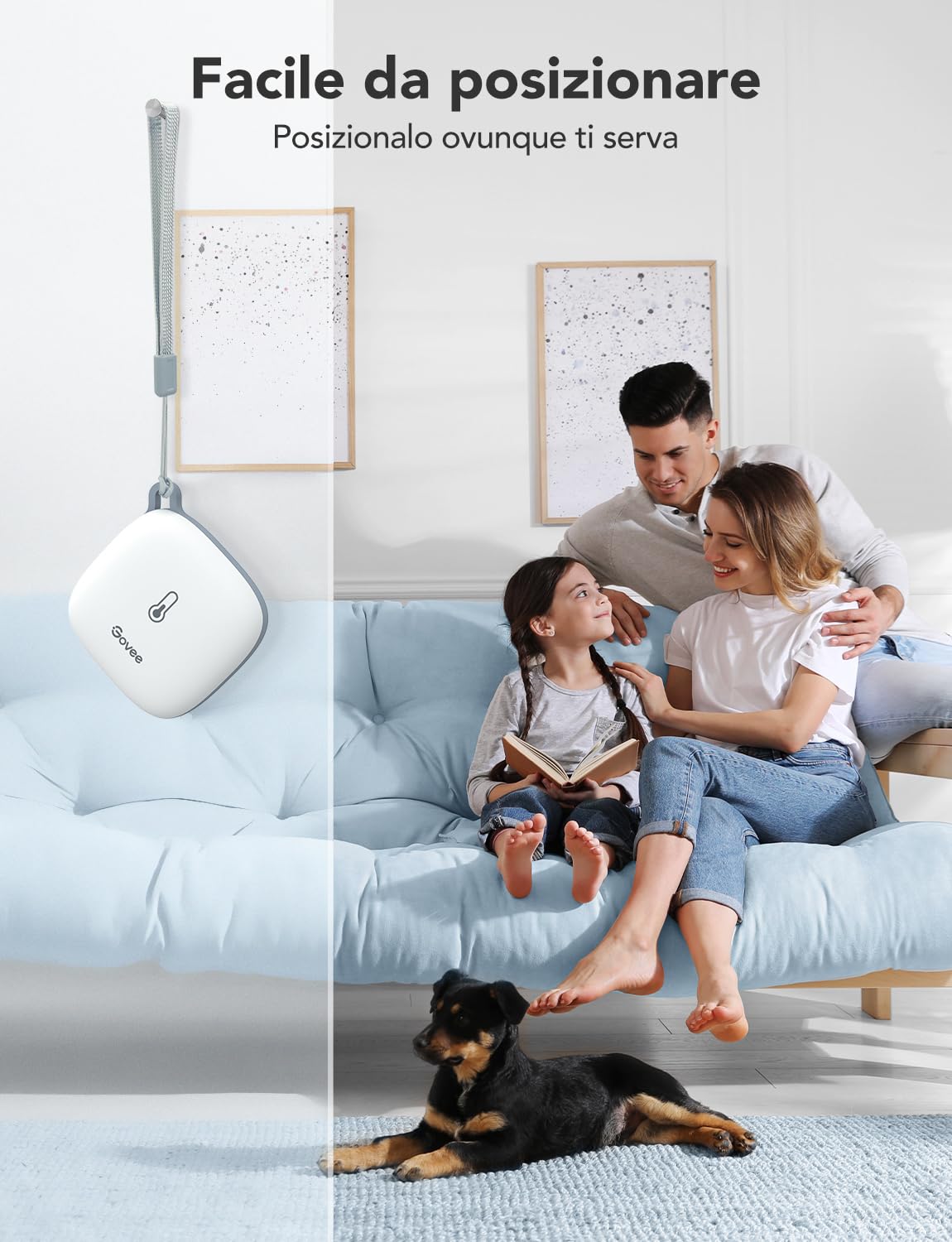
Figure 3.4.2: Flexible placement of the Govee H5179 in a living space.
4. Operation
4.1 Monitoring Data
Once connected, open the Govee Home App to view real-time temperature and humidity readings. The data is updated every 2 seconds, providing current environmental conditions.

Figure 4.1.1: Govee Home App intelligent control interface.
4.2 Setting Alerts
You can set custom temperature and humidity ranges within the Govee Home App. If the readings fall outside these preset ranges, you will receive an instant notification on your smartphone. This feature is useful for maintaining specific environmental conditions, such as in a baby's room or a wine cellar.

Figure 4.2.1: App notification for temperature alerts and data updates.
4.3 Data History and Export
The Govee Home App stores data for 20 days online. You can access historical data graphs and trends within the app. Additionally, you can export up to 2 years of data in CSV format for further analysis. This feature is accessible through the app's settings for the device.

Figure 4.3.1: Data export functionality to CSV format.

Figure 4.3.2: Cloud data storage and export.
4.4 Widget Function
The Govee Home App supports a widget function, allowing you to view current temperature and humidity readings directly on your smartphone's home screen without opening the app.

Figure 4.4.1: Govee Home App widget displaying real-time data.
5. Maintenance
5.1 Battery Replacement
When the battery level is low, the app will notify you. To replace the batteries, open the battery compartment on the back of the device and insert three new AA batteries, ensuring they are correctly oriented according to the polarity markings.
5.2 Cleaning
To clean the device, gently wipe its exterior with a soft, dry cloth. Avoid using abrasive cleaners or submerging the device in water.
5.3 Calibration
While the device is factory-calibrated for accuracy, if you suspect a discrepancy, you can perform a simple check. For temperature, place the device in a stable environment with a known temperature (e.g., a refrigerator at a consistent temperature) and compare the readings. For humidity, a salt solution method can be used for more precise calibration, though this is typically not required for general use.
6. Troubleshooting
- Device not connecting to Wi-Fi: Ensure your Wi-Fi network is 2.4 GHz. Check your router settings. Move the device closer to the router. Restart the device and your router.
- Inaccurate readings: Ensure the device is not placed near heat sources, direct sunlight, or in areas with strong drafts. Allow the device to stabilize for at least 30 minutes after initial placement or movement.
- No data updates in the app: Check the device's battery level. Ensure the device is within Wi-Fi or Bluetooth range. Restart the Govee Home App.
- Alerts not received: Verify that alert ranges are correctly set in the Govee Home App. Check your smartphone's notification settings to ensure the Govee Home App has permission to send notifications.
For further assistance, refer to the 'FAQ' section within the Govee Home App or contact Govee customer support.
7. Specifications
| Feature | Specification |
|---|---|
| Model Number | H5179 |
| Brand | Govee |
| Connectivity Technology | Wi-Fi (2.4 GHz), Bluetooth |
| Temperature Accuracy | ±0.54℉ / ±0.3℃ |
| Humidity Accuracy | ±3% RH |
| Data Update Interval | 2 seconds |
| Power Source | 3 × AA Batteries |
| Display Type | Digital (via App) |
| Material | Plastic |
| Dimensions | 7.8 x 7.8 x 3.1 cm |
| Weight | 140 grams |
8. Warranty and Support
Govee products typically come with a limited warranty. For specific warranty details, please refer to the warranty information provided with your purchase or within the Govee Home App. If you encounter any issues or require technical support, please contact Govee customer service directly through the Govee Home App or visit the official Govee website.


