
1. Introduction
This manual provides detailed instructions for the setup, operation, and maintenance of your USHINING BF-N11 HD Webcam. This device is designed to enhance your video communication experience with features such as high-definition video, an integrated ring light, and a noise-reducing microphone. Please read this manual thoroughly before using the product.
2. Package Contents
Verify that all items listed below are included in your package:
- USHINING BF-N11 HD Webcam
- Privacy Cover
- USB Cable (integrated)
- User Manual (this document)
3. Product Features
The USHINING BF-N11 HD Webcam offers a range of features for optimal performance:
- Full HD 1080p Video: Delivers clear and sharp video quality.
- Integrated Ring Light: Provides adjustable illumination with three brightness levels (Low, Medium, High) to improve video quality in various lighting conditions.
- Privacy Cover: A physical cover to ensure privacy when the webcam is not in use.
- Built-in Dual Noise-Reducing Microphone: Captures clear audio by minimizing background noise.
- Plug & Play USB Connectivity: Easy setup without the need for additional drivers.
- Wide Compatibility: Supports Windows XP, Mac OS 10.6, Android 5.0, and various video conferencing software like Zoom, Skype, Facetime, and Teams.
- 90-Degree Wide-Angle Lens: Captures a broad field of view, suitable for group calls.
- Flexible Mounting: Features a clip that allows for secure placement on monitors, laptops, or flat surfaces, with 360-degree rotation and 15-degree tilt adjustment.
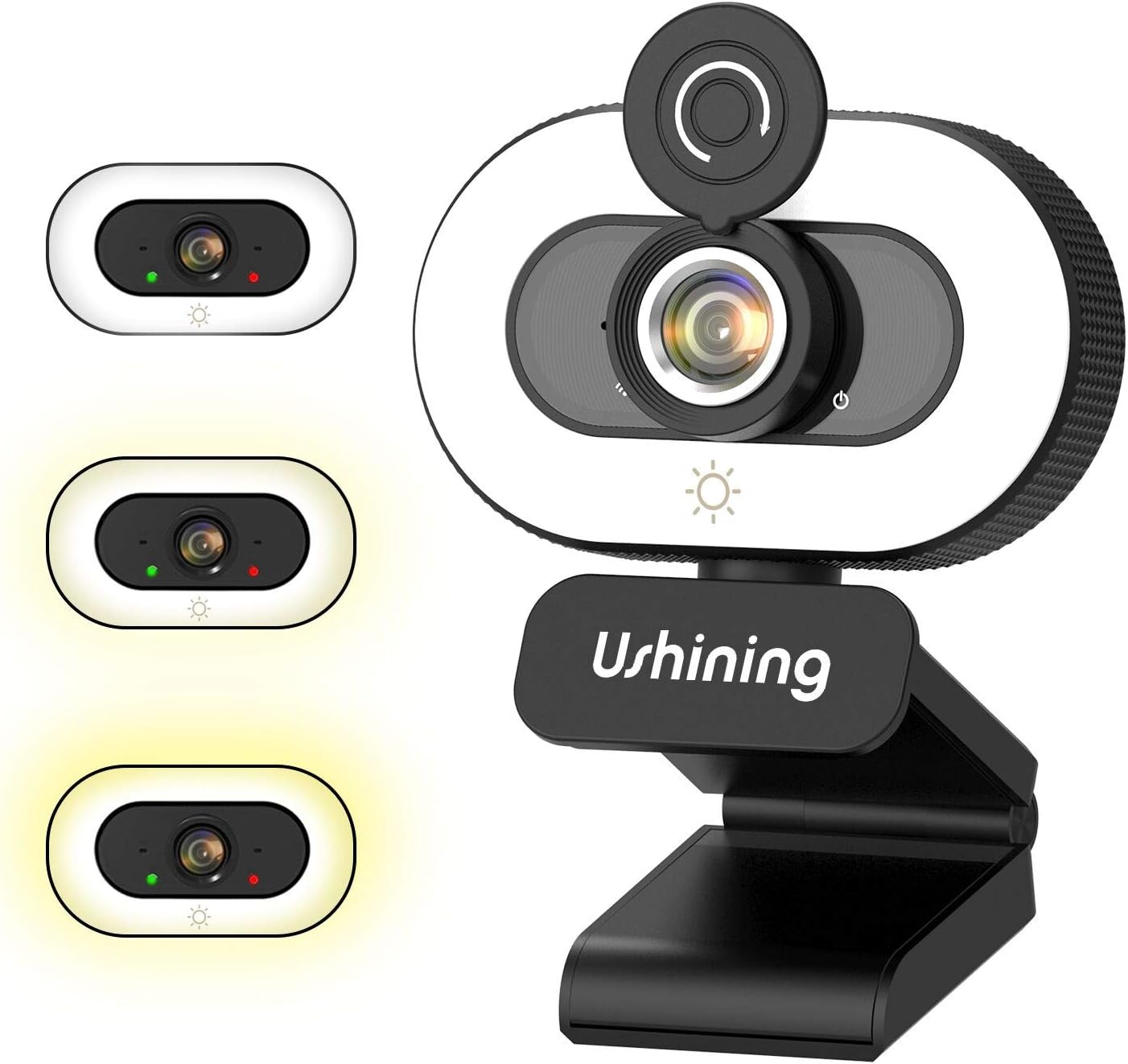
Image 1: USHINING BF-N11 HD Webcam with its integrated ring light and privacy cover.

Image 2: Overview of key features including adjustable ring light, security & privacy, internal noise reduction mic, USB plug & play, human face optimization, wide compatibility, and Full HD 1080P resolution.

Image 3: Demonstrates the three adjustable brightness levels (Low, Medium, High) of the integrated ring light, controlled by a touch sensor.

Image 4: Illustrates the difference between 720P and 1080P video clarity, highlighting the Full HD capability of the webcam.

Image 5: Shows the webcam in use during a video conference, emphasizing the built-in dual noise-reducing microphone for clear audio.

Image 6: Demonstrates the 90-degree wide-angle view and flexible mounting options, including 360-degree rotation and 15-degree tilt.

Image 7: Illustrates the function of the privacy cover, protecting against surveillance and privacy leaks.

Image 8: Displays the wide compatibility of the webcam with various software and operating systems, including Windows XP, Mac OS 10.6, and Android 5.0.
4. Setup Instructions
Follow these steps to set up your USHINING BF-N11 HD Webcam:
- Mounting the Webcam:
- Open the flexible clip base.
- Place the webcam on top of your computer monitor or laptop screen, ensuring the front of the webcam faces you.
- Adjust the clip to securely rest on the back of your monitor or laptop. The webcam can also be placed on a flat surface.
- Adjust the angle of the webcam as needed. It supports 360-degree horizontal rotation and 15-degree vertical tilt.
- Connecting to Your Computer:
- Plug the integrated USB cable into an available USB port on your computer.
- The webcam is plug-and-play, meaning your operating system (Windows, macOS, Android) should automatically detect and install the necessary drivers. This may take a few moments.
- Once installed, the webcam will be ready for use with your preferred video conferencing or recording software.
5. Operating Instructions
Using your USHINING BF-N11 HD Webcam is straightforward:
- Using the Ring Light:
- The webcam features an integrated ring light. To turn it on or adjust its brightness, gently touch the light icon sensor located on the front of the webcam, below the lens.
- Each touch will cycle through the three brightness levels: Low, Medium, High, and Off.
- Using the Privacy Cover:
- To ensure privacy, slide the physical privacy cover over the webcam lens when not in use.
- Slide it back to expose the lens when you need to use the camera.
- Selecting the Webcam and Microphone:
- In your video conferencing software (e.g., Zoom, Skype, Microsoft Teams, Facetime), navigate to the audio and video settings.
- Select "USHINING BF-N11 Webcam" as your video input device.
- Select "USHINING BF-N11 Microphone" (or similar name) as your audio input device.
6. Maintenance
Proper maintenance ensures the longevity and optimal performance of your webcam:
- Cleaning the Lens: Use a soft, lint-free cloth specifically designed for optical lenses to gently wipe the webcam lens. Avoid abrasive materials or harsh chemicals.
- Cleaning the Body: Wipe the body of the webcam with a soft, dry cloth. If necessary, a slightly damp cloth can be used, but ensure no moisture enters the device.
- Storing: When not in use for extended periods, store the webcam in a clean, dry place. Use the privacy cover to protect the lens from dust and scratches.
- Avoid Extreme Conditions: Do not expose the webcam to extreme temperatures, humidity, or direct sunlight.
7. Troubleshooting
If you encounter issues with your USHINING BF-N11 HD Webcam, refer to the following common problems and solutions:
| Problem | Possible Solution |
|---|---|
| Webcam not detected by computer. |
|
| No video output or black screen. |
|
| Microphone not working or poor audio quality. |
|
| Ring light not turning on or adjusting. |
|
8. Specifications
| Feature | Detail |
|---|---|
| Brand | USHINING |
| Model Number | BF-N11 |
| Video Capture Resolution | 1080p |
| Connectivity Technology | USB |
| Microphone | Built-in Dual Noise-Reducing Microphone |
| Ring Light | Integrated, 3 Adjustable Brightness Levels |
| Lens Type | Zoom |
| Field of View | 90 Degrees Wide-Angle |
| Rotation | 360 Degrees Horizontal |
| Tilt | 15 Degrees Vertical |
| Color | Black, White |
| Item Weight | 5.7 ounces |
| Package Dimensions | 4.53 x 3.35 x 2.36 inches |
| Form Factor | Laptop |
| Included Components | Privacy Cover, USB Cable |
9. Warranty and Support
For warranty information and technical support, please refer to the official USHINING website or contact their customer service directly. Details regarding warranty periods and support channels are typically provided with your purchase documentation or on the manufacturer's product page.
For further assistance, you may visit the USHINING support page or contact their customer service team.