
FeiyuTech Vimble 2S
FeiyuTech Vimble 2S Smartphone Gimbal User Manual
Model: Vimble 2S | Brand: FeiyuTech
1. Introduction
The Feiyutech Vimble 2S is a 3-axis handheld gimbal stabilizer designed for smartphones, offering enhanced stability and creative shooting modes for capturing smooth, professional-looking videos and photos. It features an extendable rod, intuitive controls, and intelligent functions via the Feiyu ON app.

Image: Feiyutech Vimble 2S gimbal with all included accessories.
2. Package Contents
Verify that all items listed below are included in your package:
- 1 x EPP carrying bag
- 1 x Vimble 2S Gimbal
- 1 x MT mini tripod
- 1 x Micro USB cable (for gimbal charging)
- 1 x Phone charging cable (Micro-Micro)
- 1 x Phone charging cable (Micro-Type C)
- 1 x Phone charging cable (Micro-Lightning)
- 1 x Anti-lost rope
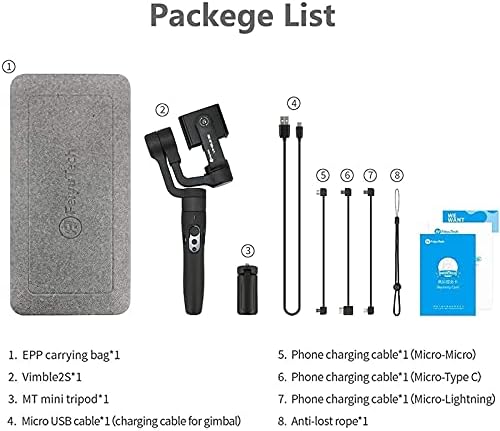
Image: Detailed view of all items included in the Vimble 2S package.
3. Product Overview
The Vimble 2S features a robust design with an extendable rod and precise motor control for smooth stabilization. Familiarize yourself with the main components and controls:

Image: Labeled diagram of the Vimble 2S gimbal components and controls.
3.1 Intuitive Control Buttons
The handle features easily accessible buttons for various functions:
- Joystick: Controls pan and tilt movement.
- Focus +/-: Adjusts focus or zoom (via Feiyu ON App).
- Function Button: Power On/Off, mode switching (Pan, Follow, All Follow, Lock), gimbal initialization.
- Bluetooth Shutter: Captures photos or starts/stops video recording.
- Trigger Button: Long press for Follow Mode, double tap to reset.

Image: Close-up of the Vimble 2S control panel.
3.2 3-Axis Stabilization
The Vimble 2S provides 3-axis stabilization (Pan, Tilt, Roll) to ensure smooth footage, even with dynamic movements. The motors feature locks for secure portability.

Image: Illustration of the Vimble 2S's 3-axis stabilization capabilities.
4. Setup Guide
Follow these steps for initial setup and balancing of your Vimble 2S gimbal:
- Install Smartphone: Gently slide your smartphone into the phone holder until it is snug against the back. Ensure the phone is centered.
- Unlock Gimbal Locks: Unlock the tilt and roll axis motor locks. These locks secure the gimbal during transport.
- Balance Roll Axis: Adjust the cross arm until your smartphone is balanced. The phone should remain level when released, indicating proper balance. This is crucial for optimal performance and battery life.
- Power On: Long press the Function Button to power on the gimbal.
Image: Visual guide for the simple setup process of the Vimble 2S.
5. Operating Instructions
5.1 Basic Operations
- Power On/Off: Long press the Function Button.
- Mode Switching: Single click the Function Button to cycle through Pan Mode, Follow Mode, All Follow Mode, and Lock Mode.
- Gimbal Initialization: Quintuple tap the Function Button if the gimbal is not stable or drifts.
- Photography/Video: Single click the Shutter Button for photography, long press for video recording.
- Switch Photo/Video Mode: Double click the Shutter Button.
- Switch Front/Rear Camera: Triple click the Shutter Button.
5.2 Switching Shooting Direction
The Vimble 2S allows quick transitions between horizontal and vertical shooting orientations:
- Vertical Direction: Hold the Trigger Button and then click the Function Button.
- Horizontal Direction: Double click the Trigger Button.

Image: Instructions for changing shooting orientation.
5.3 Feiyu ON App Integration
Download the Feiyu ON App for advanced features and intelligent operating modes:
- Time-Lapse/Trajectory Delay Photography: Capture stunning time-lapse videos.
- Superimposed Image: Create unique layered photos.
- Hitchcock Zooming (Dolly Zoom): Achieve a classic cinematic effect.
- Object/Face Tracking: Automatically follow subjects.
- Panorama: Stitch multiple photos into a wide panoramic shot.
- Slow Motion: Record high frame rate video for slow-motion playback.
- Light Rail: Creative light painting effects.
- Filter & Beauty Modes: Enhance your photos and videos.
- Video Editing: Basic editing tools within the app.
- Customizable Buttons: Remap trigger and function buttons via the app.

Image: Overview of Feiyu ON App features.
6. Maintenance
Proper maintenance ensures the longevity and optimal performance of your Vimble 2S gimbal:
- Cleaning: Use a soft, dry cloth to wipe the gimbal body. Avoid using liquid cleaners or solvents.
- Storage: Store the gimbal in its EPP carrying bag when not in use to protect it from dust and physical damage. Ensure motor locks are engaged during storage and transport.
- Battery Care: Charge the gimbal regularly, even if not in frequent use, to maintain battery health. Avoid fully discharging the battery for extended periods.
- Environmental Conditions: Avoid exposing the gimbal to extreme temperatures, high humidity, or dusty environments.
7. Troubleshooting
If you encounter issues with your Vimble 2S, refer to the following common solutions:
- Gimbal is unstable or drifts:
- Ensure the smartphone is properly balanced before powering on the gimbal.
- Perform a gimbal initialization by quintuple tapping the Function Button. This recalibrates the sensors.
- Check for any obstructions or loose connections.
- Bluetooth connection issues:
- Ensure Bluetooth is enabled on your smartphone.
- Restart both the gimbal and your smartphone.
- Forget the device in your phone's Bluetooth settings and re-pair.
- App functions not working:
- Ensure you have the latest version of the Feiyu ON App installed.
- Check if the gimbal firmware is up to date via the app.
- Grant all necessary permissions to the Feiyu ON App on your smartphone.
- Gimbal not charging:
- Use the provided Micro USB cable.
- Ensure the charging adapter is 5V/2A. Avoid quick chargers.
- Check the charging port for debris.
8. Specifications
| Feature | Detail |
|---|---|
| Tilting Range | 320° (with motor lock) |
| Rolling Range | 320° (with motor lock, 360° under All Follow mode) |
| Panning Range | 320° (with limited) |
| Extendable Rod Length | 0-183mm (7.1 inches) |
| Battery Running Time | Up to 12 hours (well-balanced, not charging smartphone) |
| Charging Time | ≥ 2 hours (with 5V/2A adapter) |
| Smartphone Charging Output | 5V Max 600 mA |
| Material | PC, PA6 & other high-strength materials |
| Weight | 428g (0.94lbs) |
| Mini Tripod Hole | 1/4'' screw hole at the bottom |
| Compatible Phone Width | 57mm - 84mm |
| Max Payload (Landscape) | 0.46lbs |
| Max Payload (Portrait) | 0.44lbs |

Image: Max payload and phone width compatibility diagram.
9. Warranty and Support
For detailed warranty information, please refer to the official FeiyuTech website or the warranty card included in your package.
For further assistance, tutorial videos, or the latest user manual, please visit the official FeiyuTech resources:
- FeiyuTech Official Website: www.feiyu-tech.com
- FeiyuTech YouTube Channel: Search for "FeiyuTech" on YouTube for video tutorials.
- Feiyu ON App: The app often contains integrated help and troubleshooting guides.
Related Documents - Vimble 2S
 |
FeiyuTech VB4 3-Axis Handheld Gimbal for Smartphone: User Manual Comprehensive user manual for the FeiyuTech VB4 3-Axis Handheld Gimbal for Smartphones. Covers setup, operation, modes, connection, indicators, specifications, and maintenance for this compact smartphone stabilizer. |
 |
FeiyuTech Vimble 2S 3-Axis Stabilized Handheld Gimbal for Smartphone User Manual Comprehensive user manual for the FeiyuTech Vimble 2S, a 3-axis stabilized handheld gimbal for smartphones. Learn about setup, operation, app connectivity, and specifications. |
 |
FeiyuTech VLOG Pocket 2 / MT2 Quick Start Guide Get started quickly with your FeiyuTech VLOG Pocket 2 / MT2 3-axis smartphone gimbal. This guide covers setup, basic operation, and app connection for stable mobile videography. |
 |
FeiyuTech Vimble 3 3-Axis Handheld Gimbal for Smartphone Quick Start Guide This quick start guide provides essential information for setting up and using the FeiyuTech Vimble 3, a 3-axis handheld gimbal for smartphones. Learn about its features, connection, specifications, and important safety notices. |
 |
FeiyuTech AK2000S 3-Axis Stabilized Handheld Gimbal Instruction Manual Comprehensive instruction manual for the FeiyuTech AK2000S 3-Axis Stabilized Handheld Gimbal, covering product overview, setup, function operation, app usage, accessories, and specifications. |
 |
FeiyuTech AK4500 3-Axis Gimbal User Manual & Guide Comprehensive user manual and guide for the FeiyuTech AK4500 3-Axis Stabilized Handheld Gimbal for cameras. Learn setup, operation, features, specifications, and troubleshooting. |