
1. Introduction
The FISCHER Wireless Bicycle Computer Model 50338 is designed to provide essential cycling data without the need for cables. It features an easy-to-read LCD display and offers 18 functions to track your rides. This manual provides instructions for installation, operation, and maintenance to ensure optimal performance. The computer operates wirelessly via radio transmission, is adjustable for any wheel size, and can display distances in either kilometers or miles. It is also splash-protected, making it suitable for use in light rain.

Image 1: Front view of the FISCHER Wireless Bicycle Computer.
2. What's Included
The package for your FISCHER Wireless Bicycle Computer includes all necessary components for immediate use:
- Fischer Wireless Bicycle Computer Unit
- Wireless Speed Sensor
- Handlebar Mounting Bracket
- Mounting Hardware (ties/bands)
- Batteries (pre-installed or included separately)

Image 2: All components of the FISCHER Wireless Bicycle Computer system.
3. Setup and Installation
Follow these steps to correctly install your bicycle computer:
3.1. Install Batteries
Ensure batteries are correctly inserted into both the computer unit and the wireless speed sensor. The product includes metallic lithium batteries with an average life of 200 hours.
3.2. Mount the Handlebar Bracket
- Position the handlebar mounting bracket on your bicycle's handlebar.
- Secure the bracket firmly using the provided mounting hardware (e.g., zip ties or rubber bands). Ensure it is stable and does not rotate during use.
- Slide the bicycle computer unit onto the bracket until it clicks into place.
3.3. Mount the Speed Sensor
- Attach the wireless speed sensor to the front fork of your bicycle.
- Position the sensor so that it aligns with the spokes of your wheel. The sensor detects wheel rotations.
- Secure the sensor using the provided mounting hardware. Ensure it is close enough to the wheel spokes to register rotations but does not interfere with wheel movement.
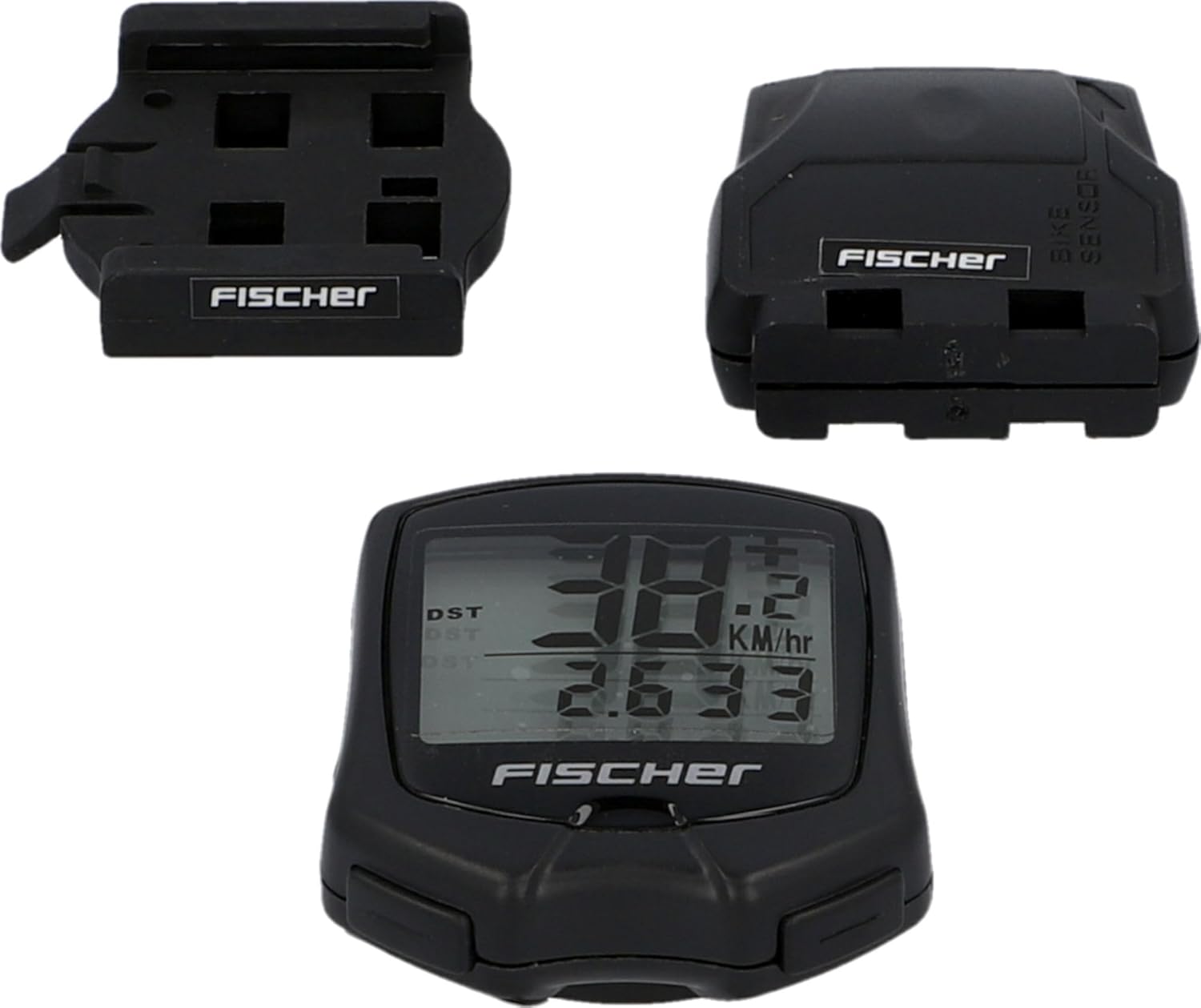
Image 3: Wireless speed sensor and handlebar mount installation overview.
3.4. Initial Settings
After installation, configure the computer for accurate readings:
- Wheel Size Calibration: The computer can be adjusted for any wheel size. Refer to the specific instructions in the included quick start guide for entering your wheel circumference. This is crucial for accurate speed and distance measurements.
- Unit Selection: Choose between kilometers per hour (km/h) or miles per hour (mph) for speed and distance display.
4. Operating the Bicycle Computer (18 Functions)
The FISCHER Wireless Bicycle Computer features an intuitive button interface for accessing its 18 functions. The LCD display shows multiple data points simultaneously.
4.1. Basic Navigation
Use the buttons on the computer unit to cycle through different display modes and access settings. Typically, there are one or two buttons for mode selection and setting adjustments.
4.2. Key Functions
While the full list of 18 functions is detailed in the product's quick start guide, common functions include:
- Current Speed: Displays your real-time cycling speed.
- Average Speed: Shows the average speed for your current ride.
- Maximum Speed: Records the highest speed achieved during your ride.
- Ride Time: Tracks the duration of your current cycling activity.
- Trip Distance: Measures the distance covered in your current ride.
- Total Distance (Odometer): Accumulates the total distance covered over all rides.
- Clock: Displays the current time.
- Scan Mode: Automatically cycles through various data displays.
- Temperature: (If available) Displays ambient temperature.
- Calories Burned: (If available) Estimates calorie consumption.
For detailed instructions on each function and how to reset trip data, please refer to the comprehensive user manual provided with the product.
5. Maintenance
Proper maintenance ensures the longevity and accuracy of your bicycle computer.
5.1. Cleaning
Clean the computer unit and sensor with a soft, damp cloth. Do not use abrasive cleaners or solvents. The device is splash-protected, meaning it can withstand light rain, but it is not designed for submersion.
5.2. Battery Replacement
When the display becomes dim or functions become erratic, it's time to replace the batteries. Both the computer unit and the sensor use metallic lithium batteries. Refer to the quick start guide for specific battery types and replacement procedures. Dispose of old batteries responsibly.
6. Troubleshooting
If you encounter issues with your FISCHER Wireless Bicycle Computer, try the following solutions:
- No Speed/Distance Display:
- Check if the speed sensor is correctly aligned with the wheel spokes and is within range of the computer unit.
- Ensure batteries in both the computer and sensor are fresh and correctly inserted.
- Verify that the wheel size setting is correctly entered.
- Inaccurate Readings:
- Recalibrate the wheel size setting.
- Ensure the sensor is securely mounted and not moving during rides.
- Check for potential electromagnetic interference from other electronic devices.
- Display is Blank or Dim:
- Replace the batteries in the computer unit.
- Check for extreme temperatures, which can affect LCD performance.
If problems persist, contact Fischer customer support for further assistance.
7. Specifications
| Model Number | 50338 |
| Brand | Fischer |
| Connectivity Technology | Wireless (Proprietary) |
| Display Type | LCD |
| Sensor Type | Speed Sensor |
| Battery Composition | Metallic Lithium |
| Average Battery Life | 200 hours |
| Mounting Type | Handlebar Mount |
| Product Dimensions (L x W x H) | 4 x 13 x 20 cm (packaging); 10L x 10W x 10H millimeters (item) |
| Weight | 100 grams |
| Color | Black |
| Water Protection | Splash-protected |
| Input Interface | Buttons |
8. Warranty and Support
8.1. Warranty Information
This product is subject to a return policy with a duration of 30 days for refund or replacement, as per Amazon's policy. For specific manufacturer warranty details, please refer to the documentation included with your product or visit the official Fischer website.
8.2. Customer Support
For technical assistance, troubleshooting not covered in this manual, or warranty claims, please contact Fischer customer support. Contact information can typically be found on the product packaging, the official Fischer website, or through your retailer.