1. Introduction
This manual provides detailed instructions for the installation, operation, and maintenance of your Muson 1080p HD WiFi IP Surveillance Camera. Please read this manual thoroughly before using the product to ensure proper function and safety. Keep this manual for future reference.
2. Safety Information
- Ensure the camera is powered by the specified voltage (5V DC).
- This camera is designed for indoor use only. Do not expose it to rain, moisture, or extreme temperatures.
- Avoid placing the camera near heat sources or in direct sunlight.
- Do not attempt to disassemble or modify the camera. This may void the warranty and cause damage.
- Keep the camera and its accessories out of reach of children.
- Only use a 2.4GHz Wi-Fi network for connection; 5GHz networks are not supported.
3. Package Contents
Please check the package for the following items:
- Muson 1080p HD WiFi IP Surveillance Camera
- Power Adapter
- USB Cable
- Mounting Accessories (screws, wall plugs)
- User Manual
4. Product Overview
The Muson 1080p HD WiFi IP Surveillance Camera offers comprehensive home monitoring with its advanced features. It includes a high-definition lens, infrared LEDs for night vision, a microphone, and a speaker for two-way audio communication. The camera supports pan and tilt functions for a wide viewing angle.

Figure 4.1: Muson 1080p HD WiFi IP Surveillance Camera. This image shows the compact white camera unit alongside a smartphone displaying a live feed of a child interacting with a dog, illustrating its use for monitoring family and pets.
5. Setup
Follow these steps to set up your Muson surveillance camera:
- Download the App: Search for and download the "AJCloud" app from your smartphone's app store (available for iOS and Android).
- Register an Account: Open the AJCloud app and follow the on-screen instructions to register a new account or log in if you already have one.
- Power On the Camera: Plug the power adapter into the camera's power port and then into a wall outlet. The camera will power on and indicate its status (e.g., a flashing LED).
- Add Device: In the AJCloud app, tap the "+" icon to add a new device. Select your camera model or scan the QR code on the camera if prompted.
- Connect to 2.4GHz WiFi: Follow the app's instructions to connect the camera to your home's 2.4GHz Wi-Fi network. Ensure your smartphone is also connected to the same 2.4GHz network during setup.
- Pairing: The app will guide you through the pairing process, which may involve scanning a QR code displayed on your phone with the camera's lens or listening for an audio prompt.
- Enjoy Live Video: Once successfully paired, you can access the live video feed and control your camera through the app.

Figure 5.1: Easy and Quick Setup. This image visually outlines the three primary steps for setting up the Muson camera: downloading the 'AJCloud' app, connecting the camera to power and a 2.4GHz WiFi network, and then accessing the live video feed.
6. Operating Instructions
6.1 Live View and Pan/Tilt/Zoom
Access the live video feed through the AJCloud app. You can remotely control the camera's movement to achieve a 360° panoramic view. The camera supports 350° horizontal pan and 90° vertical tilt.
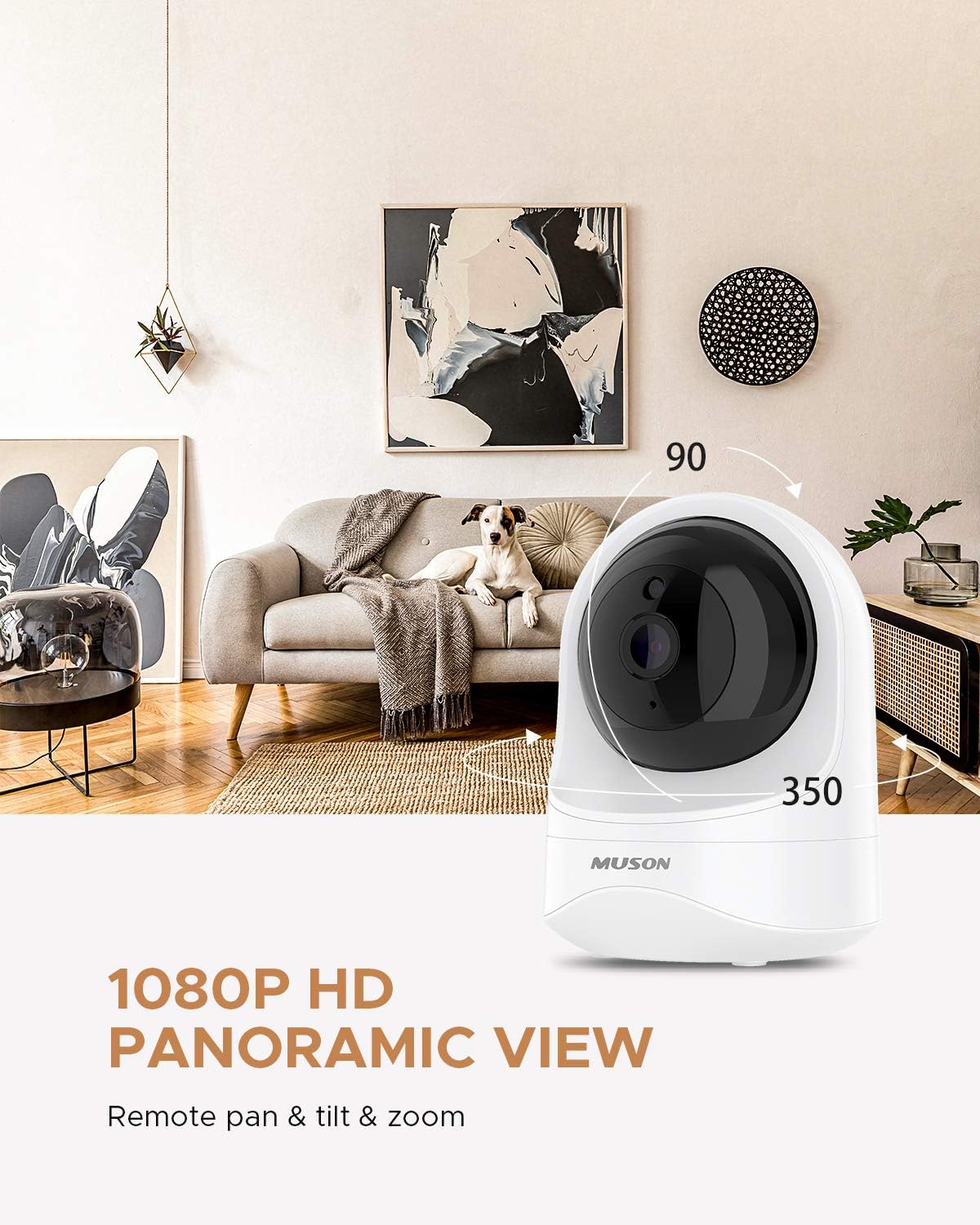
Figure 6.1: 1080p HD Panoramic View. This image displays the Muson camera in a modern living room, highlighting its ability to pan 350 degrees horizontally and tilt 90 degrees vertically, providing a comprehensive view of the area.
6.2 Two-Way Audio
The camera features a built-in microphone and speaker, allowing for clear two-way communication. Use the app to speak through the camera or listen to the environment around the camera.

Figure 6.2: Two-Way Audio Functionality. This image illustrates the two-way audio capability, showing a child speaking to a pet through the camera, and a smartphone screen displaying the live video feed with audio controls.
6.3 Automatic Night Vision
The camera is equipped with infrared LEDs that automatically activate in low-light conditions, providing clear black-and-white video footage up to 7 meters in complete darkness.

Figure 6.3: Automatic Night Vision. This image depicts the camera operating in a dark room next to a sleeping child, demonstrating its automatic night vision feature that provides clear video without disturbing light.
6.4 Motion Detection and Alerts
The camera can detect motion within its field of view and send real-time alerts to your smartphone. You can customize the motion detection area and sensitivity settings within the app.
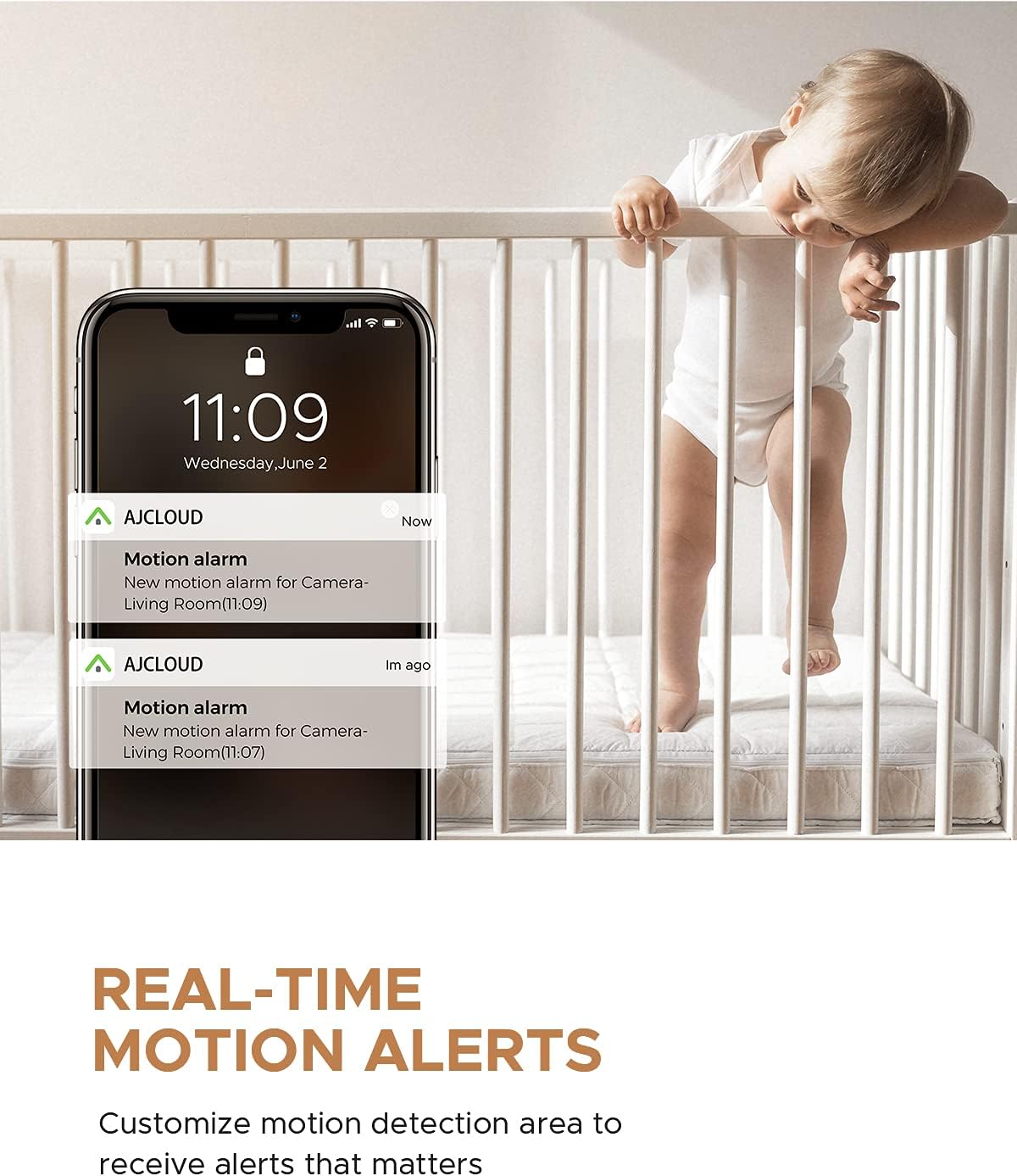
Figure 6.4: Real-Time Motion Alerts. This image shows a smartphone screen displaying multiple 'Motion alarm' notifications from the AJCloud app, indicating that the camera has detected movement, with a baby in a crib in the background.
6.5 Remote View and Multi-User Access
Monitor your home from anywhere using the AJCloud app. The camera supports unlimited device access and allows you to share access with family members, enabling multiple users to view the live feed simultaneously.

Figure 6.5: Remote View via Multiple Devices. This image illustrates the camera's capability for remote viewing and sharing, showing the camera connected to several smartphones held by different individuals, suggesting multi-user access from various locations.
6.6 Local Storage
The camera supports a Micro-SD card (up to 128GB, not included) for local video recording. Insert the Micro-SD card into the designated slot on the camera to enable continuous recording or event-triggered recording.
6.7 Smart Home Integration
The Muson camera is compatible with Amazon Alexa and Google Assistant, allowing for voice control and integration into your smart home ecosystem.
7. Maintenance
- Clean the camera lens with a soft, dry cloth to ensure clear image quality.
- Do not use harsh chemicals or abrasive cleaners.
- Regularly check for firmware updates through the AJCloud app to ensure optimal performance and security.
- Ensure the camera is placed in a well-ventilated area to prevent overheating.
8. Troubleshooting
| Problem | Solution |
|---|---|
| Camera fails to connect to Wi-Fi. | Ensure your Wi-Fi network is 2.4GHz. Check Wi-Fi password. Move camera closer to the router. Reset the camera and try again. |
| No live video feed. | Check internet connection on your phone and camera. Restart the app and camera. Ensure the camera is powered on. |
| Motion alerts are not received. | Verify motion detection settings in the app. Check app notification permissions on your phone. Ensure the camera has a stable internet connection. |
| Two-way audio is unclear. | Reduce background noise. Ensure microphone and speaker are not obstructed. Check internet connection stability. |
| Night vision is not working. | Ensure the camera is in a dark environment for automatic activation. Check for any obstructions blocking the infrared LEDs. |
9. Specifications
| Feature | Specification |
|---|---|
| Brand | Muson |
| Model Reference | muson |
| Effective Video Resolution | 1080 Pixels (1080p) |
| Wireless Communication Technology | Wi-Fi (2.4GHz only) |
| Form Factor | Dome |
| Item Dimensions (L x W x H) | 7.7 x 7.7 x 10.3 cm |
| Product Weight | 310 grams |
| Voltage | 5 Volts |
| Power | 5 Watts |
| Special Features | Night Vision, Two-Way Audio, Motion Detection |
| Indoor/Outdoor Use | Indoor |
| Compatible Devices | Smartphone, Amazon Alexa, Google Assistant |
| Power Source | DC |
| Local Storage | Micro-SD card (max. 128GB, not included) |
10. Warranty and Support
Muson products are designed for reliability and performance. For warranty information or technical support, please refer to the contact details provided with your purchase documentation or visit the official Muson website. Please have your model number and purchase date available when contacting support.

