Introduction
Thank you for choosing the Merkury 3-in-1 Device Stand Desktop Charging Station. This versatile stand is designed to provide a clutter-free and convenient charging solution for your Apple iPhone, Apple Watch, and AirPods. Made from durable silicone, it offers dedicated slots for each device, ensuring they are organized and easily accessible while charging.

Image: The Merkury 3-in-1 Device Stand Desktop Charging Station shown in its retail packaging, highlighting its compatibility with iPhone, Apple Watch, and AirPods.
Setup
This device stand requires your existing charging cables for functionality. Please ensure you have your Apple Lightning cables (for iPhone and AirPods charging case) and your Apple Watch magnetic charging cable readily available.
- Prepare Cables: Gather your Apple Lightning cable(s) and Apple Watch magnetic charging cable.
- Route iPhone Cable: Carefully route your iPhone's Lightning cable through the designated channel in the stand's iPhone slot. Ensure the connector is positioned correctly to align with your iPhone's charging port when placed on the stand.
- Route Apple Watch Cable: Insert your Apple Watch magnetic charging puck into the circular cutout in the stand. Route the cable through the channel underneath the stand.
- Route AirPods Cable: If using a separate Lightning cable for AirPods, route it through the channel in the AirPods slot. Alternatively, the iPhone's Lightning cable can be used for AirPods if only one is available and swapped as needed.
- Connect to Power: Connect the routed cables to a multi-USB power adapter (not included) or individual USB power sources.
- Placement: Place the assembled stand on a stable, flat desktop surface.
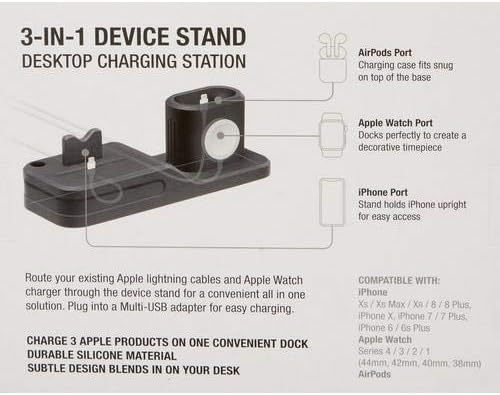
Image: An illustrative diagram of the device stand, detailing the specific ports for AirPods, Apple Watch, and iPhone, and indicating how cables are routed through the base.
Operating Instructions
Once set up, the Merkury 3-in-1 Device Stand provides a convenient and organized charging experience for your devices.
- Charging iPhone: Place your iPhone (compatible models include iPhone 8, 8 Plus, X, XR, XS, XS Max, 11, 11 Pro, 11 Pro Max) onto the stand's iPhone port. Ensure the Lightning connector is fully engaged for charging. The stand holds the iPhone upright for easy viewing.
- Charging Apple Watch: Place your Apple Watch (compatible with Series 4, 3, 2, 1 and sizes 44mm, 42mm, 40mm, 38mm) onto the magnetic charging puck in its designated slot. The watch will automatically align and begin charging. The design allows the watch to be displayed as a decorative timepiece.
- Charging AirPods: Place your AirPods charging case onto the stand's AirPods port. Ensure the Lightning connector is fully engaged. The charging case should fit snugly.
The stand is designed for simultaneous charging of all three devices, provided your multi-USB adapter or power source can supply sufficient power.
Maintenance
To ensure the longevity and appearance of your Merkury 3-in-1 Device Stand, follow these simple maintenance guidelines:
- Cleaning: The stand is made of durable silicone. To clean, gently wipe the surface with a soft, damp cloth. Avoid using harsh chemicals, abrasive cleaners, or solvents, as these may damage the silicone material.
- Dust Removal: Periodically remove any dust or debris that may accumulate in the charging slots or cable channels to ensure proper device seating and cable connection.
- Storage: When not in use for extended periods, store the stand in a cool, dry place away from direct sunlight.
Troubleshooting
If you encounter any issues with your Merkury 3-in-1 Device Stand, please refer to the following common solutions:
- Device Not Charging:
- Ensure your device's charging cable is properly routed and fully inserted into the stand's port.
- Verify that the charging cable is securely connected to a functional USB power adapter or port.
- Check if the power adapter is plugged into a live power outlet.
- Test your charging cables and power adapter with another device to confirm they are working correctly.
- Device Does Not Sit Properly / Leans:
- Ensure the charging cable is routed correctly and not creating any obstruction within the stand's slot.
- Verify that your device (e.g., iPhone with case) fits within the stand's dimensions. Some bulky cases may interfere with proper seating.
- Gently adjust the device's position on the connector to ensure a stable fit.
- Stand is Slipping:
- Ensure the surface on which the stand is placed is clean and dry.
- The silicone material provides natural grip; however, extreme dust or moisture can reduce friction.
Specifications
| Feature | Detail |
|---|---|
| Product Name | 3-in-1 Device Stand Desktop Charging Station |
| Brand | Merkury |
| Model | Not explicitly specified, refers to the 3-in-1 Device Stand |
| Material | Silicone |
| Color | Light Pink |
| Form Factor | Desktop Charging Station |
| Connectivity Technology | USB (via user-supplied cables) |
| Connector Type | MagSafe Compatible (for Apple Watch), Lightning (via user-supplied cables) |
| Compatible Devices | iPhone (8, 8 Plus, X, XR, XS, XS Max, 11, 11 Pro, 11 Pro Max), Apple Watch (Series 4/3/2/1, 44mm, 42mm, 40mm, 38mm), AirPods |
| Included Components | 1 Device Stand (Cables and power adapter not included) |
| Item Weight | 8.3 ounces |
| Package Dimensions | 7.48 x 5.94 x 2.6 inches |
| Manufacturer | China |
Warranty Information
Specific warranty details for the Merkury 3-in-1 Device Stand Desktop Charging Station are not available in this manual. For information regarding product warranty, please refer to the product packaging or visit the official Merkury Innovations website. Please retain your proof of purchase for any warranty claims.
Customer Support
If you require further assistance or have questions not covered in this manual, please visit the Merkury Innovations official website for customer support options, including FAQs, contact information, and product registration.