
1. Introduction
This manual provides essential instructions for the setup, operation, and maintenance of your TFA Dostmann VIEW METEO Wi-Fi Weather Station (Model 35.8000.01). This device offers comprehensive weather monitoring capabilities, including indoor and outdoor temperature and humidity, professional weather forecasts, and advanced features via a Wi-Fi connection and the TFA VIEW app. Please read this manual thoroughly before using the device to ensure proper function and longevity.
2. Safety Information
- Keep the device and its accessories out of reach of children.
- Do not expose the device to extreme temperatures, direct sunlight, or excessive moisture.
- Use only the provided power adapter.
- Do not attempt to disassemble or repair the device yourself. Contact qualified personnel for service.
- Dispose of batteries according to local regulations. Do not mix old and new batteries or different types of batteries.
3. Package Contents
Verify that all components are present in the package:
- Base station (main unit)
- Thermo-hygro transmitter (outdoor sensor)
- User manual
- Power adapter
4. Product Overview
The TFA Dostmann VIEW METEO Weather Station provides comprehensive weather data. Its high-contrast color display shows indoor and outdoor conditions, along with professional weather forecasts when connected to Wi-Fi. Key features include:
- Wireless transmission of outdoor temperature and humidity.
- Indoor temperature and humidity monitoring.
- Professional 12-hour weather forecasts for your region (with Wi-Fi).
- Display of maximum and minimum values, heat index, and dew point.
- Adjustable alarms for temperature and humidity.
- Clock with date and day of the week, automatically updated via Wi-Fi.
- Color display with 3 adjustable brightness levels and automatic night dimming.
- Integration with the free TFA VIEW app for worldwide data access and notifications.

Figure 4.1: Main display of the weather station with indicators for rain probability, weather forecast, temperature, humidity, dew point, 3 brightness levels, max/min values, and adjustable alarm.
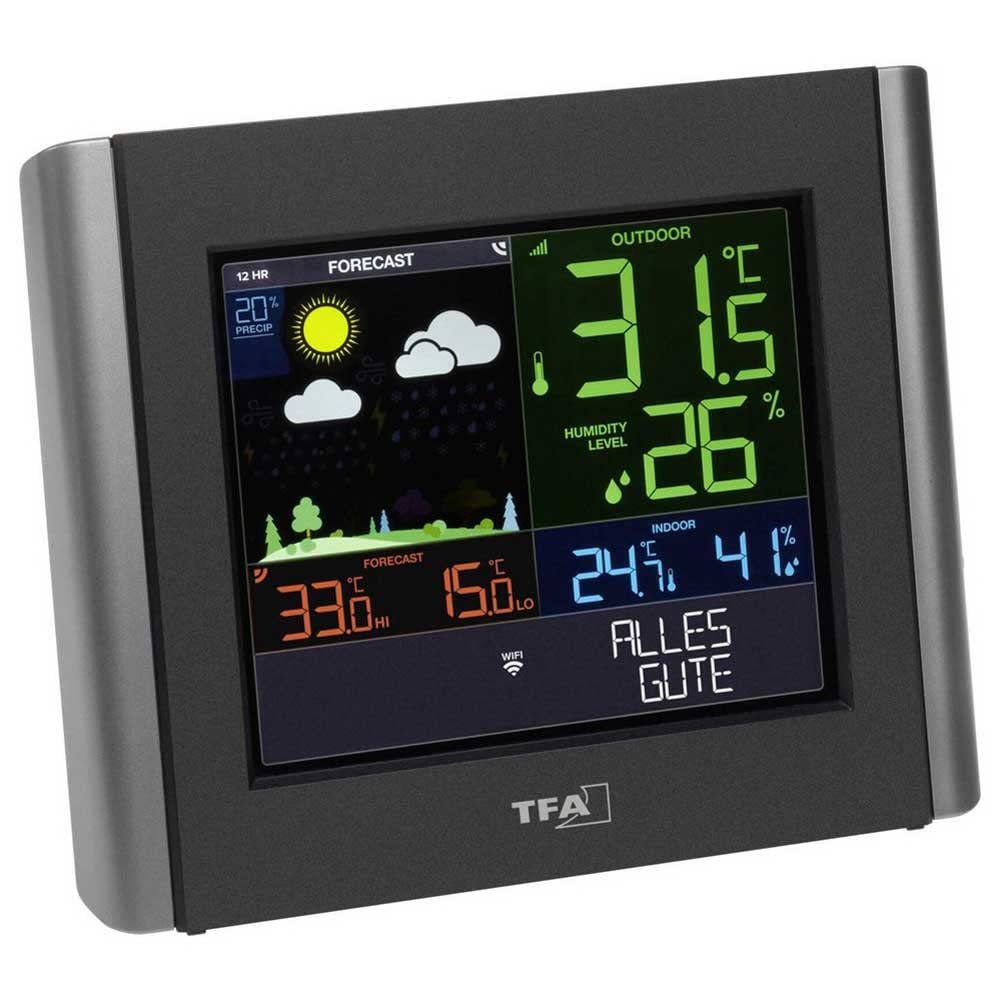
Figure 4.2: Detailed view of the weather station's color display, showing outdoor temperature (31.5°C), humidity (26%), indoor temperature (24.7°C), humidity (41%), and a sunny forecast.
5. Setup
5.1. Powering the Device
- Base Station: Connect the supplied power adapter to the base station and plug it into an electrical outlet. The display will light up.
- Thermo-Hygro Transmitter: Insert 2 AA batteries (not included) into the outdoor sensor, observing the correct polarity. The sensor will automatically start transmitting data.
5.2. Sensor Placement
For accurate outdoor readings, place the thermo-hygro transmitter in a shaded, well-ventilated location, protected from direct rain and sunlight. Ensure it is within 100 meters (328 feet) of the base station, free from major obstructions.
5.3. Wi-Fi Connection and App Setup
To unlock advanced features and professional weather forecasts, connect your weather station to your local Wi-Fi network using the free TFA VIEW app.
- Download the App: Download the "TFA VIEW" app from the App Store (iOS) or Google Play Store (Android) on your smartphone or tablet.
- Create Account: Open the app and follow the on-screen instructions to create a new user account or log in if you already have one.
- Add Device: In the app, select the option to add a new device. Follow the guided steps to connect your VIEW METEO weather station to your 2.4 GHz Wi-Fi network. The app will provide specific instructions for pairing.
- Confirmation: Once connected, the weather station display will update to show professional forecasts and a Wi-Fi symbol will appear.

Figure 5.1: Overview of the system, showing the outdoor sensor providing local measurements, the weather station connecting to Wi-Fi for weather data, and the TFA VIEW app for mobile access.

Figure 5.2: Wi-Fi connection indicator.
6. Operating Instructions
6.1. Understanding the Display
The color display is divided into several sections, providing a clear overview of current and forecasted weather conditions:
- Outdoor Section: Displays current outdoor temperature and humidity from the wireless sensor.
- Indoor Section: Shows current indoor temperature and humidity measured by the base station.
- Forecast Section: Icons indicate the 12-hour professional weather forecast (with Wi-Fi) or a basic forecast (without Wi-Fi).
- Time & Date: Current time, date, and day of the week. Automatically updated via Wi-Fi.
- Additional Information: Includes dew point, heat index, max/min values, and alarm indicators.
6.2. Adjusting Settings
Use the buttons on the base station to navigate menus and adjust settings such as:
- Brightness: Cycle through 3 brightness levels. The display can also dim automatically at night.
- Alarms: Set high/low alarms for temperature and humidity. An audible alert and/or push notification (via app) will activate if thresholds are exceeded.
- Max/Min Values: View recorded maximum and minimum temperature and humidity values.
6.3. Using the TFA VIEW App
The TFA VIEW app extends the functionality of your weather station:
- Worldwide Access: View your weather station's data from anywhere via your mobile device.
- Data History: Access records of measured values for the last 30 days.
- Custom Alarms: Set specific alarm limits and receive push notifications directly to your phone.
- Expandability: Add up to 50 additional compatible radio transmitters (e.g., thermo-hygro, anemometer, pool transmitters) to monitor more locations.
- Personal Messages: Program personal messages or additional weather information to be displayed on the station's screen via the app.

Figure 6.1: TFA VIEW app interface displaying current weather data and historical trends.

Figure 6.2: Smartphone with TFA VIEW app for Wi-Fi control.
7. Maintenance
- Cleaning: Clean the device and sensor with a soft, damp cloth. Do not use abrasive cleaners or solvents.
- Battery Replacement: Replace batteries in the outdoor sensor when the low battery indicator appears on the display or in the app.
- Firmware Updates: Periodically check the TFA VIEW app for any available firmware updates for your weather station to ensure optimal performance and new features.
8. Troubleshooting
| Problem | Possible Cause | Solution |
|---|---|---|
| No outdoor temperature/humidity reading | Sensor batteries are low or depleted; sensor out of range; interference. | Replace sensor batteries. Move sensor closer to the base station. Ensure no large metal objects are between the sensor and base station. |
| Wi-Fi connection fails | Incorrect Wi-Fi password; station too far from router; router uses 5 GHz band only; network issues. | Double-check Wi-Fi password. Move station closer to the router. Ensure your router supports 2.4 GHz Wi-Fi. Restart router and station. Follow app instructions carefully. |
| Inaccurate readings | Sensor exposed to direct sunlight/rain; poor ventilation. | Relocate the outdoor sensor to a shaded, well-ventilated area protected from elements. |
| Display is dim or off | Power adapter disconnected; brightness setting too low; automatic night dimming active. | Check power adapter connection. Adjust brightness settings. Note that the display dims automatically at night. |
9. Specifications

Figure 9.1: Dimensions of the weather station.
| Feature | Detail |
|---|---|
| Model Number | 35.8000.01 |
| Dimensions (L x W x H) | 19.7 x 3.2 x 16.3 cm (Base Station) |
| Weight | 343 Grams |
| Material | Plastic |
| Color | Black |
| Power Source (Base Station) | Power Adapter (WS/GS) |
| Power Source (Sensor) | 5 AA batteries (not included) |
| Connectivity Technology | 868 MHz (Sensor), Wi-Fi (2.4 GHz) |
| Display Type | LCD Color Display |
| Temperature Accuracy | ±1°C |
| Upper Nominal Temperature | 60 Degrees Celsius |
| Special Features | Alarm, Clock, Adjustable Brightness, Standalone operation without Wi-Fi/App |
| Recommended Uses | Garden, Home |
10. Warranty and Support
10.1. Warranty Information
The TFA Dostmann VIEW METEO Wi-Fi Weather Station (Model 35.8000.01) comes with a 1-year availability for spare parts. Please retain your proof of purchase for warranty claims.
10.2. Customer Support
For further assistance, technical support, or inquiries regarding your device, please refer to the official TFA Dostmann website or contact their customer service. The TFA VIEW app also provides resources and information.


