
1. Introduction
Thank you for choosing the DUX DUCIS MK Series Magnetic Keyboard Case. This product is designed to enhance your tablet experience by providing a full-size keyboard, a precision multi-touch trackpad, and robust protection. This manual provides instructions for setup, operation, and maintenance to ensure optimal performance.
Key Features:
- Laptop-like typing with responsive, multi-level LED backlit keys.
- Precision multi-touch trackpad for intuitive navigation.
- Magnetic floating stand for adjustable viewing angles.
- Fast and stable Bluetooth 5.2 connection.
- Slim PU leather and TPU construction for protection against daily wear.
2. Compatibility
Before proceeding with setup, please verify your tablet's model number to ensure compatibility. This keyboard case is designed for specific iPad and Samsung tablet models.
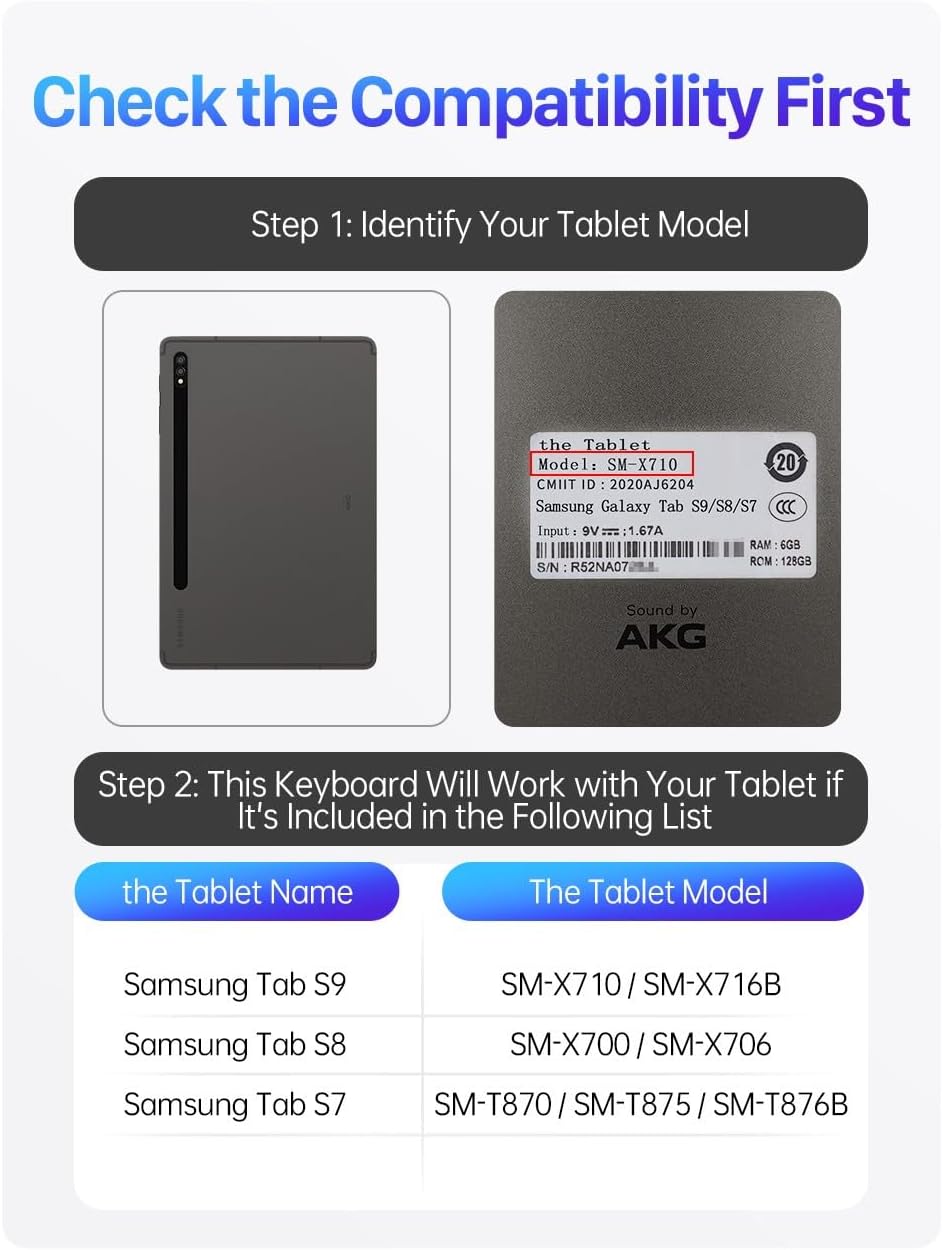
Image 2.1: Guide to identifying your tablet model and a list of compatible Samsung models.
2.1 Identifying Your Tablet Model
- Go to your tablet's Settings.
- Navigate to About Tablet or About Device.
- Locate the Model Number (e.g., SM-X710 for Samsung, or check the back of your iPad for the 'A' model number).
2.2 Compatible Models
This keyboard case is compatible with the following tablet models:
- iPad Models: iPad Air 13 (2024), iPad Pro 12.9 (2022-2018)
- Samsung Tablet Models:
- Samsung Tab S9 (SM-X710 / SM-X716B)
- Samsung Tab S8 (SM-X700 / SM-X706)
- Samsung Tab S7 (SM-T870 / SM-T875 / SM-T876B)
3. Product Overview
The DUX DUCIS MK Series Magnetic Keyboard Case integrates a protective cover with a functional keyboard and trackpad, designed for seamless tablet interaction.

Image 3.1: The keyboard case with a tablet in an upright position.

Image 3.2: Rear view showing the tablet attached to the case and the integrated pen holder.
3.1 Components
- Magnetic Back Cover: Securely attaches to your tablet.
- Keyboard Base: Features a full QWERTY keyboard and multi-touch trackpad.
- Floating Cantilever Stand: Allows for adjustable viewing angles.
- USB-C Charging Port: For recharging the keyboard's internal battery.
- Power Button: To turn the keyboard on/off.
- Bluetooth Pairing Button: For initiating Bluetooth connection.
- Anti-lost Pen Cover: Integrated storage for your stylus.
4. Setup Instructions
4.1 Attaching Your Tablet
- Ensure your tablet is clean and free of debris.
- Align your tablet with the magnetic back cover of the keyboard case. The powerful magnetic matrix will securely hold your tablet in place.
- Adjust the tablet to your desired viewing angle using the floating cantilever stand.

Image 4.1: Illustrates the magnetic attachment of the tablet to the keyboard case.

Image 4.2: Demonstrates the smooth angle adjustability of the tablet.
4.2 Bluetooth Pairing
To connect the keyboard to your tablet via Bluetooth:
- Turn on the keyboard by pressing the Power button. The indicator light will flash.
- Press and hold the Bluetooth pairing button (often indicated by a Bluetooth symbol) until the Bluetooth indicator light starts flashing rapidly. This indicates the keyboard is in pairing mode.
- On your tablet, go to Settings > Bluetooth and ensure Bluetooth is enabled.
- Look for "DUX DUCIS Keyboard" or a similar name in the list of available devices and tap to connect.
- Once connected, the indicator light on the keyboard will stop flashing and remain solid or turn off, depending on the model.
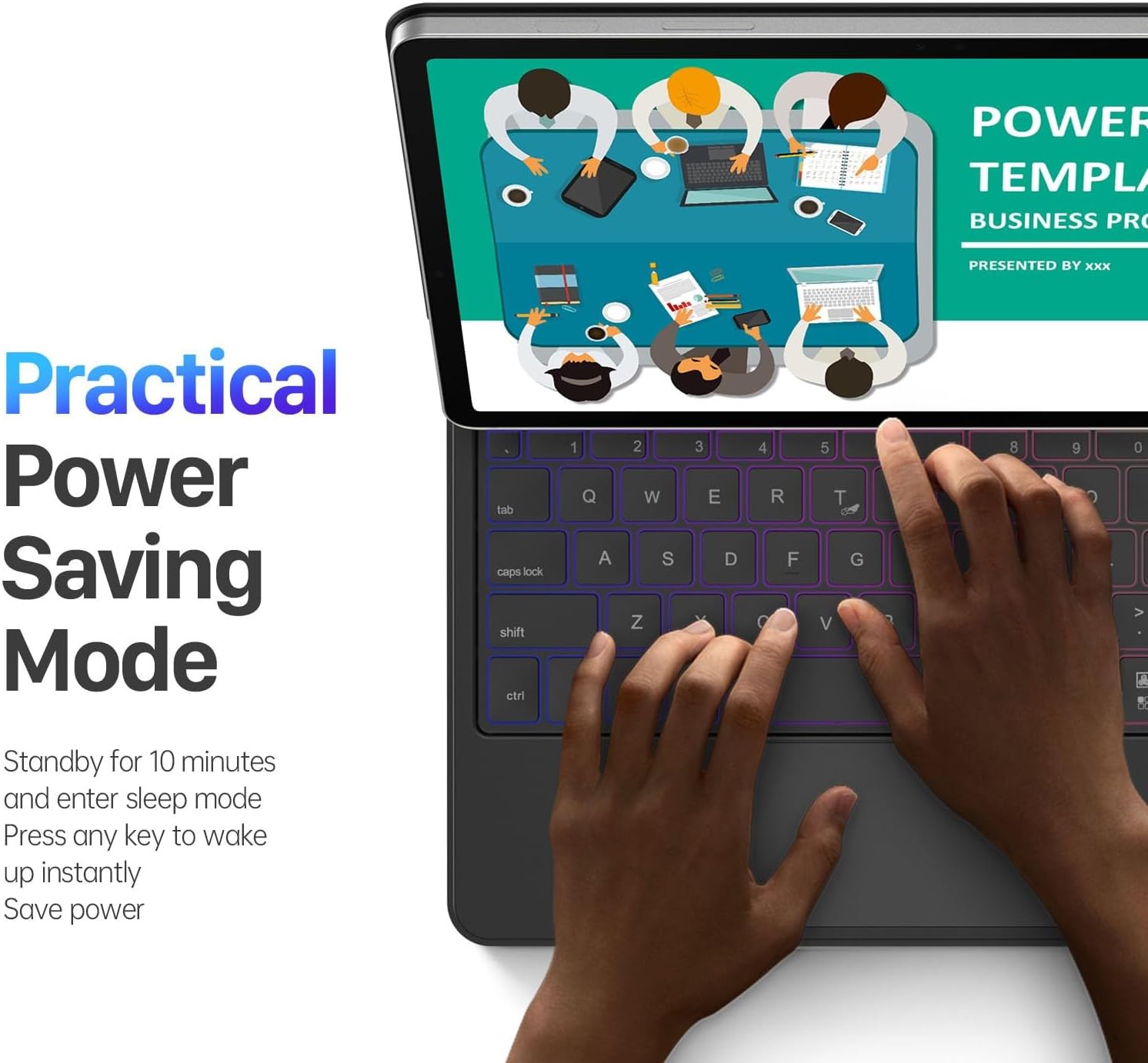
Image 4.3: Visual representation of the Bluetooth 5.2 chip ensuring fast and stable connection.
4.3 Charging the Keyboard
The keyboard has a built-in rechargeable battery. When the battery is low, the indicator light may flash or change color.
- Connect the provided USB-C charging cable to the keyboard's USB-C port.
- Connect the other end of the cable to a USB power adapter (not included) or a computer's USB port.
- The charging indicator light will illuminate during charging and turn off or change color when fully charged.

Image 4.4: The USB-C charging port on the keyboard for fast charging.
5. Operating Instructions
5.1 Using the Keyboard
- Typing: The full-size keyboard provides a comfortable typing experience.
- Backlit Keys: Press the backlight key (often a light bulb icon) to cycle through different backlight colors and brightness levels.

Image 5.1: The keyboard featuring 7-color gradient backlit keys with adjustable brightness.
5.2 Using the Multi-Touch Trackpad
The integrated trackpad supports various multi-touch gestures for efficient navigation. Refer to your tablet's operating system documentation for specific gesture controls.
5.3 Power Saving Mode
To conserve battery life, the keyboard will automatically enter sleep mode after 10 minutes of inactivity. To wake it up, simply press any key.

Image 5.2: Illustration of the keyboard's practical power saving mode.
5.4 Using the Anti-lost Pen Cover
The case includes a dedicated slot for your stylus, designed to prevent loss and provide easy access.
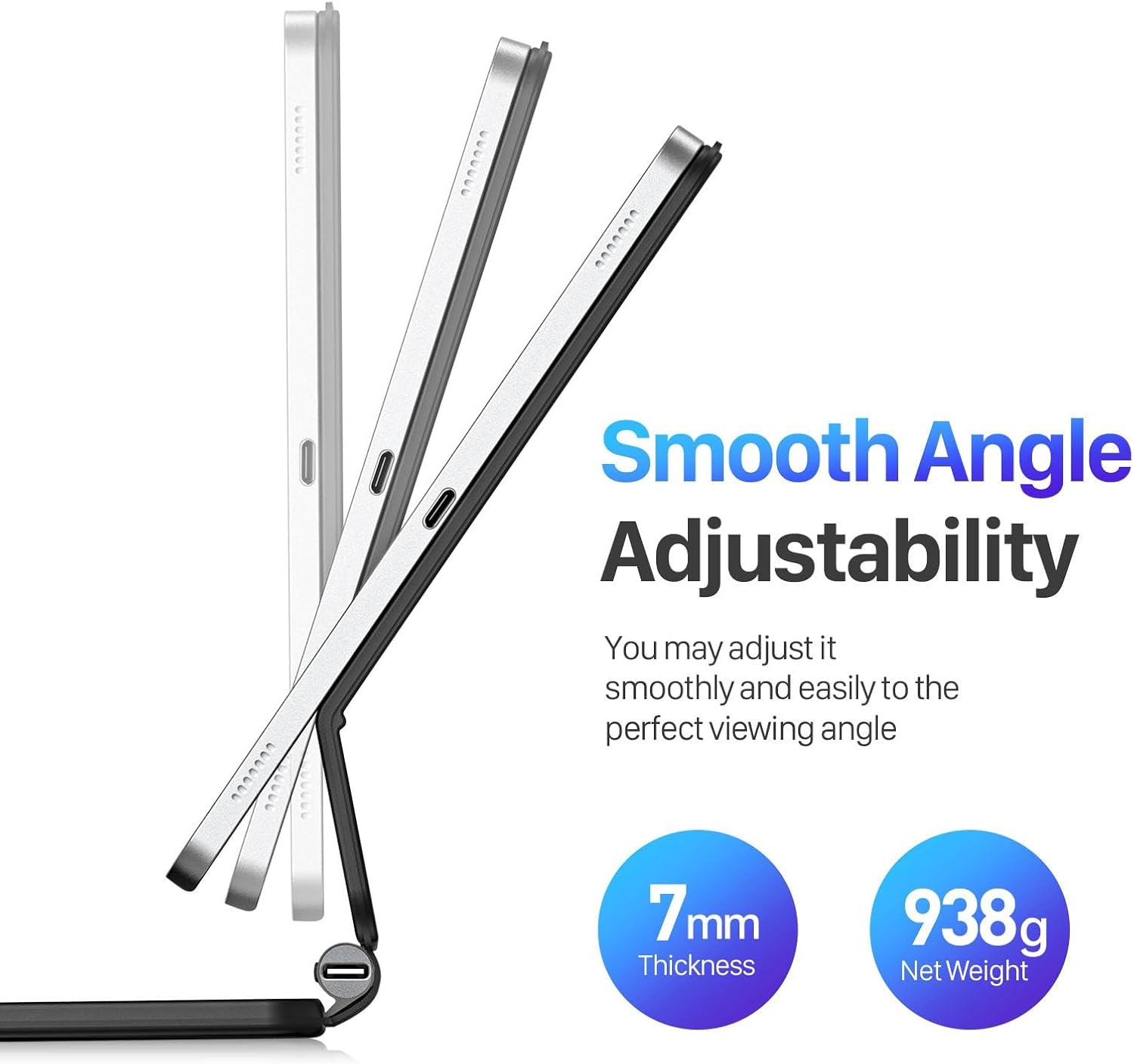
Image 5.3: Demonstrates the anti-lost pen cover for secure stylus storage.
6. Maintenance
6.1 Cleaning
- Gently wipe the exterior of the case with a soft, damp cloth. Avoid harsh chemicals or abrasive cleaners.
- For the keyboard keys, use a soft brush or compressed air to remove dust and debris.
- Ensure the charging port is free of dust and lint.
6.2 Storage
- Store the keyboard case in a cool, dry place away from direct sunlight and extreme temperatures.
- If storing for an extended period, ensure the keyboard is fully charged before storage and recharge it periodically to maintain battery health.
7. Troubleshooting
7.1 Keyboard Not Connecting via Bluetooth
- Check Power: Ensure the keyboard is turned on and has sufficient battery charge.
- Re-pair: Delete the keyboard from your tablet's Bluetooth device list and attempt to pair again.
- Tablet Bluetooth: Ensure your tablet's Bluetooth is enabled and discoverable.
- Distance: Ensure the keyboard is within the effective Bluetooth range (up to 10 meters).
7.2 Keys Not Responding
- Recharge: The battery might be low. Charge the keyboard fully.
- Re-connect: Disconnect and reconnect the Bluetooth connection.
- Restart: Restart both your tablet and the keyboard.
7.3 Trackpad Not Working
- Check Tablet Settings: Ensure the trackpad/mouse support is enabled in your tablet's accessibility settings.
- Clean Trackpad: Ensure the trackpad surface is clean and free of obstructions.
- Re-pair: Try re-pairing the Bluetooth connection.
8. Specifications
| Feature | Detail |
|---|---|
| Connectivity | Bluetooth 5.2 |
| Battery Capacity | Built-in 1200mAh rechargeable lithium battery |
| Charging Port | USB-C |
| Backlight | 7-color gradient, 3 levels of adjustable brightness |
| Key Travel | 1.5mm |
| Magnetic Strength | 2600GS (72 pcs Magnetic Matrix) |
| Thickness | 7mm |
| Net Weight | 938g |
| Water Resistance | Water Resistant |
9. Warranty and Support
For warranty information, technical support, or further inquiries, please visit the official DUX DUCIS website or contact their customer service directly.
Official Website: http://www.duxducis.com