1. Introduction
This manual provides comprehensive instructions for the KPREPUBLIC MXRSKEY 60U Mechanical Keyboard. Please read this manual thoroughly before using the product to ensure proper operation and longevity.
The MXRSKEY 60U is a 60% mechanical keyboard featuring Outemu switches and single-color mixed LED backlighting. It supports multimedia combination keys for enhanced functionality. Please note that this keyboard is not hot-swappable and does not feature RGB backlighting; each row has a single, fixed color LED.
2. Package Contents
Please verify that all items are present in your package:
- KPREPUBLIC MXRSKEY 60U Mechanical Keyboard
- USB-C Cable
- User Manual (this document)
3. Specifications
| Feature | Description |
|---|---|
| Keyboard Layout | 60% Compact |
| Switch Type | Outemu Mechanical Switches (Black Switch variant) |
| Keycap Material | ABS Doubleshot Keycaps |
| Backlighting | Single Color Mixed LED (Each row with one fixed color) |
| Connectivity | USB-C (Detachable cable) |
| Special Features | Multimedia Combination Keys, Non-hot-swappable switches |
| Manufacturer | KPREPUBLIC |
| Model Number | MXRSKEY 60U |
4. Setup Guide
4.1 Connecting the Keyboard
- Locate the USB-C port on the back or side of the MXRSKEY 60U keyboard.
- Insert one end of the provided USB-C cable into the keyboard's USB-C port.
- Insert the other end of the USB-A connector into an available USB port on your computer.
- The keyboard will be automatically recognized by your operating system. No additional drivers are typically required.
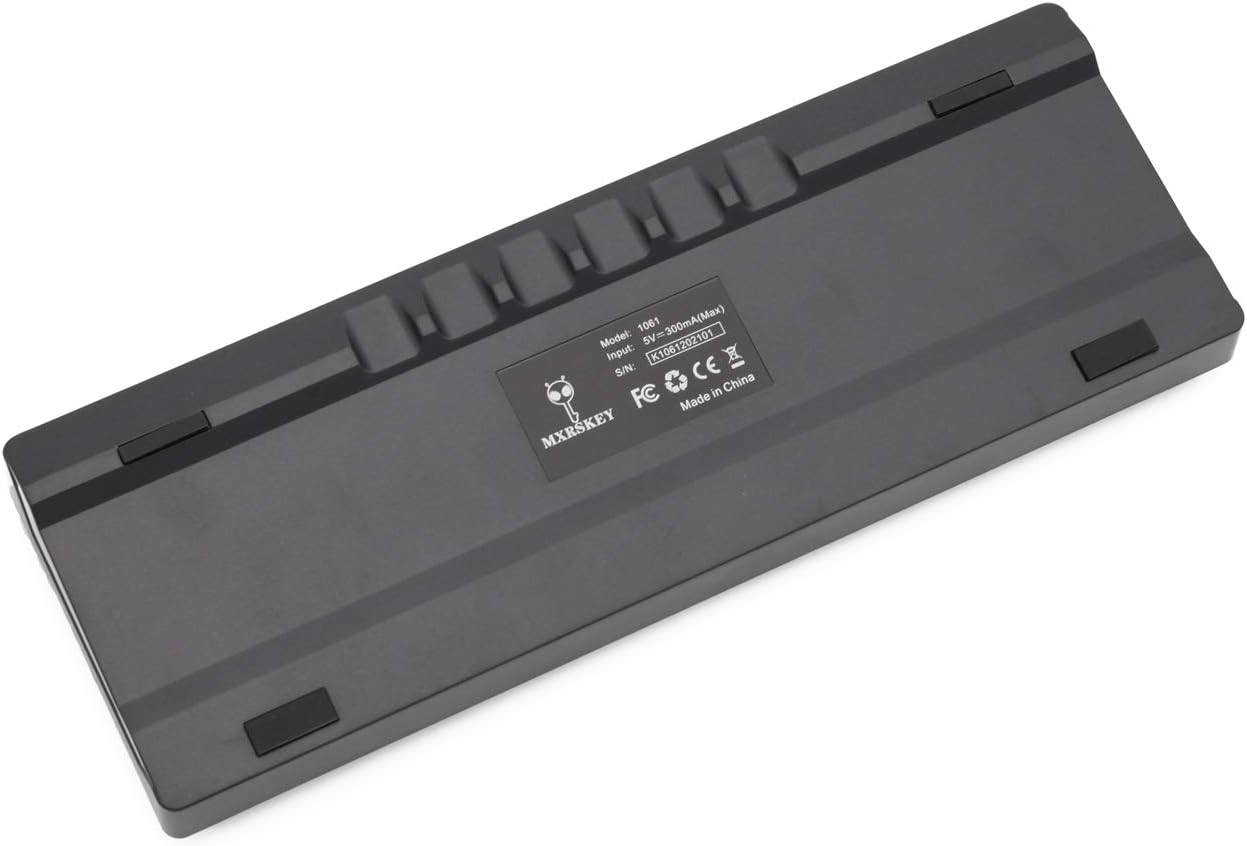
Image: Rear view of the MXRSKEY 60U keyboard, highlighting the USB-C port for connection and the stable rubber feet.
5. Operating Instructions
5.1 Basic Keyboard Functions
The MXRSKEY 60U is a standard QWERTY layout 60% keyboard. All standard alphanumeric and symbol keys function as expected.

Image: Top view of the MXRSKEY 60U keyboard, showcasing its compact 60% layout and the single-color mixed LED backlighting.
5.2 Function (FN) Key Combinations
Due to its compact 60% layout, many functions are accessed via the Function (FN) key in combination with other keys. Refer to the table below for common FN key combinations.
| Combination Key | Function | Note |
|---|---|---|
| FN+TAB | Reset Keyboard | |
| FN+Esc | ~ | |
| FN+1 | F1 | |
| FN+2 | F2 | |
| FN+3 | F3 | |
| FN+4 | F4 | |
| FN+5 | F5 | |
| FN+6 | F6 | |
| FN+7 | F7 | |
| FN+8 | F8 | |
| FN+9 | F9 | |
| FN+10 | F10 | |
| FN+11 | F11 | |
| FN+12 | F12 | |
| FN+[ | Brightness- | |
| FN+] | Brightness+ | |
| FN+; | Speed- | |
| FN+' | Speed+ | |
| FN+? | ↑ | |
| FN+Alt | ← | |
| FN+Menu | ↓ | |
| FN+Ctrl | → | |
| FN+L | Back Lit Effect Change | |
| FN+Backspace | Close Back lit | |
| Multimedia Keys | ||
| FN+A | Pause | |
| FN+S | Prev | |
| FN+D | Next | |
| FN+F | Mute | |
| FN+G | Vol+ | |
| FN+H | Vol- | |
| FN+J | Insert | |
| FN+K | Home | |
| FN+L Win | Win Lock | |
| FN+L | PGUP | |
| FN+N | DEL | |
| FN+M | END | |
| FN+< | PGDN | |
| FN+; | PRT | |
| FN+O | SCR | |
| FN+P | PS | |
Table: FN key combinations for various functions, including multimedia controls and navigation.

Image: Close-up of the keyboard's keycaps, illustrating the legends for primary and FN-accessed functions.
5.3 Backlighting Control
The MXRSKEY 60U features single-color mixed LED backlighting. You can adjust the brightness and change the lighting effect using FN key combinations.
- FN + [: Decrease backlight brightness.
- FN + ]: Increase backlight brightness.
- FN + ;: Decrease backlight speed/effect.
- FN + ': Increase backlight speed/effect.
- FN + L: Change backlight effect.
- FN + Backspace: Turn off backlight.

Image: The keyboard with its single-color mixed LED backlighting active, showing the distinct color zones per row.
6. Maintenance and Care
6.1 Cleaning the Keyboard
- Disconnect the keyboard from your computer before cleaning.
- Use a soft, lint-free cloth slightly dampened with water or a mild cleaning solution to wipe down the keycaps and chassis.
- For dust and debris between keycaps, use compressed air.
- Avoid using harsh chemicals, abrasive cleaners, or excessive moisture, as these can damage the keyboard.
6.2 Storage
When not in use for extended periods, store the keyboard in a dry, cool place away from direct sunlight and extreme temperatures.
7. Troubleshooting
| Problem | Possible Cause | Solution |
|---|---|---|
| Keyboard not responding | Loose cable connection, incorrect USB port, system driver issue. | Ensure the USB-C cable is securely connected to both the keyboard and the computer. Try a different USB port. Restart your computer. |
| Backlight not working | Backlight turned off, brightness set to minimum. | Press FN + ] to increase brightness. Press FN + L to cycle through effects. Press FN + Backspace to toggle backlight. |
| Certain keys not working | Debris under keycap, switch malfunction. | Use compressed air to clear debris. As switches are not hot-swappable, contact support if the issue persists. |
| FN key combinations not working | Incorrect combination, temporary software glitch. | Refer to the "Function (FN) Key Combinations" table. Try resetting the keyboard (FN+TAB). |
8. Warranty and Support
For warranty information and technical support, please refer to the official KPREPUBLIC website or contact your retailer. Keep your purchase receipt for warranty claims.
Manufacturer: KPREPUBLIC
Date First Available: February 9, 2021
For further assistance, please visit: KPREPUBLIC Brand Store on Amazon