
1. Introduction
This manual provides essential information for the safe and efficient use of your BLU G50 MEGA smartphone. Please read it thoroughly before operating your device to ensure optimal performance and longevity. The BLU G50 MEGA features a 6.5-inch HD+ Infinity Display, a dual 12+12MP camera system, and a 4,000mAh battery, running on Android 10.
2. Package Contents
Verify that your package contains the following items:
- BLU G50 MEGA Device
- Charger
- USB Cable
- Protective Case
- Screen Protector
- SIM Ejector Tool
- Quick Start Guide
- Sticker
3. Device Layout
Familiarize yourself with the physical components of your BLU G50 MEGA.

Image: Front and back view of the BLU G50 MEGA smartphone. The front displays the 6.5-inch screen with a notch for the front camera. The back shows the dual camera module, LED flash, and a circular fingerprint sensor.
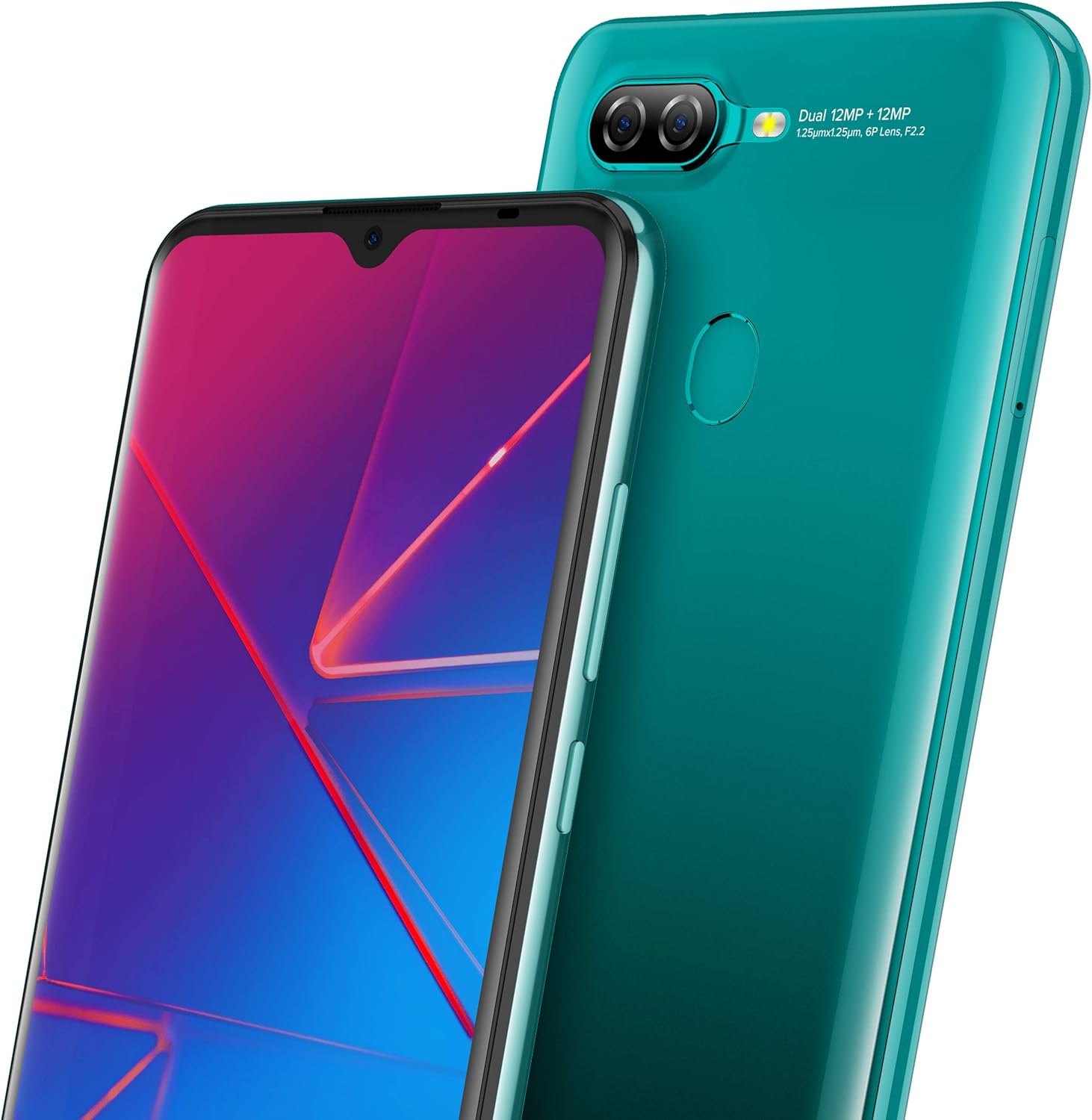
Image: Close-up of the rear of the BLU G50 MEGA, highlighting the dual 12+12MP camera system with LED flash and the circular fingerprint sensor located below the camera module.
- Front Camera: Located at the top center of the display.
- Volume Buttons: Typically on the right side, used to adjust media and call volume.
- Power Button: Typically on the right side, used to turn the device on/off or lock/unlock the screen.
- USB Port: Located at the bottom, for charging and data transfer.
- Speaker: Located at the bottom.
- Dual Rear Cameras & LED Flash: Located on the upper left of the back panel.
- Fingerprint Sensor: Located on the upper center of the back panel.
4. Setup
4.1 Inserting SIM and SD Card
- Locate the SIM tray on the side of your device.
- Insert the SIM ejector tool into the small hole next to the tray and push gently until the tray pops out.
- Place your Nano-SIM card(s) and/or microSD card into the designated slots on the tray. Ensure the gold contacts face downwards.
- Carefully push the tray back into the device until it clicks into place.
4.2 Initial Power On and Setup
- Press and hold the Power button until the BLU logo appears.
- Follow the on-screen prompts to select your language, connect to a Wi-Fi network, set up your Google account, and configure security features like the fingerprint sensor.
5. Operating Your Device
5.1 Basic Navigation
- Tap: Touch an icon or option to select it.
- Swipe: Drag your finger across the screen to scroll or navigate between screens.
- Pinch: Use two fingers to zoom in or out on images and web pages.
5.2 Calls and Messaging
- To make a call, open the Phone app and dial the number or select a contact.
- To send a message, open the Messages app, tap 'Start chat', and enter the recipient and your message.
5.3 Connecting to Networks
- Wi-Fi: Go to Settings > Network & internet > Wi-Fi, turn Wi-Fi on, and select your desired network.
- Mobile Data: Go to Settings > Network & internet > Mobile network and ensure Mobile data is enabled.
5.4 Camera Usage
Open the Camera app to capture photos and videos. Tap the shutter button to take a picture or the record button to start/stop video recording. Swipe left or right to switch between camera modes.
5.5 Fingerprint Sensor
The fingerprint sensor on the back of your device can be used to unlock your phone and authorize purchases. To set it up, go to Settings > Security > Fingerprint and follow the instructions.
5.6 Battery Management
Your BLU G50 MEGA is equipped with a 4,000mAh battery. To optimize battery life:
- Reduce screen brightness.
- Turn off Wi-Fi, Bluetooth, and GPS when not in use.
- Close unused applications running in the background.
- Enable Battery Saver mode in Settings > Battery.
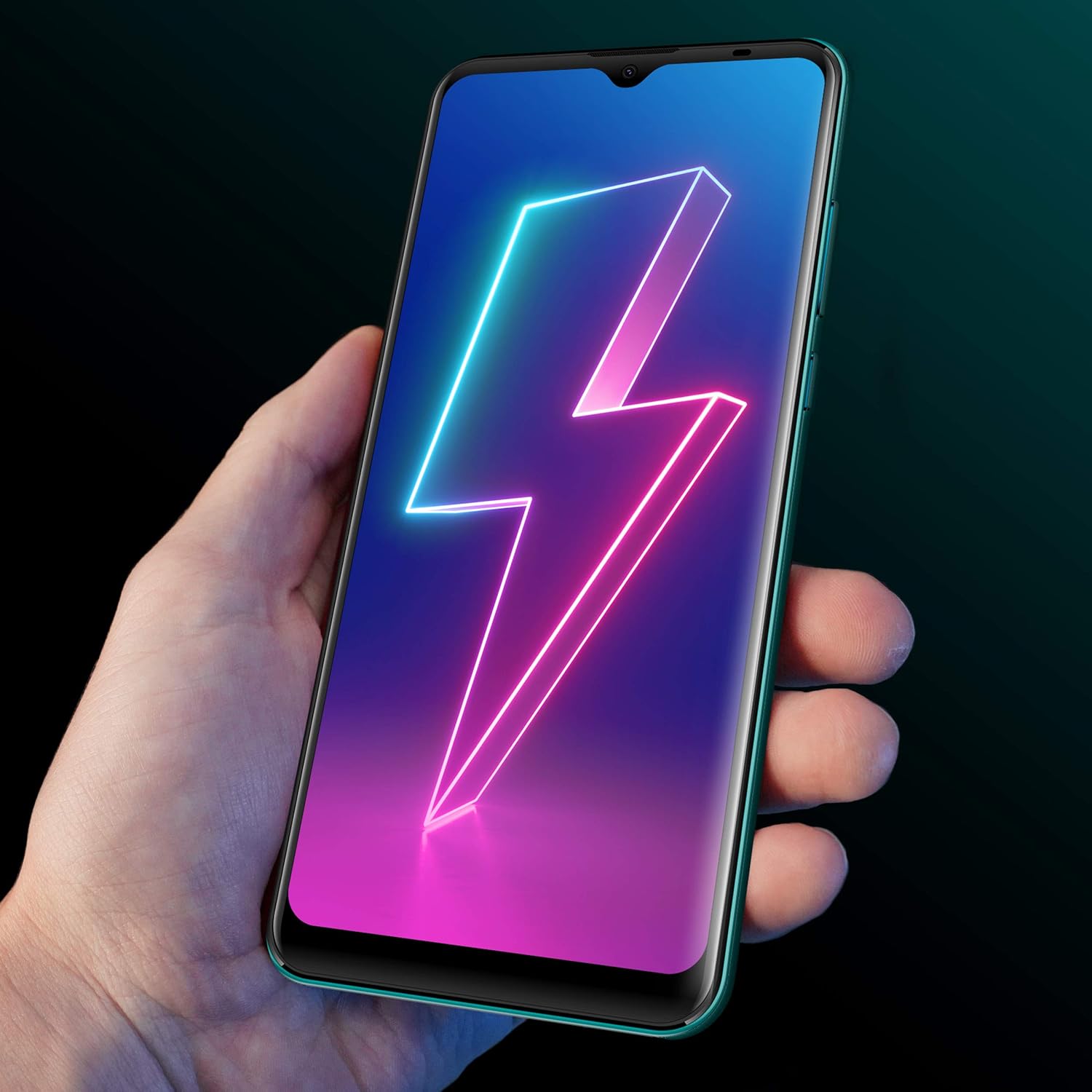
Image: A hand holding the BLU G50 MEGA, with the screen displaying a stylized lightning bolt, symbolizing the phone's battery and charging capabilities.
6. Maintenance
6.1 Cleaning Your Device
Use a soft, lint-free cloth to clean the screen and body of your phone. Avoid using harsh chemicals or abrasive materials that could damage the device.
6.2 Software Updates
Regularly check for software updates to ensure your device has the latest features and security patches. Go to Settings > System > System update to check for and install updates.
6.3 Storage Management
To free up storage space, regularly clear cache, uninstall unused apps, and transfer large files to a computer or cloud storage. You can also expand storage using a microSD card.
7. Troubleshooting
This section addresses common issues you might encounter with your BLU G50 MEGA.
- Device not turning on: Ensure the battery is charged. Connect the charger and wait a few minutes before attempting to power on again.
- Poor network signal: Check if your SIM card is properly inserted. Move to an area with better network coverage. Contact your carrier if the issue persists.
- Apps crashing or freezing: Close the app and reopen it. If the problem continues, clear the app's cache (Settings > Apps & notifications > See all apps > [App Name] > Storage & cache > Clear cache).
- Battery draining quickly: Refer to section 5.6 for battery optimization tips. Reduce background app activity and screen brightness.
- Fingerprint sensor not working: Ensure your finger is clean and dry. Re-register your fingerprint in settings if necessary.
8. Specifications
Detailed technical specifications for the BLU G50 MEGA.
| Feature | Specification |
|---|---|
| Model Name | G50 MEGA |
| Operating System | Android 10.0 |
| Display Size | 6.5 Inches |
| Display Resolution | 1080 x 1920 |
| Processor | Octa-Core 1.6 GHz ARM Cortex-A55 |
| RAM | 2 GB |
| Internal Storage | 32 GB |
| Rear Camera | Dual 12MP + 12MP with LED Flash |
| Front Camera | 8MP |
| Battery Capacity | 4000 mAh |
| Connectivity | 4G LTE, Wi-Fi, Bluetooth, USB |
| Security | Fingerprint Sensor |
| Dimensions | 7.2 x 3.86 x 2.17 inches (Package) |
| Weight | 1.01 pounds |
9. Safety Information
Please observe the following safety guidelines:
- Do not expose the device to extreme temperatures, direct sunlight, or moisture.
- Use only BLU-approved chargers and accessories.
- Avoid dropping or subjecting the device to severe impact.
- Do not attempt to disassemble or repair the device yourself. This may void your warranty.
- Dispose of the device and its battery responsibly according to local regulations.
10. Warranty and Support
Your BLU G50 MEGA comes with a limited manufacturer's warranty. For specific warranty terms and conditions, please refer to the warranty card included in your package or visit the official BLU website. For technical support, troubleshooting assistance, or service inquiries, please contact BLU customer support through their official channels.


