
1. Introduction
This manual provides essential information for the proper installation, operation, and maintenance of your Mimo UM-1080CH-OF 10.1 Inch Open Frame Multi Point Capacitive Touch Display. Please read this manual thoroughly before using the product to ensure optimal performance and safety.
2. Product Overview
The Mimo UM-1080CH-OF is a 10.1-inch open frame multi-point capacitive touch display designed for versatile integration. It features a wide viewing angle and supports various operating systems including Linux, Windows, and Mac. The display is constructed with a durable molded metal enclosure and is lightweight, weighing approximately 2 pounds, facilitating easy system housing integration.
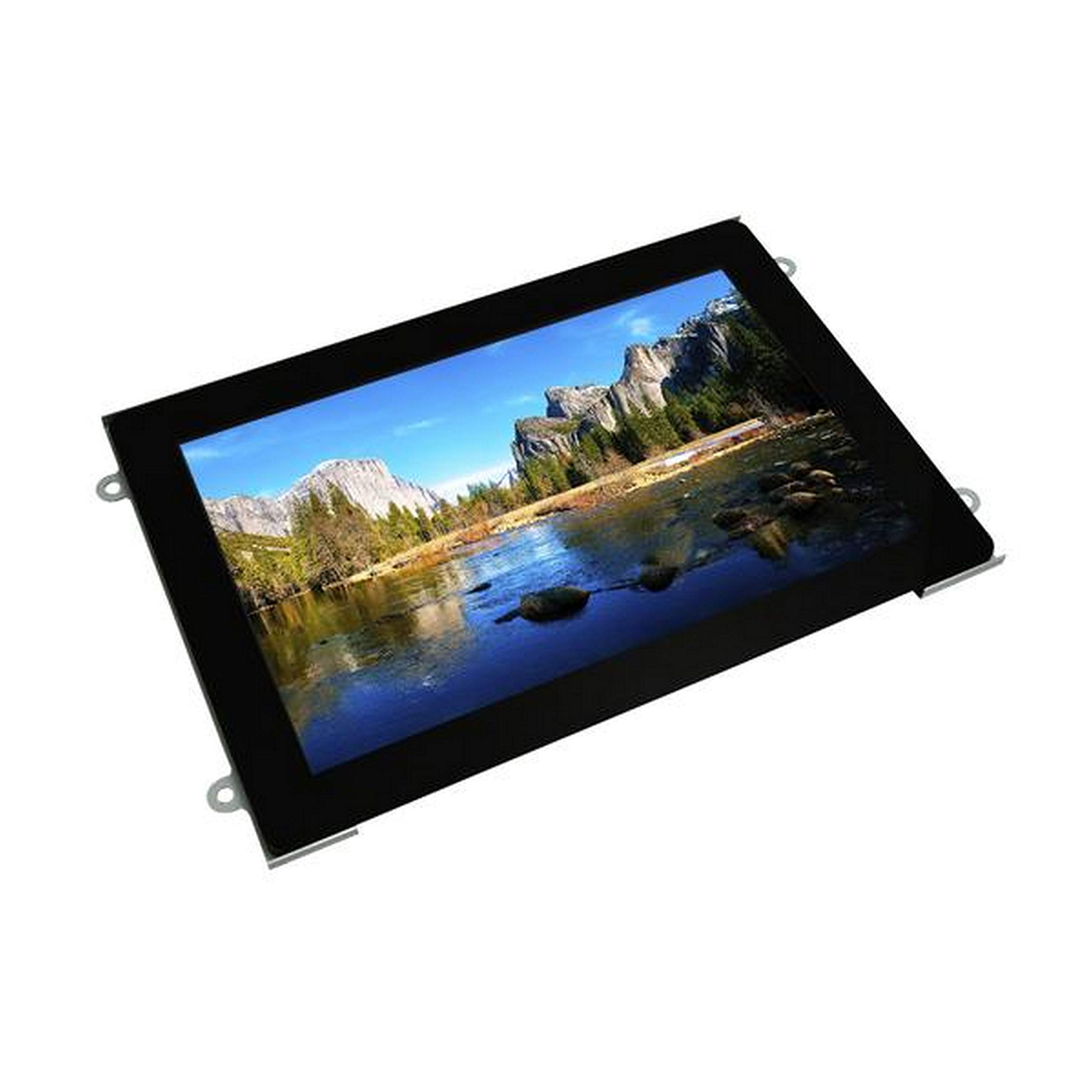
Figure 2.1: Front view of the Mimo UM-1080CH-OF 10.1-inch open frame display. This image highlights the sleek design and screen area of the unit.
3. Setup
Follow these general guidelines for setting up your Mimo UM-1080CH-OF display:
- Unpacking: Carefully remove the display from its packaging. Inspect for any signs of damage during transit.
- Mounting: The display is designed for secure installation using rear 4-point mounting. Ensure the mounting surface is stable and capable of supporting the display's weight.
- Power Connection: Connect the appropriate power adapter to the display and then to a power outlet.
- Video Connection: Connect an HDMI cable from your source device (e.g., computer, media player) to the HDMI input port on the display.
- USB Connection (for Touch Functionality): Connect a USB cable from your source device to the display's USB port to enable multi-touch functionality.
- Power On: Power on the display and your source device. The display should automatically detect the input signal.
4. Operating
The Mimo UM-1080CH-OF display offers intuitive operation with its multi-point capacitive touch screen.
- Touch Control: Once the USB connection is established, the display's touch functionality will be active. You can interact with your operating system directly on the screen using gestures similar to those on a tablet or smartphone.
- Operating System Compatibility: The display supports multi-touch capability out of the box with Linux, Windows, and Mac systems. No additional drivers are typically required for basic touch functions.
- Display Settings: Adjust display settings such as brightness, contrast, and resolution through your connected operating system's display settings or via any on-screen display (OSD) menu available on the monitor (refer to specific model documentation for OSD access).
5. Maintenance
Proper maintenance ensures the longevity and optimal performance of your display.
- Cleaning the Screen: Use a soft, lint-free cloth slightly dampened with water or a non-abrasive screen cleaner. Avoid harsh chemicals, alcohol, or ammonia-based cleaners, as these can damage the screen surface.
- Cleaning the Enclosure: Wipe the metal enclosure with a soft, dry cloth.
- Ventilation: Ensure that the display's ventilation openings are not blocked to prevent overheating.
- Storage: When not in use for extended periods, store the display in a cool, dry place, preferably in its original packaging.
6. Troubleshooting
If you encounter issues with your Mimo UM-1080CH-OF display, refer to the following common troubleshooting steps:
- No Power:
- Check if the power adapter is securely connected to both the display and a working power outlet.
- Verify the power outlet is functional by plugging in another device.
- No Signal:
- Ensure the HDMI cable is securely connected to both the display and the source device.
- Verify the source device is powered on and outputting a video signal.
- Try a different HDMI cable or source device to rule out cable or source issues.
- Touch Functionality Not Working:
- Confirm the USB cable is properly connected between the display and the source device.
- Restart the source device.
- Check your operating system's device manager or display settings to ensure the touch screen is recognized.
- Image Quality Issues (e.g., blurry, incorrect colors):
- Adjust the display resolution and refresh rate settings on your source device.
- Check the HDMI cable for damage.
7. Specifications
| Feature | Specification |
|---|---|
| Model Number | UM-1080CH-OF |
| Screen Size | 10.1 Inches |
| Resolution | 4096 x 2160 (also supports FHD 1080p) |
| Aspect Ratio | 1.78:1 |
| Screen Surface | Glossy |
| Item Weight | 2 pounds |
| Manufacturer | Mimo |
8. Warranty and Support
For warranty information and technical support, please contact the manufacturer directly. Mimo is the manufacturer of this product.
Manufacturer: Mimo
Please refer to the official Mimo website or your purchase documentation for the most current warranty terms and contact information.


