
1. Introduction
This manual provides essential information for the setup, operation, and maintenance of your SAMSUNG 75-Inch Class Frame Series 4K Quantum HDR Smart TV, model QN75LS03AAFXZA. Designed to blend seamlessly with your home decor, this television offers a unique Art Mode feature, transforming your screen into a display of art when not in use. Enjoy stunning 4K UHD resolution, enhanced by Quantum Processor 4K and 100% Color Volume with Quantum Dot technology.
Key features include:
- Art Mode: Displays artwork when the TV is off.
- 4K Upscaling: Enhances content to 4K resolution.
- Quantum Dot Technology: Delivers 100% Color Volume for vibrant images.
- Smart TV Powered by Tizen: Access to streaming services and apps.
- Built-in Voice Assistants: Control with Alexa, Google Assistant, or Bixby.
- Customizable Frame: Allows for personalized bezel styles (sold separately).

Image: The SAMSUNG Frame TV in Art Mode, showcasing a vibrant artwork of the Golden Gate Bridge, demonstrating its ability to blend into a living space as a piece of art.
2. What's in the Box
Carefully unpack your television and ensure all components are present:
- SAMSUNG 75-Inch Class Frame Series TV
- SolarCell Remote (TM-2180E)
- Slim Fit Wall Mount
- One Connect Box
- Power Cable
- User Manual (this document)
- E-Manual (digital version)

Image: A visual representation of the TV's dimensions and the accessories included in the package, such as the power cable, user manual, slim fit wall mount, and the SolarCell remote control.
3. Setup
3.1 Initial Placement
Choose a suitable location for your TV. Ensure the surface is stable if using the included stands, or the wall is structurally sound if using the wall mount. Maintain adequate ventilation around the TV.
3.2 Connecting the One Connect Box
The One Connect Box centralizes all your device connections, simplifying cable management. Connect all external devices (e.g., cable box, gaming console, Blu-ray player) to the One Connect Box using HDMI, USB, or other relevant ports. Then, connect the One Connect Box to the TV using the single, thin One Connect cable.

Image: A detailed view of the One Connect Box, highlighting its multiple input and output ports for connecting various external devices to the television.
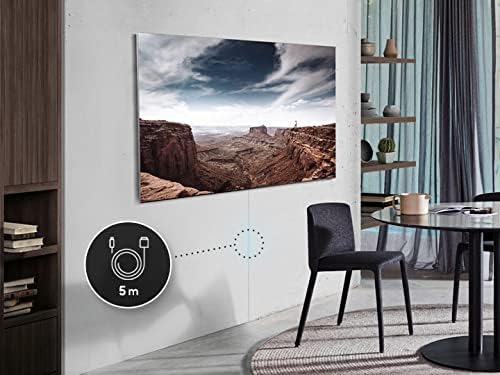
Image: The Frame TV seamlessly mounted on a wall, illustrating the minimal cable design achieved by using the One Connect Box, which keeps all connections out of sight.
3.3 Power Connection
Connect the power cable to the One Connect Box, then plug it into a wall outlet. The TV will receive power through the One Connect cable.
3.4 Wall Mounting (Optional)
If using the Slim Fit Wall Mount, follow the detailed instructions provided with the mount for secure installation. This mount allows the TV to sit flush against the wall, enhancing its art-like appearance.
4. Operating Your TV
4.1 Basic Controls
Use the included SolarCell Remote (TM-2180E) to navigate the TV's interface. The remote is designed for intuitive control of channels, volume, and smart features.
4.2 Smart TV Features (Tizen OS)
Your Frame TV runs on Samsung's Tizen operating system, providing access to a wide range of apps and streaming services. Connect your TV to your home Wi-Fi network during the initial setup to access these features. Navigate through the Smart Hub to find your favorite content.
4.3 Art Mode
When the TV is turned off, it can transition into Art Mode, displaying a selection of digital art. Access the Art Store to browse and subscribe to a vast library of artworks. You can also upload your own photos to display.

Image: A collection of SAMSUNG Frame TVs, each showcasing a different piece of digital art, demonstrating the versatility and aesthetic appeal of the Art Mode feature.
4.4 Voice Assistants
The TV has built-in support for Amazon Alexa, Google Assistant, and Bixby. Use voice commands to change channels, adjust volume, launch apps, search for content, and control compatible smart home devices.
4.5 QLED Technology
Experience vibrant and accurate colors with Quantum Dot technology, which delivers 100% Color Volume. The Quantum Processor 4K intelligently upscales content to 4K resolution, optimizing picture and sound quality.

Image: A visual representation of the QLED Technology, featuring the Quantum Processor 4K, which enhances the viewing experience with rich colors and optimized picture quality.
5. Maintenance
5.1 Cleaning the Screen
Gently wipe the screen with a soft, dry microfiber cloth. For stubborn smudges, lightly dampen the cloth with distilled water. Avoid using harsh chemicals, abrasive cleaners, or direct spraying of liquids onto the screen.
5.2 Cleaning the Frame and Body
Use a soft, dry cloth to clean the TV's frame and body. Do not use liquid cleaners directly on the TV.
5.3 Software Updates
Ensure your TV's software is up to date for optimal performance and security. The TV can be set to automatically download and install updates when connected to the internet.
6. Troubleshooting
If you encounter issues with your TV, try the following basic troubleshooting steps:
- No Power: Check if the power cable is securely connected to the One Connect Box and the wall outlet. Ensure the outlet is functional.
- No Picture/Sound: Verify that the One Connect cable is properly connected between the TV and the One Connect Box. Check input source settings.
- Remote Not Working: Ensure the SolarCell Remote is charged (expose to light for charging). If issues persist, try pairing the remote again according to the E-Manual.
- Network Connection Issues: Restart your router and modem. Reconnect the TV to your Wi-Fi network through the settings menu.
- Picture Quality Issues: Adjust picture settings (brightness, contrast, sharpness) in the TV menu. Ensure the content source is high quality.
For more detailed troubleshooting, refer to the E-Manual accessible through your TV's settings or visit the SAMSUNG support website.
7. Specifications
| Feature | Specification |
|---|---|
| Brand | SAMSUNG |
| Model Number | QN75LS03AAFXZA |
| Screen Size | 74.5 Inches (75-Inch Class) |
| Display Technology | QLED |
| Resolution | 4K (3840 x 2160) |
| Refresh Rate | 120 Hz |
| Product Dimensions (without stand) | 66.2"W x 37.8"H x 1.1"D |
| Product Dimensions (with stand) | 66.2"W x 39.3"H x 12.4"D |
| Item Weight | 78.5 Pounds |
| Connectivity Technology | Wireless |
| Special Features | Art Mode, Browser, Voice Assistants (Alexa, Bixby, Google Assistant) |
| Included Components | E-Manual, One Connect Box, Slim Fit Wall Mount, SolarCell Remote (TM-2180E), User Manual |
| Voltage | 120 Volts |
| Aspect Ratio | 16:9 |
8. Support and Warranty
For further assistance, technical support, or warranty information, please visit the official SAMSUNG support website or contact their customer service. The E-Manual, accessible directly from your TV, also provides comprehensive details and guides.
SAMSUNG Support Website: www.samsung.com/us/support/
Please retain your proof of purchase for warranty claims.