
1. Introduction and Overview
The Telestar DIRA S 24i is a versatile digital radio designed to provide a comprehensive audio experience. It supports digital DAB+, analog FM, and internet radio reception, allowing access to a vast array of stations. Additionally, it features connectivity options such as Bluetooth, USB, and UPnP for playing music from external devices or network storage. The radio is equipped with a 2.4-inch TFT color display and a Digital Sound Processor (DSP) for optimized audio performance.
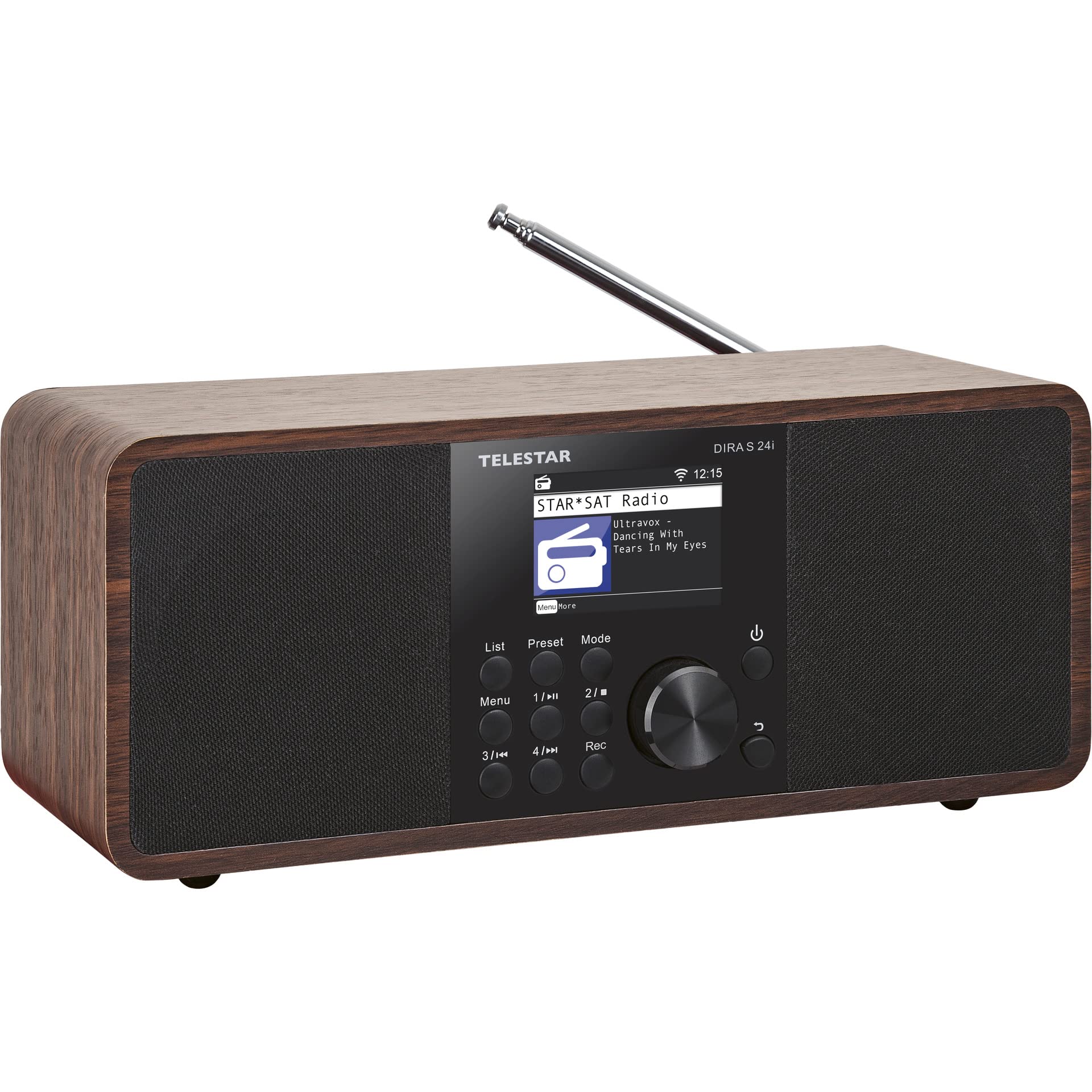
Figure 1: Front view of the Telestar DIRA S 24i Digital Radio, showcasing its stereo design and brown finish.
2. Setup
2.1 Unpacking and Initial Inspection
Carefully remove the radio and all accessories from the packaging. Verify that all components are present: the DIRA S 24i radio unit, power adapter, and remote control. Inspect the unit for any signs of damage during transit. If any damage is found, contact your retailer.
2.2 Connecting Power
Connect the provided power adapter to the DC IN 15V/2A port on the rear of the radio. Plug the other end of the adapter into a suitable wall outlet. The radio will enter standby mode.
2.3 Antenna Setup
Extend the telescopic antenna located on the rear of the unit for optimal DAB+ and FM radio reception. Adjust its position to achieve the best signal quality.
2.4 Initial Network Configuration (Wi-Fi)
Upon first power-on, the radio will guide you through an initial setup wizard. This includes selecting your preferred language and configuring the Wi-Fi connection. Use the navigation controls to select your Wi-Fi network and enter the password. A stable Wi-Fi connection is essential for Internet Radio and UPnP functions.

Figure 2: Rear view of the Telestar DIRA S 24i, highlighting the USB 2.0, AUX-IN 3.5mm, and 15V/2A power input ports.
3. Operating Instructions
3.1 Basic Controls
The radio can be operated using the controls on the front panel or the included remote control. Key controls include:
- Power Button: Turns the radio on/off or puts it into standby.
- Mode Button: Switches between DAB+, FM, Internet Radio, Bluetooth, USB, and AUX-IN modes.
- Navigation Dial/Buttons: Used to scroll through menus, adjust volume, and confirm selections (OK button).
- List Button: Accesses the list of available stations or saved favorites.
- Preset Buttons (1-6 on remote): Directly access saved favorite stations.
- EQ Button: Accesses equalizer settings.
- Rec Button: Initiates recording to a connected USB drive.

Figure 3: Close-up of the front panel, showing the display and control buttons.
3.2 DAB+ Radio Operation
- Press the Mode button to select DAB+ mode.
- The radio will automatically scan for available DAB+ stations.
- Use the navigation dial or arrow buttons to scroll through the station list.
- Press OK to select a station.
- To save a station as a favorite, press and hold the Preset button (or a numbered button on the remote) until the display confirms saving.
3.3 FM Radio Operation
- Press the Mode button to select FM mode.
- Use the navigation dial to manually tune to a frequency or press and hold to auto-scan for the next available station.
- Press OK to confirm selection.
- To save a station as a favorite, press and hold the Preset button (or a numbered button on the remote) until the display confirms saving.
3.4 Internet Radio Operation
- Ensure the radio is connected to a stable Wi-Fi network.
- Press the Mode button to select Internet Radio mode.
- Browse stations by genre, location, or popularity using the navigation controls.
- Use the search function to find specific stations.
- To add a custom station URL, navigate to the "Add New Radio Station" option and enter the URL using the on-screen editor.
- Press OK to select a station.
- To save a station to your favorites (up to 500 stations), press and hold the FAV+ button on the remote or navigate through the menu options.
3.5 Bluetooth Connectivity
- Press the Mode button to select Bluetooth mode. The radio will enter pairing mode.
- On your external device (smartphone, tablet), enable Bluetooth and search for "DIRA S 24i".
- Select the radio from the list of available devices to pair.
- Once paired, you can stream audio from your device to the radio.
3.6 USB Playback and Recording
- Insert a USB storage device into the USB 2.0 port on the rear of the radio.
- Press the Mode button to select USB mode.
- Navigate through the folders and files on the USB device using the controls.
- Press OK to play a track.
- To record current audio (DAB+, FM, Internet Radio) to the USB device, press the Rec button on the front panel or remote control. Recording can also be scheduled via the timer function.
3.7 UPnP/DLNA Streaming
The DIRA S 24i supports UPnP/DLNA for streaming music from compatible network devices (e.g., a media server on your computer or NAS). Ensure your media server is active and configured correctly on the same network as the radio. Select UPnP mode from the menu and browse your shared media libraries.
3.8 Equalizer Settings
Press the EQ button to access the equalizer settings. The radio offers various preset equalizer modes. For advanced audio customization, navigate to "My EQ" and then "Advanced Settings" to access a full 18-band equalizer with a +/-12dB adjustment range across frequencies from 31Hz to 22kHz. Custom EQ profiles can be saved internally or to a USB device.
3.9 Additional Functions
The radio includes an integrated clock, alarm function, sleep timer, and a weather information display. These can be configured via the main menu.

Figure 4: The remote control for the Telestar DIRA S 24i, showing dedicated buttons for various functions.
4. Maintenance
4.1 Cleaning
To clean the radio, use a soft, dry cloth. For stubborn marks, a slightly damp cloth may be used, followed by a dry cloth. Do not use abrasive cleaners, solvents, or chemical sprays, as these can damage the surface of the unit.
4.2 Software Updates
Periodically check for software updates via the radio's system settings menu. Updates can improve performance, add new features, or resolve known issues. Ensure a stable internet connection during the update process. Do not power off the device during an update.
4.3 Remote Control Battery Replacement
The remote control uses a CR 2025 button cell battery. If the remote control's responsiveness decreases, replace the battery. Refer to the battery compartment on the back of the remote for instructions on how to open and replace the battery.
5. Troubleshooting
- No Power:
Ensure the power adapter is securely connected to both the radio and a working power outlet. Check the power outlet with another device.
- No Sound:
Check the volume level. Ensure the radio is not muted. Verify that the correct input mode (DAB+, FM, Internet Radio, Bluetooth, USB, AUX-IN) is selected.
- Poor DAB+/FM Reception:
Fully extend and adjust the telescopic antenna. Try repositioning the radio to a location with better signal strength, away from potential interference sources like other electronic devices.
- Internet Radio Not Connecting/Buffering:
Verify your Wi-Fi connection in the radio's settings. Ensure your Wi-Fi network is active and has internet access. Check the Wi-Fi signal strength. Restart your router and the radio. If the issue persists, try re-entering your Wi-Fi password.
- Bluetooth Pairing Issues:
Ensure the radio is in Bluetooth pairing mode. Make sure Bluetooth is enabled on your external device and it is within range. Try unpairing and re-pairing the device. Ensure no other devices are currently connected to the radio via Bluetooth.
- USB Device Not Recognized:
Ensure the USB device is formatted in a compatible file system (e.g., FAT32). Check that the audio files are in a supported format. Try a different USB device to rule out a device-specific issue.
- UPnP/DLNA Playback Issues:
Ensure your media server is running and properly configured to share media. Verify that the radio and media server are on the same local network. Check for recent software updates on the radio, as some updates have been noted to affect UPnP functionality (refer to manufacturer support if issues arise after an update).
6. Specifications
| Brand | Telestar |
| Model Number | 30-200-01 |
| Color | Brown |
| Style | Stereo |
| Connectivity Technology | Wi-Fi, Bluetooth 5.1, USB 2.0, Aux-in (3.5mm) |
| Tuning Technology | DAB+, FM, Internet Radio |
| Special Features | Integrated Clock, Hotel Mode, App Control, USB Media Player, Night Mode, 30W Output, DSP Sound Processor, 2.4" TFT Color Display |
| Power Source | Electric Cable (15V/2A) |
| Dimensions (L x W x H) | 27.5 cm x 12.5 cm x 12 cm |
| Supported Radio Bands | AM/FM, DAB+, Internet |
| Components Included | Telestar DIRA S 24i Unit, Remote Control, Power Adapter |
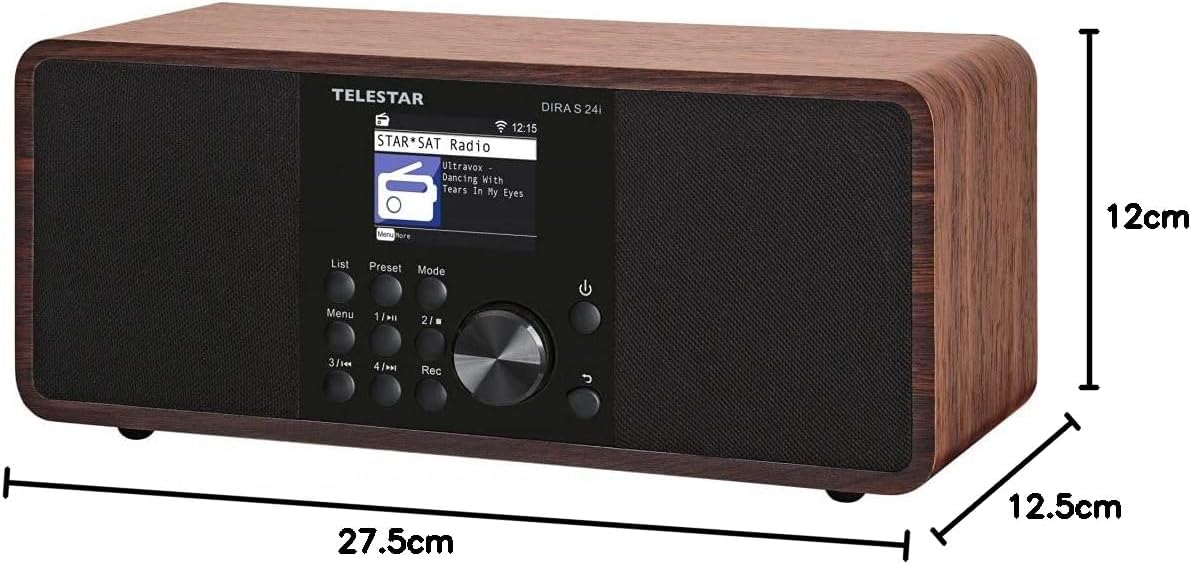
Figure 5: Dimensions of the Telestar DIRA S 24i Digital Radio.
7. Warranty and Support
7.1 Warranty Information
This product is covered by a manufacturer's warranty. Please refer to the warranty card included with your product or visit the official Telestar website for detailed warranty terms and conditions. Keep your proof of purchase for warranty claims.
7.2 Customer Support
For technical assistance, troubleshooting beyond this manual, or service inquiries, please contact Telestar customer support. Contact details can typically be found on the manufacturer's official website or in the product packaging. When contacting support, please have your product model number (DIRA S 24i) and serial number ready.


