
1. Introduction
This user manual provides essential information for the safe and efficient operation of your HP 15-dy1071wm laptop. Please read this manual thoroughly before using your device to ensure proper setup, usage, and maintenance. Keep this manual for future reference.
The HP 15-dy1071wm is a versatile laptop designed for everyday computing tasks, featuring an Intel Core i7-1065G7 processor, 8GB of RAM, and a 256GB SSD, running on Windows 10.
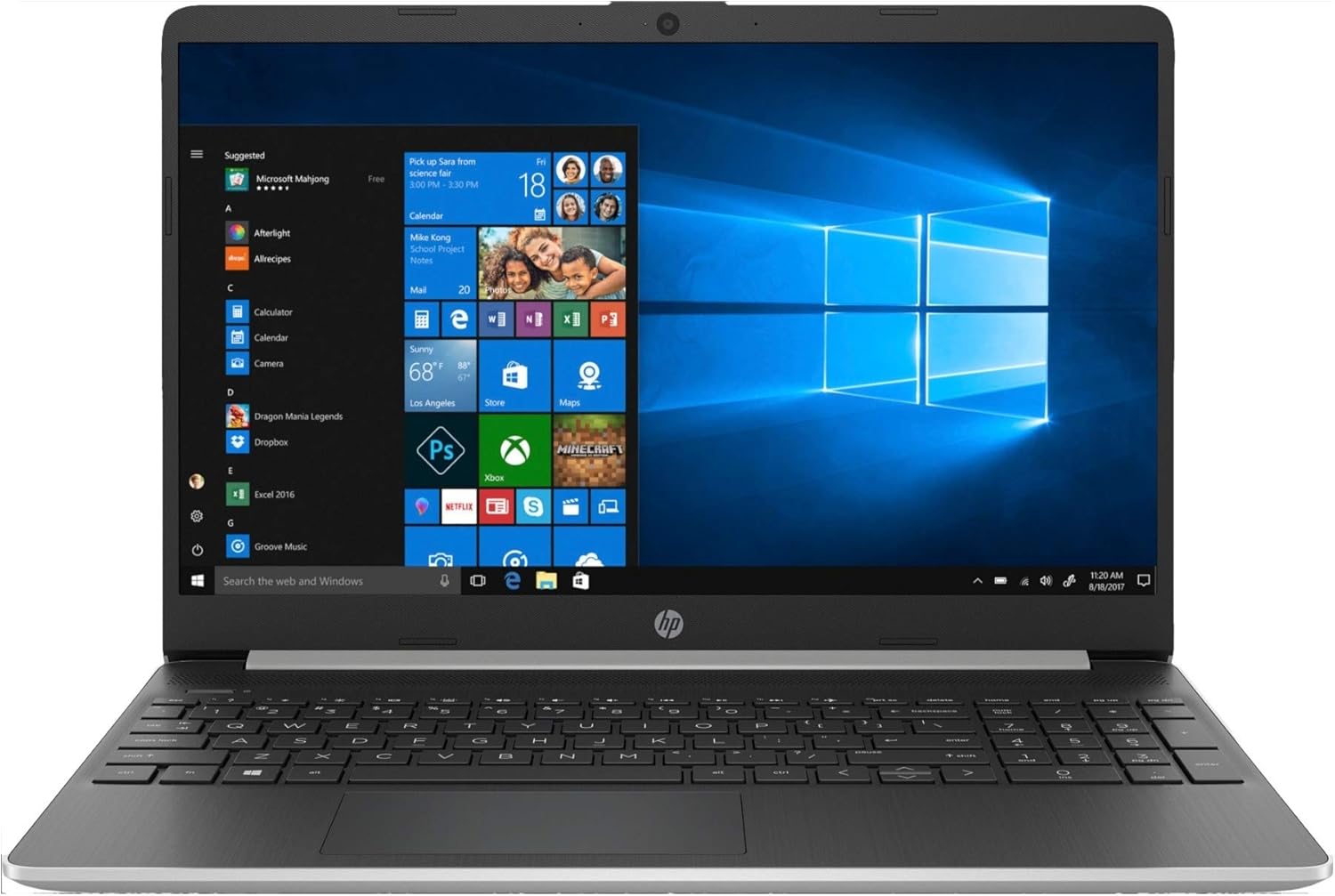
Figure 1: Front view of the HP 15-dy1071wm laptop, showcasing the 15.6-inch display and keyboard. The screen displays the Windows 10 operating system desktop.
2. What's in the Box
Upon opening the product packaging, please verify that all the following items are present:
- HP 15-dy1071wm Laptop
- AC adapter
- Battery (may be pre-installed)
If any items are missing or damaged, please contact your retailer or HP customer support immediately.
3. Initial Setup
3.1. Connecting the Power Adapter
- Locate the power port on the side of your HP laptop.
- Connect the AC adapter cable to the power port on the laptop.
- Plug the power cord into a grounded electrical outlet.
- The battery indicator light (if present) will illuminate, indicating that the laptop is receiving power and the battery is charging.

Figure 2: Side view of the HP 15-dy1071wm laptop, illustrating the various ports including the power input, USB ports, and HDMI port.
3.2. First Boot and Windows Setup
- Open the laptop lid.
- Press the power button, typically located on the top-right of the keyboard or side panel.
- The laptop will power on and begin the initial Windows 10 setup process.
- Follow the on-screen prompts to configure your region, language, keyboard layout, and network settings.
- Create a user account and set up a password or PIN for security.
- Complete the setup process as guided by Windows.
4. Operating Instructions
4.1. Power On/Off and Sleep Mode
- Power On: Press the power button.
- Shut Down: Click the Start button (Windows icon) > Power > Shut down.
- Restart: Click the Start button (Windows icon) > Power > Restart.
- Sleep: Close the laptop lid or click the Start button (Windows icon) > Power > Sleep.
4.2. Using the Keyboard and Touchpad
The laptop features a full-size keyboard and a multi-touch touchpad. The touchpad supports gestures for navigation, such as two-finger scrolling and pinch-to-zoom.

Figure 3: Angled view of the HP 15-dy1071wm laptop, highlighting the keyboard layout and the integrated touchpad.
4.3. Connecting to Wi-Fi
- Click the Network icon (globe or Wi-Fi symbol) in the bottom-right corner of the taskbar.
- Select your desired Wi-Fi network from the list.
- Click Connect.
- If prompted, enter the network security key (password) and click Next.
4.4. Connecting Peripherals
Your laptop is equipped with various ports for connecting external devices:
- USB Ports: For connecting USB drives, mice, keyboards, printers, etc.
- HDMI Port: For connecting to external monitors or TVs.
- Headphone/Microphone Combo Jack: For audio output and input.
- SD Card Reader: For reading data from SD memory cards.
5. Maintenance
5.1. Cleaning Your Laptop
- Screen: Use a soft, lint-free cloth specifically designed for electronics. Dampen slightly with water or a screen cleaner, never spray directly onto the screen.
- Keyboard and Chassis: Use a soft, dry cloth. For stubborn dirt, a slightly damp cloth with mild soap solution can be used, ensuring no liquid enters openings. Compressed air can remove dust from between keys.
- Ports: Use compressed air to gently clear dust from ports. Avoid inserting objects into ports.
5.2. Battery Care
- Avoid extreme temperatures.
- Do not fully discharge the battery frequently.
- If storing the laptop for an extended period, charge the battery to about 50-70%.
- Use only the original HP AC adapter.
5.3. Software Updates
Regularly update your Windows operating system and HP drivers to ensure optimal performance, security, and compatibility. You can check for Windows updates via Settings > Update & Security > Windows Update.
6. Troubleshooting
| Problem | Possible Cause | Solution |
|---|---|---|
| Laptop does not power on. | No power, discharged battery, faulty adapter. | Ensure AC adapter is securely connected and outlet is working. Charge battery for at least 30 minutes. Try a different outlet. |
| Slow performance. | Too many programs running, low disk space, malware. | Close unnecessary applications. Free up disk space. Run a virus scan. Check for Windows updates. |
| Wi-Fi connection issues. | Incorrect password, router issue, driver problem. | Verify Wi-Fi password. Restart router and laptop. Update Wi-Fi drivers. |
| Screen is blank. | Sleep mode, display settings, hardware issue. | Press any key or move mouse to wake from sleep. Check if external monitor is connected and set as primary display. Force shut down and restart. |
For more detailed troubleshooting, refer to the HP support website or contact customer service.
7. Specifications
The following table outlines the key technical specifications for the HP 15-dy1071wm laptop:
| Feature | Detail |
|---|---|
| Model Name | HP 15-dy1071wm |
| Processor | Intel Core i7-1065G7 (X4, 1.3GHz) |
| RAM | 8 GB DDR4 |
| Storage | 256 GB SSD |
| Screen Size | 15.6 Inches |
| Max Screen Resolution | 1920x1080 pixels |
| Operating System | Windows 10 |
| Graphics Card | Integrated Intel Graphics |
| Color | Silver |
| Average Battery Life | 5 Hours |
| Item Weight | 45 pounds (Note: This weight is unusually high for a laptop and may be a data entry error. Please verify actual product weight.) |
| Dimensions (Package) | 19 x 15 x 13 inches |
8. Warranty and Support
This HP product is covered by a limited warranty. For specific warranty terms and conditions, please refer to the warranty card included with your product or visit the official HP support website.
8.1. HP Customer Support
For technical assistance, product registration, or warranty claims, please contact HP Customer Support through one of the following methods:
- Online Support: Visit the official HP Support website (support.hp.com) for drivers, manuals, and troubleshooting guides.
- Phone Support: Refer to the contact information provided in your product documentation or on the HP support website for regional phone numbers.
When contacting support, please have your product model number (15-dy1071wm) and serial number ready. The serial number is typically located on a sticker on the bottom of the laptop or can be found in the system information within Windows.