
Introduction
The UltraPro Elite USB-C Multiport Hub is designed to expand the connectivity of your USB-C enabled devices. This slim and versatile hub allows you to connect to essential accessories such as external displays, USB peripherals, network connections, and memory cards, all through a single USB-C port. It also supports power pass-through to charge your device while the hub is in use.

Image: The UltraPro Elite USB-C Multiport Hub, a compact black device with an integrated USB-C cable.
Product Overview
Familiarize yourself with the various ports and features of your UltraPro Elite USB-C Multiport Hub:
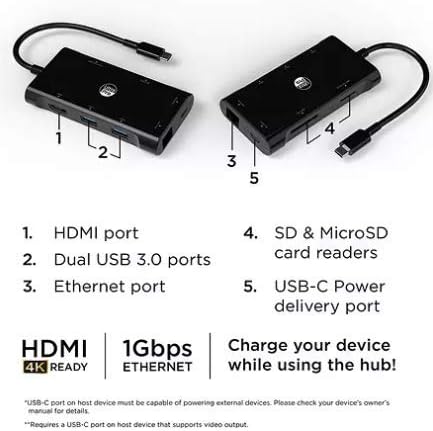
Image: Diagram of the UltraPro Elite USB-C Multiport Hub showing its various ports labeled with numbers for identification.
| No. | Port/Feature | Description |
|---|---|---|
| 1 | HDMI Port | Connects to an external display (monitor, TV, projector) for video and audio output, supporting up to 4K resolution at 30Hz. |
| 2 | Dual USB 3.0 Ports | Connect USB peripherals such as keyboards, mice, flash drives, and external hard drives. Supports data transfer speeds up to 5Gbps. |
| 3 | Ethernet Port | Provides a stable wired network connection, supporting speeds up to 1Gbps. |
| 4 | SD & MicroSD Card Readers | Allows reading and writing data from SD and MicroSD memory cards simultaneously. |
| 5 | USB-C Power Delivery Port | Connect your device's original USB-C power adapter to the USB-C Power Delivery port (No. 5) on the hub. Supports up to 60W power delivery. |
Setup
- Connect the Hub: Plug the integrated USB-C cable of the UltraPro Elite Multiport Hub into an available USB-C port on your laptop, tablet, or smartphone. Ensure your device's USB-C port supports data transfer and video output (for HDMI functionality).
- Power Connection (Optional): If your device requires charging or if you are connecting power-intensive peripherals, connect your device's original USB-C power adapter to the USB-C Power Delivery port (No. 5) on the hub.
- Driver Installation: The hub is plug-and-play for most operating systems (Windows, macOS, Chrome OS, Android). No additional drivers are typically required. Your operating system should automatically detect and configure the hub.
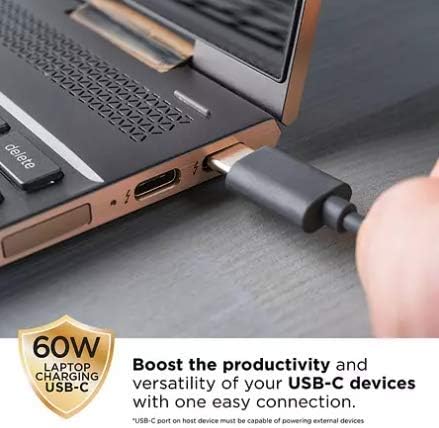
Image: A hand plugging the USB-C connector of the hub into the USB-C port of a laptop, demonstrating the initial connection.
Operating Instructions
Using the HDMI Port
Connect an HDMI cable from your external display to the HDMI port (No. 1) on the hub. Your device should automatically detect the external display. You may need to adjust display settings (e.g., mirror, extend) in your operating system's display preferences.
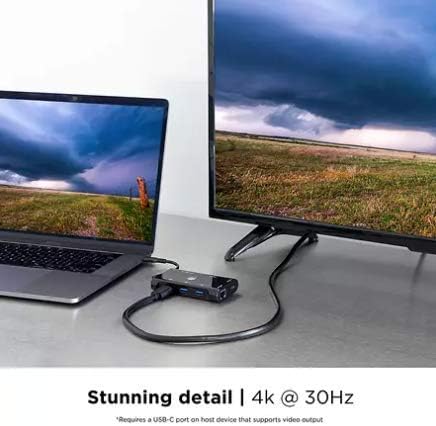
Image: A laptop connected to a large external monitor via the UltraPro Elite USB-C Multiport Hub, showcasing the HDMI output capability.
Using the USB 3.0 Ports
Plug your USB devices (e.g., flash drives, external hard drives, keyboards, mice) into the USB 3.0 ports (No. 2). These ports support high-speed data transfer. For optimal performance, ensure your USB devices are USB 3.0 compatible.
Using the Ethernet Port
Connect an Ethernet cable from your router or modem to the Ethernet port (No. 3) on the hub. This provides a stable and fast wired internet connection, ideal for situations where Wi-Fi is unreliable or unavailable.
Using the SD & MicroSD Card Readers
Insert your SD or MicroSD card into the corresponding slot (No. 4). The cards will appear as removable drives on your computer, allowing you to transfer files. Both slots can be used simultaneously.
Using the USB-C Power Delivery Port
To charge your host device (laptop, tablet) while using the hub, connect your device's original USB-C power adapter to the USB-C Power Delivery port (No. 5) on the hub. This allows you to maintain power to your device without occupying another USB-C port.
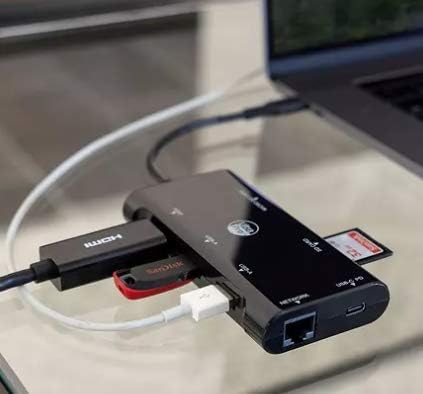
Image: The UltraPro Elite USB-C Multiport Hub with multiple devices connected, including a USB flash drive, an HDMI cable, and an SD card, demonstrating its multi-functionality.
Maintenance
- Cleaning: Use a soft, dry cloth to clean the surface of the hub. Avoid using liquid cleaners or aerosols.
- Storage: When not in use, store the hub in a cool, dry place away from direct sunlight and extreme temperatures.
- Handling: Avoid dropping the hub or subjecting it to strong impacts. Do not attempt to disassemble the device.
- Cable Care: Do not bend or crimp the integrated USB-C cable excessively.
Troubleshooting
| Problem | Possible Cause | Solution |
|---|---|---|
| No display output via HDMI. | Incorrect display settings; USB-C port does not support video output; faulty cable/monitor. | Check your device's display settings. Ensure your USB-C port supports DisplayPort Alternate Mode. Try a different HDMI cable or monitor. Restart your device. |
| USB devices not recognized. | Loose connection; insufficient power; driver issue. | Ensure the hub is securely connected. If using power-intensive devices, connect a power adapter to the hub's PD port. Try a different USB port on the hub. Restart your device. |
| No internet connection via Ethernet. | Loose Ethernet cable; network settings issue; router problem. | Ensure the Ethernet cable is securely connected to both the hub and your router/modem. Check your network settings. Restart your router/modem. |
| Device not charging via PD port. | Incorrect power adapter; USB-C port does not support PD; hub not receiving enough power. | Use your device's original USB-C power adapter. Ensure your device's USB-C port supports Power Delivery. Verify the power adapter is functioning correctly. |
Specifications
| Feature | Detail |
|---|---|
| Model Number | 980293601 |
| Brand | UltraPro |
| Connectivity | USB-C (Host) |
| Ports | 1x HDMI, 2x USB 3.0, 1x Ethernet (RJ45), 1x SD Card, 1x MicroSD Card, 1x USB-C Power Delivery |
| HDMI Resolution | Up to 4K @ 30Hz |
| USB Data Transfer | Up to 5Gbps (USB 3.0) |
| Ethernet Speed | 10/100/1000 Mbps (Gigabit Ethernet) |
| Power Delivery | Up to 60W (Input) |
| Compatible Devices | USB-C enabled laptops, tablets, smartphones (Windows, macOS, Chrome OS, Android) |
| Dimensions | 13.7 x 11.2 x 0.9 inches (Package Dimensions) |
| Weight | 4.8 ounces |
Warranty and Support
UltraPro products are designed for reliability and performance. For warranty information and technical support, please visit the official UltraPro website or contact their customer service department.
Online Support: Visit the UltraPro Store on Amazon
Please retain your proof of purchase for warranty claims.