
GreatYYT B08TV495HL
Metal Timer Lock Instruction Manual
Model: B08TV495HL
Product Overview
The GreatYYT Metal Timer Lock is a multi-functional electronic padlock designed to help manage access to items by setting a timed release. It features an LCD display, a durable metal body, and is USB rechargeable. This device is ideal for establishing routines and securing items for a set duration.

Image: The GreatYYT Metal Timer Lock, black in color, with its LCD display showing "00.00.00" and three control buttons below. A flexible steel cable with looped ends is shown below the lock, indicating its use for securing items.
Key Features:
- 99 Hours Timing: Allows free setting of unlocking time up to 99 hours and 59 minutes. The lock ring opens automatically once the set time expires.
- Durable Metal Body: Constructed from high-quality metal with smooth edges, ensuring durability and security.
- Easy Operation: Features a small LCD with white backlight for clear display of unlock time, and three intuitive buttons for setting hours and minutes.
- Super Standby Time: Universal Micro USB rechargeable with a maximum standby time of up to 500 hours on a full charge.
- Emergency Unlock Feature: Includes a limited-use emergency override function.
Package Contents
Please ensure all items are present upon unboxing:
- 1 x GreatYYT Metal Timer Lock (Black)
- 1 x USB Charging Cable
- 1 x Steel Cable Shackle
- 1 x User Manual (this document)
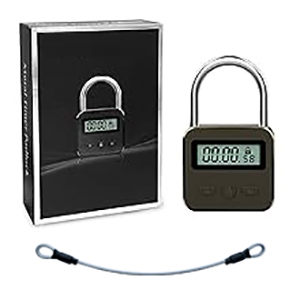
Image: The timer lock, its packaging box, and the steel cable shackle, illustrating the typical contents of the product package.
Setup and Initial Use
Charging the Device:
Before first use, fully charge the timer lock. Connect the provided USB charging cable to the Micro USB port on the lock and to a standard USB power source (e.g., computer, wall adapter). The LCD backlight will flash while charging and become solid when fully charged. A full charge can provide up to 500 hours of standby time.
Image: The timer lock connected via a USB cable to a power source, with an illustrative battery icon showing charging progress.
Understanding the Buttons:
The timer lock has three buttons located below the LCD display:
- Left Button (H): Used to adjust hours.
- Right Button (M): Used to adjust minutes.
- Middle Button (Lock Icon): Used to confirm settings and initiate the countdown. Long press to adjust mute mode.

Image: A detailed diagram of the timer lock, highlighting the LCD backlight, super long endurance, free setting of unlocking time, and mode switching features, with arrows pointing to the respective parts.
Operating Instructions
Setting the Unlock Time:
- Ensure the cable shackle is fully inserted into the keyhole before setting the time.
- Press any button to activate the LCD display, which will show '00:00:00'.
- Use the Left (H) button to set the desired hours and the Right (M) button to set the desired minutes. The maximum timing is 99 hours and 59 minutes.
- To cancel the current time setting, press both the Left (H) and Right (M) buttons simultaneously.
- Once the desired time is set, press the Middle (Lock Icon) button to start the countdown. The LCD will display an additional 5-second countdown before locking.
- During this 5-second countdown, pressing any button will cancel the setting. After 5 seconds, the device will lock, and the countdown will begin.
Unlocking the Device:
The device will automatically unlock when the set time expires. A sign "unlock" will display on the screen, and the lock ring will open.
Emergency Unlock Feature:
The lock includes an emergency override feature that can be used a limited number of times (typically 3 times) throughout its lifespan. Consult the specific instructions provided with your product for details on activating this feature, as it is intended for emergencies only.
Maintenance and Care
- Keep the device dry. Avoid exposure to water or excessive humidity.
- Clean the device with a soft, dry cloth. Do not use abrasive cleaners or solvents.
- Store the lock in a cool, dry place when not in use.
- Avoid dropping the device or subjecting it to strong impacts, as this may damage the internal components or the LCD screen.
Troubleshooting
| Problem | Possible Cause | Solution |
|---|---|---|
| Lock does not turn on or display is blank. | Battery is depleted. | Charge the device using the provided USB cable. |
| Lock does not open after countdown. | Software glitch or low battery. | Ensure the device is fully charged. If the issue persists, try setting a very short time (e.g., 1 minute) to see if it resets. If critical, use the emergency unlock feature (if available). |
| Cannot set the desired time (numbers only go up). | This is a design characteristic; time can only be increased. | If you overshoot the desired time, you must continue increasing the time until it loops back to 00:00 or allow the device to power off and reset. Plan your time setting carefully. |
| LCD backlight is dim or flickering. | Low battery or display issue. | Charge the device. If the problem continues after charging, contact customer support. |
Specifications
| Attribute | Detail |
|---|---|
| Brand | GreatYYT |
| Model | B08TV495HL |
| Color | Black |
| Material | Metal |
| Product Dimensions (D x W x H) | 0.71" x 1.81" x 3.11" (1.8 cm x 4.6 cm x 7.9 cm) |
| Item Weight | 3.88 ounces (110 Grams) |
| Max Timing | 99 Hours, 59 Minutes |
| Battery Type | 1 Lithium Ion battery (included) |
| Standby Time | Up to 500 hours |
| UPC | 720960667890 |

Image: A diagram showing the precise dimensions of the timer lock and its accompanying steel cable in both inches and centimeters.
Warranty and Support
GreatYYT offers a 2-year warranty for this product. This warranty covers manufacturing defects and ensures product quality. For any issues or inquiries, please contact GreatYYT customer support. They are committed to providing professional support and quick responses.
For further assistance, please refer to the contact information provided on the product packaging or the official GreatYYT website.
Ask a question about this manual
Ask about setup, troubleshooting, compatibility, parts, safety, or missing instructions. Manuals+ will review the question and use this page’s manual context to help answer it.