
1. Introduction
The QPLOVE Android 11.0 Q9 TV Box is a smart media player designed to enhance your home entertainment experience. It features the latest Android 11.0 operating system and an RK3318 Quad-core processor, ensuring faster performance and smooth operation. This device supports 4K and 3D video playback, dual-band Wi-Fi, and comes with a mini wireless keyboard for convenient control. This manual provides essential information for setting up, operating, and maintaining your TV box.

Image 1.1: QPLOVE Android 11.0 Q9 TV Box with its accessories and key features.
2. Package Contents
Please check the box contents upon unpacking. If any items are missing or damaged, contact your retailer.
- 1 x QPLOVE Android Smart TV Box
- 1 x Power Adapter
- 1 x HD Cable
- 1 x Remote Control (batteries not included)
- 1 x User Manual
- 1 x Mini Touchpad Keyboard

Image 2.1: Contents of the QPLOVE Android TV Box package.
3. Product Overview
3.1. Interfaces and Ports
The QPLOVE Q9 TV Box features a variety of ports for connectivity with your display and other peripherals.
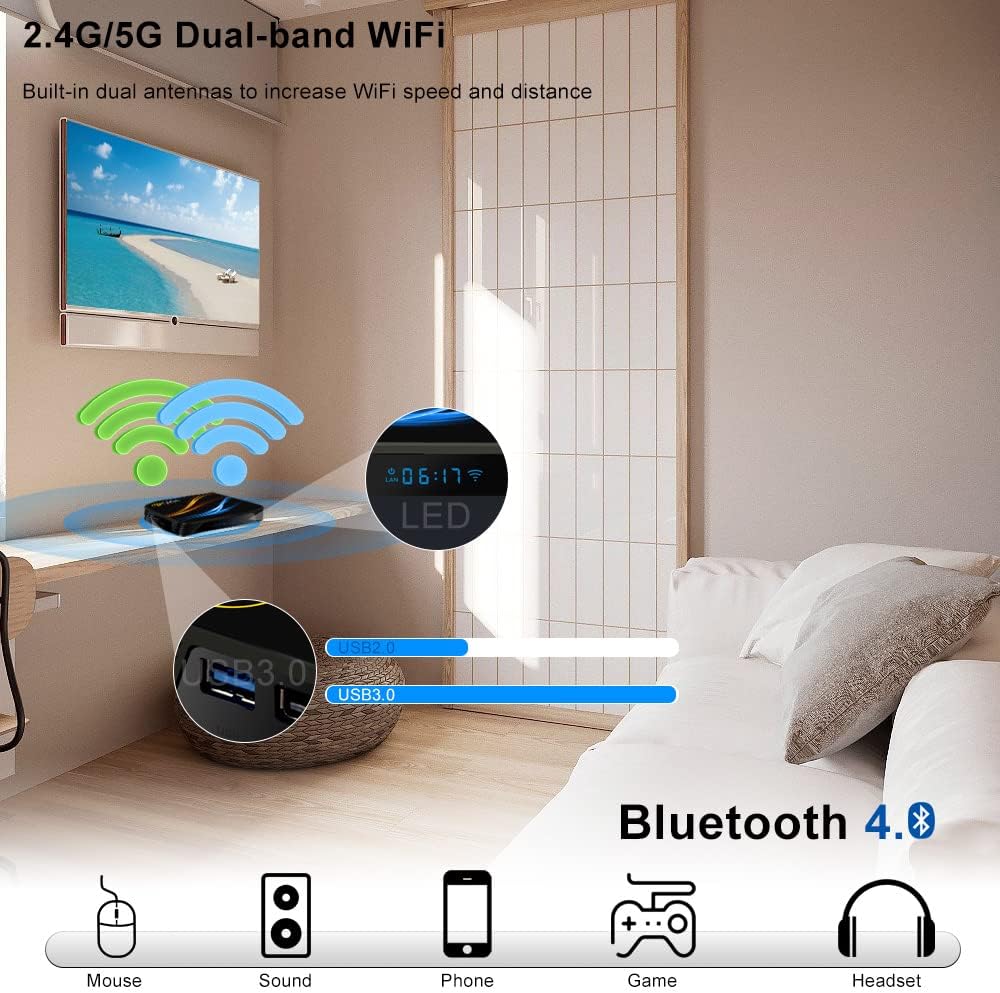
Image 3.1: Available interfaces on the QPLOVE Q9 TV Box.
- DC Power Input: Connect the provided power adapter.
- SPDIF: Optical audio output for high-quality sound.
- HDMI: Connect to your TV or monitor for video and audio output.
- LAN (RJ45): Ethernet port for wired network connection (10/100M).
- AV: Analog video/audio output for older TVs.
- USB 2.0: For connecting peripherals like a mouse, keyboard, or USB storage.
- USB 3.0: High-speed USB port for faster data transfer with compatible devices.
- TF Card Slot: Insert a Micro SD card to expand storage up to 128GB.
3.2. Key Features
- Operating System: Android 11.0
- Processor: RK3318 Quad-core 64-bit Cortex-A53
- GPU: Penta-core Mali-450
- Memory: 4GB DDR3 RAM, 64GB eMMC ROM (expandable via Micro SD)
- Connectivity: Dual-band Wi-Fi (2.4G/5G 802.11 a/b/g/n), Ethernet 10/100M, Bluetooth 4.0
- Video Output: 4K (3840 x 2160 pixels) @ 60Hz
- Video Decoding: Supports 4K VP9, H.265/H.264, 1080P (VC-1, MPEG-1/2/4, VP6/8)
- Included Accessories: Remote control, Mini wireless touchpad keyboard

Image 3.2: Dual-band Wi-Fi and Bluetooth 4.0 connectivity.
4. Setup Guide
4.1. Connecting to Your TV
- Connect one end of the provided HD cable to the HDMI port on the QPLOVE TV Box.
- Connect the other end of the HD cable to an available HDMI input on your television. Note the HDMI input number (e.g., HDMI 1, HDMI 2).
4.2. Power Connection
- Plug the power adapter into the DC Power Input port on the TV Box.
- Plug the other end of the power adapter into a wall outlet.
4.3. Network Connection
You can connect to the internet via Wi-Fi or Ethernet.
- Wi-Fi: After powering on, navigate to Settings > Network & Internet > Wi-Fi, select your network, and enter the password.
- Ethernet: Connect an Ethernet cable from your router to the LAN port on the TV Box. The connection will be established automatically.
4.4. Connecting Peripherals
- Remote Control: Insert two AAA batteries (not included) into the remote control.
- Mini Touchpad Keyboard: The keyboard typically connects via a 2.4GHz USB dongle. Insert the USB dongle into one of the USB ports on the TV Box. The keyboard should connect automatically.
4.5. Initial Boot-up
- Turn on your TV and select the correct HDMI input source.
- The QPLOVE TV Box will automatically power on and boot up to the Android home screen.
5. Operating Instructions
5.1. Navigation
You can navigate the Android interface using the included remote control or the mini touchpad keyboard.
- Remote Control: Use the directional pad (up, down, left, right) and the OK button to select items. The Back button returns to the previous screen, and the Home button returns to the main menu.
- Mini Touchpad Keyboard: Use the touchpad for mouse-like control and the keyboard for text input.
5.2. Installing Applications
Access the Google Play Store from the home screen to download and install various applications, including streaming services, games, and utilities.
5.3. Screen Sharing
The QPLOVE Q9 TV Box supports various screen sharing protocols, allowing you to cast content from your mobile devices to your TV.

Image 5.1: Screen sharing functionality (Airplay, Miracast, DLNA).
- Airplay: For Apple iOS devices.
- Miracast: For Android devices.
- DLNA: For sharing media content across compatible devices on your network.
Refer to your mobile device's instructions for initiating screen sharing.
5.4. Mini Keyboard Layout Setup
To set up the keyboard layout for your mini touchpad keyboard:
- Go to Settings.
- Select Device Preferences.
- Choose Keyboard & Auto-fill.
- Select Physical Keyboard.
- Find and select 2.4G Composite Device.
- Choose your desired language (e.g., French) and then select Set up keyboard layouts.
6. Maintenance
- Cleaning: Use a soft, dry cloth to clean the device. Do not use liquid cleaners or aerosols.
- Placement: Place the TV box in a well-ventilated area to prevent overheating. Avoid direct sunlight, high temperatures, and humid environments.
- Software Updates: Periodically check for system updates in Settings > Device Preferences > About > System update to ensure optimal performance and security.
- Power Off: When not in use for extended periods, disconnect the power adapter.
7. Troubleshooting
If you encounter issues with your QPLOVE Q9 TV Box, refer to the following common solutions.
7.1. No Power / No Display
- Ensure the power adapter is securely connected to both the TV box and a working power outlet.
- Verify that the HD cable is properly connected to both the TV box and your TV.
- Check that your TV is set to the correct HDMI input source.
7.2. Wi-Fi Connection Issues
- Ensure your Wi-Fi router is on and functioning correctly.
- Go to Settings > Network & Internet > Wi-Fi and re-enter your Wi-Fi password if necessary.
- Try restarting both the TV box and your Wi-Fi router.
7.3. Remote Control / Keyboard Not Responding
- For the remote control, check and replace batteries if needed.
- For the mini keyboard, ensure the USB dongle is securely plugged into a USB port on the TV box. Try a different USB port.
- Ensure the keyboard is charged if it has a rechargeable battery.
7.4. Applications Freezing or Crashing
- Close and restart the application.
- Clear the app's cache and data in Settings > Apps > [App Name] > Storage > Clear Cache / Clear Data.
- Ensure the TV box has sufficient free storage space.
- The RK3318 chip is designed for stable performance, but if issues persist, consider a factory reset (Settings > Device Preferences > About > Factory reset - this will erase all data).

Image 7.1: The RK3318 chip, designed for stable image processing.
7.5. Google Play Store Search Issues
- If the Play Store search function is unresponsive or fails to find results, try clearing the cache and data for the Google Play Store app (Settings > Apps > Google Play Store > Storage > Clear Cache / Clear Data).
- Ensure your internet connection is stable.
- As an alternative, you can search for applications using a web browser on the TV box, which may provide more reliable results.
8. Specifications
| Feature | Specification |
|---|---|
| Operating System | Android 11.0 |
| Processor | RK3318 Quad-core 64-bit Cortex-A53 |
| GPU | Penta-core Mali-450 |
| RAM | 4GB DDR3 |
| ROM | 64GB eMMC (expandable up to 128GB via Micro SD) |
| Wi-Fi | Dual Band 2.4G/5G 802.11 a/b/g/n |
| Bluetooth | 4.0 |
| Ethernet | 10/100M Standard RJ-45 |
| Video Output | 4K (3840 x 2160 pixels) @ 60Hz via HD 2.0 |
| USB Host | 1x USB 3.0 Type-A, 1x USB 2.0 Type-A |
| Card Reader | Micro SD cards |
| Power Input | DC 5V/2.5A |
| Video Decoder Support | 4K VP9, H.265/H.264, 1080P (VC-1, MPEG-1/2/4, VP6/8) |
| Supported Internet Services | Google TV |
9. Warranty and Support
Specific warranty information and details regarding spare parts availability or guaranteed software updates are not provided in the product details. For warranty claims or technical support, please contact your retailer or the manufacturer directly. Keep your purchase receipt as proof of purchase.