
1. Introduction
The T-DAGGER Bora T-TGK315 is a Tenkeyless (TKL) mechanical keyboard designed for enhanced desk space and portability. It features Outemu Red mechanical switches, individual per-key RGB backlighting, and a durable ABS plastic construction. This manual provides essential information for setting up, operating, maintaining, and troubleshooting your keyboard.
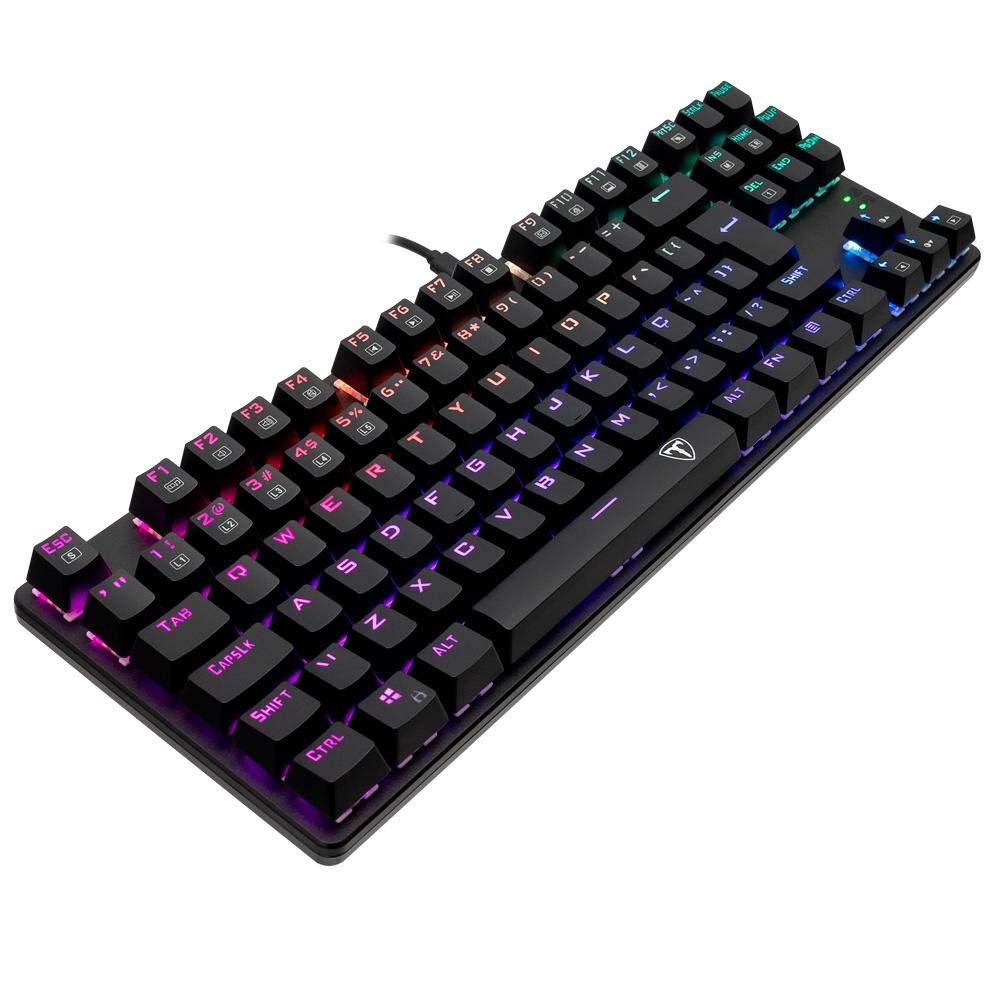
Figure 1: Top view of the T-DAGGER Bora T-TGK315 RGB Mechanical Keyboard.
2. Setup
Follow these steps to set up your T-DAGGER Bora T-TGK315 keyboard:
- Unpack the Keyboard: Carefully remove the keyboard and its accessories from the packaging.
- Connect the USB Cable: The keyboard features a removable USB-A cable. Connect one end of the cable to the USB port on the keyboard and the other end to an available USB-A port on your computer.
- Driver Installation: The keyboard is typically plug-and-play. Your operating system should automatically detect and install the necessary drivers.
- Software Installation (Optional): For advanced customization of RGB lighting and key functions, download the official T-DAGGER software from the manufacturer's website. Follow the on-screen instructions for installation.

Figure 2: Angled view of the T-DAGGER Bora T-TGK315, showing the removable cable connection.
3. Operating Instructions
The T-DAGGER Bora T-TGK315 offers various features for an optimized user experience:
3.1 RGB Backlighting Control
- Onboard Control: The keyboard allows direct customization of individual per-key RGB illumination. Refer to the keyboard's function key combinations (often involving the 'Fn' key) for cycling through lighting modes, adjusting brightness, and changing colors. Specific key combinations are usually printed on the keycaps or detailed in a quick start guide.
- Software Control: Use the T-DAGGER software to access a wider range of lighting effects, custom profiles, and per-key color assignments.
3.2 Key Features
- TKL Format: The Tenkeyless design omits the numeric keypad, providing more space for mouse movement and a compact form factor.
- N-Key Rollover: This feature ensures that every keypress is registered accurately, even when multiple keys are pressed simultaneously, which is beneficial for fast typing and gaming.
- ABNT2 Layout: The keyboard features an ABNT2 layout, commonly used in specific regions. Familiarize yourself with this layout for optimal typing.
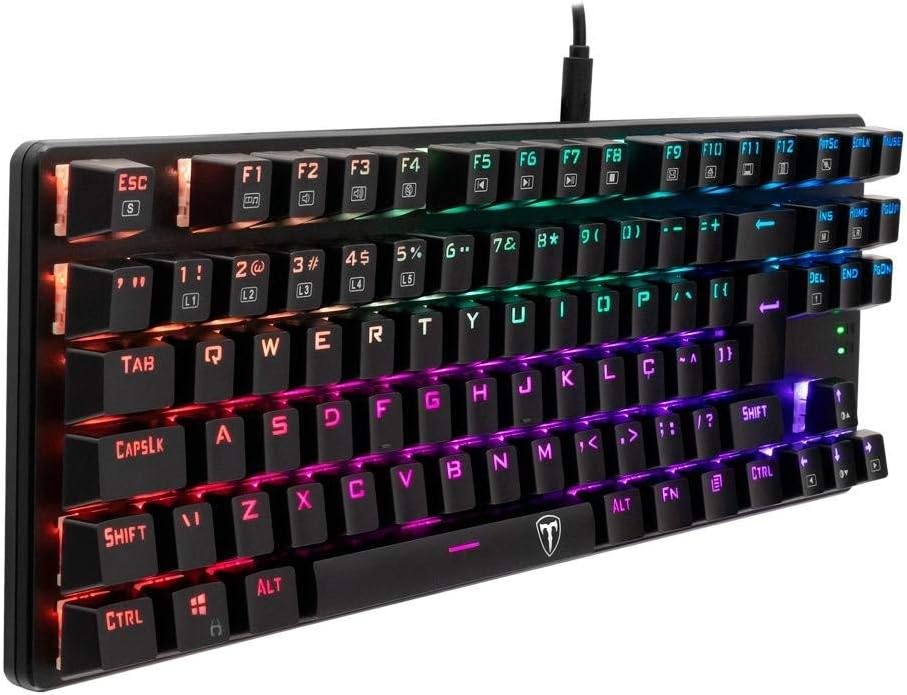
Figure 3: Side view of the T-DAGGER Bora T-TGK315, highlighting the floating key design.
4. Maintenance
Proper maintenance ensures the longevity and performance of your keyboard:
- Cleaning: Regularly clean the keyboard with a soft, dry cloth. For dust and debris between keycaps, use compressed air. For stubborn grime, slightly dampen a cloth with water or a mild cleaning solution (avoid harsh chemicals).
- Keycap Removal: The keyboard features removable ABS Doubleshot keycaps. Use a keycap puller (often included with mechanical keyboards) to carefully remove keycaps for deeper cleaning or replacement.
- Switch Replacement (Hotswap): The Outemu DIY MK.II Red switches are hotswappable. If a switch malfunctions, you can replace it without soldering. Use the included switch puller to gently remove the faulty switch and insert a new compatible Outemu switch.
- Cable Care: The removable USB cable should be handled with care. Avoid sharp bends or excessive pulling to prevent damage.

Figure 4: Front view of the T-DAGGER Bora T-TGK315, showcasing the RGB lighting.
5. Troubleshooting
If you encounter issues with your T-DAGGER Bora T-TGK315 keyboard, refer to the following common solutions:
- Keyboard Not Responding:
- Ensure the USB cable is securely connected to both the keyboard and the computer.
- Try connecting the keyboard to a different USB port on your computer.
- Test the keyboard on another computer to determine if the issue is with the keyboard or the computer's port/drivers.
- RGB Lighting Not Working/Incorrect:
- Check the onboard lighting controls (Fn key combinations) to ensure lighting is enabled and set correctly.
- If using the software, ensure it is running and the correct profile is active. Try reinstalling the software.
- Ensure no physical damage to the LEDs or switches.
- Keys Not Registering:
- Remove the keycap and inspect the switch for any visible debris or damage.
- If the switch is hotswappable, try removing and reinserting it firmly. If the issue persists, replace the switch.
- Ensure no software conflicts are causing key input issues.
If these steps do not resolve the issue, please contact T-DAGGER customer support.
6. Specifications
| Feature | Detail |
|---|---|
| Brand | T-DAGGER |
| Model Number | T-TGK315 |
| Keyboard Description | Mechanical |
| Switches | Outemu DIY MK.II Red |
| Durability | 50 Million Keystrokes |
| Hotswap DIY | Yes |
| Format | Tenkeyless (TKL) |
| Design | Floating Keys |
| Layout | ABNT2 |
| Connectivity Technology | USB-A |
| Software | Yes (for customization) |
| Height Adjustable | Yes |
| Case Materials | ABS Plastic |
| Lighting | RGB (per-key) |
| Rollover | N-Key Rollover |
| Cable Length | 2m |
| Removable Keycaps | ABS Doubleshot |
| Color | Black |
| Compatible Devices | PC |
| Recommended Uses | Gaming |
| Product Dimensions | 5 x 17 x 41 cm |
| Product Weight | 800 grams |
7. Warranty and Support
For warranty information, please refer to the warranty card included with your product or visit the official T-DAGGER website. If you require technical assistance or have questions not covered in this manual, please contact T-DAGGER customer support through their official channels.

