
1. Introduction
This manual provides instructions for the HCDZ replacement remote control, designed for use with various Clear Touch Interactive Flat Panel LED Displays. This remote offers direct functionality without the need for programming, ensuring a straightforward user experience.

Figure 1.1: Front view of the HCDZ replacement remote control.
2. Setup
2.1 Battery Installation
- Locate the battery compartment on the back of the remote control.
- Slide the battery cover downwards or press the latch to open it.
- Insert two (2) AAA batteries, ensuring the positive (+) and negative (-) terminals align correctly with the markings inside the compartment.
- Replace the battery cover by sliding it back into position until it clicks securely.
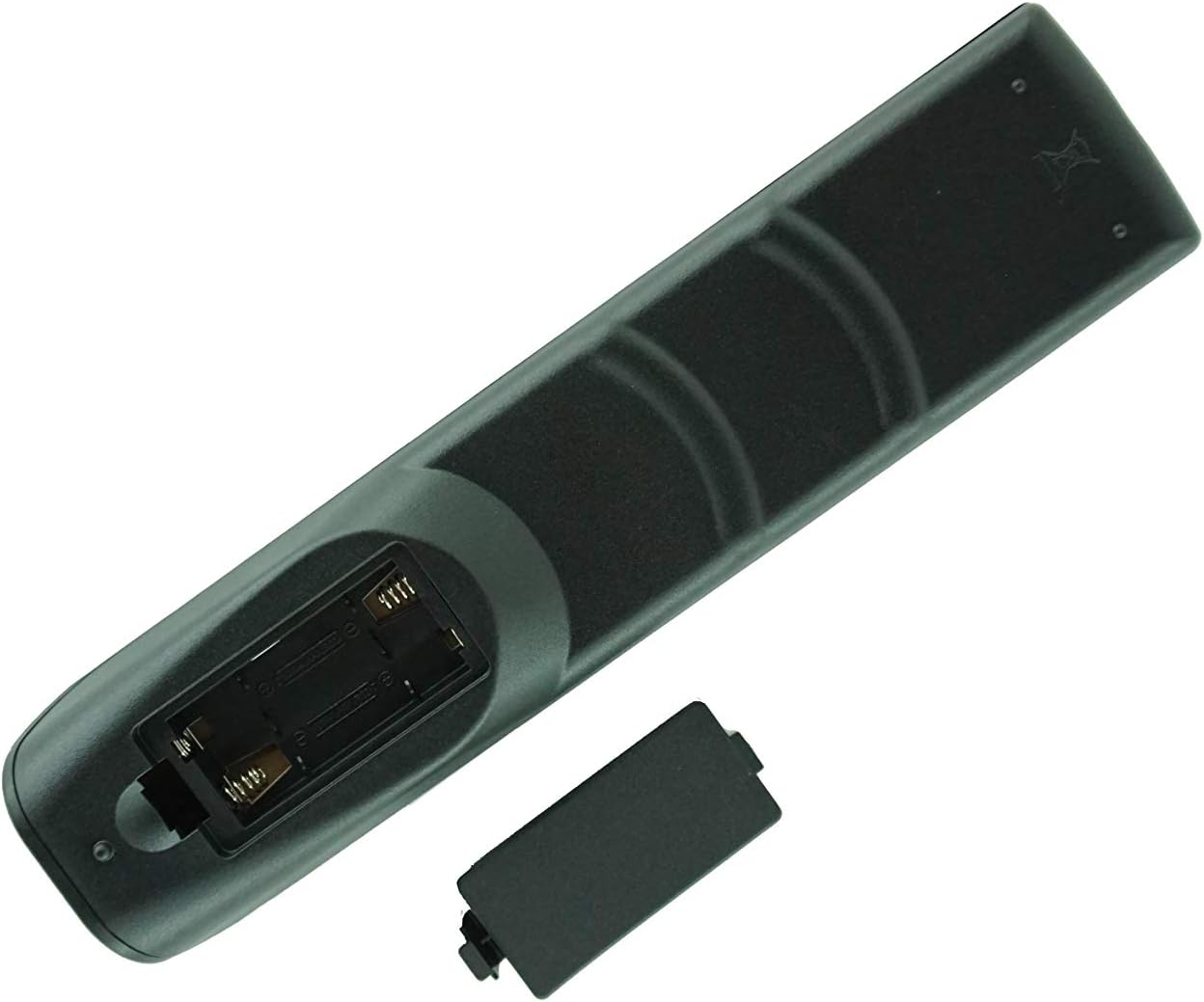
Figure 2.1: Rear view of the remote control with the battery compartment open, showing the placement for two AAA batteries.
2.2 Initial Use
This HCDZ replacement remote control requires no programming. Once fresh batteries are correctly installed, the remote is ready for immediate use with your compatible Clear Touch Interactive Flat Panel LED Display.
3. Operating Instructions
The following section details the functions of each button on the HCDZ replacement remote control.

Figure 3.1: Diagram illustrating the layout of buttons on the HCDZ remote control with corresponding numbered functions.
3.1 Button Functions
- Power On/Off: Toggles the display power.
- Mute Switch: Mutes or unmutes the audio output.
- Start (Windows Key): Built-in computer Windows key.
- Space: Built-in computer Space key.
- Alt + Tab: Built-in computer space bar Alt + Tab function.
- Alt + F4: Built-in computer program window close button.
- Numeric Keys (0-9): Numeric input keys.
- Display: Displays channel information.
- Non-function: This button has no assigned function.
- Input (Source Selection): Selects different input sources according to need.
- Home: Navigates to the Android system main screen.
- Menu: Opens the setting menu; press this button to pop up.
- Red Button (Lock/Unlock Buttons): Locks and unlocks button functions.
- Green Button (Lock/Unlock Buttons): Locks and unlocks button functions.
- Yellow Button (Lock/Unlock Touch): Locks and unlocks touch screen function.
- Blue Button (Freeze/Zoom): Activates freeze or zoom function.
- One Key for Blank Screen: Toggles the screen blank.
- Backspace Key: Performs a backspace action.
- Up Arrow: Direction key, press this button for upwards selection.
- Left Arrow: Direction key, press this button for left selection.
- Right Arrow: Direction key, press this button for right selection.
- Down Arrow: Direction key, press this button for downwards selection.
- Enter: Confirmation key, press this key to confirm selection state.
- Quickly Start Writing Software: Initiates writing software quickly.
- Back: Returns to the previous screen or menu.
- PgUp (Page Up): Built-in computer page up function.
- PgDn (Page Down): Built-in computer page down function.
- CH+ / CH-: Channel Up / Channel Down (Non-function for this device).
- VOL+ / VOL-: Volume Up / Volume Down switch key.
- F1-F12 Function Keys: Built-in computer F1 - F12 function keys.
4. Maintenance
4.1 Battery Care
- Do not mix new batteries with old ones.
- If the remote control will not be used for an extended period, remove the batteries to prevent potential damage from leakage and corrosion.
4.2 Environmental Considerations
- Avoid leaving the remote control in extremely hot or humid environments.
- Do not expose the remote's infrared sensor to direct sunlight or strong lighting apparatuses, as this may cause malfunction.
4.3 Cleaning
To clean the remote control, gently wipe its surface with a soft, dry cloth. Avoid using liquid cleaners or abrasive materials, which could damage the remote's finish or internal components.
5. Troubleshooting
- Remote not responding: Ensure batteries are inserted correctly with the correct polarity. Replace old batteries with fresh AAA batteries.
- Intermittent functionality: Check for obstructions between the remote and the display's infrared receiver. Ensure the remote is within operational range.
- Specific buttons not working: Verify that the remote's sensor is not blocked. If the issue persists, replace batteries.
6. Specifications
| Feature | Detail |
|---|---|
| Brand | HCDZ |
| Compatible Devices | Clear Touch Interactive Flat Panel LED Displays (CTI-6065U-UH20, CTI-6075U-UH20, CTI-6086U-UH20, CTI-6065K-UH20, CTI-6075K-UH20, CTI-6086K-UH20) |
| Power Source | 2 x AAA Batteries (not included) |
| Special Feature | No programming needed |
| Color | Black |
| Item Weight | 3.52 ounces (approximately 100 grams) |
| Package Dimensions | 9.8 x 4.57 x 1.06 inches |
7. Warranty and Support
For warranty information or technical support regarding your HCDZ replacement remote control, please refer to the manufacturer's official website or contact their customer service directly. Please retain your purchase receipt for any warranty claims.