
Introduction
This manual provides detailed instructions for the GIZMORE Multimedia GizBar 1000 Speaker. Please read this manual carefully before using the product to ensure proper operation and to maximize your listening experience.
The GizBar 1000 is designed to deliver clear and crisp audio with multi-connectivity options, including Bluetooth 5.0, USB, FM radio, TF card, and AUX input.
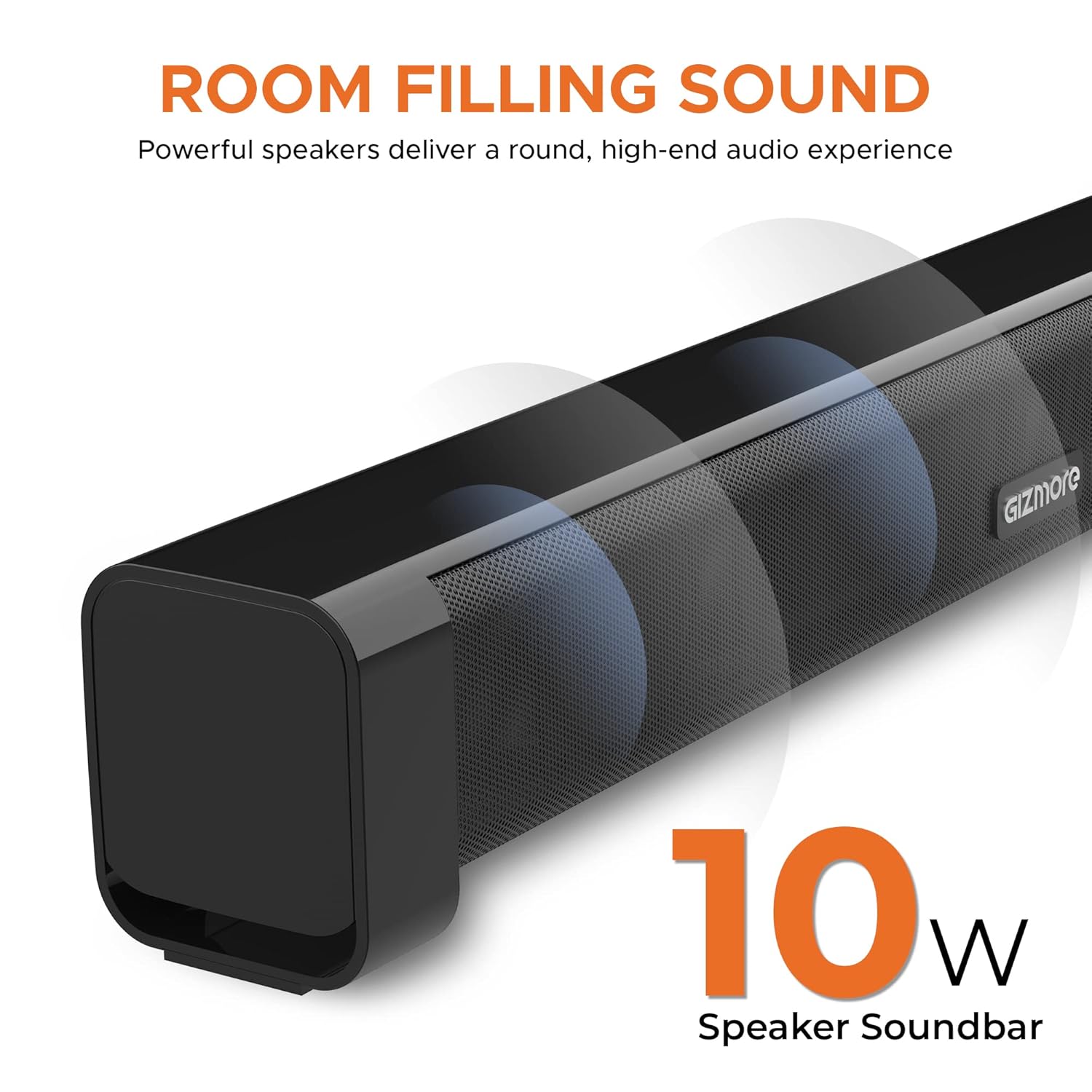
Image: This image highlights the GIZMORE GizBar 1000 speaker's ability to produce room-filling sound, with visual representations of sound waves emanating from the speaker grille.
Product Overview
The GIZMORE GizBar 1000 is a 10W soundbar featuring a sleek design and multiple connectivity options. It includes a classic jog dial for power and volume control, and a cool blue LED indicator.
Key Features:
- 10W Power Output
- Bluetooth 5.0 Connectivity
- Multi-Connectivity: USB, FM, TF Card, AUX
- Classic Jog Dial for Power & Volume
- Cool Blue LED Indicator
- Compact and Portable Design
- Up to 3 hours of playback on a 2000 mAh rechargeable battery
Controls and Ports:
Refer to the image below for an overview of the controls and ports on your GizBar 1000.

Image: This image displays the side panel of the GizBar 1000 speaker, highlighting the multifunction button, volume up/down, play/pause controls, and various input ports including USB, AUX, Bluetooth, and TF Card slot. The jog dial is prominently featured with a blue LED light.
- Multifunction Button: Used for various operations depending on the mode.
- Volume Up/Down: Adjusts the audio volume.
- Play/Pause: Controls media playback.
- Jog Dial: Classic dial for power on/off and volume adjustment.
- USB Port: For USB drive playback.
- AUX Input: For wired audio connection.
- TF Card Slot: For TF (MicroSD) card playback.
Setup Instructions
1. Charging the Speaker
Before first use, fully charge the GizBar 1000. Connect the provided charging cable to the speaker's charging port and a suitable USB power adapter (not included).
The LED indicator will show charging status and turn off or change color when fully charged.
2. Powering On/Off
Rotate the Classic Jog Dial to power on the speaker. Rotate it again to power off.
Operating Instructions
1. Bluetooth Mode
The GizBar 1000 uses Bluetooth 5.0 for wireless connectivity.
- Power on the speaker. The blue LED indicator will flash, indicating it's in pairing mode.
- On your device (smartphone, tablet, laptop), enable Bluetooth and search for available devices.
- Select "GizBar 1000" from the list of devices.
- Once paired, the blue LED will stop flashing and remain solid. You can now play audio wirelessly from your device.
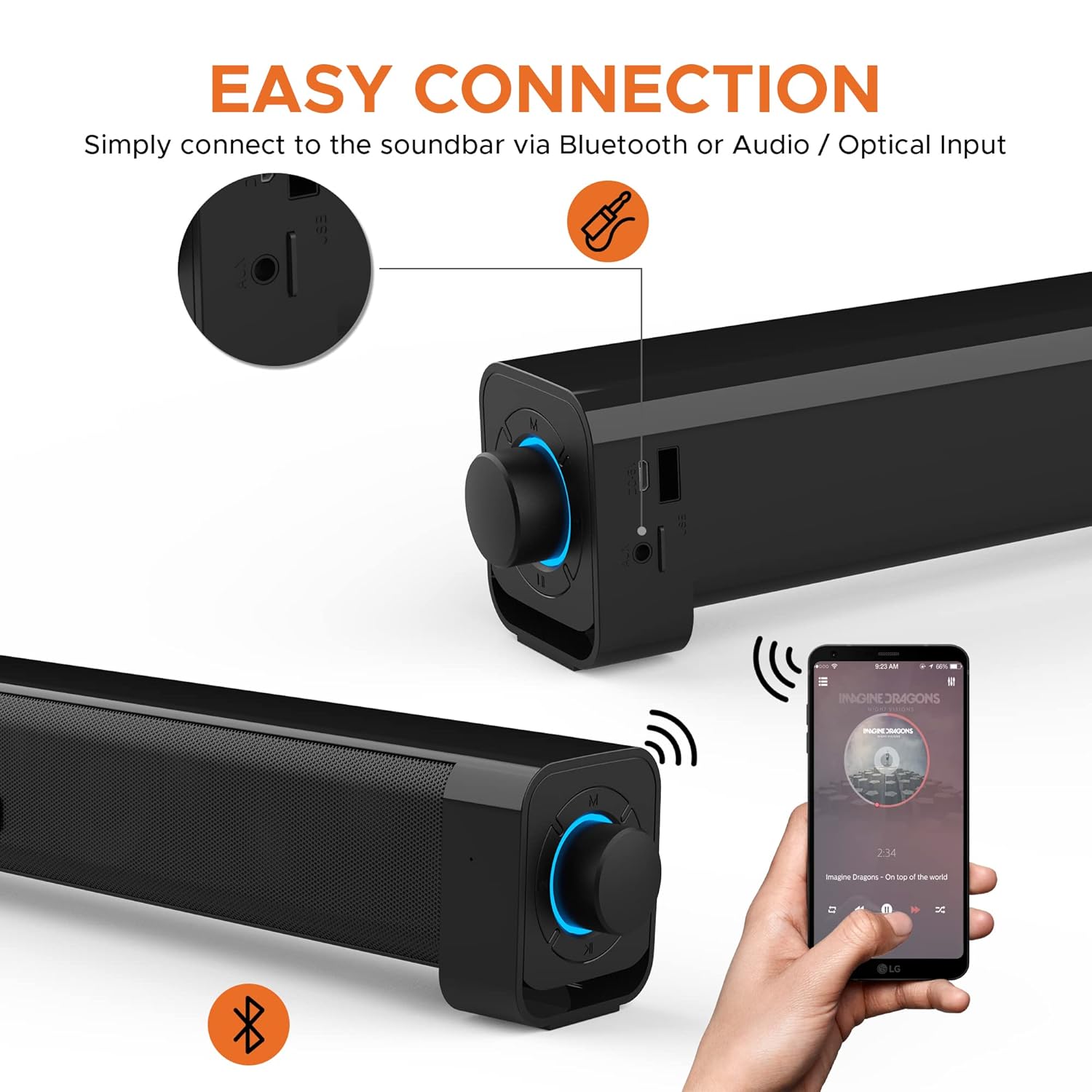
Image: This image illustrates the Bluetooth pairing process, showing a smartphone connected wirelessly to the GizBar 1000 speaker. The speaker's jog dial glows blue, indicating an active connection.
2. USB Playback
Insert a USB drive containing audio files into the USB port. The speaker will automatically switch to USB mode and begin playing music.
3. TF Card Playback
Insert a TF (MicroSD) card containing audio files into the TF card slot. The speaker will automatically switch to TF card mode and begin playing music.
4. AUX Input
Connect an external audio device (e.g., MP3 player, computer) to the AUX port using the provided AUX cable. The speaker will automatically switch to AUX mode. Play audio from your connected device.
5. FM Radio
To enter FM mode, press the Multifunction button until you hear the FM radio. Use the Play/Pause button to auto-scan and save available stations. Use the Volume Up/Down buttons to navigate between stations.
6. Volume Control
Adjust the volume using the Classic Jog Dial or the dedicated Volume Up/Down buttons.
Maintenance
- Keep the speaker away from water and excessive moisture.
- Clean the speaker with a soft, dry cloth. Do not use abrasive cleaners or solvents.
- Avoid exposing the speaker to extreme temperatures.
- Store the speaker in a cool, dry place when not in use for extended periods.
Troubleshooting
| Problem | Possible Cause | Solution |
|---|---|---|
| No power | Battery is drained. | Charge the speaker using the provided charging cable. |
| No sound | Volume is too low or muted. Incorrect input mode. Device not connected properly. | Increase volume. Ensure correct input mode (Bluetooth, USB, AUX, TF, FM). Reconnect the device. |
| Bluetooth pairing failed | Speaker is not in pairing mode. Device Bluetooth is off. Speaker is too far from the device. | Ensure speaker is in pairing mode (flashing blue LED). Turn on Bluetooth on your device. Move speaker closer to the device. |
| Poor FM reception | Weak signal. | Relocate the speaker to an area with better signal reception. |
Specifications
| Feature | Detail |
|---|---|
| Model Name | Gizbar1000 |
| Speaker Type | Soundbar |
| Power Output | 10 Watts |
| Bluetooth Version | V 5.0 |
| Connectivity Technology | Bluetooth, USB, Auxiliary |
| Battery Capacity | 2000 mAh (rechargeable) |
| Battery Life | Up to 3 Hours |
| Control Method | Touch, Jog Dial |
| Product Dimensions | 9D x 49W x 9H Centimeters |
| Item Weight | 794 Grams |
| Included Components | Aux Cable, Charging Cable |

Image: This image shows the dimensions of the GizBar 1000 speaker, indicating a length of 49cm and a depth/height of 9cm.
Warranty and Support
For product support, please contact GIZMORE customer care:
- Phone: +91-9654034400 (10 AM - 7 PM, Monday - Saturday)
- Email: customercare@gizmore.in
- Address: ZAZZ Technology Connect Pvt. Ltd. A-30, First Floor, (F.I.E.E Complex) Okhla Industrial Area, Phase-2, New Delhi-110020, India
Please retain your purchase receipt for warranty claims.
