
1. Introduction
This manual provides detailed instructions for the installation, configuration, and operation of your Evertech H.265 8 Channel Hybrid DVR Security Recorder. This system is designed to provide a comprehensive security solution for homes and offices, supporting up to eight cameras with H.265 video compression technology for efficient storage and high-quality video.
The DVR is compatible with various camera types, including 720P, 1080P AHD, TVI, CVI, and traditional analog cameras. It includes a pre-installed 2TB hard drive for recording and offers remote viewing capabilities via smartphones, tablets, or PCs.

Image 1.1: Evertech H.265 8 Channel Hybrid DVR with a 2TB hard drive and a smartphone displaying the remote viewing application.
2. Package Contents
Verify that all items listed below are included in your package. If any items are missing or damaged, please contact customer support.
- Evertech 8 Channel Hybrid DVR with 2TB Hard Drive installed
- Power Supply Adapter
- USB Mouse
- CD for PC Software and Video Instructions (may vary by region/model)

Image 2.1: Visual representation of the Evertech DVR package contents.
3. Product Overview
3.1 Front Panel
The front panel of the DVR provides essential controls and indicators for local operation.
- REC Indicator: Illuminates when recording is active.
- ALARM Indicator: Illuminates when an alarm event (e.g., motion detection) is triggered.
- POWER Indicator: Illuminates when the DVR is powered on.
- ESC Button: Used to exit menus or cancel operations.
- MENU Button: Accesses the main menu for system configuration.
- Directional Buttons (Up/Down/Left/Right): Navigates through menu options.
- OK Button: Confirms selections or enters sub-menus.
- USB Port: Connects the USB mouse or a USB flash drive for backup.
3.2 Rear Panel
The rear panel contains all necessary ports for connecting cameras, monitors, network, and power.

Image 3.1: Detailed view of the DVR's rear panel connections.
- VIDEO IN (BNC): Connect up to 8 security cameras.
- AUDIO IN (RCA): Connect an external microphone for audio recording.
- AUDIO OUT (RCA): Connect external speakers for audio playback.
- HDMI Port: Connect to an HDMI-compatible monitor or TV.
- VGA Port: Connect to a VGA-compatible monitor.
- LAN Port (RJ45): Connect to your network router for remote access.
- USB Ports: Connect the USB mouse and/or a USB flash drive.
- DC 12V Power Input: Connect the provided power adapter.
3.3 DVR Dimensions
The physical dimensions of the DVR are provided for installation planning.
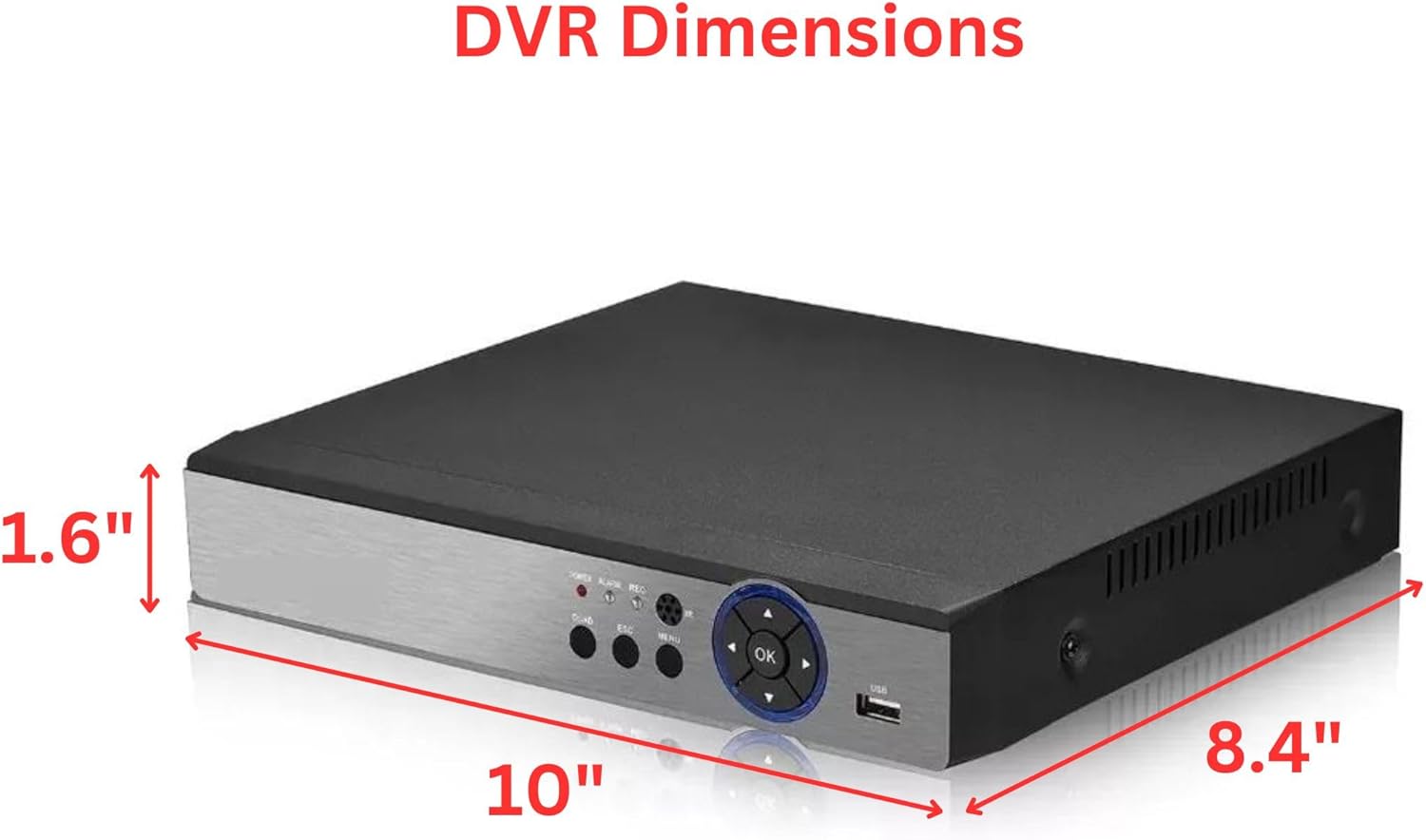
Image 3.2: DVR dimensions (Width: 10", Depth: 8.4", Height: 1.6").
4. Compatibility
The Evertech Hybrid DVR is designed for broad compatibility with various security camera technologies.
- Compatible: 1080P, 960P, 720P TVI, AHD, CVI, and Traditional Analog Cameras.
- Not Compatible: HD-SDI cameras and security cameras exceeding 2.4MP resolution.

Image 4.1: DVR camera compatibility overview.
5. Setup Guide
5.1 Hardware Connections
- Connect Cameras: Attach your compatible security cameras to the BNC VIDEO IN ports on the DVR's rear panel.
- Connect Monitor: Connect a monitor to either the HDMI or VGA port on the DVR.
- Connect Mouse: Plug the USB mouse into one of the USB ports on the DVR.
- Connect Network (Optional): For remote viewing and network features, connect an Ethernet cable from your router to the LAN port on the DVR.
- Connect Power: Connect the provided power adapter to the DC 12V input on the DVR, then plug the adapter into a power outlet. The DVR will power on automatically.
5.2 Initial Configuration
Upon first power-on, the DVR will guide you through an initial setup wizard. Follow the on-screen prompts to configure basic settings such as language, date/time, network settings, and hard drive initialization. It is recommended to change the default password for security purposes.
6. Operating Instructions
6.1 Recording Modes
The DVR supports the following recording modes:
- Continuous Recording: Records video constantly.
- Manual Recording: Initiates recording manually.
- Motion Detection Recording: Records only when motion is detected in the camera's view.
- Schedule Recording: Records according to a pre-defined schedule.
These modes can be configured in the DVR's main menu under the 'Record' settings.
6.2 Remote Viewing
Access live and recorded video remotely using a smartphone, tablet, or PC.
- Smartphone/Tablet: Download the free application (e.g., Xmeye or similar, as indicated by the product's software) from your device's app store (iOS/Android). Follow the app's instructions to add your DVR using its unique ID or QR code.
- PC: Access your DVR via a web browser or by installing the provided CMS Client Software. Refer to the software CD or manufacturer's website for download and installation instructions.

Image 6.1: Remote viewing options for the DVR system.
6.3 Motion Detection & Email Alerts
Configure motion detection zones and sensitivity for each camera through the DVR's menu. When motion is detected, the DVR can trigger recording and send push notifications to the mobile application or email alerts to a configured address.

Image 6.2: Example of a motion detection alert received on a smartphone.
6.4 Playback
To review recorded footage, navigate to the 'Playback' section in the DVR's main menu. You can search for recordings by date, time, and event type (e.g., motion detection). The multi-channel playback function allows simultaneous viewing of multiple camera feeds.
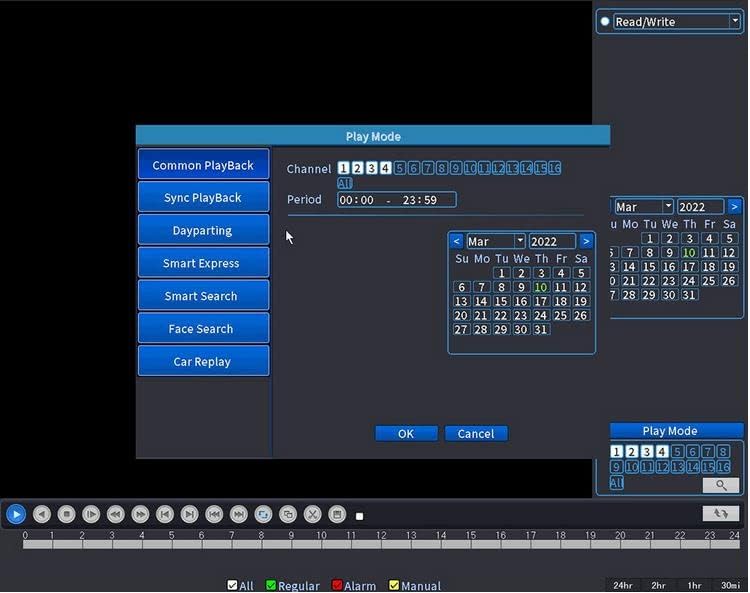
Image 6.3: DVR playback interface.
6.5 USB Backup
Video files can be transferred to a USB flash drive for backup. Insert a USB drive into the DVR's USB port and follow the on-screen instructions in the 'Backup' menu to select and export desired footage.
7. Maintenance
- Cleaning: Regularly clean the DVR's exterior with a soft, dry cloth. Do not use liquid cleaners or aerosols. Ensure ventilation openings are free from dust and obstructions.
- Firmware Updates: Periodically check the Evertech website for firmware updates to ensure optimal performance and access to new features. Follow the provided instructions carefully when performing updates.
- Hard Drive Health: The 2TB hard drive is pre-installed. Monitor its health through the DVR's system information menu. Regular backups of critical footage are recommended.
8. Troubleshooting
- No Video Output:
Check: Ensure the monitor is correctly connected to the HDMI or VGA port and is powered on. Verify the correct input source is selected on the monitor. - No Camera Display:
Check: Ensure cameras are properly connected to the DVR's BNC inputs and are receiving power. Verify camera compatibility (refer to Section 4). - Remote Viewing Not Working:
Check: Ensure the DVR is connected to the internet via the LAN port. Verify network settings in the DVR menu. Confirm the mobile app or CMS software is correctly configured with the DVR's ID. - No Recording:
Check: Verify the 2TB hard drive is installed and initialized. Check recording schedules and motion detection settings. Ensure the hard drive is not full. - Forgot Password:
Action: Refer to the DVR's on-screen options for password recovery or contact Evertech technical support.
9. Specifications
| Feature | Specification |
|---|---|
| Brand | Evertech |
| Model | H.265 8 Channel Hybrid DVR |
| Number of Channels | 8 |
| Hard Disk Size | 2 TB (2000 GB) |
| Video Compression | H.265 |
| Compatible Camera Types | 720P, 1080P AHD/TVI/CVI/Analog |
| Connectivity Technology | USB, Ethernet |
| Video Output | HDMI, VGA |
| Recording Modes | Continuous, Manual, Motion, Schedule |
10. Warranty and Support
This Evertech DVR comes with a One Year Warranty. For any technical assistance or warranty claims, please contact Evertech customer support. Free technical support is available to assist you with setup, troubleshooting, and general inquiries.
For further assistance, please visit the Evertech Store on Amazon or refer to the contact information provided with your product.