
TP-Link RE605X
TP-Link AX1800 WiFi 6 Extender (RE605X) User Manual
Brand: TP-Link
Model: RE605X
1. Product Overview
The TP-Link AX1800 WiFi 6 Extender (RE605X) is designed to boost your existing Wi-Fi signal, extending coverage up to 1500 sq.ft and supporting up to 30 devices. It operates on dual bands, offering speeds up to 1.8Gbps, and features an AP Mode and a Gigabit Port for versatile connectivity. This device helps eliminate Wi-Fi dead zones and provides a seamless network experience throughout your home.
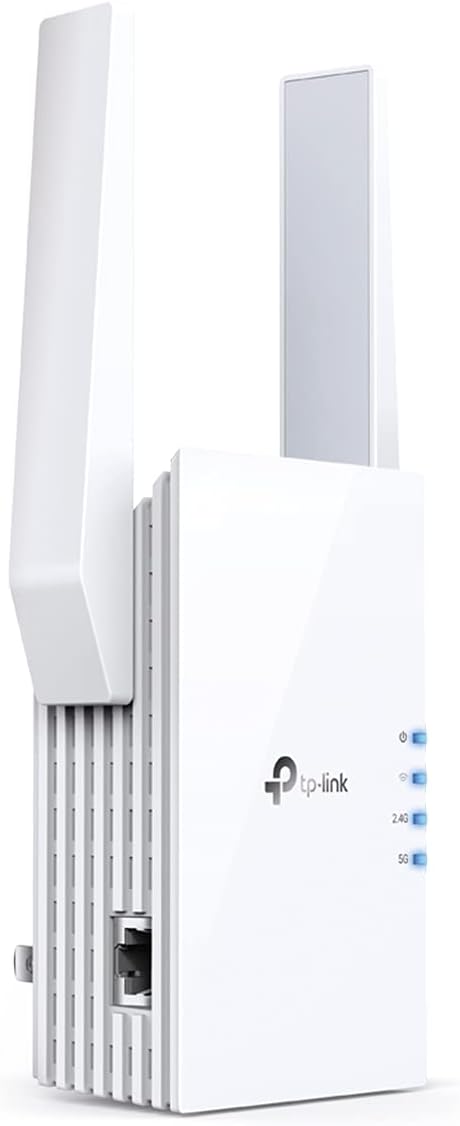
Figure 1.1: Front view of the TP-Link RE605X Wi-Fi Extender.

Figure 1.2: Illustration of the RE605X eliminating Wi-Fi dead zones in a home.
2. What's in the Box
Upon unboxing your TP-Link AX1800 WiFi 6 Extender, you should find the following items:
- Wi-Fi Range Extender RE605X
- Quick Installation Guide
3. Key Features
The RE605X offers a range of features designed to enhance your home network:
- Boosted WiFi Coverage: Extend your router’s signal with two high-gain antennas, specifically designed to cover areas with weak WiFi and eliminate dead zones.
- WiFi Booster with WiFi 6 Speeds: Enjoy smoother and more reliable streaming, gaming, and downloading with dual-band WiFi speeds up to 1.8 Gbps (1201 Mbps on 5 GHz band and 574 Mbps on 2.4 GHz band).
- Connect More Devices: Connect more devices that are out of range from your main router to keep them running at top speed.
- Gigabit Ethernet Port: Create fast, reliable wired connections for your PC, Smart TV, or gaming console anywhere in your home.
- OneMesh Compatible: Create a seamless mesh network with a single WiFi name and password by pairing RE605X with a TP-Link OneMesh router. Roam from room to room without changing your WiFi network.
- Easy Set Up in Minutes: Easily set up and manage your WiFi using the TP-Link Tether app (Android, iOS). Find the optimal location with the intelligent signal indicator.
- Universal Compatibility: Compatible with all WiFi-enabled devices and routers or access points, including new AX phones, laptops, and other devices.
- Note: All Wireless Extenders are designed to increase or improve WiFi coverage, not to directly increase speed. Improving signal reliability can affect overall throughput.

Figure 3.1: Visual representation of Wi-Fi 6 speeds (1201 Mbps on 5GHz, 574 Mbps on 2.4GHz).

Figure 3.2: Diagram showing devices connecting to the Gigabit Ethernet port on the extender.
4. Setup and Installation
Setting up your TP-Link RE605X is a straightforward process. You can use the TP-Link Tether app for a quick setup or configure it via a web browser.
4.1 Using the TP-Link Tether App (Recommended)
- Download the Tether App: Search for "TP-Link Tether" on the App Store (iOS) or Google Play (Android) and install it on your mobile device.
- Plug In the Extender: Plug the RE605X into a power outlet near your main router. Wait for the Power LED to turn solid blue.
- Connect to the Extender: Connect your mobile device to the extender's Wi-Fi network (e.g., "TP-Link_Extender" or "TP-Link_RE605X").
- Launch Tether App: Open the Tether app and log in with your TP-Link ID. If you don't have one, create it.
- Add Extender: The app should automatically detect your extender. Follow the on-screen instructions to select your host Wi-Fi network and enter its password.
- Relocate the Extender: Once configured, unplug the extender and move it to a location halfway between your router and the Wi-Fi dead zone. Use the intelligent signal indicator on the extender to find an optimal spot (blue indicates a good connection).

Figure 4.1: Visual guide for setting up the extender using the TP-Link Tether app.
4.2 Using a Web Browser
- Plug In and Connect: Plug the RE605X into a power outlet. Connect your computer or mobile device to the extender's Wi-Fi network.
- Access Web UI: Open a web browser and type http://tplinkrepeater.net or http://192.168.0.254 into the address bar. Create a login password.
- Follow On-Screen Instructions: The setup wizard will guide you through selecting your host Wi-Fi network and configuring the extender.
- Relocate: Move the extender to an optimal location as described in section 4.1.
4.3 Access Point Mode
The RE605X can also function as a wireless access point. Simply plug an Ethernet cable from your router into the extender's Gigabit Ethernet port. The extender will then convert your wired internet connection into a 2x2 MU-MIMO dual-band wireless access point.
Video 4.1: Official TP-Link OneMesh WiFi Solution video, demonstrating seamless whole-home Wi-Fi coverage and setup.
5. Operating the Extender
5.1 OneMesh™ Functionality
When paired with a TP-Link OneMesh™ router, the RE605X creates a unified mesh network. This means your devices will automatically connect to the strongest Wi-Fi signal as you move around your home, without needing to manually switch networks. This provides uninterrupted streaming and browsing.
- Smart Roaming: Uninterrupted streaming when moving around your home.
- One Wi-Fi Name: No more switching Wi-Fi network names.
- Easy Creation: OneMesh™ Router and OneMesh™ Range Extenders pair instantly.
- Unified Management: Manage the entire network all from the TP-Link Tether app.

Figure 5.1: Diagram illustrating a OneMesh network with a router and range extender providing seamless coverage.
5.2 Adaptive Path Selection
The RE605X features Adaptive Path Selection, which automatically chooses the fastest connection path to the router. This ensures your network runs at optimal speed, even when multiple devices are connected.
5.3 High Speed Mode
For bandwidth-intensive tasks like HD streaming and gaming, activate High Speed Mode. This mode utilizes both Wi-Fi bands (2.4 GHz and 5 GHz) to provide super-fast connections.
6. Maintenance
To ensure optimal performance and longevity of your RE605X extender:
- Firmware Updates: Regularly check for and install the latest firmware updates via the Tether app or the web management interface. Firmware updates often include performance improvements, bug fixes, and new features.
- Cleaning: Keep the device clean and free from dust. Use a soft, dry cloth. Do not use liquid cleaners or aerosols.
- Ventilation: Ensure the extender is placed in a well-ventilated area to prevent overheating.
- Power Cycle: If you experience connectivity issues, try power cycling the extender (unplug it from the power outlet, wait 10 seconds, then plug it back in).
7. Troubleshooting
If you encounter issues with your RE605X extender, consider the following common solutions:
- No Internet Access:
- Check if your main router has internet access.
- Ensure the extender is within range of your router and the signal indicator is blue.
- Verify that the Wi-Fi password entered during setup is correct.
- Frequent Disconnections:
- Relocate the extender to a more optimal position, closer to the router but still covering the desired area.
- Update the firmware of both your extender and your main router to the latest versions.
- Reduce interference by moving the extender away from other electronic devices.
- Slow Speeds:
- Ensure your devices are connecting to the 5GHz band if possible, as it offers higher speeds.
- Check for network congestion.
- Confirm that your main router is providing adequate speed.
- Cannot Access Web Management Page:
- Ensure your device is connected to the extender's Wi-Fi network.
- Try clearing your browser's cache or using a different browser.
- Restart the extender and your computer.
For more detailed troubleshooting or specific issues, please refer to the official TP-Link support website or the comprehensive Installation Manual (PDF).
8. Specifications
| Attribute | Value |
|---|---|
| Product Dimensions | 6.23 x 3.83 x 1.81 inches |
| Item Weight | 9.6 ounces |
| Item Model Number | RE605X |
| Brand | TP-Link |
| Wireless Communication Standard | 802.11n, 802.11ax, 802.11b, 802.11ac, 802.11g |
| Data Transfer Rate | 1775 Megabits Per Second |
| Frequency Band Class | Dual-Band |
| Connector Type | RJ45 |
9. Important Safety Information and Legal Disclaimer
Please read the following important information carefully before using your device:
- This range extender may not support all the mandatory features as ratified in Draft 3.0 of IEEE 802.11ax specification. Further software upgrades for feature availability may be required.
- Maximum wireless signal rates are the physical rates derived from IEEE Standard 802.11 specifications. Actual wireless data throughput, wireless coverage, and number of connected devices are not guaranteed and will vary as a result of network conditions, client limitations, and environmental factors, including building materials, obstacles, volume and density of traffic, and client location.
- Smart Roaming is designed for devices that support the 802.11k / v standard.
- The product may not be compatible with routers or gateways with firmware that has been altered, is based on open source programs, or is non-standard or outdated.
10. Warranty and Support
TP-Link provides comprehensive support for its products. For warranty information, technical assistance, and additional resources, please visit the official TP-Link website or contact their customer support.
You may also consider purchasing extended protection plans for your device:
- 3-Year Protection Plan
- 4-Year Protection Plan
- Complete Protect: One plan covers all eligible past and future purchases
For the most up-to-date support information, please visit www.tp-link.com.
Related Documents - RE605X
 |
TP-Link RE615X AX1800 Wi-Fi 6 Range Extender User Guide Comprehensive user guide for the TP-Link RE615X AX1800 Wi-Fi 6 Range Extender. Learn how to set up, configure, and manage your device for enhanced Wi-Fi coverage. |
 |
TP-Link Range Extender Quick Installation Guide A concise guide to setting up and installing your TP-Link Range Extender, covering setup via Tether App, web browser, and WPS, optimal placement, and troubleshooting. |
 |
TP-Link Range Extender Quick Installation Guide: Setup and Usage Concise guide to setting up TP-Link Range Extenders (RE505X, RE603X, RE605X, RE705X) using the Tether app, web browser, or WPS, with LED explanations and troubleshooting. |
 |
TP-Link Wi-Fi 6 Range Extender User Guide: Setup, Features, and Management Explore the TP-Link Dual Band Wi-Fi 6 Range Extender User Guide. Learn essential setup steps, understand key features like EasyMesh, and manage your network for optimal performance and extended Wi-Fi coverage. |
 |
TP-Link RE505X/RE603X/RE605X/RE705X Wi-Fi 6 Range Extender User Guide Comprehensive user guide for TP-Link RE505X, RE603X, RE605X, and RE705X Wi-Fi 6 Range Extenders. Learn setup, configuration, management, and troubleshooting for expanded wireless network coverage. |
 |
TP-Link Router Troubleshooting Guide: Wi-Fi and Internet Connectivity Issues A comprehensive guide to troubleshooting common problems with TP-Link routers, including Wi-Fi connection failures, lack of internet access, and slow speeds. Provides step-by-step solutions and contact information for technical support. |
Ask a question about this manual
Ask about setup, troubleshooting, compatibility, parts, safety, or missing instructions. Manuals+ will review the question and use this page’s manual context to help answer it.