
Introduction
This manual provides detailed instructions for the installation, operation, and maintenance of your Evertech 8 Channel H.265 1080N Hybrid 4-in-1 Digital Video Recorder (DVR) Security System. This DVR is designed to record and manage video surveillance footage from up to 8 cameras, supporting various camera types including AHD, TVI, CVI, and traditional analog cameras, with recording capabilities up to 1080P resolution.

Image: Evertech 8 Channel DVR unit, an 8TB hard drive, and a smartphone showing the remote viewing application.
Package Contents
Please verify that all items listed below are included in your package. If any items are missing or damaged, contact Evertech customer support.

Image: Visual representation of the package contents, including the DVR, pre-installed 8TB HDD, software CD, power adapter, and USB mouse.
- 1 x Evertech 8 Channel DVR Unit (with pre-installed 8TB Hard Drive)
- 1 x Power Supply Adapter
- 1 x USB Mouse
- 1 x CD (containing PC Software and Video Instructions)
Compatibility
The Evertech 8 Channel DVR is a hybrid system compatible with multiple camera technologies. It supports up to 2.4MP security cameras of the following types:
- AHD (Analog High Definition)
- TVI (Transport Video Interface)
- CVI (Composite Video Interface)
- Analog (Traditional CCTV cameras)
Please note that this DVR is not compatible with SDI, 3MP, 4MP, or 5MP security cameras.

Image: Diagram illustrating compatible camera types (AHD, TVI, CVI, Analog up to 2.4MP) and incompatible types (SDI, 3MP, 4MP, 5MP).
Setup
1. DVR Connections Overview
Before powering on the DVR, ensure all necessary connections are made. Refer to the diagram below for port identification.

Image: Detailed diagram of the DVR's rear panel, showing ports for camera video input, audio input (MIC), audio output, HDMI, VGA, LAN (for router connection), USB, and power adapter.
2. Connecting Your System
- Connect Cameras: Attach your compatible security cameras to the BNC video input ports on the rear of the DVR. Each port corresponds to a channel.
- Connect Monitor: Connect a monitor to the DVR using either the HDMI or VGA port.
- Connect Audio (Optional): If using an external microphone, connect it to the Audio Input (MIC) port. For audio output, connect speakers to the Audio Output ports.
- Connect Network: For remote viewing and network features, connect an Ethernet cable from the DVR's LAN port to your router.
- Connect USB Mouse: Plug the included USB mouse into one of the USB ports on the DVR.
- Connect Power: Connect the power adapter to the DVR's DC 12V power input and then plug it into a power outlet. The DVR will power on automatically.
3. Initial Configuration
Upon first power-on, the DVR will guide you through an initial setup wizard. Follow the on-screen prompts to set up language, time zone, network settings, and create a password for the administrator account.
Operating
1. Recording Modes
The DVR supports various recording modes, which can be configured via the system menu:
- Continuous Recording: Records 24/7.
- Manual Recording: Start and stop recording manually.
- Scheduled Recording: Set specific times for recording.
- Motion Recording: Records only when motion is detected by the cameras.
2. Remote Viewing (Xmeye App / CMS Software)
Access live video feeds and playback recordings remotely from your smartphone, tablet, or PC.
- For Mobile Devices: Download the "Xmeye" app from your device's app store. Register an account and add your DVR using its unique device ID (found in the DVR's network settings).
- For PC: Install the CMS (Central Management Software) from the included CD or download it from the Evertech support website. Follow the software instructions to add your DVR.

Image: Illustration of live video and playback being viewed remotely on various devices including an iPad, iPhone, Android phone, and a computer.
3. Motion Detection & Email Alerts
Configure motion detection zones and sensitivity for each camera. When motion is detected, the DVR can trigger recording and send an email alert to a specified address.

Image: A smartphone displaying a push notification and an in-app alert for motion detection, indicating a security event.
4. Playback and Backup
Access recorded footage through the DVR's interface or the remote viewing applications. The DVR supports multichannel playback and smart playback features.
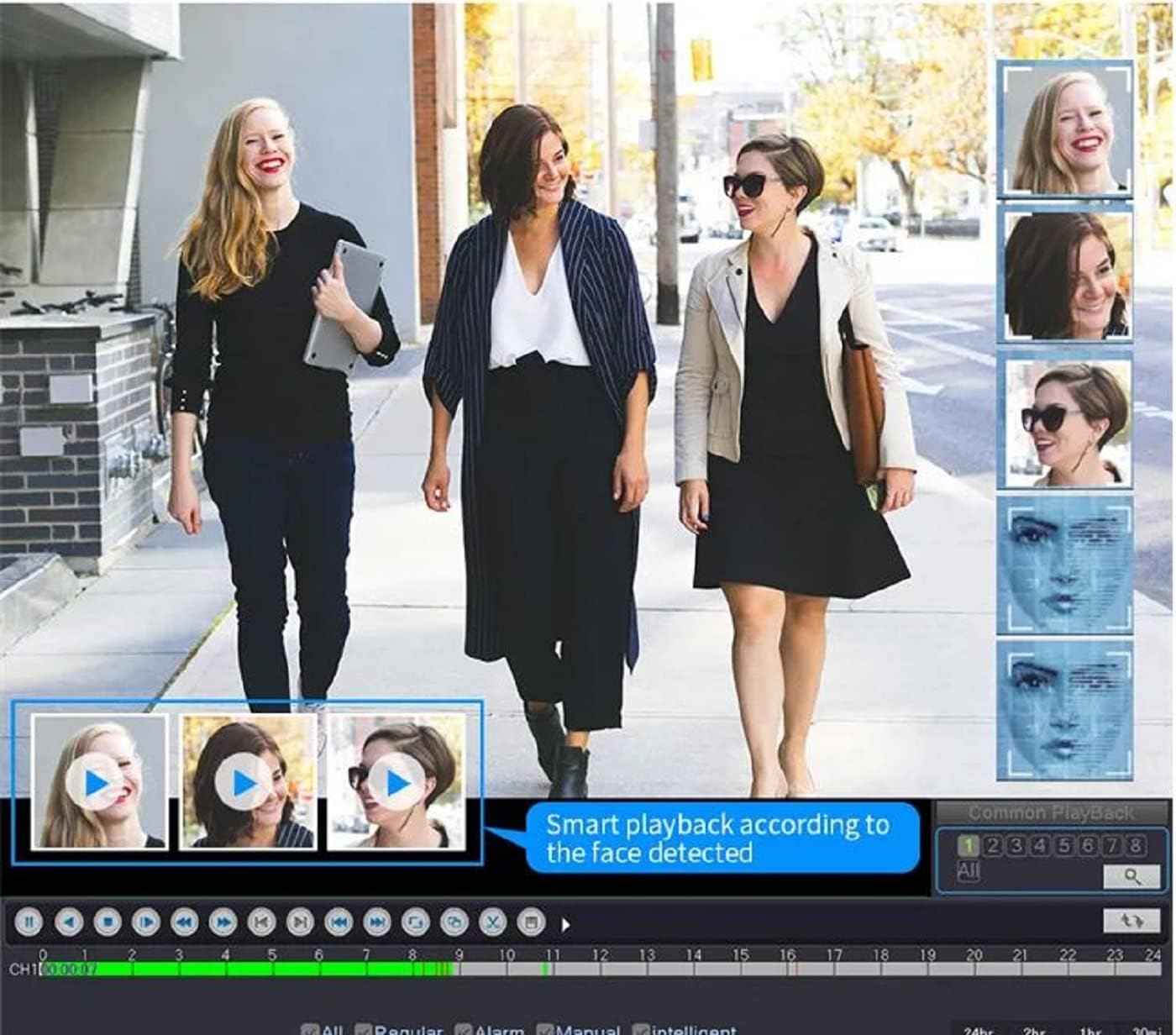
Image: Screenshot of the DVR's playback interface, demonstrating simultaneous viewing of multiple camera feeds and a timeline for navigation. A feature for smart playback based on face detection is highlighted.
To back up video footage, connect a USB flash drive to the DVR's USB port and use the system's backup function to transfer desired recordings.
Maintenance
- Regular Cleaning: Keep the DVR unit free from dust. Use a soft, dry cloth for cleaning. Ensure ventilation openings are not blocked.
- Firmware Updates: Periodically check the Evertech support website for firmware updates to ensure optimal performance and security.
- Hard Drive Management: While the 8TB hard drive offers substantial storage, regularly review and back up critical footage. The DVR may overwrite older footage once the hard drive is full, depending on your settings.
- Password Security: Regularly change your DVR and app passwords to maintain system security.
Troubleshooting
| Problem | Possible Cause | Solution |
|---|---|---|
| No video display on monitor. | Loose cable connection, incorrect input source on monitor, DVR not powered on. | Check HDMI/VGA cable connections. Ensure monitor is set to correct input. Verify DVR power. |
| Cannot access DVR remotely. | No internet connection, incorrect network settings, firewall blocking. | Verify DVR is connected to the internet. Check network settings (DHCP/Static IP). Ensure router firewall is not blocking ports. |
| Cameras not displaying video. | Loose BNC connection, camera power issue, incompatible camera type. | Check camera BNC connections. Ensure cameras are powered. Confirm camera compatibility (AHD/TVI/CVI/Analog, up to 2.4MP). |
| No recording or intermittent recording. | Recording schedule not set, hard drive full, hard drive error. | Check recording schedule and mode settings. Verify hard drive status in system settings. Format or replace hard drive if necessary. |
Specifications
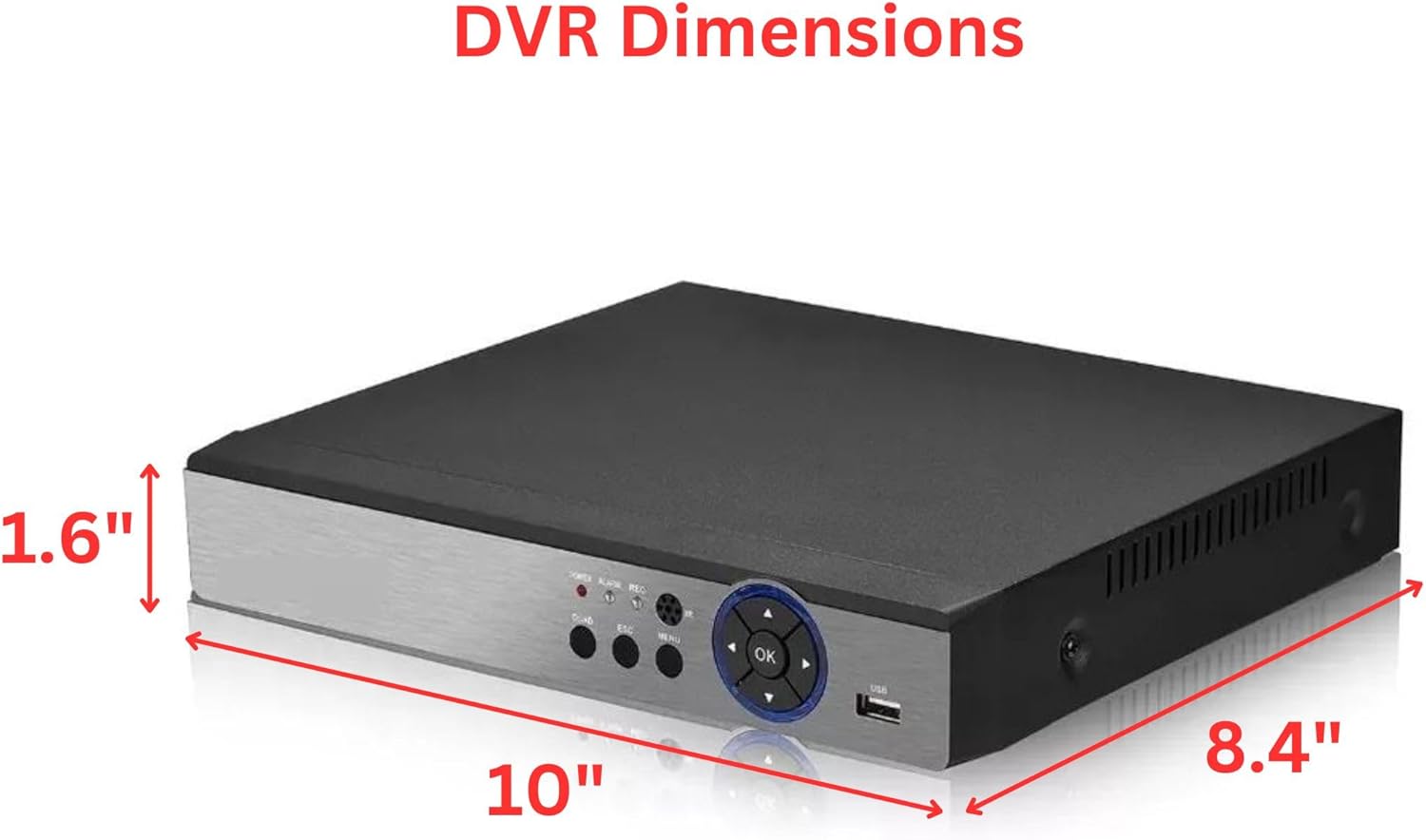
Image: Physical dimensions of the DVR unit, measuring 10" (L) x 8.4" (W) x 1.6" (H).
- Brand: Evertech
- Model: 8 Channel H.265 1080N Hybrid 4-in-1 DVR
- Number of Channels: 8
- Video Compression: H.265
- Video Input: AHD, TVI, CVI, Analog (up to 1080P/2.4MP)
- Video Output: HDMI, VGA
- Audio Input/Output: Yes
- Hard Disk Size: 8 TB (Pre-installed)
- Connectivity Technology: USB, Ethernet (LAN)
- Remote Access: Xmeye App (Mobile), CMS Software (PC)
- Features: Motion Detection, Email Alert, USB Backup, Multichannel Playback
- Dimensions: Approximately 10" (L) x 8.4" (W) x 1.6" (H)
Warranty and Support
Your Evertech 8 Channel DVR Security System comes with a 1-year warranty.
For technical assistance, troubleshooting, or warranty claims, please contact EvertechUSA customer support. Free technical support is provided.
Contact Information: Please refer to the EvertechUSA website or the documentation included with your product for the most current contact details.
Official Product Videos
No official product videos from the seller were found that meet the embedding criteria for this manual.