
1. Introduction and Overview
The Sony A80J 55 Inch BRAVIA XR OLED 4K Ultra HD Smart Google TV (Model: XR55A80J) offers a premium viewing experience with its OLED display, delivering intense contrast, pure blacks, and natural colors. Powered by the revolutionary Cognitive Processor XR™, this television optimizes on-screen elements for a lifelike picture. The Acoustic Surface Audio+ technology ensures immersive sound that perfectly matches the on-screen action.
Key Features:
- Cognitive Processor XR: Advanced processing for intense contrast, pure blacks, high peak brightness, and natural colors.
- XR TRILUMINOS PRO: Billions of accurate colors for natural and beautiful picture quality.
- XR OLED Contrast: Deep blacks and lifelike brightness.
- Google TV: Seamless access to over 700,000 movies and TV episodes from various streaming services.
- BRAVIA CORE: Exclusive access to high-quality movies.
- Perfect for PlayStation 5: Features for PS5, including 4K/120fps and low input lag (8.5ms).
- Works with Alexa: Voice control for channels, volume, and power.
- Google Assistant: Voice commands for content search, on-screen answers, and smart home control.
- Apple AirPlay: Stream content from Apple devices.
- Acoustic Surface Audio+: Screen acts as the speaker for immersive audio.

Figure 1: Front view of the Sony A80J 55-inch OLED TV, showcasing its sleek design and vibrant display.
2. Setup Guide
This section provides instructions for setting up your new Sony BRAVIA XR OLED TV. Please ensure you have all components before beginning.
2.1. What's in the Box
Upon unboxing, verify that the following items are included:
- Television Unit
- Table-top stand
- AC power cord
- Voice remote control with batteries
- Quick setup guide
- Operating instructions (this manual)

Figure 2: Overview of TV dimensions, the included voice remote control, and a list of items found in the box.
2.2. Stand Installation
Carefully place the TV screen-down on a soft, clean surface to prevent scratches. Attach the table-top stand to the designated slots on the bottom of the TV using the provided screws. Ensure the stand is securely fastened before placing the TV upright.
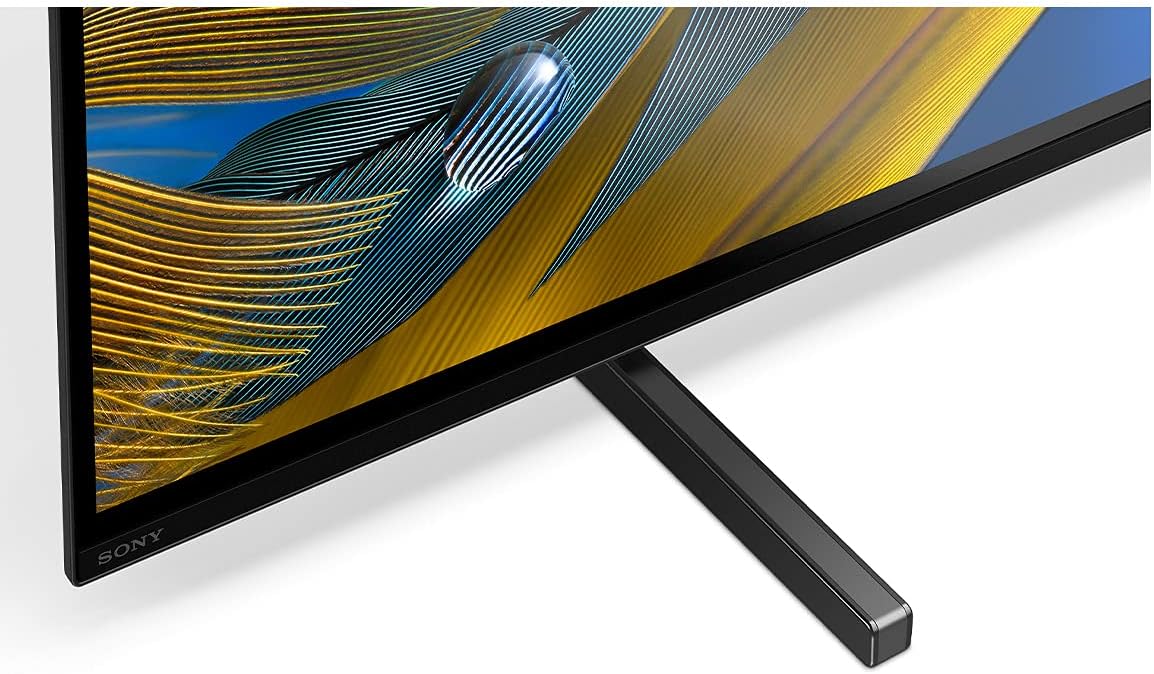
Figure 3: Detail of the TV stand attachment point, illustrating the secure connection to the television unit.
2.3. Connecting Power and Devices
Connect the AC power cord to the TV's power input and then to a wall outlet. Connect your external devices (e.g., cable box, gaming console, Blu-ray player) to the appropriate HDMI ports. The TV features multiple HDMI inputs, including those supporting 4K/120fps for optimal gaming performance.

Figure 4: Rear panel of the Sony A80J TV, highlighting the arrangement of HDMI, USB, and other connectivity ports.
For detailed connection diagrams, please refer to the Installation Manual (PDF).
2.4. Initial Setup and Network Connection
Once powered on, follow the on-screen prompts to complete the initial setup. This includes selecting your language, connecting to your Wi-Fi network, and signing in with your Google account to access Google TV features.
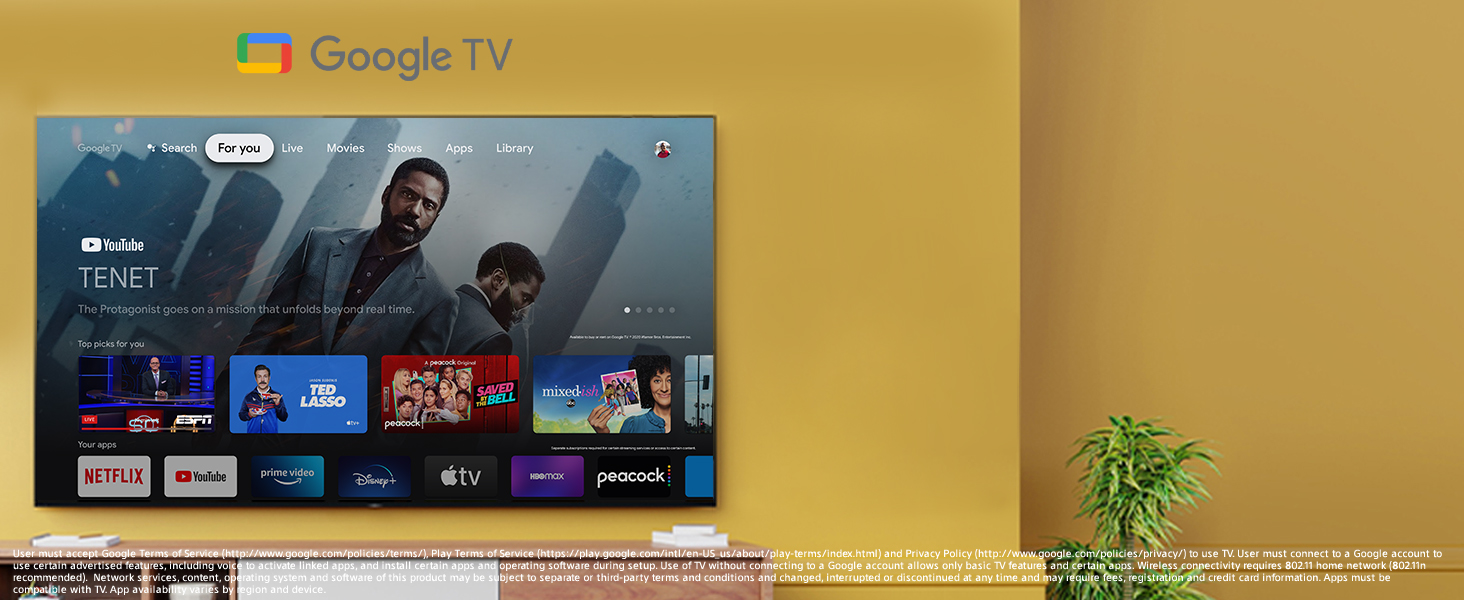
Figure 5: The Google TV home screen, displaying various streaming app icons and content recommendations.
3. Operating Your TV
This section covers the basic operation of your Sony BRAVIA XR OLED TV.
3.1. Remote Control Functions
The included voice remote control allows you to navigate menus, change channels, adjust volume, and access smart features. Familiarize yourself with the button layout for optimal use.
3.2. Smart TV Features (Google TV)
Your TV runs on Google TV, providing access to a vast library of streaming applications, movies, and TV shows. Use the remote's navigation buttons to browse content or the voice control feature for quick searches.
3.3. Voice Control (Alexa & Google Assistant)
The TV supports both Google Assistant and Alexa. Press the microphone button on your remote and speak your command to search for content, control smart home devices, or adjust TV settings.
3.4. Picture and Sound Adjustments
To adjust picture quality:
- Press the (Quick Settings) button on the remote control.
- Select [Settings] — [Display & Sound] — [Picture].
- Adjust settings such as Brightness, Contrast, Color, and Sharpness.
For sound adjustments, navigate to [Settings] — [Display & Sound] — [Sound].
4. Maintenance
Proper maintenance ensures the longevity and optimal performance of your TV.
4.1. Cleaning the Screen and Frame
- Always unplug the TV before cleaning.
- Use a soft, dry microfiber cloth to gently wipe the screen and frame.
- For stubborn smudges, lightly dampen the cloth with water or a screen-safe cleaning solution (do not spray directly on the screen).
- Avoid using harsh chemicals, abrasive cleaners, or paper towels, as these can damage the screen surface.
4.2. Ventilation
Ensure adequate ventilation around the TV to prevent overheating. Do not block the ventilation openings on the back of the TV. Maintain a minimum clearance of 4 inches (10 cm) from walls or other objects.
5. Troubleshooting
This section provides solutions to common issues you might encounter with your TV.
5.1. No Color/Dark Picture/Incorrect Color/Picture Too Bright
- Check the antenna/cable connection to ensure it is secure.
- Ensure the TV is connected to AC power and press the power button on the TV or remote control.
- Press the (Quick Settings) button on the remote, then select [Settings] — [Display & Sound] — [Picture] to make adjustments.
- If [Power saving] is set to [Low] or [High], the black level will be enhanced, making the picture darker. To brighten the screen, press the (Quick Settings) button, then select [Settings] — [System] — [Power & Energy] — [Power saving] to [Off].
- Picture quality depends on the signal and content. Adjusting settings in [Picture] may improve it.
- To adjust brightness, go to [Settings] — [Display & Sound] — [Picture] — [Brightness] or [Contrast].
5.2. Distorted Picture/Screen Flickers
- Check the connection and position of the antenna and all peripheral devices. Ensure all cables are securely connected.
- Keep the antenna/cable away from other connecting cables to avoid interference.
- When installing optional devices, leave some space between the device and the TV.
- Ensure the antenna is connected using a high-quality 75-ohm coaxial cable.
6. Specifications
Detailed technical specifications for the Sony A80J 55 Inch TV (Model: XR55A80J).
| Feature | Detail |
|---|---|
| Brand | Sony |
| Model Number | XR55A80J |
| Screen Size | 55 Inches |
| Display Technology | OLED |
| Resolution | 4K (3840 x 2160) |
| Refresh Rate | 120 Hz |
| Product Dimensions (D x W x H) | 13"D x 48.38"W x 28.13"H |
| Item Weight | 39.3 Pounds |
| Color | Black |
| Connectivity Technology | HDMI |
| Special Features | Screen Mirroring, Adjustable Stand Width |
| Speaker Type | Built-In |
| Voltage | 120 Volts (AC) |
| Wattage | 336 watts |
| Energy Consumption (Annual) | 179 kWh (based on 4 hours/day) |
| First Available Date | April 19, 2021 |
7. Warranty and Support
For comprehensive support and warranty information, please refer to the official Sony resources.
- Official User Guide: A more detailed user guide can be found here: Sony A80J User Guide (PDF)
- Installation Manual: For installation specifics, refer to: Sony A80J Installation Manual (PDF)
- Sony Brand Store: Explore other Sony products and support options at the official Amazon Sony Store: Visit the Sony Store
- Customer Support: For direct assistance, please contact Sony customer support. Information may be available via the Sony website or through the "Customer Support" link on the product's retail page.


