
WiMiUS W2
WiMiUS W2 WiFi Bluetooth Mini Projector
User Manual
Model: W2
1. Introduction
Thank you for purchasing the WiMiUS W2 WiFi Bluetooth Mini Projector. This projector is designed to provide a versatile and immersive viewing experience, supporting Full HD 1080p input and a display size of up to 250 inches. With built-in WiFi and Bluetooth, it offers seamless connectivity for various devices, making it ideal for home cinema, gaming, and portable entertainment.
2. Package Contents
Please check the package carefully to ensure all items are present and in good condition:
- WiMiUS W2 Projector
- Remote Control
- Power Cord
- 3-in-1 AV Cable
- HDMI Cable
- Instruction Manual
- Hand Storage Bag

Image: WiMiUS W2 Projector and its accessories, including the remote control, various cables, user manual, and a grey hand storage bag.
3. Setup Guide
- Placement: Place the projector on a stable, flat surface. Ensure there is adequate ventilation around the projector. For optimal viewing, position the projector perpendicular to the screen or wall.
- Power Connection: Connect the power cord to the projector's power input and then plug it into a power outlet.
- Power On: Press the power button on the projector or the remote control to turn it on.
- Focus Adjustment: Rotate the focus ring on the projector lens until the projected image appears clear and sharp.
- Keystone Correction: Adjust the keystone ring (if available) to correct any trapezoidal distortion, ensuring a rectangular image.

Image: The WiMiUS W2 mini projector, highlighting its compact design and connectivity features.
4. Operating Instructions
4.1 Wireless Mirroring Function
The WiMiUS W2 supports wireless screen mirroring from iOS, Android, and Windows devices, allowing you to project content without cables.
- Ensure your projector and mobile device are connected to the same Wi-Fi network.
- Select the 'Screen Mirroring' or 'Wireless Display' option on the projector's main menu.
- On your mobile device, enable screen mirroring (e.g., AirPlay for iOS, Smart View/Cast for Android, Project to a second screen for Windows) and select the projector from the list of available devices.

Image: Demonstration of wireless mirroring from a smartphone to the projector screen, compatible with Android, iOS, and Windows devices.
4.2 Bluetooth Connection
Connect external Bluetooth speakers or headphones for enhanced audio experience.
- Go to the 'Bluetooth Settings' on the projector's menu.
- Enable Bluetooth on the projector and put your Bluetooth audio device into pairing mode.
- Select your audio device from the list of available devices on the projector to connect.

Image: The projector connected via Bluetooth to various wireless audio devices, including a speaker, headphones, and earbuds.
4.3 Multimedia Connection
The projector offers multiple ports for connecting various devices:
- HDMI: Connect laptops, gaming consoles (PS4), TV sticks, Blu-ray players.
- USB: Play media directly from USB drives.
- VGA: Connect older computers.
- AV: Connect legacy devices using the included 3-in-1 AV cable.

Image: The projector's versatile connectivity, showing connections to a Nintendo Switch, smartphone, headphones, and laptop.
4.4 Zoom Function
Adjust the screen size from 100% down to 50% without moving the projector, providing flexibility for different room sizes and viewing preferences.

Image: Visual representation of the projector's zoom function, allowing adjustment of screen size.
4.5 TV Stick Support
Easily connect popular TV sticks (e.g., Amazon Fire Stick, Roku) to access streaming services directly through the projector.

Image: The projector's compatibility with TV sticks, showing a Fire TV Stick connected and various streaming app icons on the projected screen.
5. Maintenance
- Lens Cleaning: Use a soft, lint-free cloth to gently wipe the projector lens. Avoid abrasive cleaners.
- Dust Removal: Regularly clean the air vents to prevent dust buildup, which can affect cooling performance.
- Storage: When not in use for extended periods, store the projector in its protective bag in a cool, dry place.
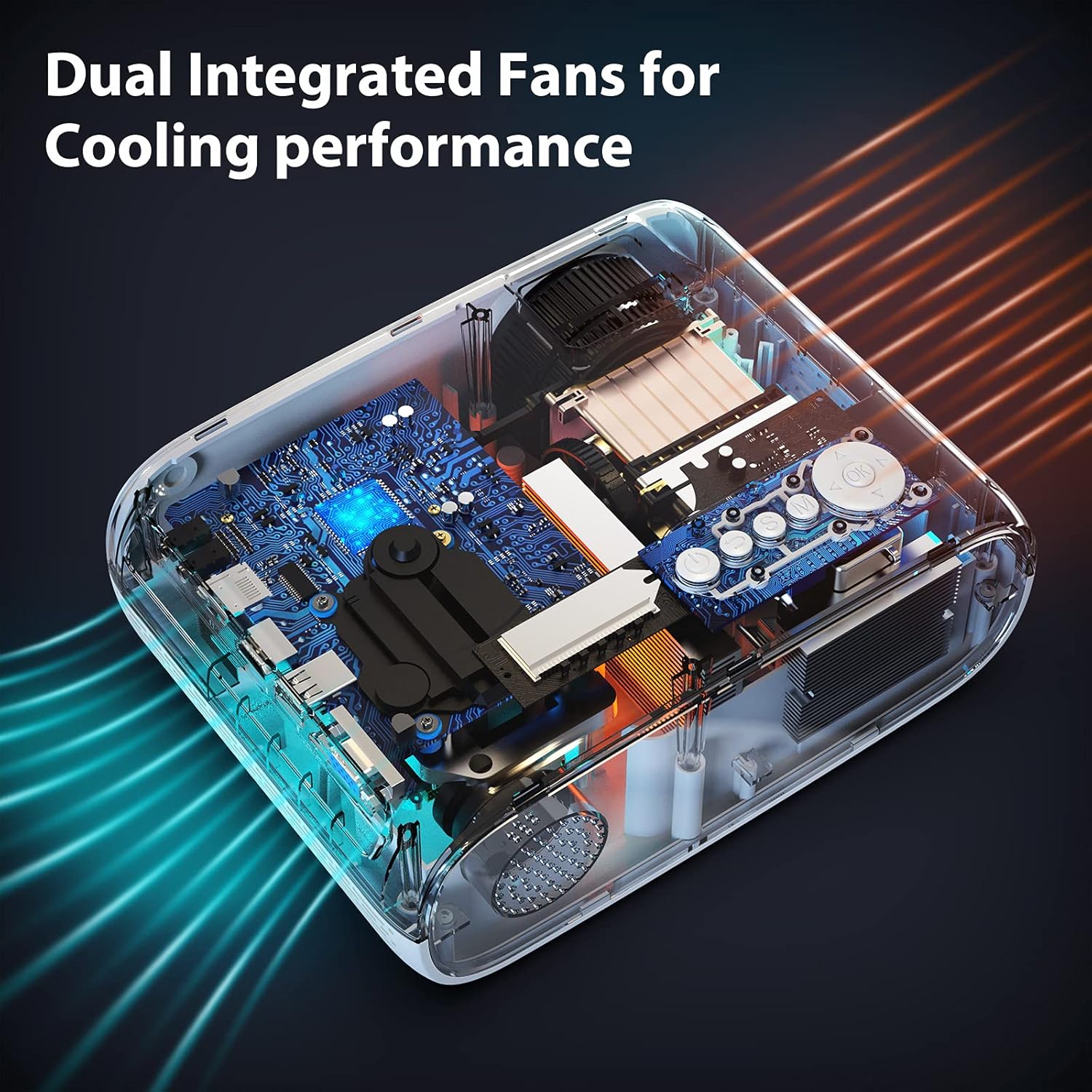
Image: Internal view of the projector, illustrating the dual integrated fans designed for optimal cooling performance.
6. Troubleshooting
- No Picture: Check power connection, input source selection, and cable connections. Ensure the lens cap is removed.
- Blurry Image: Adjust the focus ring. Ensure the projector is at an optimal distance from the screen. Check for smudges on the lens.
- No Sound: Check volume settings on both the projector and the connected device. Ensure external speakers are properly connected or paired via Bluetooth.
- Wireless Mirroring Issues: Ensure both devices are on the same Wi-Fi network. Restart both the projector and the mobile device. Some streaming apps (e.g., Netflix, Hulu) may block screen mirroring due to copyright protection; use a TV stick for these services.
- Overheating: Ensure ventilation vents are not blocked. Turn off the projector and let it cool down if it feels excessively hot.
7. Specifications
| Feature | Detail |
|---|---|
| Brand Name | WiMiUS |
| Model Number | W2 |
| Item Weight | 2.2 pounds |
| Product Dimensions | 3.5 x 5 x 7 inches |
| Color | White |
| Display Resolution | 1280 x 720 (Native) |
| Connectivity Technology | VGA, Bluetooth, USB, HDMI |
| Special Features | Built-In Wi-Fi, Bluetooth |
| Recommended Uses | Home entertainment, outdoor activities (not for presentations) |
8. Warranty and Support
WiMiUS provides customer support for its products. For any issues not covered in this manual, or for warranty inquiries, please contact WiMiUS customer service through their official website or the retailer where you purchased the product. Please retain your proof of purchase for warranty claims.
Related documentsW2


Ask a question about this manual
Ask about setup, troubleshooting, compatibility, parts, safety, or missing instructions. Manuals+ will review the question and use this page’s manual context to help answer it.