
Introduction
This manual provides comprehensive instructions for the Prtukyt 8S Wireless Bluetooth Headphones. It covers essential information regarding setup, operation, maintenance, and troubleshooting to ensure optimal performance and longevity of your device. These headphones are designed for use with Bluetooth-enabled devices such as smartphones, tablets, and personal computers, and also support wired connections via a 3.5mm audio jack.
Package Contents
Please verify that all items listed below are included in your package:
- 1 x Prtukyt 8S Wireless Bluetooth Headphones
- 1 x Microphone Cable (3.5mm audio cable with in-line microphone)
- 1 x USB Charging Cable
- 1 x User Manual
Product Overview
Familiarize yourself with the various components and controls of your Prtukyt 8S headphones.
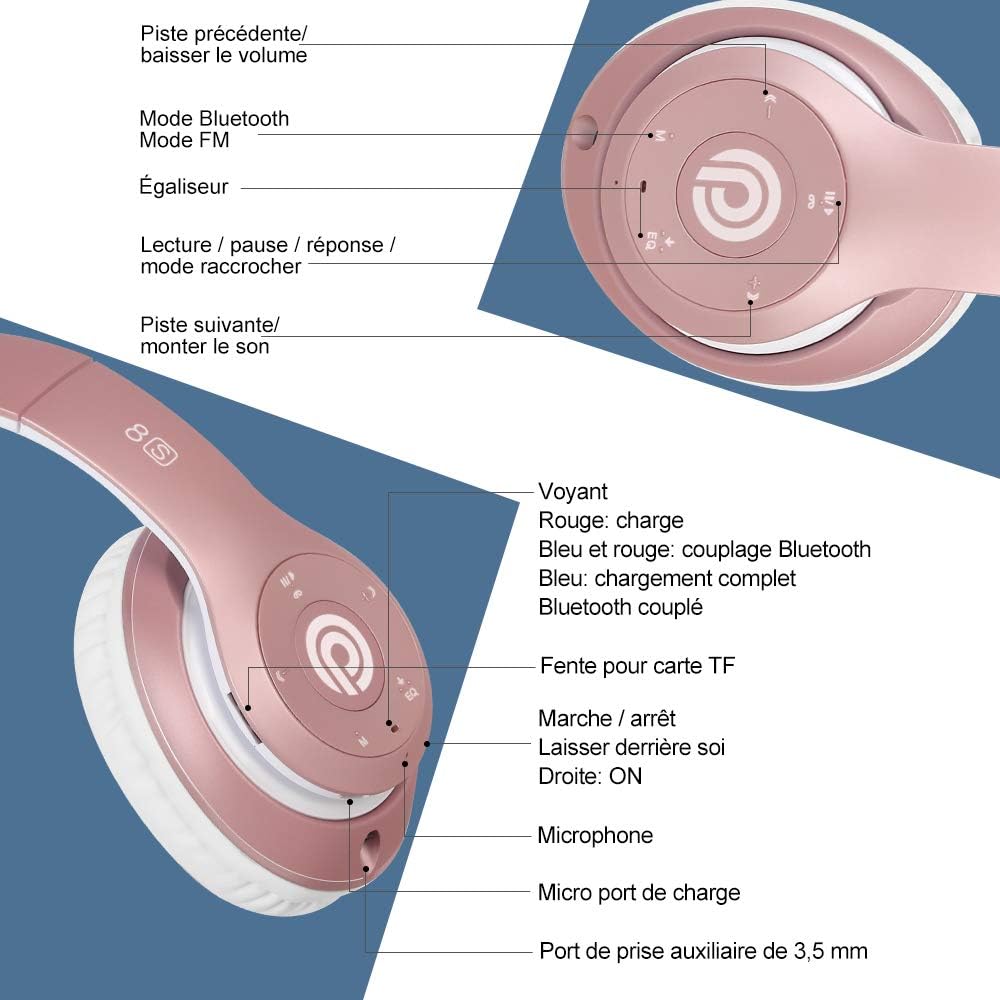
Image: Detailed view of the Prtukyt 8S headphone's buttons, ports, and indicator light. This image highlights the location of the power button, volume controls, EQ button, mode switch, TF card slot, microphone, Micro USB charging port, and 3.5mm auxiliary port.
Controls and Indicators:
- Power Button (On/Off): Used to power the headphones on or off.
- Volume Down / Previous Track: Short press for previous track, long press to decrease volume.
- Play/Pause / Answer Call: Controls media playback and call management.
- Volume Up / Next Track: Short press for next track, long press to increase volume.
- EQ Button: Cycles through equalizer sound effects.
- Mode Button: Switches between Bluetooth, FM Radio, and TF Card modes.
- Indicator Light:
- Red: Charging
- Blue and Red flashing: Bluetooth pairing mode
- Blue: Fully charged / Bluetooth connected
- TF Card Slot: For inserting a Micro SD card to play music directly.
- Microphone: For hands-free calls.
- Micro USB Charging Port: For charging the headphones.
- 3.5mm Auxiliary Port: For wired audio connection.

Image: An exploded view of the headphone's internal structure, highlighting the large aperture drivers and the Bluetooth 5.0 chip, which contribute to powerful audio performance.
Setup
1. Charging the Headphones
Before first use, fully charge the headphones. Connect the supplied USB charging cable to the Micro USB port on the headphones and the other end to a USB power source (e.g., computer USB port, wall adapter). The indicator light will be red during charging and turn blue when fully charged. A full charge typically takes 2-3 hours.

Image: A user wearing the headphones while working on a laptop, with icons indicating features such as Bluetooth 5.0, hands-free calls, and a charging time of 2-3 hours for a full charge.
2. Powering On/Off
- To Power On: Press and hold the Power button until the indicator light flashes blue and red, indicating pairing mode.
- To Power Off: Press and hold the Power button until the indicator light turns off.
3. Bluetooth Pairing
- Ensure the headphones are powered off.
- Press and hold the Power button for approximately 3-5 seconds until the indicator light flashes blue and red alternately. This indicates the headphones are in pairing mode.
- On your device (smartphone, tablet, PC), enable Bluetooth and search for available devices.
- Select "Prtukyt 8S" (or similar name) from the list of found devices.
- Once connected, the indicator light on the headphones will turn solid blue.
4. Wired Connection (3.5mm AUX)
To use the headphones with a wired connection, simply plug one end of the supplied 3.5mm audio cable into the auxiliary port on the headphones and the other end into your audio device's 3.5mm jack. The headphones can be used in wired mode even if the battery is depleted.

Image: This image illustrates the versatility of the headphones, showing both wireless Bluetooth connectivity (with an estimated 30 hours of battery life) and the option for an unlimited wired connection using the 3.5mm audio jack, which includes an in-line microphone.
Operating Instructions
Music Playback (Bluetooth Mode)
- Play/Pause: Short press the Play/Pause button.
- Next Track: Short press the Volume Up / Next Track button.
- Previous Track: Short press the Volume Down / Previous Track button.
- Volume Up: Long press the Volume Up / Next Track button.
- Volume Down: Long press the Volume Down / Previous Track button.
Phone Calls
- Answer/End Call: Short press the Play/Pause button.
- Reject Call: Long press the Play/Pause button.
- Redial Last Number: Double-press the Play/Pause button.
EQ Function
Press the EQ button to cycle through different equalizer sound effects (e.g., Bass Boost, Normal, Vocal). Select the sound profile that best suits your audio preference.
FM Radio Mode
- Press the Mode button to switch to FM Radio mode.
- Press the Play/Pause button to automatically scan and save available FM stations.
- Use the Next Track and Previous Track buttons to navigate between saved stations.
TF Card Mode
- Insert a Micro SD (TF) card with MP3 audio files into the TF Card slot.
- Press the Mode button to switch to TF Card mode. The headphones will automatically start playing music from the card.
- Use the music playback controls (Play/Pause, Next/Previous Track, Volume Up/Down) as described above.
Maintenance
Cleaning
- Wipe the headphones with a soft, dry cloth.
- Do not use abrasive cleaners, alcohol, or chemical solvents.
- Avoid getting moisture into any openings.
Storage
- Store the headphones in a cool, dry place away from direct sunlight and extreme temperatures.
- The foldable design allows for compact storage. Fold the earcups inward to minimize space.
- If storing for an extended period, charge the battery every few months to maintain its lifespan.
Troubleshooting
| Problem | Possible Cause | Solution |
|---|---|---|
| Headphones do not power on. | Low battery. | Charge the headphones fully. |
| Cannot pair via Bluetooth. | Headphones not in pairing mode; Bluetooth disabled on device; device too far. | Ensure headphones are in pairing mode (flashing blue/red). Enable Bluetooth on your device. Move device closer to headphones (within 10 meters). |
| No sound or low volume. | Volume too low on headphones or device; incorrect audio source; wired cable not fully inserted. | Increase volume on both headphones and connected device. Check if the correct audio source is selected. Ensure 3.5mm cable is fully inserted if using wired mode. |
| Poor sound quality. | Interference; device too far; low battery. | Move away from sources of interference. Move device closer. Charge headphones. |
| FM Radio not working. | Poor signal; not in FM mode. | Ensure you are in FM mode. Try auto-scanning for stations again. Move to an area with better signal reception. |
Specifications
| Model Name | Prtukyt 8S Wireless Headphones |
| Brand | Prtukyt |
| Connectivity Technology | Wireless (Bluetooth 5.0), Wired (3.5mm Jack) |
| Ear Placement | Over-Ear |
| Special Features | HiFi Audio, Foldable Design, Built-in Microphone, FM Radio, TF Card Support, EQ Function |
| Material | Plastic, Silicone |
| Battery Type | Lithium-polymer (1 included) |
| Charging Time | Approximately 2-3 hours |
| Wireless Playtime | Up to 30 hours (Bluetooth) / Up to 52 hours (general usage) |
| Waterproof Level | Not waterproof |
| Compatible Devices | Bluetooth-enabled devices (smartphones, tablets, PCs, etc.) |
| Manufacturer Part Number | PT-1088 |
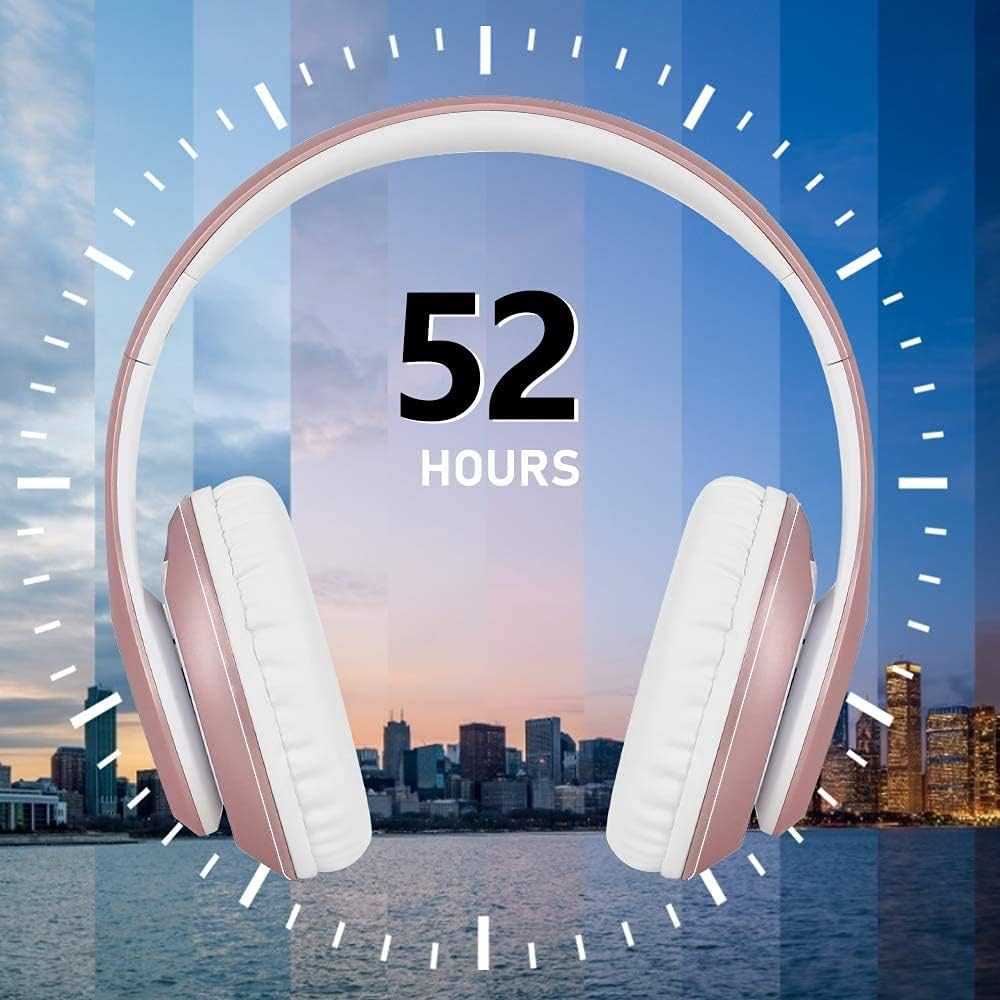
Image: The headphones displayed against a cityscape background, prominently featuring "52 HOURS", indicating the extended battery life for general usage.
Warranty and Support
Prtukyt is committed to providing a great customer experience. If you encounter any quality issues with the product you received, please contact us immediately. We will do our best to assist you.
For support, please refer to the contact information provided with your purchase or visit the official Prtukyt website.