
1. Introduction
This manual provides essential information for the installation, operation, maintenance, and troubleshooting of the Lysee DA0LZ5MB8D0 REV:D Laptop Motherboard. This motherboard is designed as a replacement component for Lenovo IdeaPad U330 and U330P laptop models. Please read these instructions carefully before proceeding with any installation or maintenance to ensure proper function and safety.
2. Safety Information
Working with computer components requires caution. Observe the following safety guidelines:
- Electrostatic Discharge (ESD) Protection: Always use an anti-static wrist strap or frequently touch a grounded metal object before handling the motherboard to prevent ESD damage.
- Power Disconnection: Ensure the laptop is completely powered off and disconnected from the AC adapter and battery before opening the chassis or handling internal components.
- Component Handling: Handle the motherboard by its edges. Avoid touching integrated circuits, connectors, or other sensitive components directly.
- Tool Usage: Use appropriate tools for laptop disassembly and assembly. Avoid excessive force.
- Ventilation: Ensure adequate ventilation when working to prevent overheating of components.
3. Product Overview
The Lysee DA0LZ5MB8D0 REV:D is a replacement motherboard for specific Lenovo IdeaPad U330 and U330P laptop models. It features an integrated Intel I3-4030U processor and supports DDR3L memory.
Key Features:
- Chipset Manufacturer: Intel
- Graphics Card Type: Integrated
- Series Compatibility: Lenovo IdeaPad U330, U330P
- Memory Type: DDR3L
- Processor: Intel Core i3-4030U (SR1EN)
- PCB Part Number: DA0LZ5MB8D0 REV:D

Figure 3.1: Overall view of the Lysee DA0LZ5MB8D0 REV:D Laptop Motherboard. This image displays the full layout of the motherboard, including various ports, connectors, and integrated components.
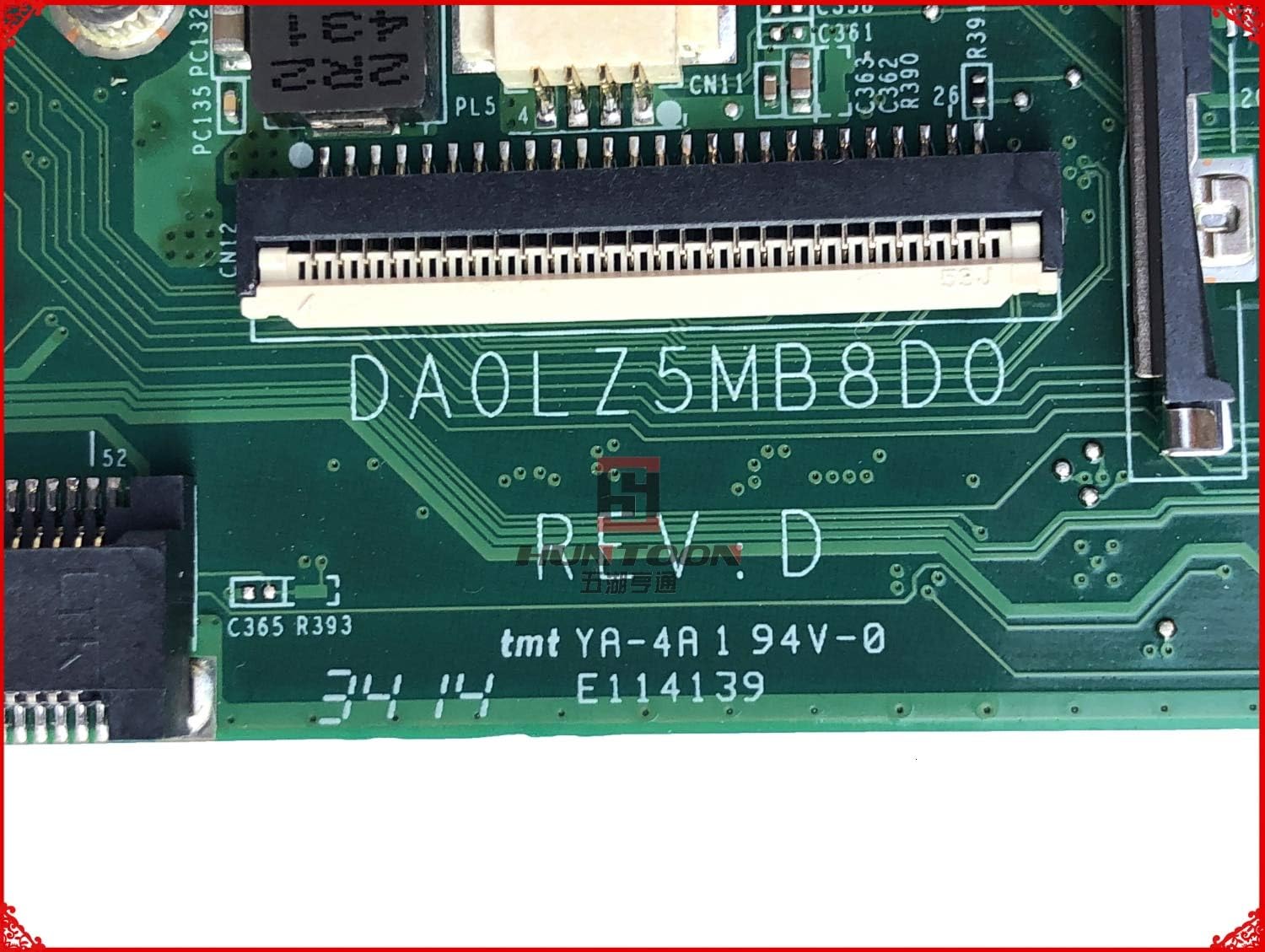
Figure 3.2: Close-up view of the DA0LZ5MB8D0 REV:D part number marking on the motherboard. This marking is crucial for verifying compatibility with your laptop model.

Figure 3.3: Detailed view of the integrated Intel Core i3-4030U processor (SR1EN) and surrounding chipset area on the motherboard.
4. Setup and Installation
Replacing a laptop motherboard is an advanced procedure. If you are not comfortable performing this task, it is recommended to seek assistance from a qualified technician. Ensure you have all necessary tools, including small screwdrivers, plastic spudgers, and an anti-static wrist strap.
- Preparation: Power off the laptop, disconnect the AC adapter, and remove the battery.
- Disassembly: Carefully open the laptop chassis. This typically involves removing screws from the bottom cover, keyboard, and palm rest. Refer to your specific Lenovo IdeaPad U330/U330P service manual for detailed disassembly instructions.
- Component Removal: Disconnect all cables (display, keyboard, touchpad, speakers, Wi-Fi, etc.) and remove all components (RAM, SSD/HDD, Wi-Fi card, CPU fan/heatsink) connected to the old motherboard.
- Old Motherboard Removal: Unscrew and carefully lift out the old motherboard from the laptop chassis.
- New Motherboard Installation: Gently place the Lysee DA0LZ5MB8D0 REV:D motherboard into the chassis, ensuring it aligns correctly with all screw posts and ports. Secure it with the appropriate screws.
- Component Reinstallation: Reconnect all cables and reinstall all components (RAM, SSD/HDD, Wi-Fi card, CPU fan/heatsink) onto the new motherboard. Ensure all connections are secure.
- Reassembly: Reassemble the laptop chassis, ensuring all screws are tightened appropriately and no cables are pinched.
- Initial Power-On: Reconnect the battery and AC adapter. Power on the laptop to verify functionality. Access the BIOS/UEFI settings to confirm component recognition and adjust any necessary settings.
5. Operating
Once installed, the motherboard functions as the central hub of your laptop. Its operation is largely transparent to the user, managed by the operating system and BIOS/UEFI firmware.
- System Boot: The motherboard initiates the boot process, loading the BIOS/UEFI firmware, which then hands control to the operating system.
- BIOS/UEFI Access: To access the BIOS/UEFI settings (e.g., to change boot order, check hardware status), typically press a specific key (e.g., F2, Del, F10) repeatedly during startup. Refer to your laptop's documentation for the exact key.
- Driver Installation: After replacing the motherboard, it may be necessary to reinstall or update certain drivers for optimal performance, especially chipset and integrated graphics drivers.
6. Maintenance
Proper maintenance helps extend the lifespan of your motherboard and laptop.
- Dust Removal: Periodically clean the laptop's interior, especially the heatsink and fan, using compressed air. Ensure the laptop is powered off and unplugged before cleaning.
- Thermal Management: Ensure the laptop's cooling system is functioning correctly. Avoid blocking air vents. Overheating can degrade component performance and lifespan.
- Software Updates: Keep your operating system and drivers updated to ensure compatibility and optimal performance with the motherboard's components.
7. Troubleshooting
If you encounter issues after installing the motherboard, consider the following troubleshooting steps:
- No Power/No Boot:
- Verify all power connections (AC adapter, battery, internal power cables) are secure.
- Ensure the CPU and RAM are correctly seated.
- Try booting with only essential components (CPU, one RAM stick) to isolate the issue.
- Display Issues:
- Check the display cable connection to the motherboard.
- Ensure the display panel itself is functional.
- Peripheral Not Detected:
- Verify the component (e.g., Wi-Fi card, SSD/HDD) is correctly installed and its cable is securely connected.
- Check for updated drivers.
- System Instability/Crashes:
- Ensure the CPU heatsink and fan are properly installed and thermal paste is applied correctly.
- Run memory diagnostic tools to check RAM integrity.
- Check for BIOS/UEFI updates (if available and recommended by Lenovo).
If troubleshooting steps do not resolve the issue, contact Lysee customer support or a qualified technician.
8. Specifications
| Feature | Detail |
|---|---|
| Brand | Lysee |
| Model Number | DA0LZ5MB8D0 REV:D |
| Compatible Devices | Lenovo IdeaPad U330, U330P Laptops |
| Chipset Manufacturer | Intel |
| Processor | Intel Core i3-4030U (SR1EN) |
| Graphics Card Type | Integrated |
| Memory Type | DDR3L |
| Memory Slots Available | 2 |
| System Bus Standard Supported | SATA 3 |
| Item Condition | New |
9. Warranty and Support
This Lysee motherboard comes with a 45-day warranty from the date of purchase. This warranty covers manufacturing defects. It does not cover damage caused by improper installation, misuse, accidents, or unauthorized modifications.
For technical support or warranty claims, please contact your retailer or Lysee customer service with your purchase details and the motherboard's model number.
