
1. Introduction
This manual provides essential information for the safe and efficient operation of your Panasonic DP-UB150-K 4K Blu-ray Player. This player is designed to deliver high-quality video and audio playback, supporting 4K Ultra HD Blu-ray discs, standard Blu-ray discs, DVDs, and CDs. It features advanced chroma processing for natural textures and depth, and supports Hi-Res Audio for an immersive sound experience. Please read this manual thoroughly before using the product and retain it for future reference.

Image 1.1: Front view of the Panasonic DP-UB150-K 4K Blu-ray Player, showcasing its sleek black design and disc tray.
2. Important Safety Information
- Power Source: Ensure the player is connected to a power supply within the specified voltage range.
- Ventilation: Do not block ventilation openings. Allow adequate space around the unit for proper airflow to prevent overheating.
- Moisture: Do not expose the unit to rain, moisture, dripping, or splashing. Keep liquids away from the player.
- Cleaning: Disconnect the power cord before cleaning. Use a soft, dry cloth. Avoid liquid or aerosol cleaners.
- Servicing: Do not attempt to service this product yourself. Refer all servicing to qualified service personnel.
- Disc Handling: Handle discs by their edges to avoid fingerprints and scratches. Store discs in their cases when not in use.
3. What's in the Box
Verify that all items are included in the packaging:
- Panasonic DP-UB150-K 4K Blu-ray Player
- Remote Control
- Batteries for Remote Control
- AC Adaptor
4. Setup Guide
4.1 Connecting to a Television
Use a high-speed HDMI cable to connect the player to your television. For 4K Ultra HD and HDR content, ensure your TV supports these formats and use an HDMI cable rated for high-speed with Ethernet.
- Connect one end of the HDMI cable to the HDMI OUT port on the rear of the Blu-ray player.
- Connect the other end of the HDMI cable to an available HDMI IN port on your television.

Image 4.1: Rear panel connections of the player, highlighting the HDMI, LAN, and power input ports.
4.2 Connecting to an Audio System
For enhanced audio, connect the player to an audio receiver or soundbar. The player supports Hi-Res Audio output.
- If your audio system has an HDMI input, connect the player's HDMI OUT to the audio system's HDMI IN, then connect the audio system's HDMI OUT to your TV.
- Alternatively, use the digital audio output (if available on your model and audio system) for audio only.
4.3 Network Connection (Optional)
To access network features or firmware updates, connect the player to your home network.
- Connect an Ethernet cable from the LAN port on the player's rear panel to your router or network hub.
- The player does not feature built-in Wi-Fi. A wired connection is required for network functionality.
4.4 Power Connection
- Connect the AC adaptor to the DC IN 12V port on the rear of the player.
- Plug the AC adaptor into a wall outlet.
- Press the POWER button on the front panel or remote control to turn on the player.
4.5 Initial Setup Wizard
Upon first power-on, the player will guide you through an initial setup wizard. Follow the on-screen instructions to configure language, video output settings, and network settings.
5. Operating Instructions
5.1 Basic Disc Playback
- Press the OPEN/CLOSE button on the remote control or the player's front panel to open the disc tray.
- Place a Blu-ray disc, DVD, or CD onto the disc tray with the label side facing up.
- Press the OPEN/CLOSE button again to close the tray.
- Playback will usually start automatically. If not, select the desired title from the on-screen menu using the remote control's navigation buttons and press OK.
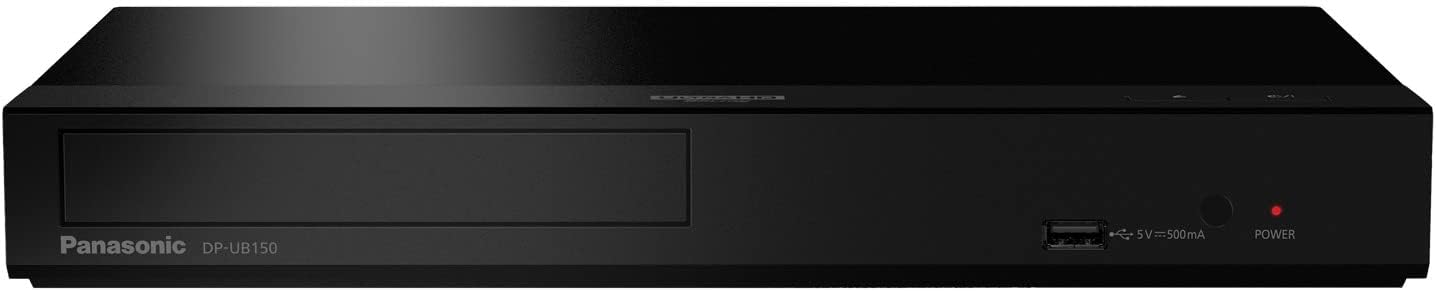
Image 5.1: Front view of the player with the disc tray open, ready for disc insertion.
5.2 Remote Control Functions
Familiarize yourself with the remote control for full functionality.

Image 5.2: The remote control for the Panasonic DP-UB150-K, showing various playback and menu navigation buttons.
- Power (Red Button): Turns the player on or off.
- Open/Close (Triangle with line): Opens and closes the disc tray.
- Navigation Buttons (Arrows and OK): Used to navigate menus and confirm selections.
- Play/Pause/Stop/Skip: Standard playback controls.
- Option: Accesses playback options during disc playback.
- Home: Returns to the player's main menu.
5.3 USB Playback
The player supports media playback from USB devices.
- Insert a USB device into the USB port on the front of the player.
- Navigate to the USB media section from the Home menu.
- Select the desired file (video, photo, or audio) and press OK to begin playback.
5.4 HDR Settings
The player supports HDR10+, HDR10, and HLG formats. Ensure your television is also HDR compatible and properly configured to display HDR content.
- Access the player's Setup Menu.
- Navigate to Picture Settings or HDMI Settings.
- Verify that HDR output is enabled and set to an appropriate mode for your display.
5.5 Audio Settings
For optimal sound, especially with Hi-Res Audio, adjust the audio settings.
- From the Setup Menu, select Audio Settings.
- Configure digital audio output settings (e.g., Bitstream, PCM) based on your audio receiver's capabilities.
- Ensure your audio system is capable of decoding Hi-Res Audio formats if you wish to utilize this feature.
6. Product Overview
Watch this video for a visual overview of the Panasonic 4K Blu-ray Player's features and capabilities.
Video 6.1: An official video from Panasonic CE demonstrating the key features of the DP-UB150-K 4K Blu-ray Player, including its picture quality, sound capabilities, and diverse format playback.
7. Maintenance
7.1 Cleaning the Unit
- Wipe the exterior of the player with a soft, dry cloth.
- Do not use abrasive pads, scouring powders, or solvents such as alcohol or benzine.
- Never spray water or other liquids directly onto the player.
7.2 Firmware Updates
Periodically check for firmware updates to ensure optimal performance and compatibility. Updates can be performed via the network connection.
- Ensure the player is connected to the internet via an Ethernet cable.
- Go to the Setup Menu and select Software Update or Firmware Update.
- Follow the on-screen prompts to check for and install any available updates. Do not power off the unit during an update.
8. Troubleshooting
| Problem | Possible Cause | Solution |
|---|---|---|
| No power | Power cord not connected securely. | Check power cord connection to the player and wall outlet. |
| No picture | HDMI cable not connected properly; incorrect TV input selected. | Ensure HDMI cable is secure. Select the correct HDMI input on your TV. |
| No sound | Audio cables not connected; TV/receiver volume too low; incorrect audio settings. | Check audio connections. Increase volume. Verify audio output settings in player menu. |
| Disc does not play | Disc is dirty, scratched, or incompatible format; region code mismatch. | Clean the disc. Check for damage. Ensure disc format is supported. Verify region compatibility. |
| Remote control not working | Batteries are depleted or inserted incorrectly; obstruction between remote and player. | Replace batteries. Ensure correct polarity. Remove any obstructions. |
9. Specifications
- Model Number: DP-UB150-K
- Product Dimensions: 7.6 x 12.6 x 1.8 inches (19.3 x 32.0 x 4.6 cm)
- Item Weight: 3.59 pounds (1.63 kg)
- Media Type: Blu-Ray Disc, DVD
- Resolution: 3840 x 2160 pixels (4K Ultra HD)
- Special Features: High Definition, Multi-Format Playback, HDR10+, HDR10, HLG support, Hi-Res Audio
- Connector Type: HDMI, Ethernet (LAN)
- Audio Output Mode: Stereo
- Manufacturer: Panasonic
10. Warranty and Support
For warranty information, technical support, or to register your product, please visit the official Panasonic website or contact their customer service. Keep your purchase receipt as proof of purchase for warranty claims.
You can find additional support and product information on the Panasonic Store on Amazon.


