
1. Introduction
The iTOPVIS NV-VA101 is a versatile 3-in-1 conference device integrating a Full HD 1080P webcam, an omnidirectional microphone, and a speaker. Designed for video conferencing, it offers a wide-angle view and clear audio for various meeting environments. This manual provides instructions for setup, operation, maintenance, and troubleshooting to ensure optimal performance of your device.

Image 1.1: Front view of the iTOPVIS NV-VA101 3-in-1 Conference Webcam, showcasing its integrated design with camera, microphone, and speaker.
2. Product Overview and Components
The NV-VA101 combines essential conferencing tools into a single, compact unit. Familiarize yourself with its main components:

Image 2.1: Labeled diagram of the iTOPVIS NV-VA101, indicating the microphone, Full HD camera, speaker, camera indicator, bracket, audio inverted phase port, and USB connection cable.
2.1 Key Features
- Full HD 1080P Camera: Provides high-definition video resolution.
- Integrated Design: Combines webcam, omnidirectional microphone, and speaker in one unit.
- Wide-Angle Lens: 105-degree field of view to capture all participants.
- Omnidirectional Microphone: 360° sound pickup with a range of up to 3 meters.
- Audio DSP Technology: Features Automatic Gain Control (AGC), Acoustic Echo Cancellation (AEC), and Automatic Noise Suppression (ANS) for clear audio.
- Built-in Speaker: Optimized for small room acoustics.
- Plug & Play: USB 2.0 connectivity requires no additional drivers.
- Universal Clip: Compatible with laptops, LCDs, monitors, and tripods.
2.2 Package Contents
Ensure all items are present in the package:
- 1 x VA101 Conference Camera
- 1 x Qualification Certificate
- 1 x User Manual
3. Setup Instructions
The iTOPVIS NV-VA101 is designed for simple plug-and-play installation.
- Remove Screen Protector: Before installation, gently remove the protective film from the camera lens.
- Mount the Device: Use the integrated universal clip to securely attach the camera to the top of your laptop screen, desktop monitor, or Smart TV. Alternatively, the device can be mounted on a tripod.
- Connect to Computer: Plug the USB 2.0 cable from the NV-VA101 into an available USB port on your Mac, PC, or laptop.
- System Recognition: Your operating system (Windows, macOS, Linux) will automatically recognize the device. No additional drivers are typically required.
- Verify Connection: The camera indicator light will illuminate when the device is active and connected.

Image 3.1: Visual guide for USB Plug & Play setup, showing connection to a device, opening meeting software, and starting a video conference.
4. Operating Instructions
Once connected, the iTOPVIS NV-VA101 is ready for use with your preferred video conferencing software.
- Select Device in Software: Open your video conferencing application (e.g., Zoom, Skype, Microsoft Teams, WebEx). Navigate to the audio and video settings within the application.
- Choose Camera: Select "iTOPVIS NV-VA101" or a similar name as your video input device.
- Choose Microphone: Select "iTOPVIS NV-VA101" or a similar name as your microphone input device.
- Choose Speaker: Select "iTOPVIS NV-VA101" or a similar name as your speaker output device.
- Start Conference: Begin your video call or meeting. The camera indicator light will confirm active video transmission.

Image 4.1: The iTOPVIS NV-VA101 positioned above a monitor, displaying a video conference with multiple participants, highlighting its wide-angle capability.
4.1 Audio Features
The integrated microphone and speaker are optimized for clear communication:
- Omnidirectional Pickup: The microphone captures sound from all directions, suitable for small meeting rooms.
- DSP Algorithms: Automatic Gain Control (AGC) adjusts microphone sensitivity, Acoustic Echo Cancellation (AEC) removes echoes, and Automatic Noise Suppression (ANS) reduces background noise.

Image 4.2: Diagram illustrating the 3-meter omnidirectional sound pickup range of the integrated microphone, suitable for small meeting environments.
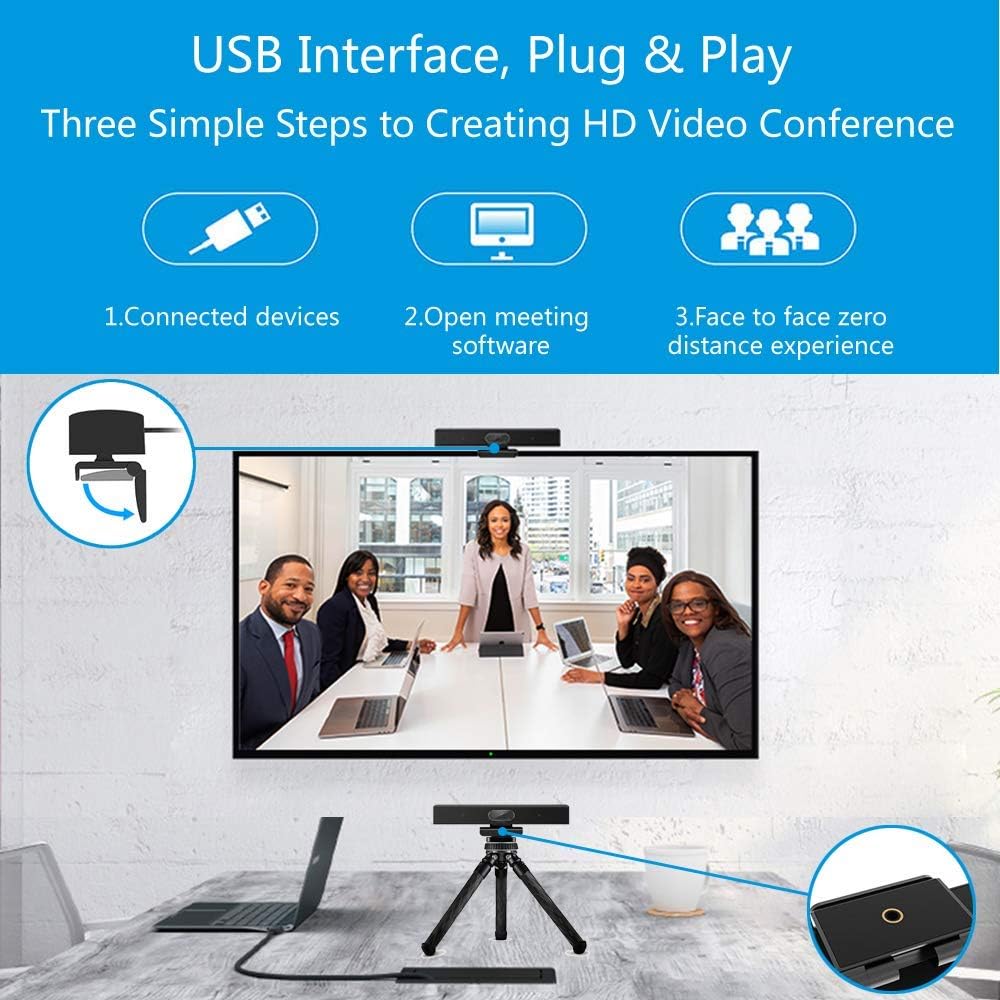
Image 4.3: Close-up view of the built-in speaker and the audio inverted phase port, designed to enhance sound quality for conference calls.
5. Specifications
| Category | Specification |
|---|---|
| Model Name | NV-VA101 |
| Image Sensor | 1/2.7" CMOS (Sony IMX307) |
| Effective Pixels | 2 Megapixel |
| F/NO (Max) | F2.5 |
| EFL (mm) | F=3.0mm |
| FOV (Diagonal) | 105° |
| Resolution | 1080P |
| Video Format | MJPEG |
| Frame Rate | 1920x1080@30fps, 1280x720@30fps, 800x600@30fps, 640x480@30fps, 320x240@30fps |
| Brightness/Contrast/White Balance | Auto |
| Minimum Illumination | 0.5Lux |
| Minimum Camera Distance | 50cm |
| Microphone Directionality | Omnidirectional |
| Microphone Pick Up Range | 3 meters |
| Microphone Frequency | 20Hz~20KHz |
| Microphone Sensitivity | -33dBFS |
| Audio DSP Algorithms | AEC, ANS, AGC supported |
| Speaker Frequency | 20Hz~20KHz |
| Speaker Rated Impedance | 4Ω |
| Speaker Rated Power | 2W |
| Interface | USB 2.0 Type-A |
| Power Consumption | 5V/500mA |
| Cable Length | 1.8m |
| Product Dimensions | 230mm x 60mm x 56mm |
| Product Weight | 0.45kg |
| Compatible Operating Systems | Linux, Windows 7/8.1/10/11, Mac OS 10.10 or higher |
| Compatible Devices | Desktop, Laptop, Smart TV |
6. Maintenance
To ensure the longevity and optimal performance of your iTOPVIS NV-VA101, follow these maintenance guidelines:
- Cleaning: Use a soft, dry cloth to clean the exterior of the device. For the camera lens, use a lens cleaning cloth and solution specifically designed for optics. Avoid abrasive cleaners or solvents.
- Storage: When not in use, store the device in a cool, dry place away from direct sunlight and extreme temperatures.
- Handling: Avoid dropping the device or subjecting it to strong impacts. Do not attempt to disassemble the unit, as this will void the warranty.
- Cable Care: Do not bend or crimp the USB cable excessively. Ensure the cable is not under tension when connected.
7. Troubleshooting
If you encounter issues with your iTOPVIS NV-VA101, refer to the following common troubleshooting steps:
7.1 No Video Output
- Check USB Connection: Ensure the USB cable is securely plugged into both the camera and your computer. Try a different USB port.
- Verify Device Recognition: Check your computer's Device Manager (Windows) or System Information (macOS) to confirm the camera is recognized.
- Software Selection: In your video conferencing application, ensure the iTOPVIS NV-VA101 is selected as the active camera device.
- Restart Application/Computer: Close and reopen the video conferencing application. If the issue persists, restart your computer.
- Camera Indicator: Confirm the camera indicator light is on when the camera is in use.
7.2 No Audio Input (Microphone)
- Software Selection: In your video conferencing application's audio settings, ensure the iTOPVIS NV-VA101 is selected as the microphone input device.
- System Volume/Mute: Check your computer's microphone volume settings and ensure the microphone is not muted.
- Application Mute: Ensure the microphone is not muted within the video conferencing application.
7.3 No Audio Output (Speaker)
- Software Selection: In your video conferencing application's audio settings, ensure the iTOPVIS NV-VA101 is selected as the speaker output device.
- System Volume/Mute: Check your computer's speaker volume settings and ensure the speaker is not muted.
- Application Volume: Adjust the volume within the video conferencing application.
8. Warranty and Support
The iTOPVIS NV-VA101 comes with a Qualification Certificate, indicating it meets quality standards. For specific warranty terms and conditions, please refer to the documentation provided with your purchase or contact iTOPVIS customer support.
For technical assistance or further inquiries, please contact your retailer or the manufacturer's support channels. Keep your purchase receipt and product model number (NV-VA101) available when seeking support.