
seenda Full-Size Backlit Wireless Keyboard and Mouse Combo
seenda Wireless Keyboard and Mouse Combo Instruction Manual
Model: Full-Size Backlit Wireless Keyboard and Mouse Combo
Brand: seenda
1. Introduction
Thank you for choosing the seenda Wireless Keyboard and Mouse Combo. This set is designed to enhance your productivity and gaming experience with its comfortable design, vibrant backlighting, and reliable wireless connectivity. This manual provides detailed instructions for setup, operation, maintenance, and troubleshooting to ensure optimal performance of your new device.
2. Key Features
- Rechargeable Design: Both the keyboard and mouse are rechargeable, eliminating the need for disposable batteries. The keyboard charges via USB-A to Type-C cable.
- Intelligent Power Management: Features an intelligent auto-sleep function and on/off switches on both devices to conserve battery life.
- Vibrant Backlighting: The keyboard and mouse feature illuminated backlighting with 3 adjustable brightness levels for comfortable use in various lighting conditions.
- Ergonomic Comfort: The keyboard includes foldable stands for an adjustable typing angle, and the mouse boasts an ergonomic design for comfortable grip and quiet clicks.
- Adjustable Mouse Sensitivity: The mouse offers 3 adjustable DPI levels (800/1200/1600) for precise cursor control.
- 2.4G Wireless Connectivity: Provides a stable and delay-free connection with a simple plug-and-play mini USB receiver, conveniently stored inside the mouse.
- Wide Compatibility: Compatible with Windows 2000, XP, Vista, Win 7, Win 8, Win 10, and Raspberry Pi 3/4. Note: Multimedia keys may have limited compatibility with Mac/OS systems.

Image: The seenda Wireless Keyboard and Mouse Combo, showcasing its full-size layout and vibrant rainbow backlighting.

Image: The keyboard and mouse combo set up on a desk, ready for use with a computer monitor.
3. Package Contents
- 1 x seenda Wireless Keyboard
- 1 x seenda Wireless Mouse
- 1 x 2.4G USB Receiver (stored inside the mouse)
- 1 x USB-A to Type-C Charging Cable
- 1 x User Manual (this document)
4. Setup Guide
- Charge the Devices: Before first use, ensure both the keyboard and mouse are fully charged. Connect the provided USB-A to Type-C charging cable to the keyboard's Type-C port and a USB power source. For the mouse, connect the same cable to its charging port. A red indicator light on the keyboard will turn off when fully charged.
- Locate USB Receiver: The mini 2.4G USB receiver is conveniently stored in a compartment on the underside of the mouse. Gently slide open the compartment cover to retrieve it.
- Connect Receiver: Plug the 2.4G USB receiver into an available USB-A port on your computer, laptop, or compatible device.
- Power On: Locate the ON/OFF switch on the back of the keyboard and the bottom of the mouse. Slide both switches to the 'ON' position. The devices should automatically connect to your computer.
- Adjust Keyboard Tilt: For optimal typing comfort, extend the foldable stands located on the underside of the keyboard to achieve your preferred typing angle.

Image: Demonstrating how to adjust the keyboard's tilt for an ergonomic typing position.
Video: An official product video from seenda demonstrating the setup process, including plugging in the USB receiver, and showcasing various features of the keyboard and mouse combo.
5. Operation
5.1 Keyboard Functions
- Backlight Control:
- Press Fn + Pause to turn on/off the breathing light mode.
- Press Fn + PgUp to increase backlight brightness.
- Press Fn + PgDn to decrease backlight brightness.
- Multimedia Keys: Use the 'Fn' key in combination with the F1-F12 keys for various multimedia and shortcut functions (e.g., volume control, media playback, web browser). Refer to the keycap icons for specific functions.
- Auto-Sleep Feature: The keyboard will enter sleep mode after a period of inactivity to save power. Press any key to wake it up.

Image: The keyboard highlighting the 'Fn' key and its combinations for controlling the rainbow backlight and brightness levels.

Image: The keyboard and mouse illuminated in a dark setting, demonstrating their effectiveness for typing in low-light conditions.
5.2 Mouse Functions
- DPI Adjustment: Press the DPI button (usually located behind the scroll wheel) to cycle through 3 adjustable DPI levels (800/1200/1600) to match your preference for speed and precision.
- Quiet Click: The mouse is designed for silent clicking, minimizing noise in quiet environments.
- Auto-Sleep Feature: The mouse will enter sleep mode after a period of inactivity. Move the mouse or click any button to wake it up.

Image: The wireless mouse highlighting its 3-level DPI adjustment, ergonomic design, and quiet click functionality.
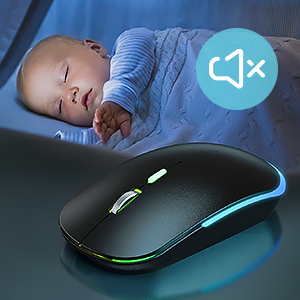
Image: A visual representation of the mouse's quiet click feature, suitable for use in silent environments.
6. Charging Instructions
Both the keyboard and mouse are equipped with built-in rechargeable batteries. When the battery is low, the indicator light on the device will flash or turn off. Use the provided USB-A to Type-C charging cable to recharge.
- Keyboard Charging: Connect the Type-C end of the charging cable to the keyboard's charging port (usually located on the top edge). Connect the USB-A end to a computer's USB port or a USB wall adapter. A red indicator light will illuminate during charging and turn off when fully charged.
- Mouse Charging: Connect the charging cable to the mouse's charging port. The mouse's backlight may change or indicate charging status.
- Charging Time: Allow sufficient time for a full charge, typically 2-3 hours for each device. You can generally use the keyboard while it is charging.

Image: The keyboard and mouse being charged simultaneously using the Type-C quick charge cable.
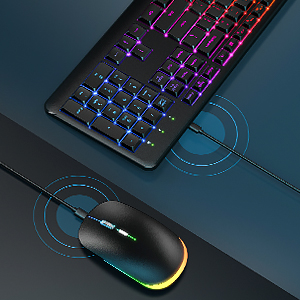
Image: A close-up view of the keyboard and mouse connected for charging, indicating the charging ports.
7. Maintenance
- Cleaning: Use a soft, lint-free cloth slightly dampened with water or a mild cleaning solution to wipe down the surfaces of the keyboard and mouse. Avoid excessive moisture.
- Storage: When not in use for extended periods, turn off both devices using their ON/OFF switches to preserve battery life. Store them in a cool, dry place away from direct sunlight and extreme temperatures.
- Liquid Resistance: The keyboard is designed with some liquid resistance. In case of minor spills, quickly wipe away the liquid and allow the keyboard to dry completely before further use. Do not immerse the keyboard in water.
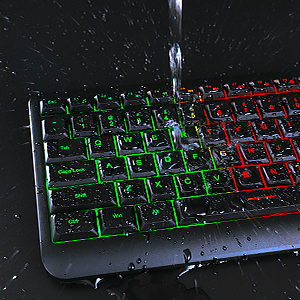
Image: A demonstration of the keyboard's water-resistant design, showing water splashing on the keys.
8. Troubleshooting
| Problem | Possible Solution |
|---|---|
| Keyboard/Mouse not responding | 1. Ensure both devices are powered ON. 2. Check if the USB receiver is securely plugged into a working USB port. 3. Recharge the keyboard and mouse fully. 4. Try plugging the USB receiver into a different USB port. 5. Restart your computer. |
| Backlight not working or dim | 1. Ensure the keyboard is powered ON. 2. Adjust brightness using Fn + PgUp/PgDn. 3. Ensure the keyboard has sufficient battery charge. |
| Mouse cursor erratic or unresponsive | 1. Ensure the mouse is powered ON. 2. Check battery level and recharge if necessary. 3. Clean the optical sensor on the bottom of the mouse. 4. Use the mouse on a clean, non-reflective surface. 5. Try adjusting the DPI settings. |
| Connection issues / Lag | 1. Ensure the USB receiver is close to the keyboard and mouse. 2. Avoid placing the receiver near strong interference sources (e.g., other wireless devices, large metal objects). 3. Try re-pairing the devices (if applicable, refer to specific pairing instructions if provided with product). |
9. Specifications
| Feature | Detail |
|---|---|
| Connectivity Technology | 2.4G Wireless (USB Receiver) |
| Keyboard Type | Full-Size, Backlit, Rechargeable |
| Mouse DPI Levels | 800 / 1200 / 1600 |
| Compatibility | Windows 2000/XP/Vista/7/8/10, Raspberry Pi 3/4 (Limited Mac/OS multimedia key compatibility) |
| Power Source | Built-in Rechargeable Battery |
| Charging Port | Type-C (Keyboard) |
| Item Weight | Approx. 1.81 pounds (for the combo) |
| Color | Black |
10. Warranty and Support
seenda products are manufactured to the highest quality standards. This product is covered by a standard manufacturer's warranty against defects in materials and workmanship. For detailed warranty information, technical support, or customer service inquiries, please refer to the warranty card included in your package or visit the official seenda website. Please retain your proof of purchase for warranty claims.
For further assistance, please contact seenda customer support through the contact information provided on their official website or product packaging.
Ask a question about this manual
Ask about setup, troubleshooting, compatibility, parts, safety, or missing instructions. Manuals+ will review the question and use this page’s manual context to help answer it.