
1. Introduction
This manual provides essential information for the safe and efficient operation, maintenance, and troubleshooting of your RRE Robot Vacuum Sweep and Mopping F8S. Please read this manual thoroughly before using the product and retain it for future reference.
2. Product Overview
The RRE F8S is a versatile robotic vacuum cleaner designed for both sweeping and mopping. It features powerful suction, smart navigation, and convenient control options to simplify your cleaning routine.
Key Features:
- 2-in-1 Sweeping and Mopping: Combines vacuuming and wet mopping for comprehensive floor cleaning.
- 1800Pa Powerful Suction: Effectively cleans dirt, dust, and pet hair from various surfaces.
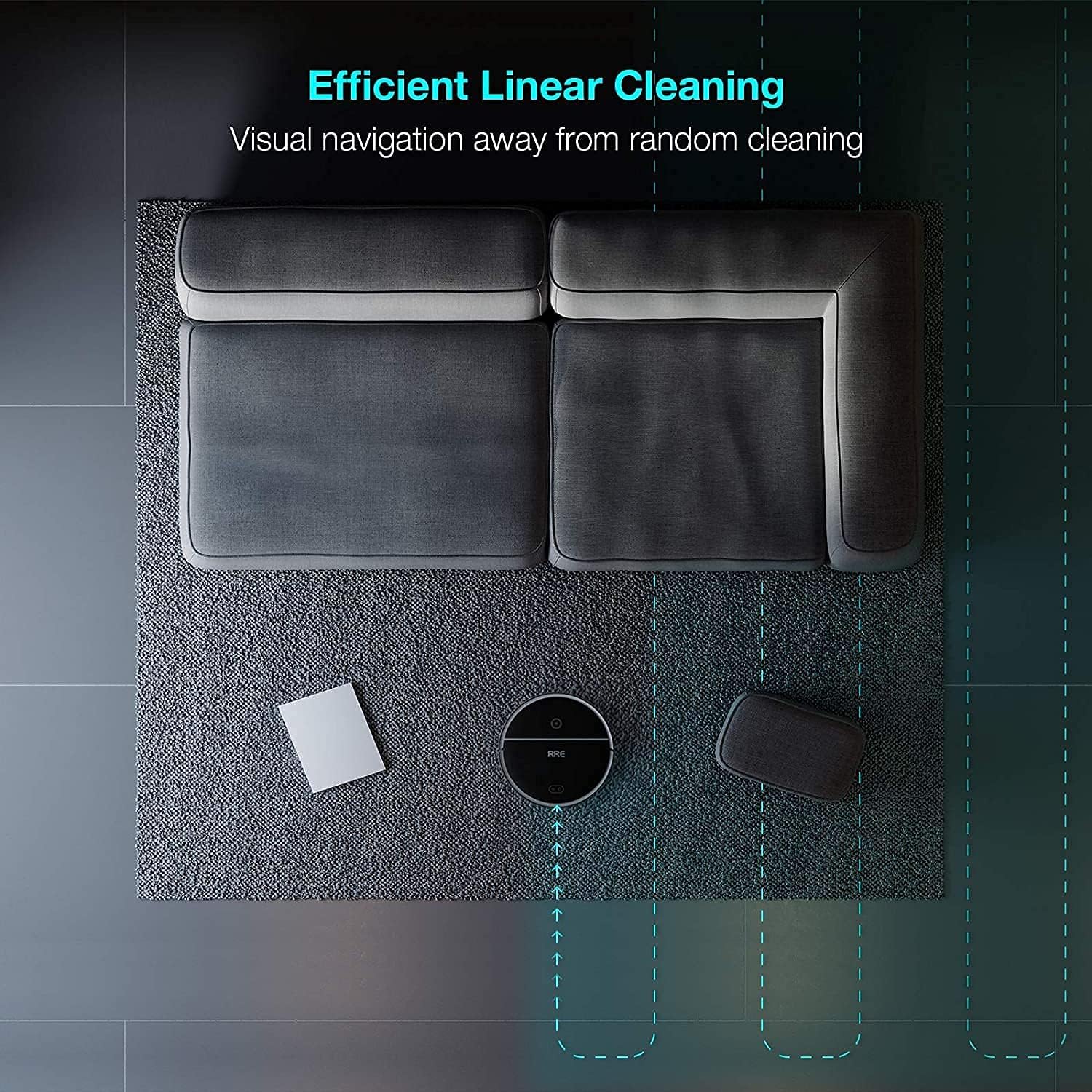
- Visual + Gyro Navigation: Utilizes advanced navigation to create accurate maps and ensure systematic cleaning without missing areas.
- Ultra-Slim Design: Allows the robot to clean under furniture and in hard-to-reach areas.
- Anti-Falling and Anti-Collision Sensors: Detects obstacles and stairs to prevent damage and falls.
- Self-Charging: Automatically returns to the charging dock when the battery is low and resumes cleaning from where it left off after recharging.
- Wi-Fi Connected (App & Voice Control): Control the robot via a smartphone app or voice commands through Amazon Alexa and Google Assistant.


3. Setup
3.1 Unboxing and Initial Placement
Carefully remove all components from the packaging. Place the charging dock against a wall in an open area, ensuring there are no obstacles within 1 meter (3 feet) to the front and 0.5 meters (1.5 feet) to the sides.
3.2 Charging the Robot Vacuum
Connect the power adapter to the charging dock and plug it into a wall outlet. Place the robot vacuum onto the charging dock. Ensure the charging contacts on the robot align with those on the dock. The indicator light will show charging status.
3.3 Installing Side Brushes
The side brushes are crucial for effective edge cleaning. To install:
- Place the side brush into its corresponding slot on the underside of the robot.
- Gently press the side brush and rotate it until you hear a click, indicating it is fixed.
3.4 Wi-Fi Connection (App Setup)
To utilize smart features and app control, connect your robot vacuum to Wi-Fi:
- Download the "Tuya Smart" app from your smartphone's app store.
- Sign up for an account or log in if you already have one.
- In the app, click "Add Device" then navigate to "Small Home Appliances" and select "Robot Vacuum (WIFI)".
- Enter your 2.4GHz Wi-Fi network name and password. Confirm the password is correct. Note: The robot vacuum only supports 2.4GHz Wi-Fi networks.
- Lift the surface cover of the robot and long-press the Wi-Fi key until you see it flash.
- Wait for the app to connect to the device. Once connected, the app will confirm.
4. Operating Instructions
4.1 Starting and Stopping Cleaning
You can start or stop the cleaning cycle using the physical button on the robot, the remote control, or the smartphone app.
4.2 Cleaning Modes
The RRE F8S offers various cleaning modes:
- Auto Cleaning: The robot intelligently navigates and cleans your home.
- Spot Cleaning: Focuses on a specific dirty area.
- Edge Cleaning: Cleans along walls and furniture edges.
- Scheduled Cleaning: Set specific times for the robot to clean automatically via the app.
4.3 Navigation and Obstacle Avoidance
The robot uses visual and gyro navigation to map your home and clean systematically. Built-in high-sensitivity sensors detect surrounding objects to avoid collisions with furniture and drop-sensing technology prevents falls from stairs.


4.4 Cleaning Different Surfaces
The RRE F8S is suitable for hard floors and carpets. Its 0.67-inch climbing ability allows it to transition between different floor types.


5. Maintenance
Regular maintenance ensures optimal performance and extends the lifespan of your RRE Robot Vacuum.
5.1 Cleaning the Dustbin and Filter
- Open the top cover of the robot and take out the dustbin.
- Remove the filter from the dustbin.
- Empty the dustbin and clean the filter.
- Reinsert the filter into the dustbin and place the dustbin back into the robot.
Warm tip: If you wash the filter with water, please let it dry naturally before putting it back in the dust box.
5.2 Cleaning the Sweeping Brush
The sweeping brush may accumulate tangled hair and debris. Clean it regularly:
- Take the sweeping brush out from the underside of the robot.
- Use scissors to cut any tangled hair around the brush.
- Remove all hair and debris from the brush.
- Reinstall the sweeping brush.
Warm tip: The sweeping brush may get tangled with hair, please check it regularly.
6. Troubleshooting
If you encounter issues with your RRE Robot Vacuum, refer to the following common problems and solutions:
6.1 Wi-Fi Connection Failed
- Confirm if the app has access to Location, Bluetooth, Network, and Home Data.
- Confirm that the Wi-Fi password you entered is correct.
- Confirm that your Wi-Fi network is 2.4GHz, not 5GHz.
- Confirm that the Wi-Fi signal is strong in the robot's operating area.
6.2 Robot Gets Stuck Frequently
- Clear obstacles such as loose cables, small rugs, or lightweight furniture from the cleaning path.
- Ensure the robot's wheels are not tangled with hair or debris.
- Check if the robot is attempting to climb over thresholds or objects higher than 0.67 inches.
6.3 Poor Suction Performance
- Empty the dustbin and clean the filter thoroughly.
- Clean the main sweeping brush and side brushes for any tangled hair or debris.
- Ensure the suction inlet is not blocked.
6.4 Mop Function Not Effective
- Ensure the water tank is filled and properly installed.
- Check if the mopping cloth is clean and correctly attached.
- For optimal mopping, ensure the floor is pre-vacuumed to remove loose debris.
7. Specifications
| Feature | Specification |
|---|---|
| Brand | RRE |
| Model Name | F8S |
| Surface Recommendation | Hard Floor, Carpet |
| Special Feature | Smart Mapping |
| Color | Black |
| Controller Type | App Control, Voice Control, Remote Control |
| Filter Type | Cartridge |
| Power Source | Corded Electric |
| Batteries Included | Yes |
| Compatible Devices | Amazon Echo, Google Home |
| Form Factor | Robotic |
| Item Dimensions L x W x H | 3.1"L x 3.1"W x 3.1"H |
| Noise Level | 60 Decibels |
| Included Components | Brush |
| Manufacturer | FOZOTO Electricity LTD. |
8. Warranty and Support
8.1 Warranty Information
The RRE Robot Vacuum Sweep and Mopping F8S comes with a 12-month warranty from the manufacturer, FOZOTO Electricity LTD. Please retain your proof of purchase for warranty claims.
8.2 Customer Support
For any questions, technical assistance, or warranty inquiries, please contact RRE customer support through the retailer where you purchased the product or refer to the contact information provided in your product packaging.