
1. Introduction
This manual provides detailed instructions for the installation, operation, and maintenance of your XENOCAM 8-Channel 5M-N/1080N Hybrid Digital Video Recorder (DVR). This DVR supports multiple video input modes including AHD, TVI, CVI, Analog, and IP cameras, offering a versatile solution for your security surveillance needs. Please read this manual thoroughly before using the product to ensure proper setup and functionality.
2. Package Contents
Verify that all items listed below are included in your package. If any items are missing or damaged, please contact your retailer.
- 1x XENOCAM 8-Channel 5M-N/1080N DVR (Hard Disk Drive NOT included)
- 1x Power Supply
- 1x USB Mouse
- 1x User Manual (this document)

Figure 2.1: Package Contents. This image displays the XENOCAM 8-Channel DVR unit, its power adapter, a USB mouse, and the printed user manual, confirming all standard inclusions.
3. Product Overview
The XENOCAM 8-Channel Hybrid DVR is designed for comprehensive video surveillance. It features multiple video input ports, audio input/output, and various connectivity options for seamless integration into your security system.
3.1 Front and Rear Panels

Figure 3.1: Front and Rear Panels. The top image shows the front panel with navigation buttons (ESC, MENU, OK, directional arrows) and a USB port. The bottom image displays the rear panel with 8 BNC video input ports, HD-port (HDMI), AUDIO IN/OUT (RCA), VGA, NET (RJ-45), USB, and DC 12V power input.
3.2 Dimensions
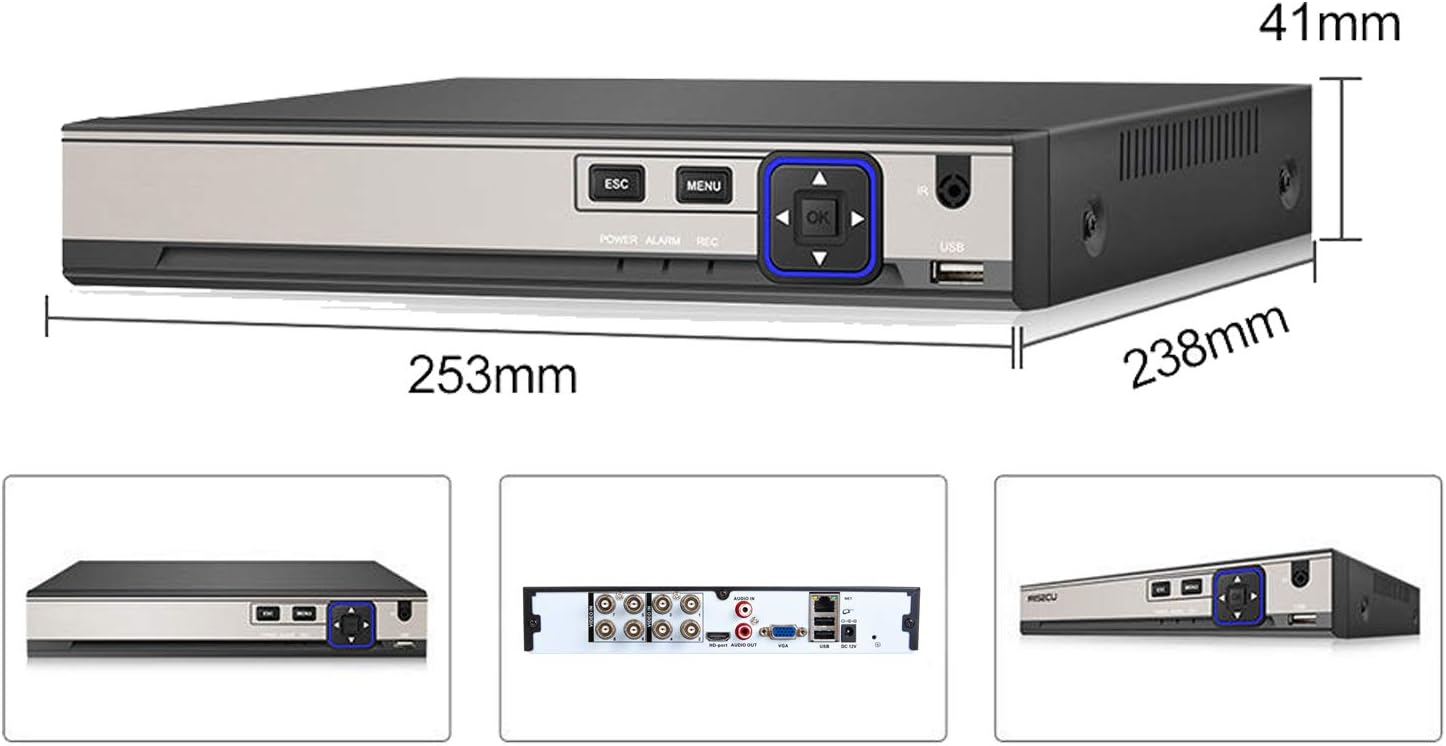
Figure 3.2: DVR Dimensions. The image illustrates the physical dimensions of the DVR unit: approximately 253mm in length, 238mm in width, and 41mm in height.
4. Setup
4.1 Hard Disk Drive (HDD) Installation
This DVR does not include a pre-installed HDD. An HDD is required for recording video. The DVR supports one SATA HDD interface with a maximum capacity of 6TB.
- Unscrew and remove the top cover of the DVR.
- Connect the SATA data cable and power cable from the DVR to your HDD.
- Secure the HDD to the bottom of the DVR chassis using the provided screws.
- Replace the top cover and secure it with screws.
4.2 Connecting Cameras and Display
- Connect your AHD/TVI/CVI/Analog cameras to the BNC VIDEO IN ports on the rear panel.
- Connect a monitor to the HDMI or VGA output port.
- Connect the USB mouse to one of the USB ports.
- Connect the power adapter to the DC 12V input and plug it into a power outlet.
- The DVR will power on automatically.
4.3 Initial Configuration
Upon first boot, you will be prompted to set up basic parameters. The default login username is Admin. You must set a password for the device to access the system.
- Follow the on-screen prompts to set the language, time zone, and date format.
- Set a strong password for the 'Admin' user.
- If an HDD is installed, the system may prompt you to format it. Confirm to proceed.
4.4 Network Setup
Connect an Ethernet cable from your router to the NET (RJ-45) port on the DVR. The DVR supports 10M/100Mbps network speeds.
- From the Main Menu, navigate to System > Network.
- Ensure DHCP is enabled for automatic IP address assignment, or configure a static IP address manually.
- Test network connectivity.
4.5 Channel Type Configuration (Hybrid Mode)
This DVR supports various camera types. If your cameras are not displaying, you may need to adjust the channel type settings.
- Right-click on the live view screen to open the Main Menu.
- Navigate to System > Digital.
- In the ChannelType menu, select the appropriate mode for your cameras (e.g., 1080N for analog/AHD, or IP for network cameras). The DVR supports hybrid modes like 4ch 1080N AHD + 4ch 1080P IP.
- Click OK and the DVR will reboot to apply changes.
Video 4.1: XENOCAM AHD DVR Operation Introduction. This video demonstrates the initial setup and menu navigation of the XENOCAM DVR, including how to access system settings, adjust display resolution, and configure channel types for different camera inputs. It also shows how to check for storage abnormalities.
5. Operating
5.1 Live View
After successful setup, the DVR will display the live feed from connected cameras. You can switch between single-camera view and multi-camera grid views (1/4/8 screen display) using the on-screen menu or mouse controls.
5.2 Recording Modes
The DVR supports various recording modes:
- Manual: Start/stop recording manually.
- Alarm: Records when an alarm event is triggered.
- Motion Detection: Records when motion is detected in the camera's view.
- Timing: Records according to a pre-set schedule.
Configure recording settings via Main Menu > Record.
5.3 Playback
To view recorded footage:
- Right-click on the live view screen and select Playback.
- Select the desired date and camera channel.
- Use the timeline to navigate and play recordings.
5.4 Remote Access (P2P Monitoring)
The DVR supports P2P (Peer-to-Peer) remote monitoring via the XMeye free app for Android and iOS devices.
- Download the XMeye app from your device's app store.
- Register an account if you don't have one.
- Add your DVR by scanning the unique QR code displayed on the DVR's screen (usually found in System > NetService or Info > Version).
- You can now view live streams and playback recordings remotely.
5.5 Motion Detection & Instant Alerts
Configure motion detection to trigger recordings and receive alerts.
- Navigate to Main Menu > Alarm > Motion Detect.
- Enable motion detection for desired channels.
- Set the detection area and sensitivity.
- Configure alert actions such as email notifications or mobile app alerts.
6. Maintenance
6.1 Hard Disk Drive Management
Regularly check the status of your HDD to ensure continuous recording. The DVR will overwrite old footage when the HDD is full, based on your settings.
- To check HDD information, go to Main Menu > Info > HDD Info.
- If you encounter 'No Storage' errors, ensure an HDD is properly installed and formatted.
6.2 Cleaning
Keep the DVR unit clean and free from dust to prevent overheating and ensure optimal performance. Use a soft, dry cloth for cleaning. Do not use liquid cleaners.
7. Troubleshooting
| Problem | Possible Cause | Solution |
|---|---|---|
| No video displayed on monitor | Loose cable connection, incorrect display resolution, incorrect channel type. | Check HDMI/VGA cable connections. Adjust display resolution via System > DISPLAY. Verify channel type settings in System > Digital. |
| "No Storage for Recording!" message | No HDD installed, HDD not formatted, HDD faulty. | Install an HDD. Format the HDD via Main Menu > Advanced > HDD Info. Replace faulty HDD if necessary. |
| Cannot access DVR remotely | Network issue, incorrect app settings, firewall blocking. | Ensure DVR is connected to the internet. Check network settings (DHCP/Static IP). Verify QR code scan in XMeye app. Check router firewall settings. |
| Forgot password | Password lost or forgotten. | Contact XENOCAM support for password reset procedures. |
8. Specifications
| Feature | Specification |
|---|---|
| Video Input | 8-channel BNC input |
| Video Output | HDMI/VGA (up to 1080P) |
| Audio Input/Output | 1CH/1CH RCA |
| Video Compression | H.265 |
| Preview Quality | 8*5M-N@12fps (6 in 1); 8*4M-N@15fps (6 in 1); 8*1080N (6 in 1) |
| Record Resolution & Frame | 8*5M-N@8fps (6 in 1); 8*4M-N@8fps (6 in 1); 8*1080N@15fps (6 in 1) |
| Playback Quality | 4*5M-N@8fps (6 in 1); 8*4M-N@8fps (6 in 1); 8*1080N@15fps (6 in 1) |
| Record Modes | Manual, Alarm, Motion Detection, Timing |
| Backup Modes | Network, USB portable HDD, USB DVD-RW |
| HDD Interface | 1x SATA (Max 6TB) |
| Network Interface | 1x RJ-45 10M/100Mbps |
| USB Interface | 2x USB 2.0 |
| DVR Modes | DVR: 8*5M-N; 8*1080N Hybrid: 4ch 1080N AHD + 4ch 1080P IP NVR: 16*1080P; 8*5M |
| Mobile App | XMeye (free) |
| PC Software | CMS, VMS |
| Product Dimensions | 9.96 x 9.37 x 1.65 inches (253 x 238 x 41 mm) |
| Item Weight | 2.59 pounds |
9. Warranty and Support
XENOCAM products are designed for reliability and performance. For warranty information, technical support, or service inquiries, please refer to the warranty card included with your product or visit the official XENOCAM website. Please retain your proof of purchase for warranty claims.