1. Introduction
This manual provides detailed instructions for the Hama USB-C Hub Multiport Adapter, model 00200107. Please read this manual thoroughly before using the device to ensure proper operation and to prevent damage. Keep this manual for future reference.
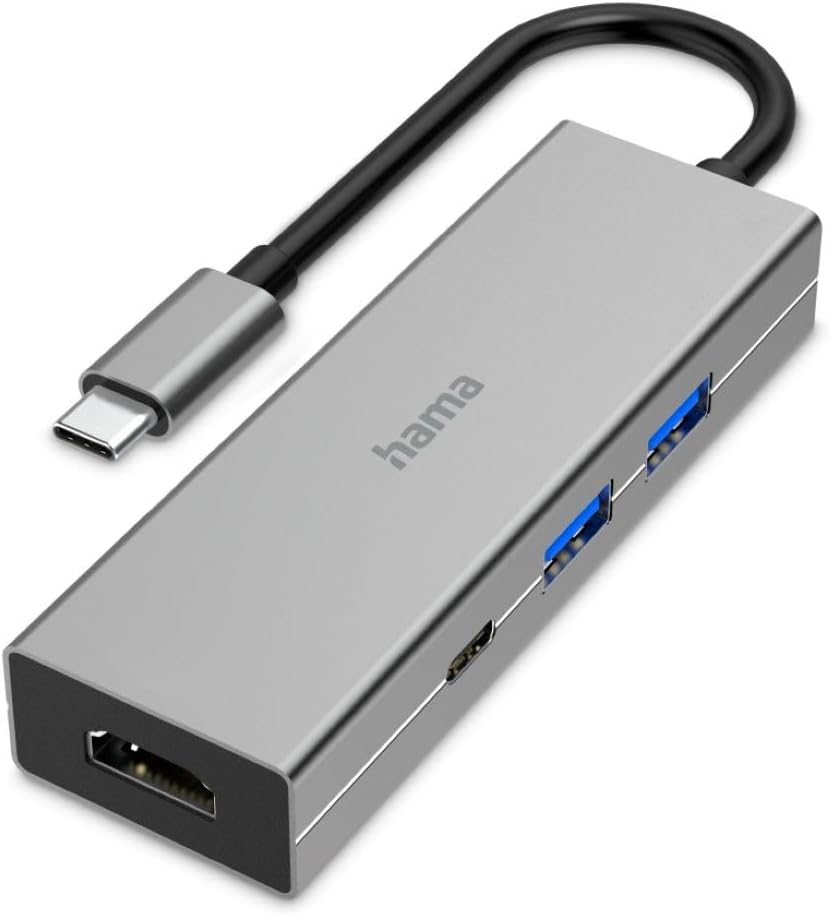
Image 1.1: The Hama USB-C Hub Multiport Adapter, showcasing its compact design and various ports. This adapter expands the connectivity of your USB-C enabled device.
2. Safety Instructions
- Do not open the device or continue to operate it if it becomes damaged.
- Do not attempt to service or repair the product yourself. Leave any service work to qualified experts.
- Protect the product from dirt, moisture, and overheating.
- Do not use the product in extremely humid environments or where temperatures are extreme.
- Keep this product, as all electrical products, out of the reach of children.
3. Package Contents
- Hama USB-C Hub Multiport Adapter (Model 00200107)
- This User Manual
4. Product Features
The Hama USB-C Hub Multiport Adapter (00200107) is designed to expand the connectivity of your USB-C enabled laptop or device. Key features include:
- USB-C Connectivity: Connects to your host device via a USB-C port.
- Multiple USB-A Ports: Provides additional USB-A ports for connecting peripherals.
- HDMI Output: Allows connection to an external display or projector.
- Aluminium Housing: Durable and lightweight design.
- Plug & Play: No driver installation required for most operating systems.
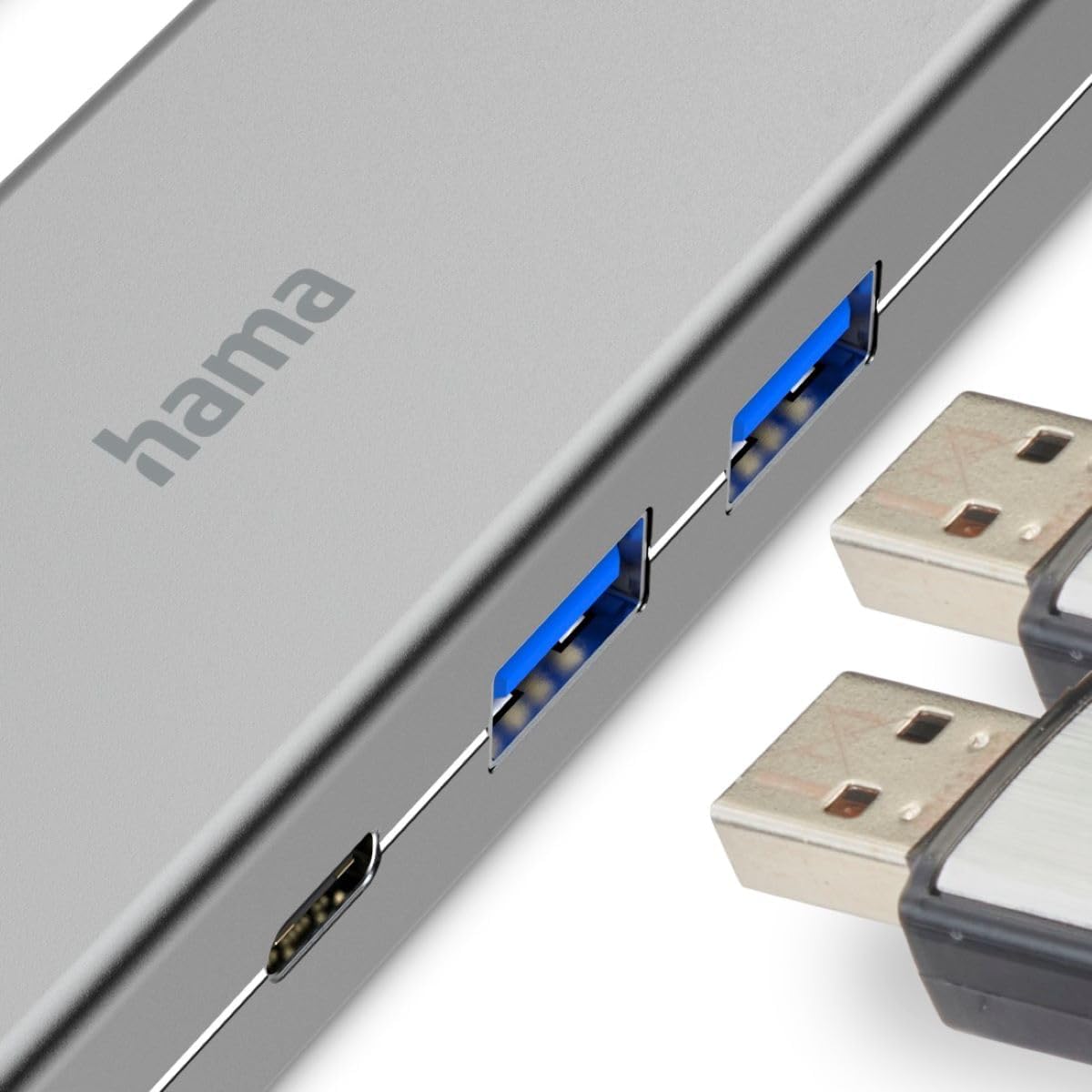
Image 4.1: A close-up view of the Hama USB-C Hub's ports, including the USB-A ports and the USB-C Power Delivery port, ready for connecting various devices.
5. Setup
Follow these steps to set up your Hama USB-C Hub Multiport Adapter:
- Connect the Hub: Plug the USB-C connector of the Hama Multiport Adapter into an available USB-C port on your laptop or compatible device. Ensure the connection is secure.
- Connect Peripherals:
- For USB devices (e.g., mouse, keyboard, USB flash drive), connect them to the USB-A ports on the hub.
- For an external display, connect an HDMI cable from your monitor to the HDMI port on the hub.
- If your laptop requires charging via USB-C, connect your laptop's USB-C power adapter to the USB-C Power Delivery (PD) port on the hub. This allows your laptop to charge while using the hub.
- System Recognition: Your operating system (Windows 11/10/8/7, Mac OS ≥10.8) should automatically detect and install the necessary drivers. No manual driver installation is typically required.
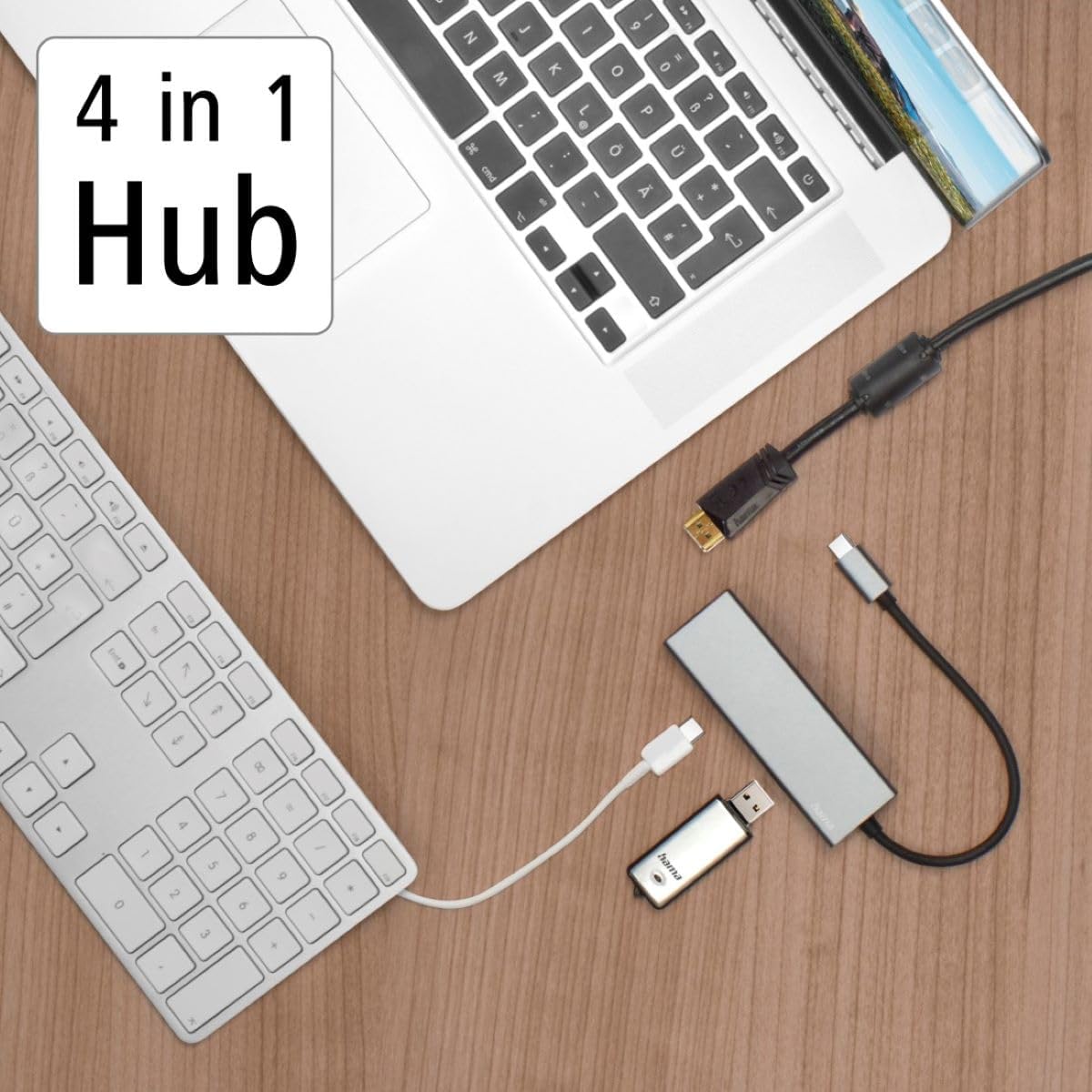
Image 5.1: The Hama USB-C Hub connected to a laptop, demonstrating its use with a keyboard and a USB flash drive, illustrating its "4 in 1" functionality.

Image 5.2: A laptop connected to an external monitor via the Hama USB-C Hub, showcasing its video output capability for extended desktop use.
6. Operating Instructions
Once the hub is set up, it operates as an extension of your device's ports.
- USB-A Ports: Use these ports to connect standard USB devices such as external hard drives, USB flash drives, keyboards, mice, and other USB peripherals. Data transfer speeds will depend on the connected device and the hub's specifications.
- HDMI Port: Connect an HDMI cable from this port to an external display (monitor, TV, projector). Your operating system's display settings can then be used to configure the external display (e.g., extend desktop, duplicate display).
- USB-C Power Delivery (PD) Port: This port is for power input only. Connect your laptop's original USB-C power adapter to this port to charge your laptop through the hub. This port does not support data transfer.

Image 6.1: The Hama USB-C Hub connected to a modern laptop, illustrating its compatibility with Windows (11/10/8/7) and Mac OS (≥10.8) operating systems.
7. Care and Maintenance
- Only clean this product with a slightly damp, lint-free cloth and do not use aggressive cleaning agents.
- Ensure that no water gets into the product.
- Store the product in a clean, dry place away from direct sunlight and extreme temperatures.
8. Troubleshooting
8.1. Device Not Recognized
- Ensure the USB-C connector is fully inserted into your host device.
- Try connecting the hub to a different USB-C port on your device, if available.
- Restart your computer.
- Verify that your device's USB-C port supports the necessary functions (e.g., DisplayPort Alternate Mode for HDMI output, Power Delivery for charging). Not all USB-C ports are identical.
8.2. External Display Not Working
- Check the HDMI cable connection between the hub and the monitor.
- Ensure the monitor is powered on and set to the correct input source (HDMI).
- Verify your laptop's display settings to detect and configure the external monitor.
- Confirm that your laptop's USB-C port supports DisplayPort Alternate Mode.
8.3. Charging Issues
- Ensure your laptop's original USB-C power adapter is connected to the hub's USB-C PD port.
- Verify that your laptop supports charging via its USB-C port.
- Check if the power adapter and cable are functioning correctly by connecting them directly to your laptop.
9. Specifications
| Feature | Detail |
|---|---|
| Model Number | 00200107 |
| Brand | Hama |
| Hardware Interface | USB-C (input), USB-A (output), HDMI (output), USB-C Power Delivery (input) |
| Compatible Devices | Laptops with USB-C port supporting DisplayPort Alternate Mode and/or Power Delivery |
| Operating Systems | Windows 11/10/8/7, Mac OS ≥10.8 |
| Special Feature | Aluminium housing |
| Product Dimensions (LxWxH) | 3.94 x 1.3 x 0.67 inches (10 x 3.3 x 1.7 cm) |
| Item Weight | 2.36 ounces |

Image 9.1: The Hama USB-C Hub with its dimensions clearly labeled in centimeters, providing a visual reference for its compact size.
10. Warranty and Support
Hama GmbH & Co KG assumes no liability and provides no warranty for damage resulting from improper installation/mounting, improper use of the product or from failure to observe the operating instructions and/or safety notes.
For technical support or warranty inquiries, please contact your local Hama customer service or visit the official Hama website for more information. Keep your proof of purchase for warranty claims.
Hama GmbH & Co KG
86652 Monheim/Germany
www.hama.com